

This month we discuss in-depth features in Waveburner and look at some of the included plug-ins that can be used to polish up a mastering project.
Having looked at the basic operation of Waveburner last month, I thought it would be useful to follow up with some information on how to take your project from raw audio files to Red Book-standard CD.
 You can choose the best dithering algorithm for your material.
Having imported the number of tracks you wish to collate for your album, you will need to order them appropriately in the Regions list. This will automatically arrange the audio for you in the main wave viewer. What you do next is up to you, but I'd suggest that you order and gap your tracks before applying too much processing. It's strange how the separation between tracks and their order can alter the whole mood and impact of an album. I like to get this right first, then start with the processing, by which time the most appropriate tweaks for the whole album may have become apparent.
The spacing between tracks can be set using the Region list, but can also be done graphically in the main wave viewer. Here you can also manage the 'track start' ID flags to create the right start point for each track. Also, should you wish to create a hidden track, simply add an extra region of audio to the end of the album and delete the track ID flags for the last track. You can extend the purple section to tailor the length of silence to suit your needs. The CD player will think that the extra track is part of the preceding track, giving it the appearance of being hidden.
Assuming that your tracks all have a similar feel and have all been mixed by the same engineer and studio combination, you could, in theory, apply the same mastering processing across the whole project. If this is the case, you should apply all the plug-ins to the mix, using the Mix plug-ins tab on the bottom right of the Waveburner GUI. However, it is more conventional, and much better practice, to optimise each track individually with whatever processing is needed to achieve the best result. This can be done by inserting plug-ins on a per-track basis in the Region plug-ins tab. To speed up the process, a chain of plug-ins can be saved and then recalled and tweaked for each region. If you are processing on a per-track basis, overall mix plug-ins such as the Limiter can be used at the end of the chain.
POW-R Dithering Algorithms
There may be times when you have chosen to work with a higher word length than the CD Red Book standard of 16 bits. Dithering is the process by which a higher bit-rate file is converted to 16-bit. Waveburner offers several choices of dithering algorithm, the choice of which can alter the sound of your piece quite dramatically. Logic and Waveburner include the licensed POW-R set of algorithms created by POW-R Consortium LLC (mil-media.com/docs/articles/powr.shtml). These are very well respected dithering algorithms and are widely used within the industry. The algorithm choice is changed by going to the Preferences pane and selecting the Bounce tab. Choosing the right algorithm to suit the type of music can be guided by Logic 's own explanation. The manual recommends the first option for most applications, but for more extension to the dynamic range, use POW-R type 2. For speech-based audio, you should use POW-R type 3. The latter two options employ 'noise-shaping' to increase the dynamic range. The best approach in many cases is to use your ears and make a subjective judgement.
Plugging In The Processing
Which plug-ins you use (and in what order) will depend on your personal preferences and what you actually have on your system, but Waveburner 's own plug-ins, such as the Multipressor multi-band compressor and the Linear Phase EQ, are actually very respectable processors. Waveburner certainly offers enough flexibility to create a professional-sounding product using just the on-board tools.
 The Bounce Project tool creates a single waveform that includes all applied processing.
To select a plug-in, choose from one of the two lists: Add Plug-in, or Plug-in Chain. Clicking 'Add Plug-in' reveals a drop-down menu of the available plug-ins in your system. Simply choose the plug-in and watch it load. Each processor will appear in the plug-in list and you can expose the editable parameters by clicking on the expander triangle to the left of each plug-in. However, if you double-click on the plug-in name, the plug-in's GUI will be launched, making the overall experience much more intuitive.
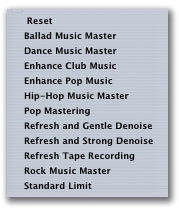 The Plug-in Chain menu offers factory presets, which are great to get you started if you're new to mastering. Alternatively, you can create your own.
The Plug-in Chain list can be called upon to get you started if you are new to the mastering discipline. There are different choices available, depending on the type of material, but be aware that no preset plug-in chain can be the fix-all solution, and tweaking the processing is strongly advised. However, these presets are excellent to give you an idea of the right order of plug-ins and the way in which they interface with each other. Useful chains can be saved for future use by selecting the 'save plug-in chain' command in the drop down menu.
Mastering Multipressor
Specific mastering processors are included, such as Multipressor, Logic 's own multi-band compressor. This is a very flexible and powerful dynamics processor, and it's fairly transparent-sounding, too. Its interface may seem a little daunting at first, however, as the display simultaneously shows a number of parameters for each of the separate bands, and there can be up to four of these, determined by using the drop-down menu to the right of the GUI.

Clicking on the line between two bands and dragging left or right in the display alters the crossover frequencies between bands, and scrolling up and down alters the ratio, threshold and make-up gain in one block, depending on where you click. It's a good idea to experiment with some of the controls on the processor to see how the graphic display changes. If you want to assign the knobs and sliders that are arranged around the GUI's periphery, you need to click on one of the coloured bars in the display. You'll notice that the backdrop colour behind each knob and slider then corresponds with the selected band.
Multipressor has an expander and compressor on each band, with thresholds handled by different sliders, allowing for plenty of fine-tuning as required. The Peak/RMS control allows you to tailor the way in which Waveburner responds to audio; fast transients will be detected by Peak mode, whilst RMS responds to the average power in the signal, rather more like human hearing. Multipressor also has a compression graph, which depicts each band by its associated colour.
 Multipressor is a versatile multi-band compressor. The graphic grid allows you to set individual band thresholds and crossover frequencies between bands. Each of the bands can be selected for detailed editing by clicking on it in the graphic grid. Alongside this graph, there are vertical meters that show the level and gain-reduction for each band. Below each meter is a small green switch that, when depressed, allows you to mute each band individually so that you can closely select your crossover frequencies and check the compression is acting as you would like. There's also a look-ahead delay parameter, which allows the compressors to respond more intelligently to the upcoming audio data.
Get In Line
Another useful plug-in is the Linear Phase EQ. It has four fully parametric bands, two shelving bands, and high-pass and low-pass filters, which should cover most eventualities. An analyser, which displays graphic information about the musical energy within the signal, can be selected to operate post- or pre-EQ, for visual 'before' and 'after' comparison. The display's resolution can be controlled by a drop-down menu, which defaults to 'low' on my machine, but will need to be set to 'high' to give meaningful results on low-frequency signals. Traditional equalisers introduce significant amounts of phase shift at different frequencies, and the more EQ you use, the more phase shift you get. This is not always a bad thing when EQ'ing an individual instrument, and sometimes adds to the character of the EQ'd sound, but is not so desirable for EQ'ing a complete mix. The Phase linear EQ introduces no phase shift, whatever you do with it, thereby maintaining a purer sound more suitable for mastering. It is very processor intensive, however, creating considerable latency that makes it unsuitable for use when recording, but, of course, that is not an issue when mastering.
The main EQ window shows a very detailed graph of the alterations made to the EQ curve. This window is interactive and any band can be edited provided it is activated, using the band's accompanying switch above. As you click in a band, the corresponding parameters in the controls area below are highlighted to guide you. If you are going to set EQ from within the window directly, it is important that you know where to click, to ensure that you are altering the right parameter. It is easy to get confused and start altering the Q (bandwidth), when you wanted to change the gain of the band, for example. The on-screen guides work like this: when you're editing a particular band, a small circle will denote the peak of the curve. If this is filled in, your vertical movements will alter the bandwidth. If the circle is transparent in the centre, vertical movements will alter the gain or attenuation of the curve. Left-to-right mouse movements will alter the band's frequency. The table below the graphical display contains all the parameters, so you can make more precise tweaks by inputting figures manually.
Logic On The Quad G5
After months of complaints about the lack of support for Quad G5 Power Macs, Apple have released Logic v7.2.3 which finally works properly with these machines. I could almost hear the collective sigh of relief from Quad G5 owners at the news, and the the squirms of embarrassment from those on the various Internet fora who had boldly stated that Apple would never support these Macs. It's Apple's own fault, really; if they ever let Logic users know what was coming up it might stave off some of the occasionally frenetic criticism of their products. Other companies, notably Steinberg (who are now owned by Yamaha), are perfectly willing to let their users have details of future products and upgrades. Apple's 'we cannot talk about forthcoming projects' policy is deeply embedded in the company's ethos and is unlikely to change in the near future. But I do feel that it hurts their image (and sales) and I'm not really sure how revealing that you will answer a specific criticism of a specific program could really do any harm. Early reports from Quad G5 users is that they are getting about a 25 to 30 percent increase in performance over version 7.2.2 (although it's hard to quantify these results) and that the same songs running on an Intel Quad are showing similar performance levels. If true, it clarifies the fact that the G5 is very good processor indeed and that it's a pity that it wasn't (or couldn't be) developed further by IBM.
Speaking of Steinberg, many of us (including me) have now got our hands on Cubase 4, and I have to say it's come on a long way from the creaky Mac software that caused me to jump ship to Logic long ago. Whenever a new version of Cubase or Live, or almost anything, really, appears, the Logic fora are full of people who are considering dumping what they consider to be an 'old fashioned' or underspecified program for one of the newer, shinier, models, but getting to grips with Cubase again reminded me that changing DAWs is not a trivial undertaking and should be added to the list of 'most stressful things to do in life', along with moving house and getting divorced! We all have a lot of time and energy invested in Logic and most of us, if we really think about it, aren't about to throw it all into the wind in a fit of pique. And remember; the grass isn't always greener on the other side of the sequencer fence; it's really just another shade of green. Of course, most of the naysayers don't actually stop using Logic; they usually just keep quiet until the next crisis comes along. I see that the quantity of 'When is Logic 8 coming out?' forum posts has increased recently. The answer to that question is, of course, whenever Apple choose to release it! Stephen Bennett
The Logic Set
The compressor and limiter are the same as the ones you can find in the standard set of Logic plug-ins, and while they're respectable for processing single instruments, running wideband information through them does not produce particularly polished results, so I'd advise avoiding them for mastering purposes. The limiter can be a little too severe and lacking in transparency, so you may want to try a third-party Audio Units-compatible plug-in for these duties.
 The Volume plug-in looks really simple but facilitates changes in the stereo width, volume and balance of the signal. The Volume plug-in, which allows a change in the overall volume of the track, is a very useful tool for the Waveburner user. Where it comes into its own is in the fact that it allows for very simple alteration of the stereo width of a signal. The stereo width feature is also good if the left and right channels are inverted, as you can simply slide them until they swap over!
In addition to the more standard plug-ins, Waveburner offers some other useful tools such as Denoiser and Stereo Spread. Denoiser is a simple processor that will try to eliminate any background noise that can be heard within the audio signal. However, it should be used sparingly, as artifacts can be heard within the desired music if you're not careful. The Stereo Spread plug-in helps to make a stereo signal appear wider than it really is by distributing alternate frequency bands to either channel. This is useful for rescuing something that sounds slightly too narrow, or for reviving old, mono recordings.
In Waveburner, metering is handled by one good quality stereo meter, but should you want spectral metering for the output of your signal, Multi Meter can be added in the Mix plug-ins tab. Ensure that it's at the end of the chain so it reads the final output of all the processing. Multi Meter provides two functions: an analyser and a goniometer. The analyser shows level bars for each critical frequency band, while the goniometer displays levels emanating from a central line, thus describing the signal in terms of its stereo width, level and frequency. A correlation meter is contained within the goniometer pane to check for phase issues, although a separate correlation meter can be selected from the list.
 Waveburner provides a range of good metering options for accurate mastering.
Go Master!
So you're happy with the spacing of the tracks, their order and their polished sound. The next thing to do is to check that the output is not clipping. This is easily achieved by clicking on the aptly named Check Disc For Clipping tool. This will prompt a time bar to scroll across the screen, as the system scans the audio for overloads. If this finishes without a hitch, the next stage is adding the relevant sales codes (plus any other bells and whistles that will make up your CD product). Specifically, we are talking about the barcode information, ISRC (International Standard Recording Code) and CD Text, which accompanies the music when it is playing. Once this is completed and it is all ready to rock, I would suggest checking the dithering options in the Bounce tab of the Preferences pane. See the 'POW-r Dithering Algorithms' box on page 212 for more.
After this, the project can be bounced. Clicking on Bounce Project in the toolbar will amalgamate the disparate audio files and processing into one audio file within Waveburner. I have found it useful at this stage to save another copy of my session before I bounce, as the bounced session will appear as one audio file in Waveburner, with all processing removed.
As Waveburner bounces, it makes a log of each track, presenting the results in a table at the end of the process, ensuring that you are aware of any clipping or issues with the bounce before committing to CD. Once you have bounced the project, Waveburner shows one long waveform file with the various track ID flags on it, as shown at the top of this page. You're now ready to burn the CD. This is the final opportunity to make changes to the UPC/EAN barcodes and CD Text. Choosing the Burn icon in the toolbar reveals another dialogue pane. Here you'll find options to set the optimum burn speed for your drive and the media you are using, and also engage underrun protection, before you take the final step and press 'burn'.


