

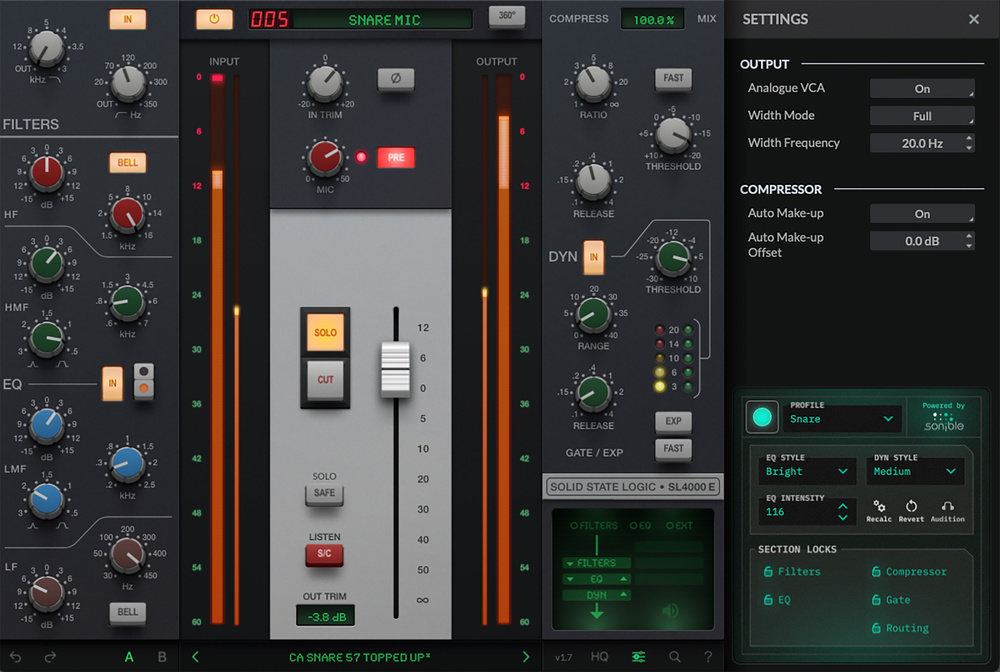
 SSL partner with sonible to bring a smart assistant add‑on to all their 4000 series channel strip plug‑ins.
Sonible’s reputation for AI‑assisted plug‑ins is as impressive as SSL’s is in the world of analogue consoles. So when their worlds combine, you’d expect good things...
SSL’s 4000‑series analogue mixing consoles earned legendary status in the music production world and, through the wonders of suitably organised zeroes and ones, you can access the essence of their sound and features in the convenient and rather more affordable form of SSL’s plug‑ins. Also kind of magical is SSL’s continued collaboration with sonible: a modestly priced add‑on now enables the three flagship 4000‑series channel strip plug‑ins to configure themselves! Is the end in sight for mix engineers? No. But it might just help them work a bit more quickly...
With Or Without
The overall SSL channel‑strip concept will be familiar to regular readers (for instance, check out Sam Inglis’ review of the SSL 4K G plug‑in in SOS September 2025. So, other than to confirm that all three of these 4K channel strip emulations sound fantastic, I’ll focus below on what sonible’s input has brought to the user experience.
SSL and sonible have worked together before, including for the autoSeries plug‑ins I reviewed in SOS April 2026. This latest collaboration follows broadly the same approach, but for the full 4K channel strip plug‑ins the sonible smart assistance technology is available as an optional add‑on, and comes with its own additional iLok licence. Adding the smart functionality is totally at the discretion of the user, as is using it if you decide to buy the add‑on: the channel strips themselves remain unchanged, and can always be dialled in by hand, exactly as before, whether you buy the add‑on or not.
Meet My Assistant
Once installed, the sonible smart functionality is accessed via the Settings button (located bottom right), and the virtual ‘mix engineer assistant’ is accessed in the lower‑half Settings panel that pops open. The controls here are divided vertically into three compact sections. At the top is the large Learn button; you simply trigger playback, hit Learn, and your virtual mix engineer will audition the audio signal (it generally takes 10 seconds or so) before quickly dialling in some starting point settings for the Filters, EQ, Compressor, Gate and Routing sections.
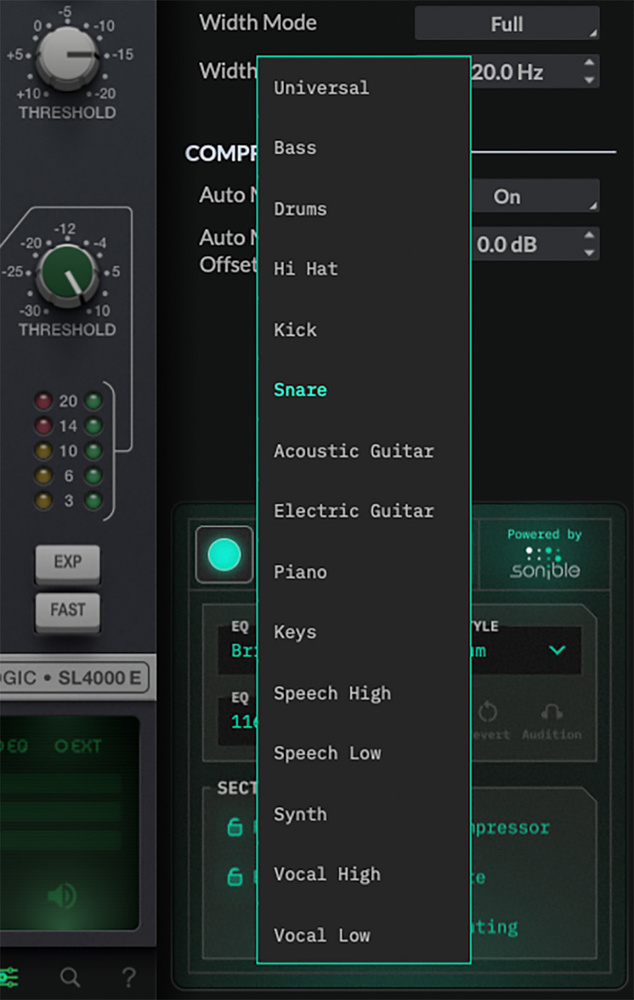 The add‑on includes a good selection of common instrument and voice/vocal Profile choices.The top section also lets you give your virtual assistant a bit of a steer by selecting from one of 15 different instrument profiles. In addition, the central section then lets you choose between three different styles of EQ (warm, neutral or bright) and compression (soft, medium and...
You are reading one of the locked Subscribers-only articles from our latest 5 issues.
You've read 30% of this article for FREE, so to continue reading...
- ✅ Log in - if you have a Digital Subscription you bought from SoundOnSound.com
- ⬇️ Buy & Download this Single Article in PDF format £0.83 GBP$1.49 USD
For less than the price of a coffee, buy now and immediately download to your computer, tablet or mobile. - ⬇️ ⬇️ ⬇️ Buy & Download the FULL ISSUE PDF
Our 'full SOS magazine' for smartphone/tablet/computer. More info... - 📲 Buy a DIGITAL subscription (or 📖 📲 Print + Digital sub)
Instantly unlock ALL Premium web articles! We often release online-only content.
Visit our ShopStore.