

Melodyne or the new Vocal Tune plug‑in: which one is right for you?
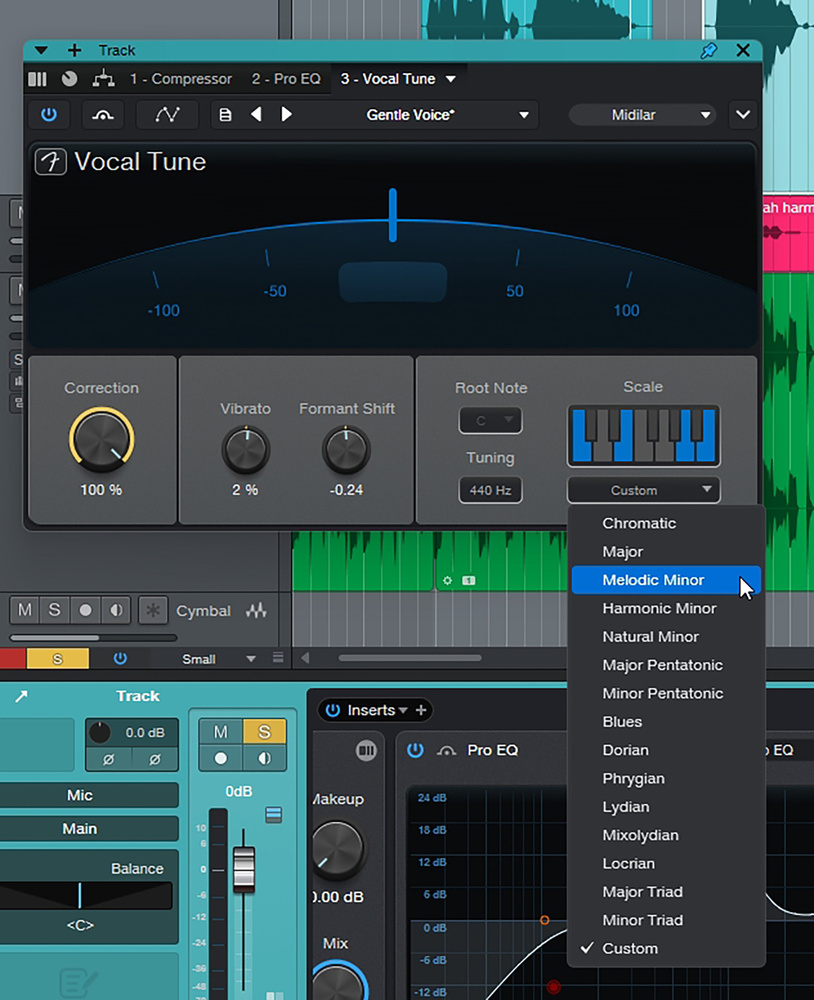 Vocal Tune’s GUI is dominated by a tuning ‘arch’, much like you’d see on a guitar tuner. The Scale section on the bottom right lets you define which notes are ‘permitted’ by the automatic tuning process.Version 8.1 of Studio Pro introduced a new pitch‑correction plug‑in designed to tune up your vocals. Fender imaginatively call it Vocal Tune, and it promises to make all that mucking about in Melodyne largely unnecessary. Drop it onto your vocal track, move a couple of knobs and you’re in business: perfect vocals. Is it that simple? And is this the end for Melodyne? Let’s find out.
Vocal Tune
The new Vocal Tune is a pitch‑correction plug‑in that uses a guitar‑tuner‑like interface to show pitch deviation from a tuned scale. It can then apply real‑time pitch‑correction to shift wayward notes back onto the scale. So, the practical outcome of Vocal Tune is that if you drop it onto a vocal track, the vocals will be brought into tune and save your singer from any embarrassing sense of flatness. How natural that sounds will depend on the settings you’ve chosen and whether that’s the effect you are going for.
The interface is so simple that it looks the same in the condensed Channel Overview strip as it does in the full plug‑in GUI. It even pops up as an animated display in a mini‑view in the regular channel strip. The eye is drawn to the animated ‘arch’ tuner display, which throws up the note nearest to the one being sung and drips to the left or right by the amount of cents it’s out of tune. The actual cents aren’t important; it’s really just confirming whether the note is flat, sharp, or right on the money. The bottom half has a row of controls that helps us shape the vocal into the sort of melody we want to hear.
Scaling New Heights
A good place to start is selecting a scale to narrow down the range of notes you are trying to correct. The Scale section has a little one‑octave keyboard that shows the currently active notes. Selected notes are lit in blue. From the drop‑down menu, you can choose from 15 different preset scales, including all the usual suspects such as major, harmonic minor, Phrygian, Lydian, and blues. If you’re after something a bit more unique, then simply click on the little keys to select the notes as a custom scale. You can’t save your own scales to the list, but you can save them within a Vocal Tune preset.
Alongside the scale is the Root Note, which defines the scale’s key. If you don’t know what key the music you are working on is in, you can get some useful clues by using the Detect Chords command. Find an audio track of an instrument playing chords, like a piano, synth, or guitar. Select the track and choose Detect Chords or Extract to Chord Track from the Audio menu.
You also have the option to choose the tuning associated with the pitch correction. Normally this is A=440Hz, but you can...
You are reading one of the locked Subscribers-only articles from our latest 5 issues.
You've read 30% of this article for FREE, so to continue reading...
- ✅ Log in - if you have a Digital Subscription you bought from SoundOnSound.com
- ⬇️ Buy & Download this Single Article in PDF format £0.83 GBP$1.49 USD
For less than the price of a coffee, buy now and immediately download to your computer, tablet or mobile. - ⬇️ ⬇️ ⬇️ Buy & Download the FULL ISSUE PDF
Our 'full SOS magazine' for smartphone/tablet/computer. More info... - 📲 Buy a DIGITAL subscription (or 📖 📲 Print + Digital sub)
Instantly unlock ALL Premium web articles! We often release online-only content.
Visit our ShopStore.