

 Ableton Live v1.03.
Ableton's Live allows the user to create and record musical performances by combining sampled loops in real time, with high‑quality pitch‑shifting, time‑stretching and audio effects.
Ableton Live is described by the manufacturers as a 'sequencing instrument' and is, according to the manual, "the result of musicians wanting a better way to perform live, improvisational music using a computer." In essence it's a software sequencer, designed to play back audio 'clips' — which may be short 'soundbites', whole mixed and mastered recordings, or anything in between — via an intuitive graphical front end allowing for a fair amount of improvised rearrangement. For musicians whose music is wholly electronic in nature, Live potentially offers a happy medium between, at one extreme, taking an entire studio's worth of MIDI gear out on the road and, at the other, standing motionless on stage with one finger poised meaningfully over the Pause button on a DAT recorder.
Coming Alive
Live comes in a garish bright green box containing a cross‑platform installation CD, a fairly hefty paper manual, and a selection of Ableton stickers to plaster your flightcases with. Copy‑protection is of the challenge and response variety, so mercifully there's no dongle to contend with.
The Mac version of Live supports Sound Manager and Apple's built‑in audio hardware, and any third‑party card compliant with the ubiquitous ASIO standard. The PC version supports any soundcard with an MME, DirectX or ASIO driver, so if you already have your computer set up to handle digital audio, no additional hardware or drastic system reconfiguration should be necessary to use Live. Minimum system requirements are fairly modest: the Mac version needs a G3 with at least 64Mb of RAM, and OS 8.6 or later. The PC version should run on a 300MHz Pentium with 64Mb of RAM, and Windows 95 or later. However, as with any audio software, the more computing power you can give Live, the better its performance will be. Apart from a couple of folders of demos from Big Fish and E‑Lab, no bundled samples are supplied, but Live is designed to connect with the Sonomic on‑line sample download service.
Installation is painless, and authorisation only slightly painful. When first run, Live presents a dialogue box including a unique challenge code, which identifies the particular machine on which the software is installed. Point your browser at the Ableton web site (www.ableton.com) and enter this code, along with your serial number, into a form on the 'unlock' page: when the page refreshes, you'll be given the response code you need to authorise your installation. An unauthorised copy of Live will run fully functionally for several days, in case you have any difficulty obtaining your response code after installation. Be sure to make a note of your code, since it may be required again if your authorisation becomes damaged as a result of a hard disk crash.
After installation, the next task is to configure Live to make use of any audio and MIDI peripherals you may have. The Mac version defaults to the built‑in audio hardware, while the PC version offers a generic MME/DirectX driver. If you have an audio card with a specific DirectX or ASIO driver, this can easily be selected from the drop‑down menu in the Audio Preferences dialogue. MIDI interfaces and controllers can be selected in the MIDI / Sync dialogue (OMS 2.3.8 is needed for the Mac version). Live offers no MIDI sequencing functions, but MIDI controller messages can be mapped to almost any of the program's parameters, so you need not be tied to your mouse and QWERTY keyboard on stage. Live can also be sync'ed to MIDI Clock or MIDI Time Code.
Going Live
The first thing you notice about Live is its striking appearance. The program benefits from a pleasingly minimalist design allowing numerous parameters to be displayed at once, without overwhelming the eye. Some familiar transport controls, knobs and faders are in evidence, but all are displayed 'in outline' rather than as 'realistic' 3D representations, resulting in a clear, high‑contrast display that can easily be read at a distance even in poor lighting conditions. A variety of 'skins' is included to allow some scope for changing the program's appearance, but sensibly, these only allow you to choose from a few different colour schemes, without compromising the basic functionality of the original design.
The main Live window is divided into three panes. The top left‑hand pane acts as a 'browser' for locating files, choosing effects plug‑ins and so on, the larger top right‑hand pane can be switched between the Session View and Arranger View, and the bottom Track View pane displays detailed information and editing parameters for whatever is currently selected in either of the other panes, whether it's an effects plug‑in, an audio Clip, or whatever.
 The Session View provides a simplified on-screen mixer, with faders for each track.
Basic arranging and mixing tasks are performed by switching between the Session and Arranger Views in the top right‑hand pane as necessary. When the Session view is active each track is displayed as a vertical column, with slots at the top for holding the various Clips to be played, and basic mixer controls at the bottom. An unlimited number of Tracks can be created for a Live song or 'Set', but in reality the total number of tracks that can be played simultaneously will be limited by the speed of your computer.
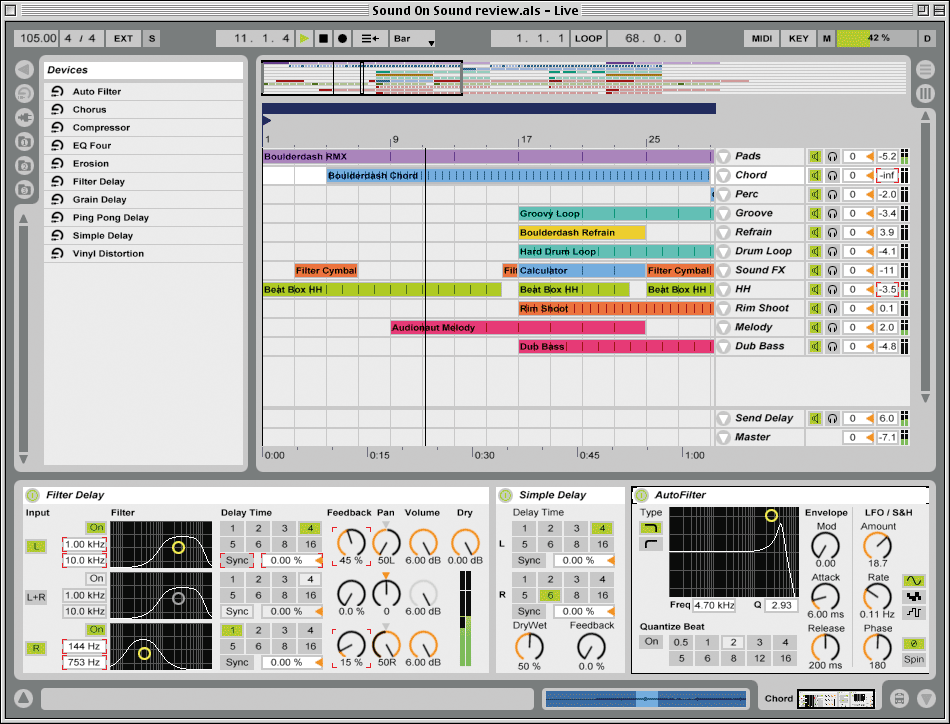
When the Arranger view is active the tracks are displayed horizontally, with coloured rectangles representing different instances of different Clips as they occur on the time‑line, just as in any conventional sequencer.
In Use
Like Sonic Foundry's Acid (see John Walden's review of Acid Pro v3 in SOS January 2002), Live is very much geared up for the loop‑based approach to music beloved of many dance producers. In this spirit, I began by searching through my samples folder using Live's built‑in file browser, and dug up one two‑bar‑long drum loop at 121bpm, one one‑bar‑long drum loop at 108bpm and one half‑bar‑long shaker loop at 151bpm. I dragged each of these in turn to its own track in the Session View, and set Live's tempo to 115bpm. I clicked the Play button beside the Clip on track one, and the first loop duly began looping at 115bpm, with barely a trace of audible time‑stretching.
Next, I clicked on the Play button for the Clip on track two, and waited to see what would happen. Live bided its time for a couple of beats, then cleanly dropped the new loop on the 'one' of the next bar. So far so good. Looking around, I found the Quantize control, changed its setting from 'Bar' to '1/4', then clicked on the play button beside the Clip on track three. Live triggered the shaker loop on the next available quarter note, then left all three Clips happily chugging away together. Too easy.
Without stopping playback, I then changed the Quantize setting back to 'Bar', cleared the tempo field, and entered 75bpm as the new tempo. At the start of the next bar, without missing a beat, Live reduced the tempo as requested, instantly creating a convincing Fatboy Slim‑esque slow‑down effect. Impressive.
Live seems to handle tempo changes by sensing the peaks in a Clip and using these to divide it into segments, like Recycle, then applying a time‑stretch algorithm to each segment individually. However, this process is entirely automatic, and is carried out non‑destructively in real time. From the point of view of the end user, it really is as simple as loading a few Clips and setting the desired tempo.
Extreme reductions in tempo necessitate more time‑stretching, which inevitably begins to introduce some noticeable artefacts into the sound. However, it is possible to slow down many loops by as much as 20bpm without the sound becoming too unnatural, and some nice special effects can be produced by pushing it even further. Playing a loop faster than its original tempo involves no time‑stretching, as Live simply has to gate the various Clip segments to prevent them from overlapping. It does this cleanly and without clicks, and increases of as much as 50bpm are well within the realms of possibility.
Pitch Perfect
Live allows the pitch of each Clip to be controlled independently of its tempo, and over a very wide range. You can tune a loop up or down from its original pitch by no less than 32 semitones, although shifts of more than about two or three semitones quickly begin to sound unnatural. The more extreme pitch‑shifts available in Live can be used to create some intriguing effects: tuning a drum loop up by 32 semitones while simultaneously reducing its tempo, for example, can produce a weird, digital, 'sample & hold synth' phrase. Vocals can be tuned up to become manic, buzzing insect noises, while hi‑hat loops can be pitched down to create waves of thunderous industrial noise. Lots of fun.
A 'Hi‑Q' option is also available for each Clip, and supposedly activates a high‑quality playback mode, intended to produce more natural‑sounding pitch‑ and time‑shifting effects at the expense of a slightly increased CPU load. However, this appears to make only a very subtle difference to the sound and, irritatingly enough, experimentally switching Hi‑Q on and off a few times seemed to be enough to crash Live and freeze my computer completely, necessitating a forced restart. Not good.
Each track in the Session View functions as basic mixer channel strip, including a volume fader and pan knob and two Send knobs for directing output to either or both of the Send Tracks, which are equivalent to group busses in a conventional mixer. You can also select 'insert' effects for a track, by simply clicking on it, locating a built‑in Live effect or a VST plug‑in in the browser, and dragging and dropping it to the Track View pane below. Multiple effects can be added, allowing for the creation of complex multi‑effects chains if your CPU permits.
Drop‑down menus are used to select inputs and outputs for each track. 'Master' is the default output, but if your audio card offers multiple outputs, these can be selected individually. Each track input is by default set to None, the other options being Master Out, ReWire and Live In. Master Out enables you to record Live's main output onto a new track, in order to capture a mixdown of one or more tracks complete with effects. ReWire enables you to route the output of any ReWire‑savvy application, such as Rebirth or Reason, into the Live mixer, and process it with any effects you may be using.
Live In enables you to record a new Clip onto a track, direct from your soundcard's input. Recording in Live is very straightforward: you simply select Live In as the input for a track, click the Monitor/Arm Recording button to monitor your source, then click the red button that appears next to an empty Clip slot to begin recording. Click again when you've finished, and there you have it: a new Clip, ready to be included in your Set. Selecting the Clip allows you to set start, end and loop points for its playback, but unfortunately Live has no proper built‑in destructive audio editor, and clicking on a Clip's Edit button only offers you the option to choose an external audio editor application. This is a more or less workable compromise, but it seems a shame that basic functions for trimming and normalising Clips couldn't have been included.
Creating A Sequence
Recording a Live song or Set is simplicity itself: load up the Clips you want to use in the Session view, click the Record button in the main transport controls and, when you're ready, trigger your first Clip, either by clicking with your mouse or sending a pre‑assigned MIDI controller. You can add more elements to the mix by triggering, muting and unmuting other Clips on other tracks as you see fit, and most parameter tweaks you make during recording will be stored and automated on playback.
 The Arrange View is not unlike that of any other sequencer, and shows the usual linear progression through a Set from left to right.
When you've had enough, switch to the Arranger View, and you'll see the Set you just played laid out horizontally, with different‑coloured blocks representing the different clips as they occur on the time‑line, just like in a conventional sequencer. Clips in the Arranger View can be edited, trimmed, moved around, copied and pasted in all the usual ways, and arranging a Set is easy and intuitive. All edits can be made without pausing playback.
Live saves Sets in its own proprietary file format, and these files in turn point to the location(s) on your hard drive where the audio files used are actually stored. This might potentially cause problems if audio files happen to get moved or deleted after a Set has been saved, so Live sensibly includes a Save As Self Contained option, which saves the Set files and copies of all necessary audio files in a new, separate folder.
Disappointingly, there's apparently no simple way to export a Live Set as a stereo WAV or AIFF file, but you can work around this by creating a new track named (for example) 'Mixdown' and using the Live Input option to record the whole Set as one long stereo Clip. The Set can then be saved As Self Contained, whereupon the Mixdown Clip can be located in the Set's folder, in standard WAV (in the PC version) or AIFF (in the Mac version) format.
Final Thoughts
Ableton Live is easy to use, enjoyable and at times an inspiring creative tool. Whilst using a computer to play live gigs will always be fraught with potential difficulties, from dodgy power supplies to interference from lighting rigs, Live seems fairly stable (I experienced only two unexplained crashes in several days' intensive testing) and should not introduce too many extra problems into the equation. Provided they are willing to spend a little time creating loop‑able excerpts from their original tracks, imaginative electronic or dance artists will find that Live provides them with the means to spontaneously remix themselves on stage, without the need for racks and racks of hardware. Technologically literate DJs might use Live to build whole seamless, beat‑matched sets, to be altered and rearranged at will, in keeping with the changing mood of the crowd, while Live's recording capabilities offer the bravest experimenters the option of capturing audio from turntables or the PA desk and reworking it back into the mix 'on the fly', although some practice will be required in order to really get the hang of this.
The absence of any MIDI sequencing capabilities or proper destructive audio editing means that Live is never going to serve as a replacement for Pro Tools, Logic or Cubase in the studio. Nevertheless, if you're stuck on a track or remix, and you need a change of direction, firing up Live could be a great way to get the ideas flowing again. Drag and drop a few existing takes onto tracks in the Session View, add a couple of loops from randomly chosen sample CDs, and see just what happens. There can be few quicker or easier ways to get apparently incompatible chunks of audio playing in tune and in time together, and in a few minutes Live can quite often turn the most unlikely loops and samples into something that might at least serve as the basis of a new track. Your creation can be exported as a standard WAV or AIFF file, and imported into your usual sequencer to be developed further.
Live won't appeal to everybody, but it may be the answer to some people's prayers. If, after reading this review, you think it sounds like what you've been waiting for, download the demo and give it a try. You'll soon get a feel for whether or not it suits the way you work. If you're comfortable with the way Live handles audio, and if you're looking for a way to take your studio‑based project on the road, you might find it an ideal solution.
Live Effects
 Live's built-in effects sound good and provide a reasonably wide range of treaments.
Live comes with a good selection of proprietary‑format real‑time effects for processing your Clips. Erosion produces 'downsampled' digital distortion which may or may not be to your taste, Four EQ provides a useful parametric EQ, and Auto Filter offers a choice of four different resonant filter types, all of which can be modulated by a sync'able LFO. Vinyl Distortion produces a fairly convincing simulation of what its name suggests, Chorus provides subtle but pleasant chorusing, while Grain Delay and Filter Delay are capable of producing anything from standard tempo‑sync'ed echoes to outlandish warped effects bearing almost no resemblance to their input source. On the whole, the quality of the effects is good, although they do seem to be fairly CPU‑intensive as a consequence, and older computers may struggle if several are used at once.
 VST plug-in effects can be used within Live, and by default they are displayed in 'skins' that mimic the built-in effects, allowing the use of the mouse as an X-Y controller.
In addition to the built‑in effects, Live supports most standard VST effects plug‑ins, so you won't have to do without you favourite compressor, reverb or whatever in your Live Sets. VST plug‑ins are automatically wrapped in skins that mimic the appearance of the built‑in effects, although the original VST editor windows can still be accessed if required. The Live effects interface allows you to assign two effects parameters to an X‑Y controller, which can be dragged around using the mouse for real‑time adjustments.
VST Instruments are not supported (without MIDI tracks to feed them, they wouldn't be any use anyway) and their presence in the VstPlugIns folder can actually cause problems. The manual addendum also reports that Prosoniq's Orange Vocoder plug‑in doesn't work, and TC's Native Bundle will not work properly in the Mac version if a low‑level debugger (a tool used by software developers) is running on the same machine, although that's a problem that will affect almost nobody.
Pros
- Clear, well-designed front end.
- Makes working with sampled loops easy and enjoyable.
- High-quality effects, with support for VST plug-ins.
Cons
- No MIDI sequencing.
- No destructive audio editing.
- Switching to Hi-Q mode causes crashes on my Mac.
Summary
Ableton Live makes improvised arrangements of loop‑based music easy. It won't replace your usual MIDI + Audio sequencer, but it might be the ideal tool for taking your studio‑bound creations out to a larger, sweatier audience. While no combination of computer and software can be guaranteed to work 100 percent reliably under the conditions encountered in gig venues, Ableton Live seems relatively stable and should work well.
information
test spec
- Ableton Live 1.03
- Blue and white 400MHz Apple Mac G3 with 192Mb RAM, running Mac OS 9.1
- Emagic Audiowerk II soundcard.
- An old K-Tel LP entitled Music Of The Greek Islands, for sampling loops from.