

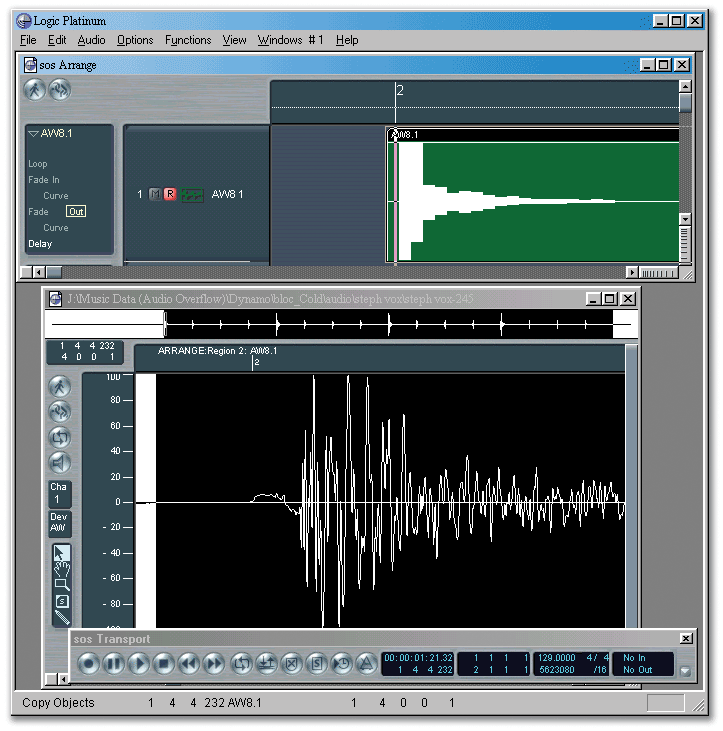
 With the Arrange and Sample Edit windows open at the same time, it's easy to see when the sample waveform and bar line align.
There are various places in a Logic-based studio where processing delays occur, and these can really mess with the groove of your tracks, so here we show you how to keep everything properly lined up. Also, there's the usual sackful of user tips and a clever way for v5 users to mimic one of the most useful features in v6.
Solid timing has always allegedly been one of Logic's best features, not only between audio and MIDI, but also between various different audio cards running on one system. This is particularly important because, uniquely amongst the MIDI + Audio sequencers, Logic allows many different audio cards to coexist in the same project (not normally permitted with just a straight ASIO driver setup) via a selection of dedicated drivers for specific manufacturers' hardware. However, even when only one audio card is being used, MIDI-to-audio timing will still be important to you if you run MIDI hardware 'live' alongside audio tracks. Having audio coming from two or three different places requires an awareness of the timing of these different sources, as even a difference of a few milliseconds can cause poor 'feel' with drum tracks or even phase problems if audio tracks such as drum overheads are spread over multiple audio cards.
Fortunately, solving timing errors in Logic is usually quite simple. However identifying what the delays actually are for your hardware is more tricky, and it is this that we'll investigate here.
Measuring MIDI Playback Latency
With only one audio card in your system, it is reasonably safe to say that the sync between the different tracks running on that card should be solid, although different parts can sometimes wander — stopping and starting again usually resolves this. Having the one main card as a reference point, in my case an Emagic Audiowerk 2, you can see how your MIDI devices line up with the audio coming from the card.
In order to start the line-up process, it is advisable to use something that is simple and measurable, so a MIDI click is the best option in this case. As alluded to in Martin Walker's PC Musician article on MIDI latency in SOS September 2002, there will be a latency associated with the time taken for a synth to respond, however, it is important to know if there is any further latency associated with running alongside audio tracks.
Set the MIDI click to run whilst simultaneously recording it onto an audio track on your reference soundcard. You will probably find that if you look at the audio file of the click in the sample editor that it does indeed fall behind the beat slightly. This could be due to the latency associated with your MIDI setup, or latency actually in the recording process, which we'll look at in more detail in a moment. Either way, if you end up recording your MIDI parts as audio for a final mixdown, then they should really be lined up with your other audio, which will start on the beat.
Rather than moving anchor points for each audio part, a negative Delay parameter should be obtainable which can then be applied to all of the audio parts recorded from MIDI devices. To do this, open the sample editor whilst looking at the audio part in the Arrange window at the highest resolution (see screenshot above). Then move the part in the Arrange window by individual clicks — hold Ctrl and Shift (Alt and Shift on the PC) whilst moving. This will allow you to adjust the position of the part until the start of the audio is near enough at the start of the bar in the sample edit window. An exact match will usually be unobtainable, as the Arrange window isn't sample accurate, but rather accurate to 3840 ticks per bar like the MIDI resolution. However, this will still be enough to make a noticeable difference to the tightness of your mixes. It is best to have the audio starting just after the beginning of the bar when an exact match can't be obtained, so that you can cut the audio at bar and beat divisions without problems.
Now that the part is realigned, just click and hold the part in the Arrange window and look at the Info Line in the bottom left of the screen. This will tell you how many clicks behind the bar you now are. Apply a negative Delay from the Parameter box to all MIDI parts recorded to audio and everything will be in line. If you finally want to make all of the delays 'real' then you can use Normalise Sequence Parameters from the Functions menu's Sequence Parameter submenu. Within my own set up I found a delay of 4.2ms for my JV1080, which, according to Martin Walker's own figure of 4.4ms for that synth, is about right. Because the latency varies from sound module to sound module, it will probably be worth checking each unit in turn using the procedure above.
Recording & Playback Delays
With the Audiowerk as a reference card in the previous procedure, no provision was made for any delay incurred by the drivers in the recording process. However the figures obtained in my own investigation suggest that no delay was present. If you are using an ASIO driver on the other hand, like I do for the Korg 1212 running alongside my Audiowerk, delays can indeed be added in the recording process. If you don't have a reference point such as an Audiowerk, then extracting the recording delay from any MIDI delay might be tricky. Having said this, any delay is unwanted so the same measurement process given above can be used and the delay compensated for.
 The ASIO Buffer Delay values in the Audio Hardware & Drivers settings can help line up recording and playback when you've got more than one audio card in your system.
Within my own setup with the 1212 and the Audiowerk, I could try one against the other. You can do this as well if you have several audio cards running together. Using the same procedure as before, you can record onto both cards simultaneously. This will probably show, as I found, that one card is out of sync with the other in the recording process — a figure of 32.3ms for my cards, which is quite substantial. Without compensating for any MIDI delay or latency, it is worth making sure that the recordings on both the cards line up. This can be done with the Delay value in the Parameters box as before, but it is worth noting that there is a function to do this from within the Audio Hardware & Drivers page using the ASIO Buffer Delay In option. Just adjust the parameter and repeat the measuring procedure until the audio is closer to where it should be. As this setting is less than sample accurate, it would still be worth recording parts with vital phase relationships (several mics on one instrument for example) on the same card, rather than on two separate cards at the same time.
Having established that the audio streams can be delayed on recording, then it is a reasonable assumption to make that there is a playback delay as well. To establish this, just record streams from all sources into one device, which can even be on another machine. Make sure that the audio is all lined up in the sequencer first, then any delay that is found in the recordings will be due to playback delays. Again, for ASIO this can partly be compensated for in the Audio Hardware & Drivers page.
Stitch In Time
Running several cards together is often a way of gaining extra inputs and outputs, whilst running MIDI live can often free up vital audio tracks. However ensuring that all of the audio sources are in sync is vital if a tight and cohesive mix is to be obtained. Using the procedures outlined here will allow you to achieve just that by finding out and compensating for the delays inherent in your own audio setup.
Current Versions
- Mac OS X: Logic Audio Platinum v6.0
- Mac OS 9: Logic Audio Platinum v6.0
- PC: Logic Audio Platinum v5.5
Floating Fader Window For v5 Users
 Here's a useful tip from SOS reader Kevin Busby, Studio Manager at the Birmingham University Music Department: "Even if you haven't upgraded to v6, you can still have immediate access to the mixer channel for the currently selected audio track. Under the main Windows menu, select Open Environment whilst holding down the Option key, which opens the Environment in a floating window. Select the layer which contains the Audio objects for your tracks and make sure that the Link icon is illuminated in the top left-hand corner of the window. Now untick Parameters in this Environment window's View menu to make the Parameters box disappear. Resize the Environment window so that only one Audio object can be seen.
"Now clicking on a track name in the Arrange window causes the floating Environment window to scroll to the corresponding fader. You can place the Environment float over the bottom left-hand corner of the Arrange window, making space for it by turning off the Toolbox from the View menu — it's easier to access the Toolbox by just pressing the Escape key."
Logic Tips
- When I'm comping from multiple takes, I listen through to them all first, making notes as to which bits I like best. Then I go through cutting out the sections from each take that will make up the final track, before transferring these sections to their own track for crossfading. The last of these actions is rather tedious to do manually, so I was delighted to discover recently that there's a Move Selected Objects To Current Track available from the Arrange window — it's in the Function menu's Objects submenu. Selection still takes a little time, but there's a lot less dragging around of audio regions. Mike Senior
- When Note Force Legato or Note Overlap Correction interprets a group of notes as a chord, it gives you the option to apply the operation as if they were individual notes (Shorten), treat the group as a single note (Keep), or delete all but the lowest note in the group (Delete). A pair of notes is interpreted as belonging to a chord if they overlap and start within an eighth-note of each other. The Shorten option will leave overlapping notes when two notes start at the exact same position. Len Sasso
- Logic offers two display options for note names. The more common, used by Yamaha, calls middle 'C' (MIDI note number 60) C3. The other, used originally by Roland, calls middle 'C' C4. You can select which convention to use in the Display Preferences. Most Logic displays will use the selected convention, but the Environment's Keyboard and Chord Memoriser objects always display middle 'C' as C3. Len Sasso
- You're probably aware that you can use the Bounce button on any Audio object to create an audio file in real-time from all unmuted audio tracks assigned to that output. But when you simply want to combine a selection of audio regions without effects processing or automation, a faster way is to choose Merge Objects from the Arrange window's Functions menu. Len Sasso
- Double-clicking an insert effect on one of Logic's mixer channels causes the relevant plug-in window to appear. However, double-clicking another insert effect will load that effect's Editor within the same plug-in window, rather than opening a second window. I can understand that this is tidier in most cases, but for those cases when you actually want separate windows all you have to do is turn off the link button at the top left of the plug-in window. Mark Wherry
- You undoubtedly use the trick of resizing a MIDI region in the Arrange window while holding the Option key to stretch or compress the region's timing. You can accomplish the same thing in the Transform Window using the Mul (for multiply) Operation in the Position field. For example, to double the tempo of a MIDI region, multiply the position by 0.5. The advantage of using the Transform window is that you can operate on selected data rather than everything in the MIDI region. For example, you could slightly compress or stretch pitch-bend or volume data without affecting notes. When using this technique, keep in mind that the Mul Position Operation always applies relative to the left boundary of the region (rather than the beginning of the song). Len Sasso