

Users of Emagic's Logic sequencer have been itching to get their hands on the latest version 5 and Logic Control, the company's dedicated moving‑fader control system. Has it been worth the wait?
Emagic's long‑awaited Logic v5 is the culmination of more than a year's intensive R&D. It heralds the introduction of a new automation system, required for their Logic Control moving‑fader control surface, along with a raft of new plug‑ins and a generous smattering of smaller but important improvements throughout the program. With the exception of some plug‑ins and third‑party hardware support, the majority of improvements apply right across the 'professional' Logic range. This now comprises Logic Audio (replacing Logic Silver), Logic Gold and Logic Platinum. The top‑of‑the range Platinum reviewed here is still required in order to work with Digidesign Pro Tools hardware, and now includes three bundled virtual instruments.
 Logic Control with XT sidecar expansion unit (left).Support for third‑party hardware has been improved, high‑end POW‑R dithering is included for smooth data word length reduction, various improvements have been made to the EXS24 sampler including the ability to use virtual memory when the onboard RAM isn't enough, and REX file support has now been added along with the ability to read SoundFont II and Sample Cell sample libraries. Logic 5 also supports (currently with some limitations) OMF audio file import from compatible programs so that imported audio is placed at the correct position on the timeline. All products in the Logic series now offer support for 24‑bit/96kHz recording. Note that Mac users need OS 9.1 or above to run version 5, but OS X support has not yet been implemented. This is planned for a future revision later in the year.
Visually, the only major differences between Logic 5 and its predecessors concern the new system of track automation, though the Arrange window background is now more user‑customisable. The control buttons have been restyled, and the Matrix page includes shaded areas corresponding to the black keys to make note positioning easier. The Score side of the program also includes a large number of improvements. The most visually striking of these is the ability to colour notes by pitch, velocity or musical part, but the important additions and tweaks are about making Logic a more serious contender as a high‑end notation package. These include Multiple Page View, a new step‑time input and editing facility (which works in the Score, Matrix and Event List windows), and the notation of aliases.
Copy Protection
Piracy is always a concern for software companies, and a new and significantly more robust copy‑protection system has been designed for Logic version 5 and onwards.
The new dongle, or 'XSKey' (Expandable System Key), is available only as a USB device, and not only protects Logic but also any other Emagic plug‑ins running on the system. Existing users will need to return their old dongles plus the master CD‑ROMs of any Emagic plug‑ins they wish to use with Logic 5, but to prevent downtime during the changeover, the new key comes with everything validated for several weeks — even the plug‑ins you don't yet own. This way, users can try out all Emagic's software instruments and keep working while their old key is exchanged for a permanent licence code to unlock the new one. Additional unlock codes will be provided when new Emagic plug‑ins are bought, so the days of having to insert master Emagic CD‑ROMs every few weeks are finally over. The old dongle won't work with version 5 and your existing Emagic plug‑in master CDs won't work either, so you have to trade them in for unlock codes before the demo period expires.
Old songs are converted to version 5 format when they are worked on, which means you can't reopen them in older versions of Logic. There is, however, an 'Export as Version 4 Song' facility if you need backward compatibility. Also, when pre‑version 5 songs containing Hyperdraw automation are opened, you get the option of converting this to the new automation format.
Mix Automation
Clearly, Logic 5 is far more than just a set of tweaks to enable the program to work with Logic Control, but this is undeniably a major part of the focus of the new version, so I'll look at the main changes in the automation system first. Logic's automation system has always been a bit of a problem insomuch as the MIDI Controllers required to drive it often conflicted with those used by plug‑in designers, which meant the program had to internally remap some Controllers to allow plug‑in automation to work. The new automation system avoids that by not using MIDI at all. Though the new automation control still 'looks like' MIDI as far as the user is concerned, it actually uses a 32‑bit system offering vastly greater resolution than MIDI as well as sample‑accurate timing.
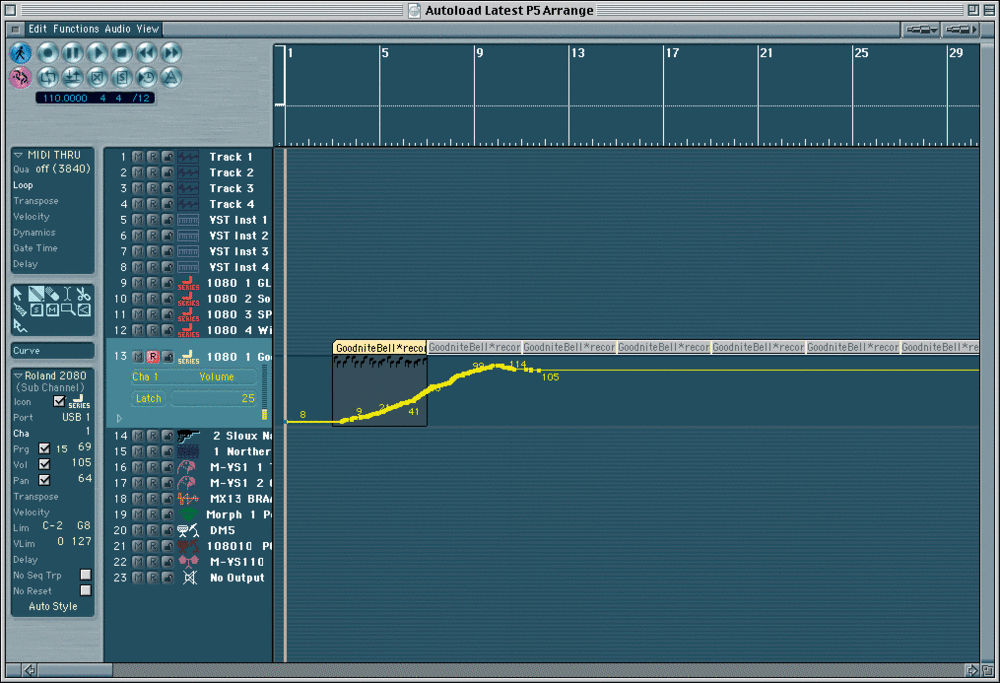 Though the new track‑based automation still 'looks like' MIDI as far as the user is concerned, it actually uses a 32‑bit system offering vastly greater resolution than MIDI as well as sample‑accurate timing.
The automation is now track‑based and is linked to individual Environment Instruments rather than to Arrange sequence objects, so it relates to the full length of the track rather than to individual sequences as before. When objects are moved or copied, there's the option of copying/moving the automation data with them or leaving it as it was. The track automation paradigm has been designed to more closely resemble that of a hardware, moving‑fader mixer, where automation writing doesn't involve putting the track into Record. Instead, you can switch the automation per track between Off, Read, Write, Latch and Touch, where the parameters being automated can be selected as Volume, Pan or MIDI Controllers (MIDI is split into two groups). If a plug‑in is inserted into a track, or if you move any channel EQ or Aux controls, the names of any parameters that you've adjusted appear in this list automatically.
Off isolates the track from any automation that may have been recorded, while Read follows the recorded automation data. Write mode overwrites all types of automation and so isn't often used, while Touch mode writes automation data of the selected type only for as long as the mouse button is held down or the relevant Logic Control fader is touched. You can think of Touch as a way of punching automation data in and out; to avoid clicks, a 'ramp down' time can be set so that the new and old automation data merges smoothly. Latch mode is similar except that at the end of recording new automation data, the fader stays at its final value until playback is stopped, after which it smoothly returns to the next recorded data value.
When an automation mode has been selected, a display appears in the track automation box that serves as both a parameter value meter and a fader. It enables things like levels, pan positions and other parameters to be changed or automated directly from the Arrange window, so you no longer have to keep diving into the Environment to adjust things. To make using the automation easier, you can switch on a new Auto Track Zoom function that always displays the selected track at an increased vertical zoom resolution.
Automation data can also be edited off‑line, and graphical automation parameters are now displayed with their names and values. For example, it is now possible to select a region of automation data and then drag it up or down to increase or decrease its value (with a choice of absolute or scaled offset), rather like a console Trim/Update mode. Alternatively, you can select all automation data after a specific point and do the same. On the Mac, holding down Alt while clicking (or double‑clicking) on the Arrange envelope allows selected areas or the entire automation track to be deleted using the backspace key. There's also a menu option for this, plus an option to delete all automation data belonging to a track.
 Improvements have also been made to the Adaptive Track Mixer.The Channel Splitter objects needed to make the automation work in earlier versions are no longer required for track automation. Each Arrange track incorporates its own automation display (when zoomed to sufficient width): this may be displayed with all automation types superimposed, or they can drop down one beneath the other by clicking on 'Mac folder' style arrows as shown in the screen shot on the second page of this article. When active, the Auto Zoom feature displays the currently selected track (and any related automation display 'drop‑downs') wider than for non‑selected tracks, allowing automation data or audio waveforms to be viewed more clearly. Improvements have also been made to the Adaptive Track Mixer, including a set of buttons that determines what track types will be displayed. You can view either all possible tracks whether used in the Arrange window or not, just the Arrange window tracks, or subsets of those tracks characterised as Channels, Groups, Instruments and so forth. This window is now so comprehensive that you'll probably use it instead of the Environment mixer on most occasions.
Note that the new automation is separate from the original Hyperdraw, which has also been updated and may still be used to draw or edit MIDI automation data for plug‑ins and so on. However, a new tool has been added for selecting automation data and to allow concave, convex and S‑shaped curves to be created between Hyperdraw 'node' points. A button toggles between the two functions of this tool, but I can't help thinking that just having two tools would have been quicker and it would have taken up less space. A similar tool is available for use in track automation editing.
Logic Control
The Logic Control fader surface is built by Mackie, hence the distinctly Mackie‑like styling. As well as Logic Control itself, you can also buy XT 'sidecar' expansion units, each of which adds another eight faders. Logic Control is specifically designed as a dedicated controller for Logic 5 and above, and it is also intended to support Sound Diver. It is also capable of being used to control other devices by setting up custom control assignments, a feature which won't be available in the first release of version 5 software but will be added as soon as possible — because all of Logic Control's behaviour is controlled by Logic, updating Logic effectively means you update Logic Control at the same time.

The unit, which is powered via an external adaptor, links to Logic via MIDI: each Logic Control and XT sidecar expansion unit requires one MIDI In and Out port of its own. The main limitations on how many XT units can be added are the depth of your wallet and the number of available MIDI ports.
Logic Control's interface comprises eight sets of channel controls with 100mm Penny and Giles motorised faders plus a master fader, all of which have touch‑responsive conductive fader caps. Layer switching via Left/Right Bank buttons enables the eight channel faders to access an effectively unlimited number of audio and/or MIDI channels, and it's also possible to step through the Logic mixer in single‑channel increments as well as banks of eight using the Left/Right Channel buttons. A two‑line display runs across the top of the control surface to provide context‑sensitive control name and parameter value information. The rear of the unit houses the MIDI In and Out sockets, the PSU inlet and three jacks, two of which accept foot switches and one of which can utilise a volume pedal to control the master fader level. The foot switches default to Start/Stop and Punch In/Out.
At the left‑hand side of the front panel are the control strips for the eight channels. As well as the faders, each incorporates a rotary encoder with LED ring status display and integral push switch, along with dedicated buttons for Record Ready, Solo, Mute and Select. Under normal circumstances, the faders always control channel levels, while the function of rotary controllers can be switched between Track, Pan, EQ, Sends, Plug‑Ins and software Instruments using the six Assignment buttons.
Each of these Assignment buttons toggles between two modes: Multi‑Channel View and Channel Strip View. The former, selected on the first click, shows the selected control setting for each channel across the width of the console, while the second click produces a dot after the assignment message in the LCD display window, indicating that all the rotary controls now relate only to the selected channel. A similar idea was pioneered on Mackie's D8b digital mixer, and helps provide more detailed control over parameters. In this mode, for instance, all the EQ controls or aux sends for a selected channel can be made available simultaneously via the rotary controls. Where more than eight controls are needed, the user will need to 'page' through to the next eight unless an XT expander is being used. There is also provision to control surround placement using both the rotary controls and faders. A Flip button enables the knobs and faders to change roles or for both to control the same parameter.
 The spartan rear panel offers MIDI In and Out plus various foot pedal/switch connections.When configuring Logic Control, either on its own or with expander(s), a Sound Diver‑style window is used to set whether the expander should function as an extension of the main Logic Control or whether it should operate independently — you might, for example, use the main surface for controlling channel levels and the sidecar for controlling plug‑ins. When multiple controllers are being used, these can be configured in groups dedicated to specific edit functions.
Once powered up, Logic Control lies dormant until Logic 5 is started. A 'Mexican wave' of moving faders checks out the machine when Logic is launched, and if Logic is unused for any length of time, the Logic Control display goes to sleep until a control is moved or a key is pressed. Communication is bidirectional so the system always knows about, and immediately reflects any changes made either using Logic Control or on‑screen. This means that as soon as you fire up the system, Logic Control will display your song's track names, instrument names and virtual instrument names, without you needing to tell it anything. If it could be arranged that patch names rather than instrument names could be displayed above the channels as an option, I think that would also be a useful addition. Names of non‑Logic plug‑ins are automatically imported, as are their parameter names if the plug‑in has been designed to support these. However, many VST plug‑ins do not support parameter names, in which case all you see is a list of control numbers.
What A View!
How the tracks within Logic are displayed in Logic Control depends on the user's preference. There are three types of View: Global, Track and Extended Track, sometimes known as Arrange. In Global View, all available tracks that exist in the Environment window can be viewed as Logic Control tracks, whether or not they exist in the Arrange page. Subcategories of the Global View may then be selected using the row of View buttons to address MIDI Tracks, Inputs, Audio Tracks, Audio Instruments, Aux, Busses, Outputs and User. You can also hold down two or more buttons at once to show, for example, Audio and MIDI Tracks at the same time. The display at the top of the panel reflects the status of the controls by automatically importing track names and numbers or parameter names from Logic.
Track View shows only those tracks visible in the Adaptive Track Mixer or Arrange window, while Extended Track View will show up duplicate Arrange page tracks that are assigned to the same object. This can occur when you write a part to the same drum machine over two or three tracks to make composition and editing easier, or when you record audio overdubs on a duplicate track for clearer viewing.
 The XT sidecar.
To the right of the unit is a numerical track number readout plus a large SMPTE/Bars+Beats playback position display, which can be switched between time and bar mode via a button at the top of the control panel. Next to this is another button for selecting whether the main display shows parameter names or values, and a master solo LED is located to the right of the display. Up to six characters can be used to name each track, which means most things will need abbreviating: if you are using longer names within Logic, it will attempt to abbreviate them for you when it transmits them to Logic Control.
Many of Logic's functions can be assigned to keyboard commands, so Logic Control comes with eight assignable Function buttons, allowing you to control your most‑used functions without returning to the computer. By default, they are assigned to recall screensets one to seven and to close the topmost window. Further window‑related functions are accessed using Function keys in conjunction with the Shift key or other modifiers, and users can change any of these key functions according to their way of working. Four more Utility buttons provide Save, Undo, Cancel and Enter functions, and seven buttons above the transport keys provide direct access to the Marker, Nudge, Cycle, Drop, Replace, Click and Solo functions within Logic.
Transport Policy
The transport section includes a chunky scrub/locate wheel with nearby latching Scrub button, plus tape‑style transport controls with further dedicated buttons for Logic 5's new automation modes, including the as‑yet‑unimplimented Trim mode. Zoom/Cursor buttons are located close to the jog/shuttle wheel, from which it is possible to scrub audio and MIDI, mark or trim tracks and to fine‑tune edit locations. It's also handy for quickly moving the cursor to different positions within the song.
I found the transport buttons to be mechanically quite 'clicky' in operation, and if you're using them to punch in your own vocals, you might end up recording the mechanical noise of the switches as well. There is an internal relay that can be switched off to reduce the click, but I still wouldn't want to be using these buttons when recording vocals with a mic close to Logic Control. Using a record footswitch (with Punch In on the Fly activated) is one way around this problem, or you could set Auto Drop to perform an automatic punch‑in.
I've always been of the opinion that some things are best done using hardware controllers and others are easier to achieve using a mouse. Mixing is clearly a hardware task, while I find assigning plug‑ins to insert points or choosing virtual instruments perfectly straightforward using the mouse. Logic Control lets you work either way: it has the capability to select and insert plug‑ins and to access the plug‑in parameters, but if you want to use the mouse, it is happy to let you. Where the hardware aspect of plug‑in control becomes more attractive is when you want to automate one or more plug‑in parameters, such as synth filters, in real time. In fact Logic Control can access Logic to far greater depths than I had initially anticipated, but it works in such a straightforward manner that if you want to use it mainly for mixing, the additional functionality never gets in your way.
What's Missing?
Version 5 of Logic has taken a lot of work and I know the designers are aware of some improvements that they simply haven't had time to implement yet. One such is the 14‑bank limit on patch name support, while another is a better means of organising song files along with their audio files, which would archive copies of the Logic song along with any used audio files and EXS24 sampler files in a new folder, ready to back up. While better VST 2 support now enables plug‑ins to ask for tempo information, there is still no straightforward way to access bank changes in those plug‑ins that normally do so from the buttons at the bottom of the Cubase/Cubasis plug‑in window, though with some plug‑ins you can now navigate to alternative banks using the file browser window. Some users will also be disappointed that version 5 still doesn't support multiple outputs from VST Instruments.
The automation system currently lacks an Update or Trim fader mode where new fader moves can be added to existing automation data — you can only do this graphically at the moment. I have one more issue, though this is more of a suggestion on my part than an omission on Emagic's: as it stands, you still need to go to the audio mixer and double‑click the plug‑in button to open or reopen a plug‑in window, which is particularly annoying when you're working with virtual instruments. If this could be done using a button in the Arrange window track parameter box, or via some kind of control strip, it would make life that little bit simpler. Alternatively, a key command for opening the Virtual Instrument window associated with the currently selected track might do the trick.
Conclusions
Logic 5 is a very significant update, and the new automation modes should win a lot of friends with both 'mousers' and Logic Control users. The update isn't free, but there are enough new plug‑ins and virtual instruments to sweeten the pill, though anyone still using pre‑USB hardware will need to spend an additional £20 or so on a USB adaptor card to use the new dongle.
Naturally, the designers have spent a lot of effort getting all these new features ready, which invariably means that other issues get put off. As mentioned, Logic still doesn't save all of its project files in a single folder, which it really should do to be considered truly professional, and there is no means of automatically backing up only those files used within a project in a single operation. Also, OMF support is still subject to some caveats and limitations which will hopefully be ironed out in future versions, and we're still stuck with the 14 banks patch‑name limit, which is frustrating for owners of well‑stuffed JV2080s and similar instruments.
One of the features I lobbied for was the Auto Track Zoom option, and in most ways it is really helpful. However, it can be irritating when you're trying to do copy and paste editing within the Arrange window, and it gets tedious turning the feature on and off all the time. Perhaps a more useful option would be to allow the selected track to auto‑zoom only when selected via the track instrument list to the left of the Arrange window, but not when selecting objects in the main part of the Arrange window. While I'm on a roll, I'd also like to have some way to update the track object names with the current patch name (including EXS24 sample instrument names) and not just the name of the instrument.
On the whole, though, the niggles are minor compared to the benefits, and there are many small improvements that tend to be overshadowed by the major new automation and plug‑in features. Just one such is that EXS24 sample conversion now seems faster and more reliable, while true VST plug‑ins now work much more smoothly within Logic and can finally receive tempo information.
Logic Control has exceeded expectations both in how professional it feels and in the degree of control it provides, and it's very simple to use. It has also exceeded its original price estimate and shipping date, but in my view, it's still well worth having. The review model worked very smoothly and certainly makes mixing within Logic feel more like using a conventional (but highly automated) mixer. Ergonomically, the control surface looks and feels great, though from the cosmetic viewpoint, it might have been neater to be able to physically join the XT expander units to Logic Control, rather than simply sitting them next to each other.
The nature of software development is that there's always something else left to do, but this first incarnation of Logic 5 in combination with Logic Control represents a significant step towards making sequencers more 'respectable' to those people brought up on hardware. Logic Control not only makes mixing more pleasurable, which you'd expect, but it also makes the tracking process feel more like it did back in the comfortable days of tape. If anything, it offers more control than I'd ever want to use (I still prefer the mouse for some jobs), but then it's always better to have too much flexibility than too little. Logic 5 is a 'must have' upgrade for the automation and plug‑ins alone, and while Logic Control isn't quite an impulse purchase, my guess is that once you've seen it in operation, you'll keep dreaming about it until one day you'll find yourself buying it!
EXS24 Updates
Though Emagic's EXS24 sampler is sold as a separate plug‑in product, its audio engine resides within Logic, and whenever Logic is updated, so is the sampler. With version 5, EXS24 includes support for REX 2.0 files, as well as REX and the original native ReCycle format, allowing the import of REX files straight into the Arrange window or EXS24. If you drag a REX file directly onto an EXS24 track, the corresponding MIDI data is automatically loaded into the track.
Virtual memory support requires additional system files from the Emagic web site (which can be loaded automatically during installation if your studio computer is connected to the Internet), and once active means that you can play back more samples than your RAM memory can support courtesy of Logic moving data to and from the hard drive in the background. This must impinge on the number of audio tracks that can be played back simultaneously to some extent, so it shouldn't be used as an alternative to fitting plenty of RAM.
The sampler now supports Akai, SoundFont II and Sample Cell libraries, but Emu and Roland support is still on the waiting list. However, a welcome new feature is an intelligent Instrument Delete function, which checks whether samples are used in other Instruments before trashing them. The new version seems rather faster at searching and loading than before, but a bloated library (I have around 20 full CD‑ROMs stored on a second drive) still slows things down a little, so it's best to prune your collection to what you really need.
New Plug‑Ins
Version 4 of Logic included over 30 plug‑ins, but that number has now grown to in excess of 50 in Logic Platinum v5. The new additions comprise of Adaptive Limiter, Sub Bass, Phase Distortion, De‑esser, Clip Distortion, Tremolo and Exciter as well as a number of mastering plug‑ins. Most are self‑explanatory, though Phase Distortion turns out to be a way of modulating a signal using a filtered version of itself while Sub Bass works much like a 'boom box' to add subharmonics to a sound or mix. The mastering plug‑ins are Stereo Spread, Denoiser, Limiter and Multipressor, the latter three being identical to the ones in Waveburner Pro.
A side‑chain facility has been added to the mixer in Logic 5, though this only works with Logic's own plug‑in effects and instruments. However, Logic now supports the VST 2 protocol more fully, insomuch as tempo information can now be passed to those VST 2 plug‑ins that request it.
Transport Improvements in v5
Even the transport section has been given an overhaul in Logic 5: the Fast Wind buttons can now be clicked to cause the cursor to jump to the next marker, or if no markers are set, to jump in one‑bar increments.
Furthermore, the transport MIDI In display now shows chord names when you're inputting chords rather than simply the last note played — after all these years I can find out what those bunches of notes I keep coming up with are actually called!
Audio scrubbing is also supported (up to real‑time speed in either direction) regardless of what audio hardware is used. Key commands have been added for a tape‑style forward or backward shuttle wind mode, and the Mac speaker click metronome beep has been replaced with a non‑pitched click.
Built‑in Soft Synths
Up to 32 Audio Instruments can be used simultaneously within Logic Platinum 5, CPU power and RAM permitting, and as if inviting you to test this new ceiling, Emagic have bundled three simple but very effective software synthesizers with version 5:
- ESM is a monophonic bass synthesizer which has a very TB‑like flavour.
- ESP is a polyphonic 'analogue style' synth.
- ESE, with its inbuilt chorus/ensemble effects, is designed specifically for creating pad and ensemble sounds.
All three feature simple, stylised interfaces that remind me a little of crop circles, and all come with a selection of sample patches to get you started.
Pros
- Greatly improved automation facilities.
- Many new bundled plug-ins.
- Many smaller but worthwhile improvements.
- Logic Control is simple to use yet very powerful.
- New key system means no more inserting authorisation CD-ROMs every few weeks.
Cons
- Logic key is now USB-only.
- Automation doesn't yet have an Update/Trim fader mode.
Summary
Even though there are still some areas that need working on, Logic 5 and Logic Control are both hugely impressive products.
information
Sound Technology +44 (0)1462 480000.
test spec
- Logic Control v1.0.
- Logic Platinum v5.0.1
- 450MHz G4 Mac with 768Mb RAM, running Mac OS 9.2.
- Tested with: Emagic AMT8 USB MIDI interface, MOTU 828 FireWire audio interface.