

 In this screen, a MOTU Nanosampler is being driven by a record-enabled MIDI track on my Macbook. Its audio is being sent to my main Mac via Wormhole.
Last month, we looked at OS X's Network MIDI capabilities and how they get along with DP. This time, we go further into the brave new world that is network audio and remote access. Prepare to give your network connection a workout...
Nowadays, despite unprecedented levels of processing power, it seems that one computer is often not enough to run all of our favoured virtual instruments, samplers and plug-ins. Employing additional computers in a studio situation can help shoulder the processing burden: you could use one as a dedicated software sampler host, for example, leaving your 'main' computer running your sequencer and handling MIDI and audio tracks.
Last month I showed how OS X's Network MIDI can assist in integrating additional Macs into your studio and doing away with the need for multiple MIDI interfaces (or even any MIDI interfaces!). But a significant drawback remains: you've got to somehow handle the audio your 'slave' Mac is generating, perhaps routing its built-in audio output to your mixer, or using an extra audio interface and a bunch of cables to route multi-channel audio into your 'main' Mac's audio interface. Either way, it can get messy (and expensive!), and audio purists shouldn't even think about the number of digital to analogue, analogue to digital, and gain stages their virtual instrument signals are passing through.
But what if there was a way of getting audio between all your computers, needing no audio hardware, and with no loss of quality at any point? You've guessed it — there is, in the shape of Wormhole 2, an Audio Unit and VST plug-in from www.plasq.com that works well with DP (and is also PC-compatible). A functional demo download from the web site can help you decide whether it'll be useful for you, and will let you try out some of the following techniques.
A To B
To illustrate what's possible with Wormhole, I'm going to use a simple example, just a one-way network audio connection that takes audio from a MOTU Nanosampler running in DP on my 'slave' Macbook directly into an Aux track in DP on my 'main' Power Mac G5. For this (and other Wormhole setups) to work, you must first connect your Macs together via Ethernet (or Firewire, or Airport) and make sure they're configured appropriately in OS X's Network Preference pane. The Finder's Mac Help gives some useful advice if all this is new to you. You'll also need to install Wormhole on both Macs.
1. First, let's look at the slave Mac (see screen, above left). I first create a project, add an Instrument Track, and then load the latter with my Nanosampler. Even though Wormhole will eventually send the audio from this instrument across my network connection, I still need to configure its track with a valid audio output, or else the instrument won't instantiate correctly.
2. Next I have to get MIDI from the main Mac to this Nanosampler. That could be done by using hardware MIDI interfaces on both Macs and a MIDI cable between them, or by using Network MIDI, as described last month. Either way, on the 'slave' Macbook I need to create a MIDI track to drive the Virtual Instrument track. Before going any further, enabling Multirecord from DP 's Studio menu allows me to choose precisely which incoming MIDI channel this track (and thus my Nanosampler) will respond to. In this example, I'll configure it with a Network MIDI channel as its input and Nanosampler as its output. Finally, of course, I need to create a MIDI track on my main G5 Power Mac that will send MIDI to the Macbook.
 At the G5 end, another Wormhole hosted on an Aux track receives the audio from the Macbook, bringing it directly into DP's mixer.
3. Now I'm going to make sure the MIDI connection from the G5 to the Macbook is working, and that Nanosampler is responding to it. While playing on my controller keyboard I watch for an indication of incoming MIDI in Nanosampler. Assuming it's OK, on we go...
4. Now for the network audio link. On the slave Mac, I instantiate Wormhole in a plug-in slot somewhere below my Nanosampler. In the Wormhole 2 plug-in window I click in the text field at the top, and type a name (in this example, 'Macbook Nanosampler') before hitting Return. The name chosen as this starting point of your network connection will be seen by other instances of Wormhole running anywhere else on the network, so it pays to choose one that's fairly descriptive. If it's not done already, I mouse to the section of the plug-in window that's labelled 'Direct' and click the Start button. This tells Wormhole that it's about to become the 'A' in our simple A-to-B connection.
5. Now to the 'main' Mac. In DP, I'm going to bring in the audio from the Macbook using an instance of Wormhole running on an Aux track. After creating a new Aux track, I make sure I configure it with a valid hardware output and input (for more on why you need to do this, see the ' DP & Wormhole Quirks' box, below), then instantiate Wormhole 2 in the uppermost plug-in slot.
6. In this Wormhole, I click the Chooser button at top right. I can now see the name of the Wormhole connection I chose in step four appear in the pop-up menu, confirming that my overall network connection is working properly. I want to connect to my Nanosampler audio, so I choose 'Macbook Nanosampler' and this Wormhole automatically sets itself up as the 'end' of a direct connection. At this point, my single network audio connection becomes complete and the Wormhole s on each Mac reflect this by displaying an orange symbol in the previous empty start and end buttons of the 'Direct' section. The information bars at the bottom of each of the windows also confirm the IP address of the other Mac (see screen above).
Here I've set up just a single 'start' and 'end' Wormhole to handle the audio from one virtual synth. But it's possible to create multiple Wormhole s on each Mac — so, for example, I could have an MX4, an Albino 3 and a Nanosampler hosted on the Macbook, sending their audio via three independent 'start' Wormhole s to three 'end' Wormhole s on the G5. As long as I name each Wormhole connection uniquely as I set it up, there's no more difficulty in setting up three network audio connections than there is in setting up a single one.
Optimising Wormhole
You might think that a network audio connection like Wormhole could be a latency nightmare waiting to happen. However, it actually does quite well. At best, latency is low enough to allow you to play and hear remotely hosted synths in real time. There is some latency, though, and for audio from virtual instruments that is being brought into DP via an Aux track, the latency can't be automatically compensated for: this is only ever possible for audio tracks. The way to deal with it is by using DP 's Time Shift plug-in on any MIDI track driving a 'remote' synth, to actually send it MIDI ahead of time, so compensating for the delay in the audio coming back. You can specify the time shift in many different time units, but using samples and typing in a value that's about twice your current DP hardware buffer size will do the trick nicely.
Additionally, Wormhole 's operation manual gives some really good advice on recommended buffer sizes and other settings, and this is essential reading for getting the best out of your DP network audio experience, if you find Wormhole is for you.
DP & Wormhole Quirks
 Wormhole often complains that its host is not feeding it audio when it looks as though it should be. The apparent error is caused by DP trying to operate as efficiently as possible, and in many cases is easily worked around. One of the first things you learn about Wormhole when you use it is that in many situations it will report an error ('The host is not feeding audio to Wormhole 2 ') even when it looks as though you've got it set up perfectly. The reason for this is a little confusing, but basically is because Wormhole is always in need of an 'active' audio stream from a plug-in instantiated in an insert slot above it or from the input to the track itself, whereas DP, in running its audio system efficiently, often deprives it of one. Without going into boring details, if you see the error message when using Wormhole on an Aux track, configure the track it's on with a valid hardware input if possible — even if this input will have nothing to do with the audio Wormhole will ultimately be handling. And if you see the message when sending audio from a MAS-format virtual instrument, ignore it — it'll still work fine! One last tip: for an easy life, use Wormhole only on Aux or Instrument tracks. It doesn't work well with DP 's audio tracks.
Remotely Interesting
Last month, I recommended a great little third-party utility, Abyssoft's Teleport, that allows you to use a single mouse and keyboard to control many Macs on a network. For supplementing a desktop Mac with a laptop or two it's ideal, as you don't need to keep the laptops' keyboards within arms' reach. However, it does rely utterly on your additional Macs (whether laptops or not) having their own displays, and on those displays being visible from your working position.
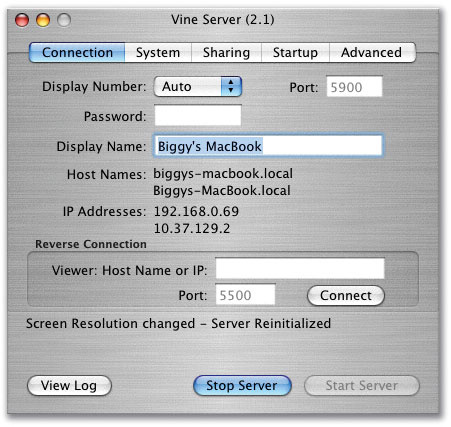 Spectacularly boring to look at, but incredibly useful, Vine Server allows one Mac to be viewed on and controlled by a different Mac.
There's another network solution that overcomes the need for your additional Macs' displays to be close at hand — and even the need for them to have displays at all! Using it, you could, for example, hide away a gaggle of Mac Minis and view their desktops within windows on your main Mac's display. This 'remote access' solution comes in the form of VNC (Virtual Network Computing): an open-source protocol that can run on pretty much any modern computing platform and operating system.
Although VNC is fundamentally open source software, various commercial versions of it exist. It is possible to set up a VNC server and viewer for free, though, and the best choices to go with are:
- Vine Server (www.redstonesoftware.com; see screen above): This is pretty much the only Universal Binary VNC server for OS X, and you can still get it for OS 9, amazingly. You install this on your 'slave' Mac.
- Chicken Of The VNC (www.sourceforge.net/projects/cotvnc): Also a Universal Binary, this is an open source VNC viewer that's easy to use. It allows you to view your slave machines on your main Mac.
- If you're wanting to set up a headless PC, to host something like Gigastudio, try RealVNC (www.realvnc.com): The Free Edition of this VNC server works with Windows 98, ME, NT, 2000 and XP.
I won't go into lot of detail on how to set up a VNC link here, since VNC doesn't really have much to do with DP. Also, your own VNC setup might well be quite different, so the best bet is to read the manuals that come with your VNC server and viewer to make sure things are running at their best. To summarise the process, though, you'd basically do the following:
Network Audio, VNC & Firewalls
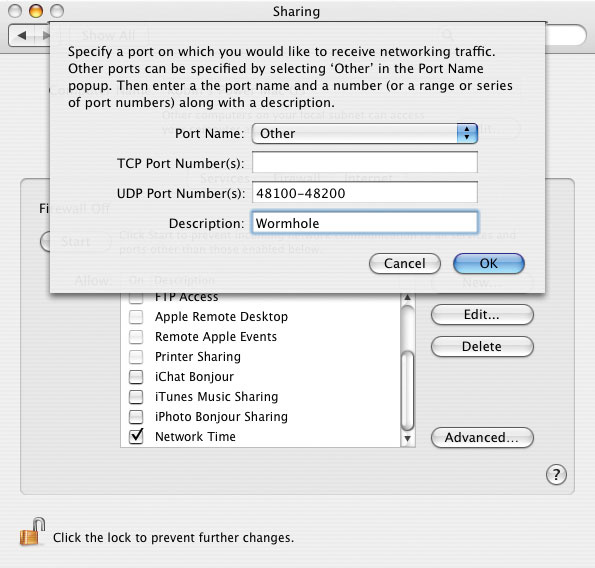 This is the Network pane in OS X's System Preferences. Here you can 'open ports' to allow network traffic through OS X's built-in firewall — if you have it enabled, that is. If your network is configured correctly but either Wormhole or VNC fails to work, you should check to make sure you don't have a firewall active somewhere on your system. Potential locations are either of your Macs (check in System Preferences / Sharing) or any kind of wired or wireless router your connection is passing through, which you'll probably configure using a web browser. A firewall could be blocking the ports used to send these types of data, and you'll need to open them up again. By default, Wormhole uses UDP ports 48100-48200, and VNC uses TCP ports 5900-5909.
1. First, install VNC server software on any Mac you want to use 'headless' or just to be able to view on your main Mac's desktop at any time. At this stage, you'll need the slave Mac plugged into its own display, keyboard and mouse.
2. On this slave Mac, configure your preferred form of Networking (Ethernet, Airport or Firewire) and preferably choose a fixed IP address. Use the 'Manually' option when choosing an IP address in System Preferences / Network.
3. Still on the slave Mac, use System Preferences / Accounts to make your VNC Server a 'Login Item'. This means that it will start automatically when you log into this Mac. But you also need log-in to happen automatically when you turn on the Mac, so use Login Options to 'Automatically log in as' your current user account whenever the Mac is started up.
4. Now you can disconnect mouse, keyboard and display to leave just the power lead and network cable.
5. On your main Mac, start up your VNC viewer and configure a new connection using the IP address you set up on the slave Mac. After connecting, you should see the slave Mac's desktop appear in a new window on your monitor. Point your mouse inside this and you're controlling the remote Mac. Incredible!
Optimising VNC Performance
A VNC connection uses up a lot of network bandwidth; there's a heck of a lot of graphics data flying down your network cable, quite apart from anything else. This can not only lead to problems if you're also using Network MIDI and audio connections, but it can make the VNC experience sluggish. You can optimise VNC performance, though, principally by reducing colour depth on the slave Mac from Millions to Thousands, and by doing the same in your VNC viewer application. You could also try setting a plain desktop background on the slave Mac and disabling as many animated effects (like dock magnification and screensavers) as possible.
A big problem with viewing slave Macs' desktops on your main Mac is that they can be huge and take up nearly all of your main screen. Ways of dealing with this include liberal use of OS X's window minimising, and also hiding your VNC viewer application when it's not needed. But OS 10.5's Spaces feature, or any other multiple-desktop solution, could also work brilliantly. Finally, Vine Viewer, the $29.95 counterpart of the freeware Vine Server allows desktop 'scaling' — so you can view remote Macs' desktops in small, cute, but still fully functional windows on your main Mac.
News
- PSP Audioware Universal Binaries: It's great to see that a first clutch of plug-ins from PSP Audioware has been released in the Intel-compatible Universal Binary format. So far, we've got Lexicon PSP42 and PSP84, MasterQ, Nitro and the 608MD multi-delay. Not only that, but there's a brand new UB Vintage Warmer 2 with some nice new features. All these are running great as Audio Units in DP.
- All the signs point to an imminent release of Universal Binary versions of some of Gmedia's virtual instruments, such as the M-Tron, ImpOSCar and Oddity. These were shown at January's NAMM show, and certainly if the new M-Tron is anything to go by (I had a sneak preview of it!) Gmedia have been working hard to provide solid DP compatibility, especially in terms of track-based automation features.