

 It's Session Drummer 2, Jim — but not as we know it. In this screenshot I've 're-skinned' SD2 for a different look, as well as making the drum pads show the MIDI note numbers to which they respond.
Sonar 's Session Drummer has evolved from a MIDI plug-in to a sophisticated tone module that also includes pattern playback capabilities. We take a look beneath the surface.
S ession Drummer 2 has very little to do with the MIDI-based Session Drummer in previous versions of Sonar. The original was basically a way to string together MIDI files into a drum part, whereas Session Drummer 2 (SD2) is a drum machine that can serve as a tone module, respond to 'canned' MIDI sequences, to lay down a quick backing track, and even allow a small measure of real-time improvisation. Some have compared SD2 to Steinberg's Groove Agent, but I think that's a stretch; SD2 doesn't have GA 's 'intelligent' pattern generation of tracks and fills, so it's up to you to provide the intelligence.
SD2 is divided into three parts. The topmost section is where you select SD2 programs, choose MIDI patterns, or populate individual pads with sounds ('instruments') if you want to create your own kit or modify an existing one. The middle strip consists of virtual pads for the 10 drum sounds, along with the all-important cute little icons for each drum. You can change these icons, by the way, as well as the overall look, if you're feeling adventurous (we'll cover how to 're-skin' SD2 towards the end of this feature). Finally, the lower section is a fairly conventional mixer for the 10 sounds, with Mute, Solo, Volume, Pan, Width (more on this control later) and Tune controls.
Before we go any further, I've noticed a few people remarking in forums that SD2 comes without documentation. That's actually not true, although its manual is not part of the online help. There are two ways to access it. The first is to click on the instrument itself and type F1. (This won't work if the window has the focus but you don't click on it first, nor will it work if you click on the title bar or some part of the window other than the instrument itself.) The other way is to go C:/Program Files/Cakewalk/VstPlugins/Session Drummer 2/Documentation/SessionDrummer2.chm; double-click the file.
Pimp Your Plug-in!
Not only can you add your own sounds, you can change the look of SD2 by creating your own skins. SD2 is actually a very easy program to 're-skin' (about the only one that's easier is the Combinator part of Reason), so it's a good way to learn about re-skinning in general.
Go C:/Program Files/Cakewalk/ VstPlugins/Session Drummer 2/Resources. There you'll see a bunch of .BMP files; these are the individual elements (background, buttons, pads, and so on) that make up SD2 's graphic look. I strongly suggest making a copy of the resources folder and calling it 'Original Resources', or something similar. That way, you can modify the files in the Resources folder as much as you want, but always get the original back if needed.
Another precaution is that if you want to change a file, first change its file name to something like 'Background_orig.bmp', so you can always return to it by simply deleting '_orig'. Then open that file in a graphics program, do your thing and save under the original name (otherwise, SD2 won't recognise the file). Next time you open up Sonar and Session Drummer 2, it will reflect any changes you've made.
Instruments, Kits & Programs
You insert Session Drummer 2 in the usual way; just go Insert / Soft Synths / Session Drummer 2. It won't do anything, though, because you need to load sounds first, usually by loading a Kit.
A Kit is a collection of instruments with accompanying mixer settings, while a Program, the highest level of the SD2 food chain, is a Kit plus eight MIDI patterns. SD2 comes with a set of samples of kicks, snares, cymbals, percussion, toms and hats, but you can also load your own samples in WAV, AIFF or Ogg Vorbis formats (mono or stereo, 8-bit to 32-bit, at any sample rate). It's also possible to load multisamples in the .SFZ format (as described later), as well as simply dragging samples onto the pads. One thing that's not obvious about the pads is that, in addition to the clicked pad being outlined in orange, velocity varies depending on where you click on the pad. The lower you click, the lower the velocity.
Programs & Files
SD2 comes with several Programs, so let's have a look at them. You open up the Program browser by clicking in the Prog field (clicking on the Prog 'triangle' instead brings up Program management options; one of them is Load, and you can use that instead if you want). You load a Program and its associated Kit by double-clicking on it (see screen below).
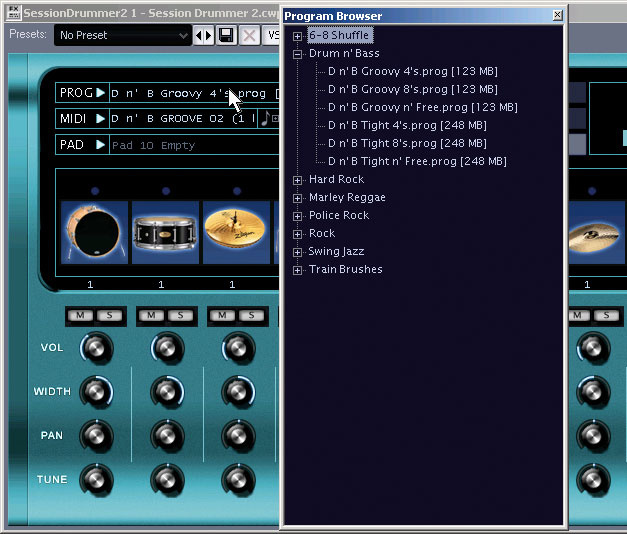 Session Drummer 2 has its own browser, where you can load the available Programs by simply clicking in the 'Prog' field. Once a Kit is loaded, you can click on the pads to audition sounds. However, each pad can represent several sounds, of which only one is the audition sound (ie. the one you hear when you click on the pad). To audition the MIDI files that come with a program, first you need to click on a pattern (A-H), then click on the SD2 transport play (arrow) button. The files that come with SD2 tend to be short, so it's a good idea to click on the loop button (the infinity symbol to the right of the play button) so you don't have to keep re-triggering the pattern.
You can also load MIDI files into the pattern slots, using a similar browser concept to that for loading Programs: click in the MIDI field (or click on the MIDI triangle and select Load Pattern), then navigate to the desired MIDI pattern. SD2 comes with its own patterns, which you can find at C:/Program Files/Cakewalk/VstPlugins/Session Drummer 2/Contents/Patterns. However, a really great place to find additional patterns is at C:/Program Files/Cakewalk/Sonar 6/Sample Content/MIDI Groove Clips/SmartLoops. (If you don't see the Sample Content in the described location, go Desktop/My Documents/Cakewalk/Sonar/Sample Content/MIDI Groove Clips/SmartLoops.)
You can't drag MIDI loops from the desktop or other location into SD2 's MIDI file slot locations, but you can drag the MIDI notes from the file used in a slot to a MIDI track. To do this, click on one of the file slots (A-H) to select it, then in the MIDI field, drag the difficult-to-see Note symbol with the '+' sign into the MIDI track. Frankly, I don't see why you can't just drag from the slot instead of dragging the notes, but...
Staying with patterns for the moment, it's convenient to be able to select them on a random-access basis by clicking on file slots and having the patterns play. But note that you can't record these selections as automation or note data; you still need to drag the file data over to MIDI tracks individually. In case you wondered whether this is just a question of enabling the ability to record MIDI data generated by software synths (a new feature in Sonar 6 designed to accommodate instruments like Groove Agent), this isn't the case. Even after enabling MIDI output for SD2, nothing shows up in any track from SD2 as MIDI or automation data.
Fortunately, there is another option that accomplishes pretty much the same thing: the patterns can be triggered from MIDI notes, and you certainly can record the MIDI notes from an external keyboard. The eight patterns are triggered by MIDI notes 27-34, with note 24 providing the stop playback function. (Incidentally, there's an error in the documentation provided for SD2: although it gives the right note numbers for triggering the various patterns, the note names are wrong. The 'Stop pattern' command is C2 and the patterns are triggered by the notes D-sharp to A-sharp.) This makes improvisation with patterns a relatively simple affair.
Loading Instruments
As alluded to earlier, SD2 's pads are not your normal drum pads. For one thing, some respond to more than one MIDI note. Pad 3 (nominally for hi-hats) can have a different sound on five different notes (22, 26, 42, 44, and 46), as can pad 10 (percussion). You can find all the information about which notes trigger which sounds, and the various audition notes, in the first section of the documentation.
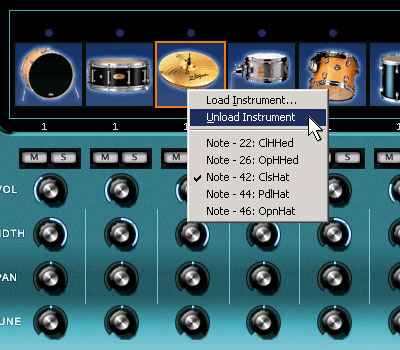 To load a sample into a pad, just right-click on the pad and select 'Load Instrument.' This is also where you can 'unload' an instrument from the pad, as shown here.The collection of acoustic-style sounds that comes with SD2 is OK but not exactly extravagant, so you might like to load your own samples. To do this, right-click on the pad into which you want to load the sample; you'll see the available notes for the pad, and the name of the currently selected sample shows up in the 'Pad' field.
Now it gets a little more complex, because when you load a single sample (either by right-clicking or by dragging over a sample), that's the only sound that will play back when you play any of the notes available for that pad. For example, with the hi-hat example given above, if you load a tom sound into the pad, any of the notes associated with the pad will trigger the tom sound — that's it. You need to create a multisample-friendly SFZ file to take advantage of the additional notes, a procedure that's covered in detail in the box below.
After making any tweaks, you can save them in a variety of ways. If you click on 'Pad' in the Pad field, you can save a Kit. If you click on 'Prog' in the Prog field, you can save a Program. And in the dimly-understood world of "What the heck is that Presets thingy at the top of the window good for?", you can save a Preset (VST.FXB file). This seems to save the same thing as a Program: Kits, MIDI patterns, the whole deal. Just go to the Presets field, double-click in it, type in a name for the Preset, and then click on the floppy disk icon. (For those readers not familiar with the floppy disk, it was a primitive form of data storage that could hold a whopping 1.4MB of data.)
Creating Multisamples For Session Drummer 2
As we've seen, SD2 can load individual samples, but it's more interesting — and challenging — to create multisamples with velocity control. To do this, it's necessary to understand how to program the SFZ file format. As a Sonar user, though, this will stand you in good stead, as you'll also be able to create sample sets for other SFZ-based Cakewalk instruments, such as Rapture and Dimension Pro.
Although programming in SFZ-speak is uncomfortably like computer programming, don't worry! It's not that difficult. One of the great things about SFZ files is that you can open them in Notepad and do some reverse engineering. This makes it easy to create templates into which you can simply drop sample names. However, one crucial thing is to make sure your folders and paths are in order. For example, let's suppose you want to create a multisample with three different kick-drum samples, taken from a sample CD or DVD:
1. Go C:/Program Files/Cakewalk/VstPlugins/Session Drummer 2/Contents/Kits. Here you'll find numbered folders named with particular drum sounds. With each of these, you'll find one or more SFZ files, with accompanying folders of samples to which these SFZ files point.
2. Create a folder within the Kits directory.
3. Create a folder within that folder that contains the samples you want to use for your multisampled drum sound. I used the Atomic_Jah_Kick_Lo.wav sound from the Bunker 8 Drumatic Percussives collection, along with two variations I created (Atomic_Jah_Kick_Mid.wav and Atomic_Jah_Kick_Hi.wav). These added progressively more 'grit', created using PSP's Vintage Warmer plug-in, to the original file. I named the folder AtomicJah.
4. Now open a file in Notepad. Give this a name that resembles that of the folder containing the samples (eg. AtomicJah.sfz). Make sure you use the .SFZ suffix, as this is going to be our SFZ definition file.
5. Now let's start writing the code. Comments are handled by adding // in front of a line (this is like the REM tag in front of lines written in BASIC: you can put anything after that, and the computer won't recognise it as part of the program). Adding comments is very helpful if you want to document a particular sound, and believe me, you do! That way, when you come back to the file later, you'll remember what you did. Here's my comments field:
// Atomic Jah Kick Drum Sample Set
// From the Big Fish Audio Bunker 8 Drumatic Percussives sample DVD
// "1001 — Dance Kits" folder
// Dance Kick Drum 1
6. Next, it's time to specify the key note to trigger this multisample, and the loop mode — which, as it's a drum sound, will be one-shot. This line is preceded by the <group> label. Here's how you would enter the line:
<group> key=35 loop_mode=one-shot
7. Now specify which velocity range a sample will cover by specifying the low velocity (lovel=) and high velocity (hivel=), and the sample path used for that range. This line is preceded by a <region> label. Note in the example below that 'sample=' gives the name of the folder holding the sample (which, again, should be in the same folder as the accompanying SFZ file), with a '\' indicating the path to the sample itself. Like so:
<region> lovel=0 hivel=100 sample=AtomicJah\atomic_jah_kick_lo.wav
<region> lovel=101 hivel=119 sample=AtomicJah\atomic_jah_kick_mid.wav
<region> lovel=120 hivel=127 sample=AtomicJah\atomic_jah_kick_hi.wav
8. Session Drummer 2 allocates a second 'slot' for an alternative kick drum that's triggered by MIDI note 36. For this, I used the AtomicJahSub sound, again with two additional variations for other velocities. The final SFZ file looks like this:
// Atomic Jah Kick Drum Sample Set
// From the Big Fish Audio Bunker 8 Drumatic Percussives sample DVD
// "1001 — Dance Kits" folder
// Dance Kick Atomic Jah
<group> key=35 loop_mode=one-shot
<region> lovel=0 hivel=100 sample=AtomicJah\atomic_jah_kick_lo.wav
<region> lovel=101 hivel=119 sample=AtomicJah\atomic_jah_kick_mid.wav
<region> lovel=120 hivel=127 sample=AtomicJah\atomic_jah_kick_hi.wav
// Dance Kick Atomic Jah Sub
<group> key=36 loop_mode=one-shot
<region> lovel=0 hivel=100 sample=AtomicJahSub\atomic_jah_kick_sub_lo.wav
<region> lovel=101 hivel=119 sample=AtomicJahSub\atomic_jah_kick_sub_mid.wav
<region> lovel=120 hivel=127 sample=AtomicJahSub\atomic_jah_kick_sub_hi.wav
Now all you need to do is go to a Pad, right-click on it and select 'Load Instrument'. Navigate to the SFZ file you created and your brand-new multisampled sound will be loaded into Session Drummer 2.