

Very low-cost PCs with apparently good spec are not hard to come by these days - you can even pick one up at the local supermarket. But not all computers will work well for music and audio, so how do you avoid making a big mistake?
 Plenty of musicians have bought PCs from high-street shops or via the Internet at bargain prices, and have found they do the job well. Many of them have chosen PC laptops rather than desktop machines, because they are far more portable (as well as taking up less space), and again have saved themselves a considerable amount of money over buying a dedicated 'built for audio' PC.
Unfortunately, while many are getting away with buying cheap PCs for music making, some aren't, and it's possible to end up with a computer that suffers from incurable audio click and pop problems, or one that can't be upgraded as easily as an 'audio PC'. Moreover, it's often not easy to work out which machine will perform well and which might be an expensive mistake, particularly where laptops are concerned. This article will therefore examine the specifications of several typical 'high-street' PCs, point out possible pitfalls and limitations in their component choices from an audio point of view, explain how to get around as many of them as possible, and point out where you may be on dangerous ground. We'll also be suggesting some quick and easy practical tests for possible audio problems that you can carry out on a PC while standing in the shop, before handing over your money.
While you can never be 100 percent certain that a mainstream PC will perform well with audio hardware and software, if cash is tight you may be tempted to give it a try. Our guide should greatly increase the odds in your favour, and your credit card will thank you for it!
£699 Powerful Desktop Spec
Let's jump straight in by examining the spec of a fairly powerful desktop PC that should run lots of software plug-ins and be able to manage a high software synth polyphony. Here's a typical spec found on a mainstream PC-seller's web site:
* Intel Q6600 Core 2 Quad processor running at 2.4GHz.
* Intel P35 PCI Express motherboard.
* Windows Vista Home Premium with Service pack 1.
* 4GB DDR2 800MHz RAM.
* 500GB SATA 2 hard drive with 16MB buffer.
* 256MB Nvidia GeForce 8400GS graphics card.
* 20x dual-layer DVD writer.
* 22-inch widescreen TFT monitor.
 A high-street PC may have an impressive specification for the price, but it pays to check carefully on the number and type of expansion slots, USB and Firewire ports before parting with your money.This particular system (described as a 'No. 1 Best Seller') is excellent value at £699, especially as it includes a 22-inch monitor (you could also buy this particular system for £599 without any monitor screen). So how are such excellent retail prices achieved, and which components are most important to audio performance?
CPU: The most important component for audio processing is the CPU, and you can't go wrong in this department since you know exactly what you're getting: an Intel Q6600. This performs extremely well with the vast majority of audio software (although a few more elderly applications may not be able to fully take advantage of all four cores, as I discussed in SOS January 2008). A quad-core CPU is also an ideal choice for any musician who wants enough processing welly to run loads of software plug-in effects and software synths.
Motherboard: The first big imponderable is the motherboard, since although we know it features Intel's P35 chipset and PCI Express, we don't know its make or model, or the number and mix of expansion slots and ports (particularly USB and Firewire ones) on offer. It's highly likely that this PC will have at least some USB 2.0 ports (watch out for phrases in the spec such as 'Standard Features' that may tell you how many ports are on offer), so if you already have a USB audio interface, you're catered for.
However, if you have a PCI soundcard you'll need to check with the PC manufacturer that this system has PCI slots (some modern motherboards only feature the PCI Express variety). Most cheaper motherboards also have no Firewire ports, so if you have a Firewire audio interface you'd need to add some in this case, using a £30 circuit card, which will, of course, use up an expansion slot.
Memory: By the time you read this, all mainstream PCs are likely to be shipped with Windows Vista installed as standard, since Microsoft state that they are discontinuing Windows XP on June 30th 2008, so while the latter still provides slightly better audio performance, this will become largely academic.
Moving on to memory, 4GB of RAM is more than adequate for most musicians (I'm still quite happy with 2GB!). However, always try to get as much RAM as you realistically think you'll ever need when you buy a new PC, since some companies may install four sticks of 512MB RAM instead of two 1GB sticks, to make up a 2GB spec, leaving no spare RAM slots for future expansion unless you discard what you've already bought.
Many mainstream companies keep prices down by using 'generic' (no-name) RAM, rather than well-known brands such as Corsair and Kingston that are thoroughly pre-tested for long-term reliability, but if you're lucky you won't notice any difference in practice. If you're unlucky, tracking down often intermittent RAM problems can be extremely tedious, even if the company replaces your RAM free of charge when they agree that this is the problem.
Hard Drive: A single 500GB drive is more than adequate for many musicians, and offers plenty of storage capacity. The spec of the PC described above doesn't mention the spin speed of the drive, but the vast majority of such drives are likely to be 7200rpm models offering good audio performance (some cheaper laptop PCs may substitute 5400rpm drives, but even these are capable of dozens of simultaneous audio tracks).
Single-drive audio performance may be slightly compromised over the separate Windows and audio drive setups normally offered on 'audio PCs', since a separate audio drive can concentrate on storing and retrieving all the audio files associated with each project without ever having to race off to access Windows or application files. However, even a single drive can run dozens of tracks without breaking a sweat, and of course you can add a second drive for about £30 later on if you wish, assuming your new PC has a suitable spare drive bay.
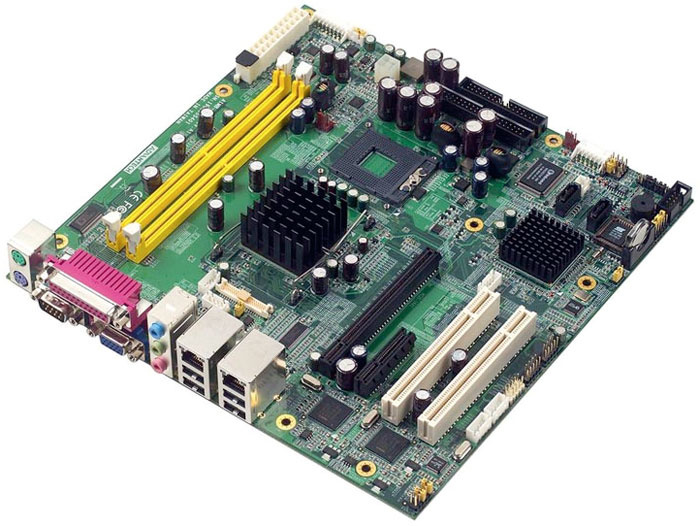 The Micro ATX Motherboards found in some entry-level budget PCs may have severely limited expansion potential, with limited USB ports, no Firewire ports and few expansion slots for adding more such ports. Expansion: This brings me neatly to one of the hidden issues with some mainstream PCs: a lack of expansion potential (particularly in PCs that have compact cases). You can often glean information about spare internal drive bays for installing additional hard drives, or external 5.25-inch bays for additional optical drives, by exploring 'customisation' options on the order form. If extra drive options are listed, you know there's spare capacity for future expansion.
The graphics card quoted in our example PC spec is perfectly adequate for audio work, although it is likely to incorporate a small and whiny cooling fan. This may be a compromise you're willing to make if low noise is not that important to you. Bear in mind that, for a given price, a mainstream PC advertised for 'Home Computing' use will generally be more appropriate for musicians than one specifically for gaming. This is because gaming PCs have more of their budget spent on faster (and noisier) graphics cards that are entirely irrelevant to audio software performance. In their pursuit of ultimate game graphics performance, high-end graphics cards may even result in audio bottlenecks that are difficult and occasionally impossible to resolve.
Be Prepared: Tests You Can Run In The Shop
 A high-street PC may have an impressive specification for the price, but it pays to check carefully on the number and type of expansion slots, USB and Firewire ports before parting with your money.Buying a PC over the Internet means that you'll have to rely on getting information from the manufacturer, distributor or retailer before purchase, but if you're intending to visit a retail outlet to buy your PC, you have the advantage of being able to do a few quick tests. You can store the utilities needed on a USB memory stick that you plug into the PC, and run them direct from there (there's no need to install them on the PC in question).
To check up on what components are inside a particular PC, try the freeware PC Wizard utility (www.cpuid.com/pcwizard.php). When first launched, PC Wizard will default to the Hardware 'System Summary' icon, which will tell you the make and model of motherboard, its chip set, and so on, plus details about the CPU, RAM amount and speed, make and model of video card, and the make, model, and capacity of all the connected drives. These can be useful double-checks against the advertised spec. If you next click on the hardware 'Mainboard' icon and then on 'Mainboard', in the list of items in the Information window you can scroll down to 'Slots Information' to find out how many expansion slots there are and of what type (PCI, PCIe, and so on), and whether they are already 'In Use' (i.e. fitted with a card) or available for future expansion. Also check 'Bus Firewire' to find the make of any Firewire controller chip.
Another very useful utility is Thesycon's DPC Latency Checker (www.thesycon.de/eng/latency_check.shtml), which I discussed in some detail in PC Notes June 2008. Leaving this running for several minutes and watching its activity will show you whether any hardware driver is grabbing more than its fair share of interrupt time and could therefore cause audio clicks and pops. If any spikes show up in the yellow area, be wary of that PC, and if any appear in the red zone, be very wary, particularly in the case of a laptop. You may be able to solve such issues by disabling hardware devices or updating their drivers, but if not you might have to discount this model and buy another.
Finally, to check for CPU and fan issues, try running OCCT (www.ocbase.com/perestroika_en), which will max out up to four CPU cores if you click its 'On' button, as well as displaying the rising (and then hopefully stabilising) temperature of each core. If you start DPC Latency Checker first and leave it running, you'll be able to see if the CPU cooling fans cause any interruptions, as well as hearing just how loud they get.
£399 Budget Desktop Spec
* Intel E2180 Core 2 Duo processor running at 2GHz.
* PCI Express Micro ATX motherboard.
* Windows XP Home Edition.
* 2GB DDR2 800MHz RAM.
* 250GB hard drive (SATA 2 with 16MB buffer).
* 128MB integrated graphics.
* 20x dual-layer DVD writer.
* 19-inch widescreen TFT monitor.
Now let's examine this cheaper model to see if there are any additional caveats. I discovered the model whose spec is listed above selling for just £399 including the screen. You obviously get less of everything (slower processor, smaller hard drive, less RAM, and so on), but it still seems an absolute bargain.
While not as powerful as the four 2.4GHz cores of the previous system, a 2GHz dual-core processor is still capable of running quite a few soft synths and plug-in effects, and will also be more than adequate for musicians who work primarily with hardware MIDI keyboards or rack synths and want to use their PC to record MIDI performances, as well as those wanting to record their own live performances of acoustic/electric instruments and vocals, or those of local bands and other ensembles.
What you tend to find with such cheap systems is a more serious lack of upgrade potential. One giveaway in this case is the phrase 'Micro ATX' in connection with the motherboard. At 9.6 inches square, a Micro ATX motherboard is likely to offer fewer USB ports (typically four instead of six or eight) than the more standard ATX type, it's unlikely to feature a Firewire port, and expansion slots are also likely to be smaller in number. Even if you find that there are two spare expansion slots, you might fill these by just adding more USB and Firewire ports, so it's even more important to check what the system offers as standard.
Moreover, Micro ATX motherboards are often coupled with 'dinky' cases that have extremely limited internal expansion potential, particularly when it comes to extra hard drives. If a second drive isn't listed as an option in the customisation list, this probably confirms that there's a lack of physical space, although you can still upgrade later on with an external USB or Firewire hard drive if you find you need more storage capacity.
Another cost saving can be found in the '128MB Integrated graphics', meaning that, instead of a separate graphics card with its own dedicated graphics RAM, the PC features a graphics chip incorporated onto the motherboard and sharing your system RAM. This is OK with a system running Windows XP, as this one does, since XP itself has a comparatively small graphics overhead. However, it will be interesting to see what happens with extreme budget PCs in the future, since Windows Vista requires a significant amount of graphics power to run its Aero interface. Fitting a standard graphics card may therefore be a useful upgrade in the future, but this option depends on whether or not the motherboard features a suitable expansion slot: check in the system customisation list for graphics card options, to confirm.
Offering 2GB of system RAM in a system as cheap as this one is generous, and although 128MB of this may be used for graphics purposes I doubt that this will prove a practical limitation in most cases. However, it's less likely that you'll be able to upgrade later on without scrapping your current memory, since Micro ATX motherboards typically have fewer RAM slots than ATX ones.
Overall, the extreme budget PC can work well for audio purposes, but you should be even more careful about expansion options and custom components that may limit your future choices. In essence, make sure you buy what you need now, so you'll be less likely to need upgrades later on.
Audio Interfaces For Newbies
Until a few years ago, an audio interface automatically meant a 'soundcard' (an expansion card that you insert into an expansion slot inside your desktop PC). There are now plenty of excellent PCI soundcards available, as well as a few PCIe (PCI Express) models to suit the newer and shorter slots found alongside the PCI slots in most new PCs. Laptop/notebook owners may also find two varieties of expansion slot suitable for a soundcard: older models tend to feature a PCMCIA slot suitable for one of the few PCMCIA audio interfaces available, while newer ones also have a miniature PCI Express slot (I don't know of any audio interfaces available in this format yet).
Nowadays, however, many musicians prefer to use an external audio interface, connected to the PC either by a USB or Firewire cable. Although some still refer to these audio interfaces as 'soundcards', they're not really: strictly speaking, a soundcard is an audio interface, but an audio interface isn't always a soundcard. USB/Firewire audio interfaces tend to be easier to install than PCI/PCIe soundcards, since you don't have to open up your PC.
On recent computers, the 'sound chip' provided as an integral part of the PC motherboard may sound good enough for basic playback duties, especially if partnered with ASIO4ALL drivers (www.asio4all.com), which provide the low-latency operation that comes as standard with more professional audio interfaces. However, many sound chips lack inputs, so if you intend to do any audio recording you'll nearly always be better off buying a dedicated audio interface.
£530 Mainstream Laptop Spec
* Intel Core 2 Duo T7250 processor running at 2GHz.
* 15.4-inch WXGA TFT screen.
* 128MB integrated graphics.
* 2GB DDR2 667MHz RAM.
* 160GB SATA hard drive.
Modern PC laptops and notebooks can provide more than enough processing power for most musicians, but while buying a desktop PC for audio is comparatively safe nowadays, buying a laptop can still be a bit of a minefield. This is a shame, considering the number of musicians who prefer a portable machine, and especially since a PC laptop is often a more suitable solution for students.
 You can make some potentially very expensive mistakes when buying a mainstream laptop for audio purposes, unless you rely on a personal recommendation. This Acer TravelMate 5720 model, for instance, has been tested out thoroughly by a variety of musicians and features the most widely compatible TI Firewire controller chip, yet can be bought for under £500.Beyond personal choices such as screen size and aspect ratio, PC laptops are generally bought in the same way as desktop models, by choosing processor type, system RAM amount and hard drive capacity. I found the laptop specified above selling for £530 but, like most others, it offered few upgrade options. Sometimes you can upgrade system RAM, but fitting it may require dismantling of the laptop, often a fiddly process that might even involve removing the keyboard. Fitting a larger hard drive is generally easier, but this may mean replacing the current drive and therefore having to reinstall Windows and everything else from scratch. So when you're buying a laptop it's even more important that you avoid cutting corners to save some money.
Many musicians have also been caught out by the keenness of laptop manufacturers to adopt new technology and abandon the old. A huge number of modern laptops now feature ExpressCard slots instead of the older and less capable CardBus slots, which would be great, except that audio interface manufacturers still see this as a tiny market and few have yet to release ExpressCard-based audio interfaces.
However, all is not lost if you find that your new laptop has the wrong-shaped slot to plug in your favourite CardBus audio interface. The answer is to buy a PCMCIA-to-ExpressCard adaptor, such as the one available from Duel Systems (www.duel-systems.com/products/adapters.aspx). Although you can't take advantage of the higher data transfer rates of the ExpressCard connection when using such an adaptor, this doesn't matter when the audio interface was designed to work at CardBus speeds, and the adaptor shouldn't affect interface latency or background noise in any way. The only thing to watch out for when using adaptors is their physical robustness, particularly if you intend to use the setup live, when a dodgy connection could be disastrous.
Another common laptop problem is incompatibility between laptop Firewire controller chips and certain Firewire audio interfaces. If you intend to use one of the latter, you should go to its manufacturer's web site and search for recommendations on the most compatible Firewire controller chip to partner it. TI (Texas Instruments) are generally the most widely recommended. Others, unfortunately, can result in audio clicks and pops. This isn't a PC-only problem, since the latest Macbooks have Agere Firewire controller chips that disagree with (among others) RME audio interfaces. Tracking down which chip a particular laptop model has isn't always easy, and not all manufacturers publish such information on their web sites, but it could save heartache later on if you can.
With so many modern laptops having metal cases, most now have three-wire mains cables feeding their power supply units, and this results in ground-loop problems as soon as you plug in an audio interface that is itself earthed via the mains, or a mains-powered mixing desk, active speakers, or similar. The result is background hums and whistles, plus additional digital noises whenever your laptop hard drive is accessed, the screen is updated, or you move your mouse pointer. A DI box such as the ART Cleanbox II (around £28 from www.artproaudio.com) will cure such problems. I discuss this in more detail in a dedicated SOS Forum thread (www.soundonsound.com/forum/showflat.php?Cat=&Number=222392).
However, such problems pale into insignificance next to those relating to laptop CPU throttling/fan cooling schemes. Designed to extend battery life, these ramp the processor clock speed up or down to suit demand, and keep fan speed just high enough to ensure that the CPU is cool at all times. For most users, such schemes are transparent in operation, but the short changeover periods can result in audio drop-outs. While the CPU can normally be forced to run permanently at full speed from Windows, some laptop fan cooling schemes can't be disabled (I've noted on-line grumbles about certain Dell and Toshiba models for instance), which can be absolutely infuriating.
Sometimes you can work round the problem by increasing your audio interface ASIO buffer size sufficiently to continue through the interruption, but this may result in a latency of 20ms or more, making the playing of software synths feel sluggish and monitoring of your recordings almost impossible. Occasionally there may be a third-party utility that forces the cooling fans to stay at a constant speed (the i8kfanGUI utility, for instance, lets owners of a wide range of Dell Inspiron, Latitude, Precision and Smartstep notebook models take manual control of their cooling fan speed, and can be downloaded from www.diefer.de/i8kfan/index.html). However, sometimes there's no cure other than buying a different laptop.
The Acoustic Noise Issue
A PC that emits only a low level of acoustic noise may not be too crucial if you're primarily working with synths or electric instruments, but if the computer is going to be in the same room as microphones it will need to be silent enough for any noise not to be picked up on each and every track you record. This is where many high-street desktop PCs become less appealing, since they mostly use cheaper cases with thinner panels, and bog-standard heat sinks and fans for cooling, to help achieve their lower prices.
There are plenty of replacement heat sinks, fans and acoustic treatment kits available to silence your desktop computer, reviewed on web sites such as Silent PC Review (www.silentpcreview.com), and from companies such as Quiet PC (www.quietpc.com), but expect to pay between £50 and £100 to silence a typical desktop model. The cost of silencing may even start to make a specialist music PC seem more desirable.
Unlike a tower or other type of desktop system that can be hidden under your desk, a laptop is generally used within inches of your ears, and some are noisier than others when the fans do kick in. If you have to force the fans to a constant speed to avoid audio interruptions, this noise will be continuous, too, which makes it all the more important to try out the laptop in the way described by the 'Be Prepared' box.
Choosing An Audio Laptop
Unfortunately, you can't generalise about one laptop manufacturer being bad and another being good, since the issues discussed above may only affect particular models in any manufacturer's range. For instance, as I write this, one model in particular is being widely recommended on the SOS Forums, and that's the Acer TravelMate 5720, with dual-core T7300 2GHz processor, 15-inch WXGA display, DVR-RW drive, ExpressCard slot, PC (aka PCMCIA) Card slot, and Firewire ports with TI controller chip, available with 1GB RAM for around £450. On the other hand, there's a long thread over at the KVR forums (www.kvraudio.com/forum/viewtopic.php?p=2857403) detailing audio problems with Acer's TravelMate 6592G model.
 Some HP Compaq business notebooks (notably the NC6320, NX6130 and NX7400) are also recommended by musicians and have TI Firewire controller chips, whereas the latest models feature a troublesome Ricoh chip. Manufacturers also tend to change models and their specifications quite regularly, and may even change internal components on existing models during their lifetime.
Overall, the only reliable way to buy a laptop for making music that you can guarantee won't be an expensive mistake is to let someone else try it out first, to check for any incompatibilities. Buying one from a specialist music retailer removes such uncertainties but will cost you a bit more, and of course the DIY route doesn't exist as it does for desktop machines. In my experience the only other real way to avoid your purchase ending with tears is to get a recommendation from another musician who has already tried the make and model you're interested in. This is the main reason I started up the sticky thread on the SOS PC Music forum entitled 'Survey of Recommended PC Laptop Models' (www.soundonsound.com/forum/showflat.php?Cat=&Number=414373), where I encourage happy laptop users to post details of models that they would recommend to others.
Already read over 20,000 times, these are, of course, personal recommendations, however honest and heartfelt. They don't guarantee that someone else will have the same positive experience, or that using a different audio interface with the recommended laptop won't create problems, but it's nevertheless far better than buying blind!
If A Mac Is A Must...
A new Apple Mac isn't the obvious choice of computer if you're on a tight budget. In fact, there's only one real option if you're watching the pennies: the Mac Mini. Even though you can pick one of these up for £399, you'll need to add a monitor, a keyboard and a mouse if you want it to do anything. However, these could be bought fairly cheaply second-hand.
 The Mini is the cheapest way to get a Mac on a budget — and it's surprisingly powerful.For its size — it has a desktop footprint of 16.5cm square and is only 5cm tall — the Mac Mini is a powerful little beast. At the time of writing, it's available in versions with 1.8GHz or 2GHz Intel Core 2 Duo processors and 1GB RAM as standard (expandable to 2GB), and it ships with an 80GB or 120GB hard drive respectively. Compared to a desktop Mac, connections are limited, but you can still hook up one Firewire 400 and four USB 2 devices, and it has Gigabit Ethernet for connecting to a network. Usefully, for the computer-based musician, the Mac Mini has built-in stereo audio inputs and outputs, with mini-jack sockets that can also accept digital signals on optical cables.
But what does this mean in practice? Well, in head-to-head tests, the Mac Mini outperforms all the dual-core G5 Power PC-based Apple desktop machines, which are still used at the heart of many project studios. The main criticism of it is that the hard drives only spin at 5400rpm (compared to the 7200rpm that's recommended for audio machines), but it's easy and relatively cheap to add a 7200rpm external recording drive if this is an issue for you. The Mac Mini comes with OS 10.5 (Leopard) pre-installed, and ships with the iLife suite, which includes Garageband, so you can start making music as soon as it's out of the box.
It's difficult to recommend a Mac laptop when keeping to a tight budget is a central purchase criteria. The cheapest Macbook is £699, but this price includes perfectly usable on-board sound, a bundled (basic) DAW in the form of Garageband and the convenience of mobility, so it may be an option for some. Chris Mayes-Wright