

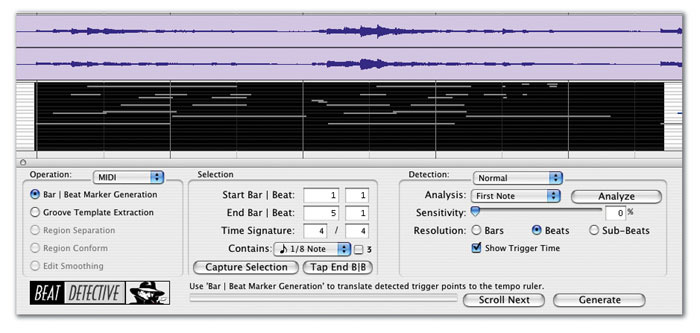
 Here, I've selected four bars of MIDI for Beat Detective to generate a tempo map from.
We all know that Beat Detective can be used to fix up dodgy drumming. But how about creating a tempo map from a freely played keyboard part? Or replacing a piano track with note-for-note accuracy? You can achieve amazing results when you know how...
 Beat Detective shows me where it thinks the bars and beats fall within the selection. Adjusting the Sensitivity control helps to get it right.
 Analysing the audio output from my keyboard, rather than the MIDI notes, produces slightly different results.
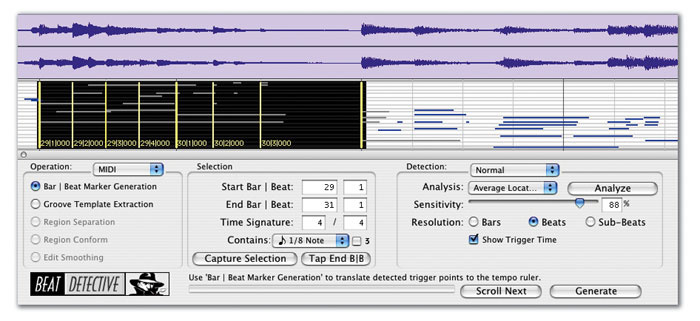 Beat Detective doesn't cope very well with ritandos in the middle of a section (above); changing the selection so that the ritando is at the end enables it to get things right (below).
 Don't expect Beat Detective to deal with changes of time signatures within a section.
 Above and left: This particular section is a problem for Beat Detective: it can't find the correct bar and beat positions. However, it's possible to use the Grabber tool on the audio track to move the bar and beat lines to the correct positions.I have now worked on numerous tracks that would at best have been a nightmare, and at worst wouldn't have made it to the client's CD, without the help of Pro Tools 's Beat Detective feature. Its most obvious use is taking freely recorded drum parts and making them conform to a grid or some other timing reference, but it can also be used on all sorts of other material, and this month I'm going to share some of the more advanced tips and experiences I have gained using Beat Detective in anger. The good news is that everything I am going to describe is possible on both TDM and LE versions of Pro Tools: Beat Detective used to be TDM-only, but most of its features were made available on the LE version from v6.7 onwards.
The first example I'm going to use came from a client's interpretation of the song 'Breath Of Heaven' (made famous by Amy Grant). Initially, I recorded the bass guitar, keyboards as both audio and MIDI and a guide vocal in one pass. We didn't want to use a click, as the musicians wanted to be able to 'feel' the timing and incorporate ritandos and so forth, so we laid down a couple of takes straight into Pro Tools until we were basically happy with the feel of it. Then we patched up a few keyboard mistakes and I sent the musicians home. I recorded the MIDI output from the keyboard as well as the audio, as I thought it might help in the next phase of the process. This was to create a tempo map of the live playing so I could get Pro Tools to create a click track ready for the following day, when we would be recording a 13-piece string section layered up three times.
Creating A Tempo Map
Beat Detective has been designed to be extremely 'intelligent' and so isn't easily fooled, as we will see. It is best to put it to work on small sections, rather than a whole song at a time, especially if there are large changes in tempo. I tend to work in four-bar sections unless there is a particularly easy section, in which case I will jump up to eight; for particularly complex sections I'll go down to two or even one bar at a time, which doesn't make for a very fast process but does make for a very accurate tempo map.
I began by working on the MIDI part: as you can see in the screen shot, I have selected the first four bars on the MIDI track and opened the Beat Detective window (Windows / Show Beat Detective or Command+8 on the numeric pad on a Mac or Ctrl+8 on a Windows system). I then enter the start and end bar and beat numbers as well as time signature in the Selection section in the middle, set MIDI (in this case as we are analysing a MIDI track) from the drop-down menu in the Operation section of the Beat Detective window and then click the Analyse button. As I adjust the Sensitivity control, bar and beat lines appear, and some of the lines will move as the Sensitivity is increased (see screen overleaf).
To make sure Beat Detective is putting the bar and beat lines in the correct places, it's much easier if you either know the piece very well, or have a copy of the music, so you can see what the notes are and so where the they should be. Having satisfied yourself that they are correct, click on the Generate button. If there are any tick-based tracks (which includes all MIDI tracks) Pro Tools will ask you whether you want them to move or not. In this case I don't want the tick-based tracks to move, as I want the MIDI track to remain in sync with the audio tracks. Click OK to dismiss the window and you will see that Pro Tools will have inserted various tempo changes and the correct bar lines in the timeline section of the window.
Other functions also affect the way Beat Detective interprets the selection: changing the Contains drop-down menu to quarter notes instead of eighth notes changes how Beat Detective 'sees' this section and in this case brings up errors. Changing the Analysis drop-down menu to other options like Loudest Note can also produce errors. Make sure you click the Analyse button again when you have changed some of these settings to update Beat Detective's analysis of the selection.
Now let's take a look at the same selection, but this time analyse the keyboard's audio output. This time, I have Audio selected in the Operation section of the Beat Detective window (right); note that the Analysis drop-down menu now offers High and Low Emphasis. You should normally use High Emphasis unless you are analysing low-frequency audio like a kick drum or bass guitar track. If you compare the results of analysing the audio and the MIDI (top), they are very similar but not exactly the same. I found that there were some phrases where the analysis of the MIDI was better and other phrases where the reverse was true.
Sharpening Up
There are a number of additional things you can do to ensure that you get the most accurate analysis:
- Make sure that when you highlight a selection, you highlight from just before the first note of the selection and highlight on past to just beyond the first note in what will be your next selection. This helps Beat Detective to know where the exact starts and finishes are and is especially important during ritandos, where the tempo can slow up a lot.
- You can use the Capture Selection button if the selection is close to the correct number of bars, but again, if the selection includes a ritando, be ready to change the end point; make sure you press the Enter key after changing it or Beat Detective won't recognise the new end point.
- Don't just depend on your eyes. Having made the selection, play it to make sure you have the correct selection. It is most important you don't make a mistake here as any error will mean everything after it in the song will be wrong! Always be extra sure you have the correct selection, and that Beat Detective analyses it correctly, before hitting the Generate button. To my cost, I've found that it is not possible to go back and simply correct the error, as this doesn't fix all the 'knock on' effects. You will have to redo the entire analysis from the point where you made the mistake.
- Don't have a ritando in the middle of a selection, as the chances are that Beat Detective won't be able to make sense of it. In the penultimate screen on the previous page, bar 31 should be the chord in the middle of the section, but it can't work it out! As soon as I select only two bars, so the end of the selection is also the end of the ritando, Beat Detective is able to resolve it perfectly.
- The time signature is important. In this piece there is a four-bar selection. At bar 52 there is one 3/2 bar, then two 4/4 bars; then bar 56 is another 3/2 bar. Beat Detective is totally confused with the time signature set to 4/4, as the screen (top) shows. However, if I set Beat Detective to analyse just bar 52 and tell it to expect a 3/2 bar, hey presto, it works!
- There are times when you need to give Beat Detective manual help. Take a look at the middle of the three screens to the right. It is a two-bar piano selection. I had first tried a four-bar selection and it wasn't working. It was putting all the notes in the wrong place. Next, I tried the same two-bar selection on the audio track instead, and although it could find the bar lines fine, it still couldn't work out where to put the beats. In these situations, if you are working on an audio track, you can get hold of the beat marks with the Grabber Tool and help Beat Detective to get the bar and beat lines in the correct places (right).
A Different Problem
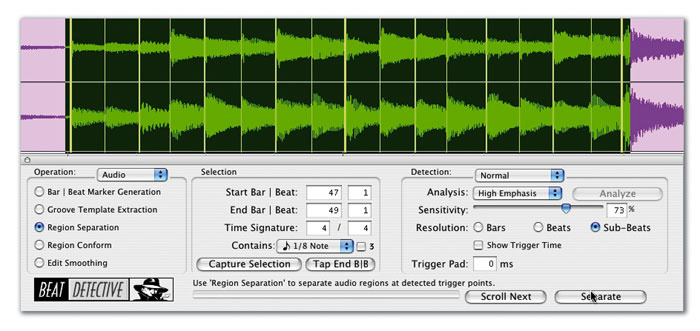
 The other main function of Beat Detective is its ability to 'chop up' an audio part and move the sections around so that they line up with the grid or with a tempo map. Here, I've analysed a two-bar piano part to find the start of each note (above), before hitting Separate (below) to divide it into separate regions.
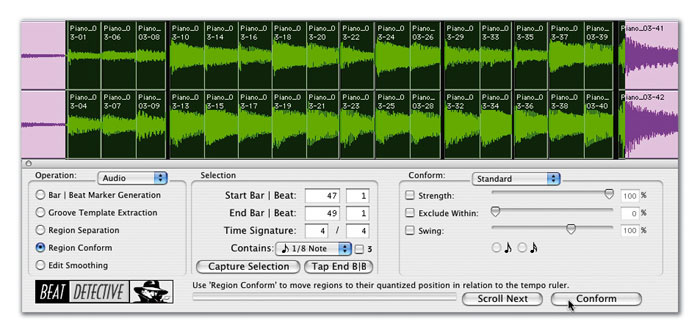 Hitting Conform moves the new regions to the appropriate positions on the tempo map.
 Moving individual notes around invariably creates gaps and overlaps. Beat Detective's Edit Smoothing function automatically extends regions to fill gaps and creates crossfades where needed.As it happens, the second example I'm going to focus on was another Amy Grant cover I recorded for the same client two years ago. In this case the song had been tracked and mixed, but then the client wanted to replace the original keyboard part with a piano part that contained all the detailed fills and so on that hadn't been played on the keyboard part. However when the pianist came to play the new piano part she understandably found it very difficult to play exactly in time with the original, especially as there was no click track to work to. We worked as hard to get the piano part as close as possible and then I sent them home and set about using Beat Detective to match the two.
Firstly I had to create a tempo map of the song. I didn't have a MIDI track to help me on this one (I learnt that for next time — it's easier to analyse the MIDI data!), but this song did have drums, so I used the same technique as described in the first example to create a tempo map from the kit. When the kit wasn't playing then I used the keyboard part.
However, what was really needed in this example was to 'quantise' the new piano audio to the tempo map created from the original keyboard and kit parts. This is the other job for which Beat Detective is designed.
Again, this should be done in small sections. As you can see in the topmost screen to the right, I have selected a two-bar phrase and analysed it to find the start of each note. Then I select the Region Separation option in the Operations section of the Beat Detective window and Analyse it, adjusting the Sensitivity control so Beat Detective picks up the correct note edges. When I am satisfied, I then hit the Separate button, and Pro Tools will create regions for each note (right).
I now select the Region Conform option in the Operations section, and you will see that you have options as to how Beat Detective will move these regions to fit the tempo map. Standard will lock the new regions tight to the tempo map, but you also have the option to impose groove and swing in the way the regions will be positioned. On hitting the Conform button, Pro Tools will move each one of these regions to line up with the tempo map. You will notice that there are gaps in places where the regions been moved, and the final stage in the process is to sort those gaps out and 'smooth over' the edits. To do this, select the final option in the Operations section of the Beat Detective window: Edit Smoothing. This will extend regions intelligently and apply crossfades to all the edits.
This example was way more demanding than the usual applications of Beat Detective like tightening up a drummer's parts or reining in a wayward bass guitar, and it certainly saved the day for my client! It just goes to show that Beat Detective is an extremely powerful tool in our arsenal to help produce music of the highest quality — provided you make sure its interpretation of your music is the correct one. Otherwise, you will find the errors just get compounded. Enjoy!
Pro Tools News
* Firewire 800 drives qualified on Tiger
Firewire 800 drives with the Oxford 912 interface have been officially qualified by Digidesign on Mac OS 10.4 with Pro Tools HD and Pro Tools LE systems running Pro Tools 6.9.2 or higher. Digidesign have not tested Mac OS 10.3 or Windows with FW800 and the degree of this support is very specific. Digidesign have confirmed that mixing FW800 and FW400 on the same computer is not approved, as they have seen numerous problems when devices are mixed on the same buss. However, following comments on the User Conference, Digidesign are approving the use of the Canopus DV video boxes, which are FW400 of course, for use with FW800 drives.
* iLok transfer trick
You may have noticed that since Digidesign have released the Massive Pack 4 bundle there have been loads of plug-ins available for sale on eBay and the like. As I stated last month, you should proceed with caution when buying and selling plug-ins, especially those included in the Massive Pack 4 bundle, as they cannot be transferred. Those who already owned some of the individual plug-ins and then bought the bundle could sell off their original copies, but be aware that if you sell your non-bundled version you may compromise your upgrade options, as most if not all of the bundled versions have restrictions on upgrades later without spending more money. So I am afraid there is no such thing as a free lunch.
If you do choose to sell your non-bundled plug-ins, it is going to cost someone $25 per plug-in to transfer the licence from one iLok account to another. However there is a workaround that is worth considering if you have a number of plug-ins you are selling or buying from one source. The buyer supplies the seller with a blank iLok, which the seller synchronises to their iLok account and transfers the licences for the plug-ins they are selling. The seller then removes it from their account within the seven-day grace period offered by PACE to allow for mistakes and sends it to the buyer, who synchronises it to their iLok account. Hey presto, it's all done for the cost of one blank iLok. I can't guarantee that this loophole will stay open for ever, and you should also be aware that not all plug-in manufacturers allow licence transfers anyway, so if you are buying or selling iLok licences, be very careful as there are a large number of pitfalls to drop in.
* M Box 2 and native Core Audio
By now you will have heard all about the new M Box 2, but here is one neat thing you may not be aware of: it is a native Core Audio device, which means it does not need the Core Audio Manager Application, and will allow you to run Pro Tools LE and Core Audio applications simultaneously! However remember that the original M Box, Digi 002 and HD systems will never work this way and will always require the Core Audio Manager. I suspect this is a sign of things to come in future Digidesign hardware.
* Dial CS for updates
There have been more Pro Tools 'cs' updates again this month. I suggest you either check the User Conference at http://duc.digidesign.com/ or regularly go to the 'cs' page in the support area of Digidesign's web site at www.digidesign.com/download/cs/.