

There are sure to be times when you need to export multitrack Logic files to other platforms. We explain the options.
Though the Digital Audio Workstation has allowed musicians to become their own engineers and producers, it's rare that a project will remain completely within the bounds of Logic Pro throughout its whole gestation period. Even if you don't collaborate with others, you may want to import Logic songs into Apple's Final Cut Pro or Pro Tools, or other DAW software, without them being fixed as bounced‑down audio files. Logic Pro's expanded output facilities make all this possible with just a few mouse clicks.
Logic Pro's Export menu, which you'll find in the main File menu, is the place where you can utilise all the program's output options. Which ones you'll use depends on what you want to achieve and which program you want to export your Project to.
Working With Pro Tools
Many Logic Pro users will, at some point, want to import their projects into Pro Tools. Digidesign's flagship HD program is at the heart of the recording industry, and if you want to take your projects to mix in a commercial studio, so you can make use of their classic gear, it's more likely they will be using Pro Tools than any other DAW. Of course, you could just export all the tracks as audio files, as explained in last month's workshop, but there are a couple of more elegant solutions available in Logic Pro.
The 'Project to OMF' (Open Media Framework) menu item exports all the audio files in a project and packs them into a single OMF file. Choosing this menu item opens a dialogue box where you can select which OMF type to save as — which you use depends on how old your version of Pro Tools is, so it may pay to save copies of both types — and you'll need to select 'Include Audio', as well as 'Convert Interleaved to split stereo', because Pro Tools likes to work with these kinds of files. Normally, you'd leave the files at 24‑bit resolution for maximum fidelity and, consequently, you wouldn't set a dither type. Volume and pan data is retained in OMF files, but instrument and MIDI tracks are not, so you'll have to bounce these down in real time before you export. OMF is not just for Pro Tools, though; you can import OMF files into any program that supports the format — Sonar or Cubase, for example — so it could be a good choice for collaboration with our Windows brethren. Although OMF export has been flaky in earlier incarnations of Logic Pro, in version 9 it's much improved, and I've been swapping Logic Pro and Pro Tools sessions for several months now, with no problems.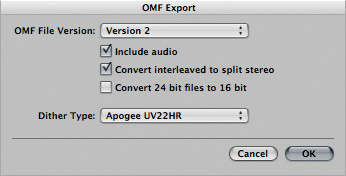 Exporting options for OMF.
AAF (Advanced Authoring Format) is a more sophisticated way of exporting from Logic Pro and importing into Pro Tools. Files can have their sample rates, bit depths and file types defined, and you can choose to dither if converting from 24‑bit to 16‑bit. The advantage of AAF is that region information is retained, as are automation data and any audio file that contains tempo information. An imported AAF file re‑imported into Logic Pro should look exactly the same as the original version, with all regions placed exactly where they should be on the Arrange page. The same caveats mentioned when exporting to OMF, with regard to Instrument and MIDI tracks, also apply to AAF. Exporting options for AAF.
Working With Final Cut Pro
Apple are bringing their flagship programs closer and closer together, so it makes sense to be able to export Logic Pro files easily to the Final Cut Pro video editing package. When Logic projects are exported using the Project to Final Cut Pro/XML option, an associated XML file is created, along with all the exported audio. Instrument Tracks are also rendered to audio, but MIDI ones are not, so you'll have to bounce these down in real time before export. The XML file can then be imported into Pro Tools — and automation data should transfer too.
Instrument & MIDI Tracks
When you have regions in a project that are on virtual instrument tracks, you can just right‑click or Control‑click on the region and use the Bounce In Place command to create an audio version of the region — assuming you're using Logic Pro 9. In earlier versions, you'll have to bounce the tracks as if they were MIDI tracks, as described below. Bouncing virtual instrument tracks to audio files in Logic Pro 9.
- Work on a copy of the project (using 'Save a Copy As' from the File menu).
- Select the Destination as a New Track.
- Set the Source to Delete, to remove the original Instrument track.
- Choose whether you want to include plug‑ins, volume, pan or automation in the bounce.
The resulting audio file and region will be exported in exactly the same way as an ordinary audio file. If you have tracks that are controlling external MIDI hardware, such as synthesizers, you'll have to solo these and use the File menu's Bounce window to bounce the project to disk in real time. If you select the 'Add to audio bin' option, you can just drag the resulting audio file back to the Arrange page, to a new audio track, delete the original MIDI track and select the export option you want. Any virtual instruments that use Logic's suite of MIDI processors in the Environment will have to be treated in exactly the same fashion before exporting.
Working With Soundtrack Pro
Soundtrack Pro is bundled with Logic Studio and is designed specifically for working with any audio destined to be included in Final Cut Pro — so swapping audio between these two programs is fairly seamless. You can export audio directly from Logic Pro to Soundtrack Pro by setting the latter as your external editor in the Audio Preferences window.  Setting Soundtrack Pro as the external editor in Logic Pro.Once this is set, you can use the Option menu's Open in External Editor command to open a selected region in Soundtrack Pro. When you've saved and Soundtrack pro is closed, Logic Pro updates the edited file — or you can use the saved .stap file directly in Final Cut Pro. Soundtrack Pro has some nice editing features not available in Logic Pro's own Sample Editor, such as the Spectrum View, which can be used to pick out pesky problem frequencies much more easily than regular sample waveform views, as well as extremely detailed sample‑level editing.
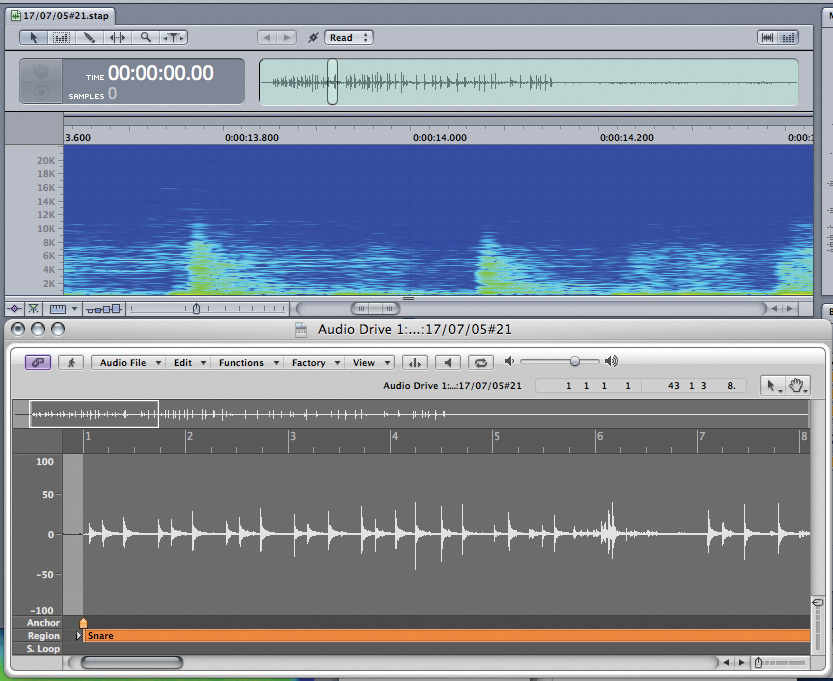 Soundtrack Pro's Spectrum waveform view (top) vs Logic Pro (bottom). There are also tools for noise reduction, and an analysis function that is useful for locating and removing pops, clicks and hum.
More About File Formats
Logic has an extensive range of File Type options available for when you're bouncing and exporting. But what do they all mean, and how do you know which one to use? Here's a handy guide.
- Sound Designer II: This format was originally introduced as the native file type of the veteran Macintosh‑based Digidesign audio editing program of the same name. Originally, the output consisted of two linked mono files, but there is now a single stereo file version as well. You might want to export in this format if you are working with Pro Tools users on the Mac, or those aficionados still using Sound Designer!
- AIFF: This is Apple's full‑bandwidth PCM (Pulse Code Modulation) file format that maintains the full audio quality of the bounce. AIFF files can have a maximum size of 2GB, which equates to stereo files of about three hours and 15 minutes at 16‑bit, 44.1kHz resolution.
- WAV: WAV files are, effectively, the Windows version of AIFF. These days, Macs are perfectly happy with WAV files, but Windows programs cannot always use AIFF, so if you expect your files to end up on a PC, WAV format is preferable. Sonically, there's no difference between WAV and AIFF. Logic generates Broadcast Wave Files (BWF), so the maximum WAV file is 4GB (about six hours and 30 minutes at the CD standard bit and sample rates).
- CAF: To address the limitations of AIFF and WAV files, CAF (Core Audio Format) has been introduced, and can cope with durations of up to 13 hours and 30 minutes at 44.1kHz. While bit depth and format (stereo, mono or surround) do not affect recording time, sample rate does, and the recording time is reduced to about three hours at 192kHz.
- MP3 and AAC: Both of these formats use 'perceptual encoding' to trim down file sizes. You can select a bit rate (the higher the rate, the higher the quality, but the larger the files generated) or use variable bit rates, which change depending on the harmonic content of the audio, with lower rates during simple passages and higher rates for more harmonically complex ones.