

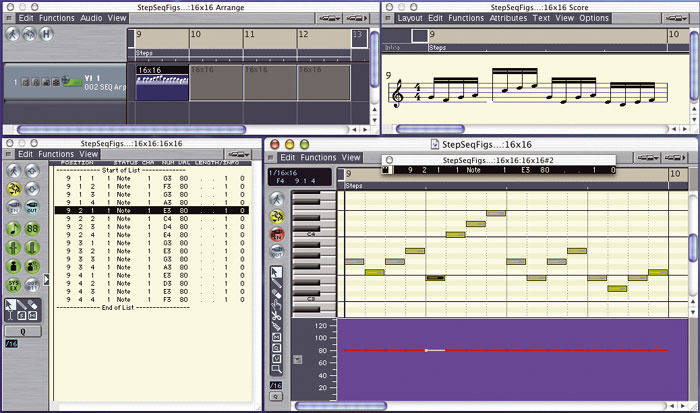
 A convenient arrangement for creating and editing step sequences in Logic's MIDI editors. The Matrix Edit window (bottom right) is always the active window for access from the keyboard and MIDI Remote Key Commands, and is surrounded by floating Arrange window, Event List window, and Score window, for reference and editing with the mouse.
We show how to create step-sequencer effects within Logic's MIDI editing windows. Plus practical tips to make your sessions more productive.
Step sequencing (the only form of sequencing available in the early days of synthesis) has resurfaced as a major tool in most forms of popular electronic music. Typically step sequencing in software is accomplished via step sequencers built into software synths such as Arturia Moog Modular V and Virsyn Tera, or in step-sequencing applications such as Five12 Numerology and Mil Productions Modularing. Recent Logic Notes columns have even detailed how to build basic step sequencers in Logic's Environment, and Emagic provided a free, full-featured step sequencer emulation called the Ultimate Step Sequencer (USS) a few years ago, now downloadable from www.swiftkick.com.
But step sequencing in software need not be limited to emulations of knob-and-slider hardware devices. Logic's MIDI editors, Key Commands, and MIDI step input options can often do the job just as easily, and in some cases more intuitively. Here I'll take a step-by-step look at how to go about it.
Step-sequencer Effects In Logic
In its most basic form, a step sequence is a repeating pattern of equally spaced notes, and the earliest analogue hardware step sequencers gave you a row of knobs or sliders for setting the pitches of those notes. In hardware, each step costs more money, so eight steps was typical. More sophisticated models offered more steps, as well as several rows of knobs allowing several step sequences to run simultaneously. The step sequencer's output was a stepwise varying control voltage, which could be used to affect any synth parameter, not just pitch. The other analogue step sequencer essential was an internal clock for controlling the speed of the sequence or, alternatively, a trigger input, allowing you to use an LFO to step the sequence.
MIDI step sequencers typically offer both note message and continuous controller message outputs, with controls for setting both pitch and note velocity. Their clocks are usually synchronised to tempo either via MIDI Clock messages between applications or, in the case of plug-ins, directly via the host. Here I'll concentrate on note sequencing, although much of what I'll be saying applies equally well to step sequencing any kind of MIDI message.
The basic fodder for creating a step sequence in Logic is obviously a short MIDI region containing equally spaced notes. You can create these as you go, but if you plan to do a lot of step sequencing, fill a folder with regions having different note-spacings and lengths, so that you can simply copy the one with the desired resolution to a MIDI track and get started immediately. If you're creating the step sequence without other tracks playing, set Logic's locators around the region. If you want to build the step sequence in the context of a longer section of music, set Logic's locators around the section of music, place the region at the beginning of the section, and turn on the region's Loop Parameter. The next step is to start Logic playing (with Cycle mode turned on) and edit the pitches of the notes in the region.
The Score and Matrix Edit windows make the best choices for editing the note pitches, and two pairs of Key Commands make the job easy: Select Next/Previous Event and Event Transpose Plus/Minus. I use the left/right cursor keys to select, and the up/down cursor keys to transpose. Also turn MIDI Out off by clicking the editor's MIDI Out button to the grey position. As an alternative, you may prefer to edit the pitches without Logic playing and with MIDI Out turned on. You won't hear the edits in the context of the step sequence that way, but you will hear the pitch changes immediately.
If you prefer to enter pitches using your MIDI keyboard, you can click the window's MIDI In button to the MIDI Edit position (red with lock icon). Then any incoming MIDI notes have their pitches applied to the selected notes in the editing window. Bear in mind that the incoming note velocities are also applied to the selected notes, so if you've already set the velocity values you want, you've got a problem. (On the plus side, MIDI Edit mode is the only mouse-free way to change velocity values, and is especially useful for drum sequencing.)
Logic Tips
- Like most Logic windows, the Track Mixer can be opened as a normal or floating window. Since no Key Commands apply to the Track Mixer, it generally makes sense to open it as a floating window. Len Sasso
- The Event Float window, which can be opened from the main Options menu or with a Key Command, provides a quick way to view and edit MIDI message parameters numerically. It shows the values for MIDI messages as you select them in other editors. When you click and drag to change a note parameter in the Event Float window, the note will automatically be played back. That's useful for adjusting pitch, but annoying for velocity and position. You can turn output off by Apple-clicking the film symbol at the left edge of the window. (Clicking it normally toggles between SMPTE and Bars & Beats time displays.) Len Sasso
Implementing Advanced Features
Some of the advanced features of modern step sequencers are easy to implement in the MIDI editors, but others are not. Step sequencers often allow you to both mute and skip individual steps. Logic now allows you to mute individual notes, but skipping a step requires a bit of manipulation. It's most easily done with a couple of mouse clicks and the Key Commands Goto Selection, Select All Following, and Pickup Clock. Select the note to skip, Goto Selection, delete the selected note, select the next note, Select All Following, and Pickup Clock. To be authentic, you need to then shorten the region by the time-value of the removed note. If you don't like the results, three levels of undo will get you back to where you started.
Many step sequencers also allow you to set the step size and note duration (usually called gate) of each step individually. Changing note duration in the editors is easily done with the mouse or using the various Nudge Event Length Key Commands. Changing an individual step size is a little more involved, but basically amounts to adjusting the position of all following notes as in the previous example.
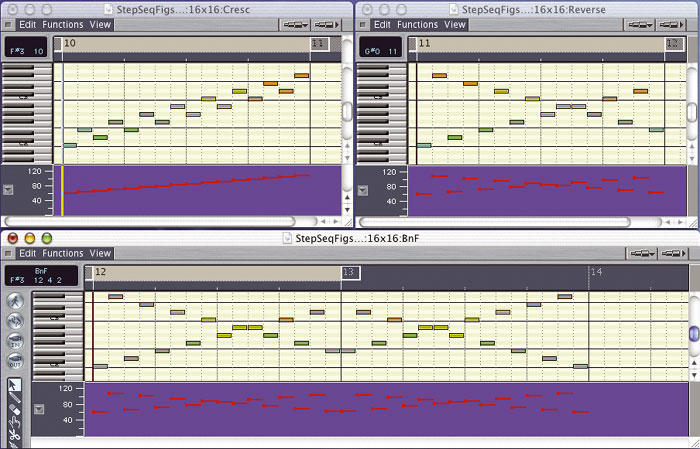 Typical step sequence (top left) and simple Transform-window variations. A velocity crescendo has been applied. Next, alternate notes have been time-reversed (top right), then the whole sequence has been extended and reversed to loop forwards and backwards (bottom).
Another common step-sequencing feature is to reverse the sequence, or run it forwards and backwards. Doing either in the editing windows involves reversing the notes in the region using the Transform window. In the latter case, reverse a copy of the region and place it after the original, then merge them and loop the merged region. To reverse the notes in a region, first open an Event editor and select all the notes. From the editing window's Functions menu choose Reverse Position from the Transform submenu, which will open the Transform window with the parameters set correctly. Remember the position of the first note in the region, then click the Transform window's Operate button. Finally, with all notes still selected, double-click the position of the first note and set it to the remembered position. (You could avoid having to do that by ensuring that the bottom Transform boundary matches the position of the last selected note, but I find my method easier.)
While we're on the subject of the Transform window, notice that you can use it to do a number of things you can't do with your typical step sequencer. For example, you can reverse some of the notes (try reversing every other one). You can apply other transforms, such as reversing pitch, creating a velocity crescendo, randomising the pitches, and so on. Also you can use the Transform window's Copy Selected Events Apply Operations mode to keep the original notes and add the transformed notes as copies, resulting in a polyphonic step sequence — try reversing position or pitch with that option.
Step sequencers often have a preset memory as well as a 'song mode' for arranging individual step sequence presets along a timeline. In Logic, of course, the region is the preset, and you can loop, alias, and copy it as suits your needs. A quick way to make variations is to first pack the region into its own folder, then stretch the folder to any desired length and loop the region within the folder. If you want to make changes at various points, convert the loops to Aliases, then select the Alias you want to change and convert it to a real copy. Make sure you then delete the Aliases that come after it and loop the edited copy so that the changes persist.
It should be fairly obvious by now that, although you don't get the fun of playing with the knobs and sliders, you can do very effective step sequencing in Logic's editing windows. While you lose some features, and others become a bit more complex, you get some new features and others become easier and more flexible. Time to get in step!
A Quick Fix For Fatiguing Mixes
 If you can't get your mixes bright enough without them becoming fatiguing to listen to, then Multipressor can help out. Excessive high-frequency transients are often responsible for fatiguing mixes, so here's a way to control them without compromising the overall tone.
Insert a Multipressor plug-in into the mix's Audio object and reduce the number of processing bands to two, with the crossover at about 8kHz to start with. Then, set up the Peak/RMS, Attack, Release, and Compression Ratio controls as shown in the screenshot, and make sure that the Expansion slider is all the way to the left, with Reduction at 0dB.
Now, switch to Gain Change metering mode and play the track, reducing the Threshold control to get gain reduction only on the most fatiguing high-frequency transients — I've found that 3dB of gain reduction is enough to tame excess vocal sibilance and smooth high-end percussion. Remember, though, that you've also got to juggle the high-frequency band's level to keep the overall tonal balance unchanged, because of the Multipressor's 'bootstrap' automatic make-up gain.
If you're not getting suitable results, then try adjusting the crossover frequency, as even small adjustments here can make a big difference to the sound. A word of caution, though — keep the kid gloves firmly on when setting up this process, as it's really easy to overdo things when using such fast time constants. Mike Senior