


The Cyclone 'groove sampler' DXi, bundled free with Sonar, is a powerful tool that allows loops of all kinds to be dissected, manipulated and generally bent to your will...
Spectrasonics' Stylus RMX is one slick piece of software. The way in which it lets you experiment with loops and build rhythmic tracks, coupled with its massive library of material, is outstanding. Even better is how you can add filtering, envelopes and processing, the last being particularly interesting because you can actually get 'inside' the loop, and extract particular hits for treatment. But Sonar 's own Cyclone provides many of the same functions — and it's free.
Let's insert Cyclone and check out what it can do. When inserting, I strongly suggest you tick 'All Synth Outputs' in the Insert Soft Synth Options dialogue box (for reasons you should see shortly). You'll end up with 18 tracks in total, but if that's too much clutter, you can always stuff them into a Track Folder.
Cyclone has several main areas of importance. The heart of the instrument is 16 pads (labelled '1' in the screen shot overleaf) that can access Acid ised WAV files, one-shot samples or non-Acid ised WAV file (if you use the last, files of different tempos won't sync together). Each pad can feed its own audio output and appear on a separate Sonar track, so you can process the output of each individually. The Pad Inspector (2) shows MIDI-triggering characteristics for the selected pad. Triggering can be restricted to single notes, note ranges (which also transposes what's on the pad) and velocity ranges. The Pad Inspector's Output field is where you assign each pad to a particular output.
The Loop Bin (3) is where you can drag loops on to pads, delete loops, save them, audition them, and so on. If you click on a loop in the bin, the window in the middle of the screen (4) shows the loop's waveform, and also where it has been sliced into individual elements for time-stretching. In the Pad Editor (5), each slice appears as what Cakewalk call a Grain. This is a rectangle that can be dragged anywhere along the Pad Inspector's time line, or even to a different pad. When dragging, the Grains can be quantised to a specific rhythmic value in the Slice Inspector (6). You can also alter the pitch, level and pan position of each Grain. Cyclone really shines for three main applications:
- As a loop machine: When the pads are loaded with loops, you can do MPC-style triggering and improvise bringing loops in and out of the mix. The fact that loops will sync up is vital for this kind of application.
- As a loop 'warper': Load a fairly simple loop into a pad and use the Pad Editor to drag specific hits to separate outputs. Thus the snare could go into a track processed by heavy reverb and the kick into a pad processed by distortion and delay, while the rest of the loop remains unprocessed. This is somewhat tricky to do, but fun.
- As a drum machine: Although the pads aren't velocity-sensitive, you can load one-shot samples on to each pad and trigger them. You can fake velocity sensitivity by placing samples recorded at different velocities on different pads and setting the pads to respond to the same MIDI note but different velocity levels. For example, with 16 pads you could have four velocity-switched snares, three levels of open hi-hat/closed hi-hat/kick, and three additional pads for toms and so on.
The Right Controller For Cyclone?
 You can trigger Cyclone 's pads from a standard MIDI keyboard, but my favourite triggering option by far is M Audio's Trigger Finger (reviewed in SOS September 2005). In fact, when you use one, it almost seems as if it was developed in conjunction with Cakewalk specifically for this application (I checked and no, it wasn't).
The Trigger Finger has 16 pads that are ideal for triggering the Cyclone pads, but there are also eight programmable knobs and four programmable sliders. As I rarely load more than eight loops or use more than eight tracks of Cyclone, I generally assign the knobs to track volume (more on this later) and use the sliders to control effects inserted in the various tracks. Another advantage of using the Trigger Finger is the Enigma librarian, which makes it easy to assign pads, knobs and sliders to whatever is needed by Cyclone. For not much more than £150, the Trigger Finger is a very worthwhile investment if you're a Cyclone fan.
Using Cyclone As A Loop Machine
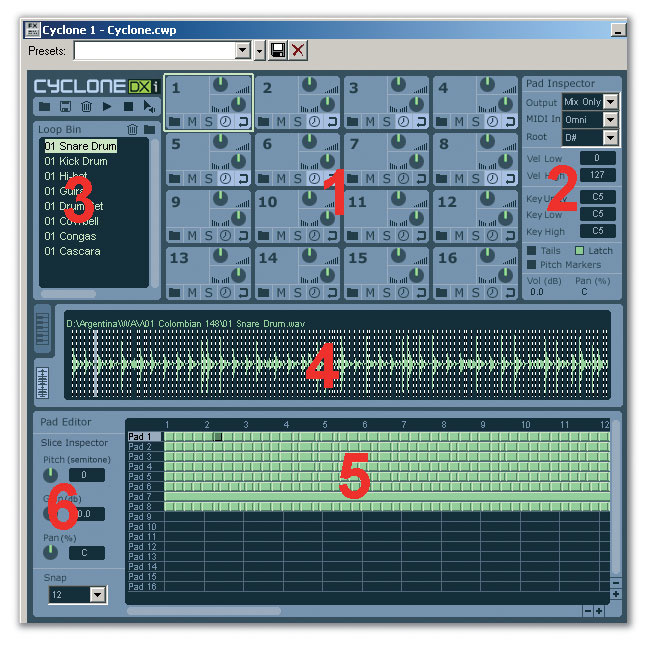 Here's Cyclone's 'front panel', labelled to show the main areas of interest: Pads (1); Pad Inspector (2); Loop Bin (3); waveform window (4); Pad Editor (5); Slice Inspector (6). See the main text for more detail on these features.
For MPC-style pad-triggering fun, first specify a separate audio output for each pad, so that each pad can be assigned to a single output for additional processing.
1. Drag the 'groove clip' files you want to use to the desired pads. This automatically places them in the Loop Bin. Or drag the loops into the loop bin, and from there on to the desired pads.
2. Click on a pad and use the Pad Inspector to assign its audio output and the MIDI note and velocity range to which it will respond. Do not re-assign the Root (root note) parameter, as it's assigned when the loop is imported. To keep things simple, set Key Unity, Key Low, and Key High to the same note so that only one MIDI note will trigger the loop.
3. While you're in the Pad Inspector, turn the Latch function on if you want the pad to toggle (trigger once to turn on, once to turn off), or off if you want the pad to sound only for as long as it is being triggered. A handy shortcut for turning on the Latch function for all pads is to hold down the Shift key as you enable Latch for any pad (this also works for 'unlatch'). Leave Tails and Pitch Markers off for now.
4. Repeat steps two and three for each pad.
5. On each pad you're using, click on the sync and loop buttons (which look like an analogue clock face and a bent arrow). This ensures that the loops will all be in sync and that they will for loop as long as they're being triggered.
 Each pad has several controls. The top knob controls volume and the lower knob panning. Buttons along the bottom strip are (from left to right) 'open sound in pad', mute, solo, loop sync and loop on. 6. If you want to control track volumes with hardware knobs, such as the knobs on the Trigger Finger (see box on previous page) or other control surface, right-click on a track volume control and select Remote Control. Move the knob, click on Learn, then click on OK. Note which controller numbers you used (as indicated in Cyclone 's Controller field when you clicked on Learn) to control various parameters, as you'll need this information in step two of the next section.
7. Save your settings as a Cyclone file by clicking on the Save button in the Cyclone Toolbar. (Note: I assume that this is a bug, but when you call up a Cyclone file, the first file in the loop bin is placed on all the pads. I've found no workaround other than dragging files back on to pads when opening a project.)
 A simple drum loop has been loaded into pad one. Note the waveform display in the middle with the 'slice' markers, and the representation of the loop in the Pad Editor toward the bottom. Each slice is shown as a 'Grain' in the Pad Editor.
To record the results of playing with Cyclone, enable recording on its source MIDI track. Controller motions will be saved as controller data within the MIDI track, but on playback they will not control the automation because they are not automation signals. Fortunately, there's a way to convert MIDI signals into automation signals.
1. Select the MIDI track driving Cyclone by clicking on its track number so that the entire track is selected.
2. Go Edit / Convert MIDI to Shapes. For the Type field, select Control; for Value, enter one of the controller values you used in the last step-by-step procedure; ignore the Channel parameter, then click on 'OK'.
3. The MIDI Controller curve has now been converted into a shape with nodes. Click on the MIDI track number to deselect the track, then click on it again to select it. This 'resets' the track so it recognises that the controller is now track automation instead of a MIDI controller.
4. Go Edit / Copy. In the Copy dialogue box, tick Track/Bus Automation only, then click on OK. This copies only the 'shape' envelope.
5. Set the Now time at the beginning, then click on the track in which you want the envelope to end up.
6. Go Edit / Paste, and under 'What to Paste' (you may need to click on the Advanced button to see this), tick only Track/Bus Automation. Click on 'OK'. The envelope is copied into the track.
7. Right-click on the envelope, and go Assign Envelope / Volume. The envelope will now control the track volume.
8. Return to the MIDI track, right-click on the shaped envelope, then select Delete Envelope.
9. Repeat steps 1-8 for each of the other controllers contained in the MIDI track.
Sonar News
OK, Sonar 5 is the big news. But maintenance version 4.0.4 has been released for Sonar 4, so if you're still waiting to upgrade this should help to tide you over. Note that version 4.0.4 will update only version 4.0.3, so if you're running an older version of 4, you'll need to proceed through the upgrade path.
The biggest improvement fixes the clip-envelope editing anomalies that could occur under a specific set of circumstances involving clips inserted after a tempo change, where nodes were added before the Now time (assuming that the Now time was over the clip). Another fix for a problem often pointed out in internet forums is that 'Split Repeatedly', under the Edit-Split command, now works.
Previously, muting a cropped clip with the Mute tool meant that the clip would not be included in an export or bounce operation, and this problem has now been solved. There's also a fix for the rare but annoying problem of tracks in playback mode dropping out while new tracks were being recorded.
There are several other fixes, many relatively minor, as detailed on both the Cakewalk web site and in the Read Me file that can be viewed after installation. And while you're in an update frame of mind, if you're using Windows XP SP2 with Sonar 4, download the Windows XP SP2 Hotfix from the Downloads / Patches / Updates section. This prevents a memory leak in your PC that could cause your system to run out of resources over an extended period of time. For more information on the fix, go to http://support.microsoft.com/default.aspx? scid=kb;en-us;319740
Cyclone As A Loop Warper
Suppose you have a great drum loop. Or, it would be a great drum loop, if only you could add a cool reverb splash on the snare, distort the kick a bit for a tougher sound, and while you're at it, add a bit of delay on the kick too. But you can't, because it's an audio file that's already mixed, looped and Acid ised...so there's nothing you can do about it. Right? Wrong — at least if the loop isn't too complicated. Let's take a simple trance-type drum loop as an example (see the screen on the left).
In the Pad Editor, we can drag the 'Grains' of the loop to other pads. For example, there's a kick sound on beats one, two, three and four, along with a snare hit on beats two and four. Unfortunately we can't isolate the kick and snare, but we can take kick beats one and three and drag them to pad two, and beats two and four and drag them to pad three.
Next, assign pad one to channel one, pad two to channel two, and pad three to (no surprise!) channel three. Each now feeds a separate track in Sonar and we can add individual processing to each of the tracks. In this example, the kick on track two has been processed with the Cakewalk FX2 Tape Sim to give it a harder sound, plus delay to add some bounce. The snare, track three, is processed by the Pantheon reverb set for a nice long splash (see screen below).
Even though this may seem pretty cool — and it is — there's even more you can do. Click on a Grain and use the Slice Inspector to alter its pitch, level and/or pan. For example, you could split the two snare hits so that one is panned left and the other panned right, or drop the first kick hit down a couple of semitones and raise its gain for a massive downbeat. And did you notice the little white arrows on measure five in the screen shot below? They indicate the loop end and can be moved. For example, move the snare loop end from measure five to halfway through measure four and the snare will do an interesing off-rhythm effect.
MIDI-wise, you can either leave the pads unlatched and have long MIDI notes that trigger the pads and leave them on, or latch the pads and just add MIDI notes where you want the pads to turn on or off.
Custom Waveform Previews
The waveform preview function, wherein Sonar 5 draws a waveform for busses in real time or while you're recording in tracks, is tremendously helpful. I've now become thoroughly dependent on drawing the master buss preview, as it lets me see where any overloads might be occurring that would affect the two-track mix. I also use it with aux busses, to obtain a 'reality check' on the signal waveform going into any signal processors or external audio outputs.
However, it's possible to have too much of a good thing. If you have a slower computer with less-than-wonderful graphics abilities, drawing all those waveforms in real time can affect performance. If you do experience problems, you'll be glad to know it's possible to change the rate at which the preview graphic is updated. Here's how:
1. Locate the CAKEWALK.INI file in the Sonar 5 folder (typically under C:\Program Files\Cakewalk).
2. Open the CAKEWALK.INI file using Notepad.
3. Under [WinCake], enter the following: WavePreviewSampleFrequency=10
4. Save CAKEWALK.INI
Entering 10 sets the longest possible update time. One, the default, is the shortest update time. You can set any number between one and 10; experiment to see which value gives the best compromise between smoothness of preview drawing and overall computer performance.
Cyclone As A Drum Machine
 The loop warping is now complete. Two kicks are isolated on pad two, two snare hits on pad three and the remaining beats on pad one. Note that in Sonar's mixer tracks three and four (channels two and three) have their own processors.
Although this is the least sexy of the Cyclone applications — a plug-in like NI's Battery 2 runs rings around it, because Cyclone 's pads aren't velocity-sensitive — Cyclone is still a good instrument for triggering one-shot samples. As mentioned earlier, you can spread sounds with different velocities over multiple pads, trigger them from the same note and restrict each pad to a specific velocity range. It's a bit clunky, but it works.
Along the same lines, Cyclone is good for firing off sound effects, especially since the Slice Inspector lets you mess around with each effect. And for bass lines, you can take a single bass sample, apply it to each pad and use the Inspector to create different pitches.
That's not all. One of the most useful things when you're using Cyclone to play back one-shots (and here you're much better off with a conventional keyboard rather than a controller such as the Trigger Finger) is that each pad can be triggered by a range of notes (Key Low to Key High in the Pad Inspector), and the sound is transposed according to those notes. For example, a single tom sound could be triggered over an octave of notes, giving you 12 tuned toms. When they're assigned to a conventional keyboard, you could (for example) pitch the kick over half an octave, the snare over half an octave, and so on. This helps to make up for the lack of velocity by at least offering pitch versatility.
Cyclone really is a terrific instrument, whether you use it with Sonar or Project 5. I've never understood why Cakewalk didn't make the pads velocity-sensitive, allow you to control pad level and pan with MIDI controllers, and sell it as a VST instrument to serve as a 'virtual MPC'. Now that I've mentioned it, maybe they will!