


The new audio interface from Focusrite offers an awful lot, for an awful lot less than you'd think. Let's find out what it can do...
Until recently, most multi‑channel audio interfaces offered mainly line‑level inputs, and if you wanted to record multiple mics simultaneously you'd need to add a mixer or preamp. A mixer might also be needed if you wanted to set up multiple monitor mixes for different performers, allowing them all to hear themselves with no latency.
In the last couple of years, however, we've seen a number of interfaces designed to make an additional mixer redundant. Products like Presonus's Firestudio, M‑Audio's Profire 2626 and Focusrite's Saffire 26I/O offer a mic preamp for each analogue input, along with sophisticated internal mixing functionality. And, what's more, prices have been tumbling. The latest entrant into this market, Focusrite's Saffire Pro 40, retails at a mere £349$499, yet offers what appears on paper to be an incredible set of features.
These are summarised in the 'Vital Statistics' box, but it's worth drawing attention to a few features that set the Saffire Pro 40 apart from its competitors. Hardware metering is superior to that on the M‑Audio or Presonus offerings, with a five‑LED 'ladder' display for each of the eight analogue inputs. You can't bus‑power the unit, but there's an internal power supply that takes a standard IEC kettle lead. Digital I/O is available in electrical and optical formats, but there's no word clock, and only a single pair of optical connectors — some interfaces have two pairs, giving you an extra 16 channels of possible I/O via ADAT. There's a dedicated pair of monitor outputs as well as the eight standard line outs, and a pair of 'loopback' inputs allows you to route audio from one audio application back into the Pro 40's mixer, to be recorded in another. Focusrite initially told me that two Saffire Pro 40s could be used at the same time, but apparently this is not the case. They are working on multi-unit support, but it's not yet clear what form this will take or when it will arrive. Finally, unlike many competitors, the Saffire Pro 40 can only be used while connected to a computer: it doesn't function as a stand‑alone device.
Getting Started
 The Pro 40's rear panel includes (from left to right) sockets for the built‑in power supply, coaxial S/PDIF I/O, MIDI I/O, Firewire, optical S/PDIF and ADAT, two analogue monitor outputs, eight analogue outputs and six jack/XLR inputs (the other two are found on the front of the unit).
For some reason, my Windows XP laptop wouldn't recognise the Saffire the first time I installed the driver software, but second time around everything worked fine. It takes its time to switch on when you operate the front‑panel power switch, but after a while you learn to stop thinking 'Shit, have I broken something?' before the green light appears.
However, it takes rather longer for that feeling to go away when getting to grips with the control panel software. This is the first Saffire model I've used, and judging by appearances, Focusrite seem to have made fairly extensive changes to the graphical user interface (GUI) of the Saffire Control utility. The result is something that looks very slick and professional, and clearly harbours a great deal of power, but is not always intuitive in operation.
There are three basic sections to the GUI, all of which appear on a single panel (see screen overleaf). Across the top is a tabbed mixer page, where you set up the monitor mixes that can be distributed to various performers. The mixer can, as you'd expect, route inputs directly to outputs for low‑latency monitoring, but, unlike the original Saffire, there are no DSP effects, so if you want to give your talent a vocal reverb, you'll have to monitor via your recording software and put up with the latency. Bottom left is the output routing area, where you assign various sources to the Saffire's outputs, and to the right of that is a monitor control panel. The routing and monitor sections have their own presets that can be stored independently of global settings.
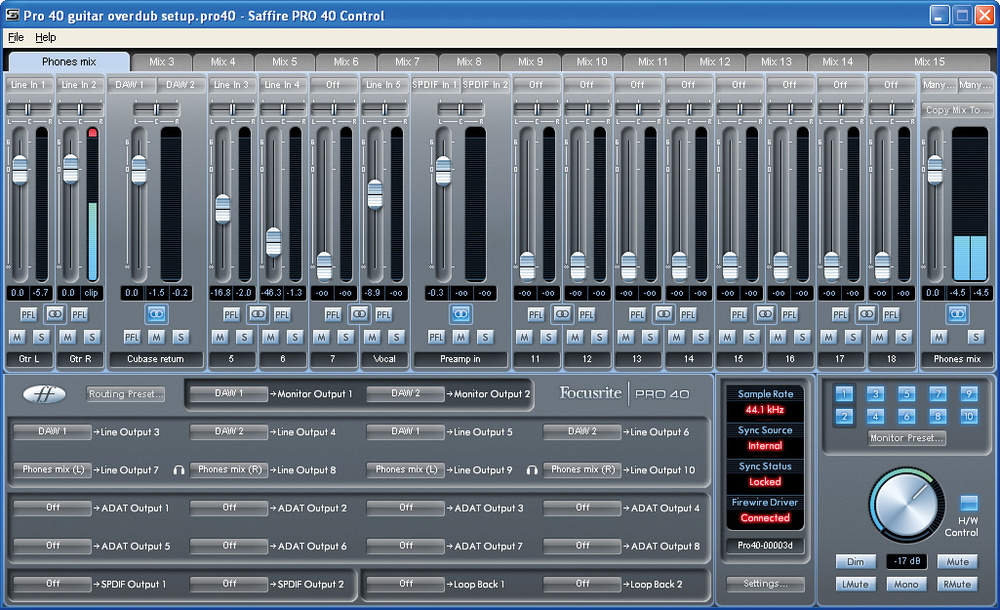 The Saffire Pro 40's Control software is where you can set‑up monitor mixes and manage your output routings. It also includes a useful monitor control section.One thing that confused me to start with is that everything is configured in mono. For instance, because the little headphone icon appears adjacent to Line Outputs 8 and 10 in the routing panel, I assumed that these were stereo outputs, or perhaps that these two were the left and right channels of a single stereo output. In fact, it turns out that the headphone icons actually refer to the entirely non‑adjacent Line Outputs 7 and 9 as well — so in order to get a stereo signal to the first headphone feed, you need to route the left channel to output 7 and the right to output 8. Logical, when you think about it, but confusing until you figure it out. I can't help feeling that life would be a bit easier if it was possible to link output selections, but as it is you have to select a separate mono source for each output. Studio troubleshooting would also be eased if you could display the Pro 40's outputs as mixer channels, but this doesn't seem to be possible — you can only see, and meter, levels on the inputs and DAW returns.
By default, the mixer gives you 16 different mono monitor mixes, each containing 16 mono channels. If you want the luxury of a stereo monitor mix — and I do, frankly — you need to click the stereo link button on the mixer's output channel. This causes the next‑numbered mixer to disappear, so if, for example, you create eight stereo monitor mixes instead of 16 mono ones, they'll be numbered Mix 1, Mix 3, Mix 5 and so on (although these can be renamed). You can assign your monitor mixes to one or more outputs, but before you can hear anything, you'll need to assign any input and DAW return signals to channels within these mixes. Again, you can use a link button to create stereo mixer channels from adjacent mono channels.
The built‑in monitor controller is a nice idea, especially if you work in surround. Either the front‑panel Monitor level control or the mouse can be used to set a master level that can apply to any or all the analogue outputs, and there are also hardware Mute and Dim controls. Individual outputs can be muted or exempted from monitor control, and better still, at least in theory, is that the monitor section of the control panel not only features a Mono button, but also separate buttons to mute the left and right output channels. I say "in theory”, because although the Mono button lights up whenever clicked, it doesn't actually do anything unless the Stereo monitoring preset is both selected and unmodified. This means you can't use it while the headphone outputs, or indeed any outputs other than the first pair, are active. Also, there are no physical controls for the Mono or L/R Mute buttons. They are only accessible by clicking on the Saffire Control GUI, which means switching the focus away from your DAW. In the case of Cubase, at least, this means that it stops playing. Perhaps these functions could be switchable via MIDI in a future revision — and not lit up unless they are actually doing something?
All in all, Saffire Control Pro is probably the most flexible and powerful control panel utility in its class, but I personally found it harder to get to grips with than the M‑Audio or Presonus equivalents. Your intuitions may be more closely attuned with it than mine, but I wouldn't recommend leaping into a complex session until you've been able to spend some time getting to know how it all works.
In Use
Like their rivals, Focusrite lay much stress on the quality of the preamps in the Saffire Pro 40, and they certainly deliver decent performance for the money. No figures are quoted for the amount of gain on offer, but there's slightly more available here than on M‑Audio's Profire 2626, and comfortably enough to let you use dynamic mics for applications such as strummed acoustic guitar. What's more, the preamps remain whisper‑quiet and perfectly usable even when you turn the gain knob to maximum, which can't be said for a lot of budget gear.
Beyond that, there's little more to say. Once you've got your head round the control panel software, it offers an impressively flexible means of setting up monitor mixes, and the Loopback facility (see box, left) is a lot more useful than I expected. The I/O does its job, the drivers seemed stable at low latencies in the review system, and the sound quality is beyond reproach, especially at this price.
When I reviewed the M‑Audio Profire 2626 just a few months ago, I felt it represented a step forward in terms of sheer value for money, offering eight mic preamps and a wealth of digital I/O for well under £500$1000. Yet, somehow, Focusrite have managed to move the goalposts before the referee has even blown for half‑time. Admittedly, the Saffire Pro 40 lacks the Profire's word clock I/O and second bank of ADAT inputs and outputs, doesn't work as a stand‑alone device, and can't be used with Pro Tools, but in other areas it has the measure of its rival: there's no external power supply or awkward flying leads to trip you up, and the metering is far superior. The Pro 40 is definitley more fully featured and more expandable than Presonus's £399$699 Firestudio Project. You also get the nice bonus of the Saffire plug‑in suite — and the whole thing costs a mere £349$499.
Saffire Plug‑in Suite
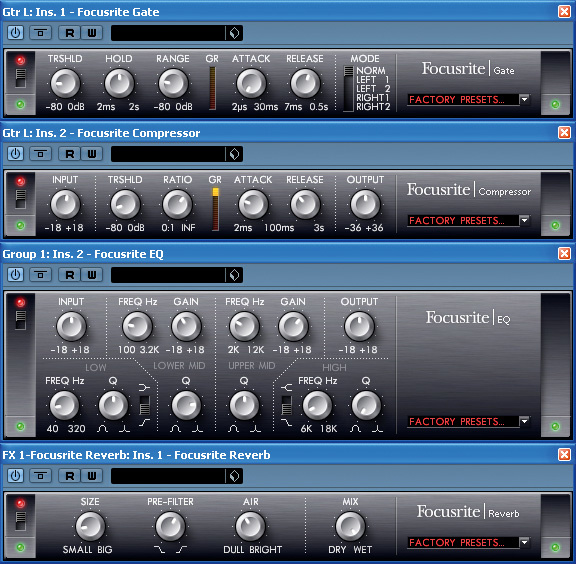
Once you've installed the Saffire Pro 40, you are invited to download Focusrite's Saffire Plug‑in Suite, which can then be authorised using the code on the driver CD. Earlier Saffire models came with a bundle comprising an EQ, compressor, reverb and amp modeller. The Pro 40's plug‑in suite still includes four plug‑ins, but they are different in appearance to their predecessors, with some changes to the controls, and the amp modeller has been replaced by a gate. The dynamics and EQ are still said to have been modelled on Focusrite's hardware designs; not having tried the older versions, I can't say whether they are significantly different. Certainly, the controls are very simple, but for the most part they sound surprisingly good (though I suspect the gate would be better if it had a lookahead function). As a sweetener to encourage Pro 40 buyers to register their product, the Saffire Plug‑in Suite is very effective.
Vital Statistics
- Firewire audio & MIDI interface
- Compatible with: Mac OS 10.4 and above, Windows XP SP2 and Vista.
- Analogue inputs: eight, balanced, on combi XLRs.
- Built‑in mic preamps: eight, plus two high‑impedance instrument inputs.
- Analogue outputs: 10, balanced, on quarter‑inch jacks.
- Headphone outputs: two, replicating outputs 7/8 and 9/10, on quarter‑inch jacks.
- Digital inputs: stereo coaxial S/PDIF, optical S/PDIF or ADAT.
- Digital outputs: stereo coaxial S/PDIF, optical S/PDIF or ADAT.
- Other I/O: MIDI, two‑channel internal 'loopback' input.
Loop The Loopback
Being the cynical sort, I initially suspected that the Saffire Pro's pair of Loopback inputs were simply a cheap way for Focusrite to get the total I/O count up to the magic 40 number. Having tried them out, however, I'm a convert to the idea. They will be invaluable for anyone who wants to sample audio from tracks within iTunes or a similar music library player, or you could use them to record the output of soft synths and amp simulators that don't work as plug‑ins.
Again, it takes a little bit of head‑scratching to get a Loopback setup up and running. You need to make sure that your DAW and the music program you're recording from are addressing different 'DAW' outputs within the Saffire Control Pro utility. I found that Windows Media Player, for instance, defaulted to addressing DAW 1/2, but Cubase 4 allowed me to select DAW 3/4 as the main output pair. Once you've done this, you route DAW 1 and 2 (or whichever outputs your library program is addressing) to Loopback outputs 1/2. These show up in the list of inputs that are available to your recording program, and from there on in, it's plain sailing.
Pros
- Superb value for money.
- 'Loopback' inputs are handy for sampling.
- Better hardware metering than its rivals.
- Comprehensive monitor mixer and control panel software.
Cons
- Control panel utility can be confusing.
- Can't be used as a stand‑alone device.
Summary
Offering eight preamps and a total of 20 inputs and outputs for under $500, the Saffire Pro 40 is the perfect audio interface for a global recession.