

Backups may be boring, but if you get your backup strategy right now, there will come a time when it saves your life!
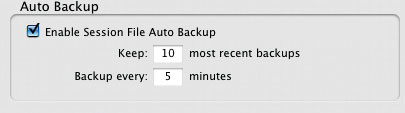
Enabling the Pro Tools Session File Auto Backup option can save your work if the program or computer crashes, but won't help if your drive goes down.

The problem with backing up is that it is boring and time-consuming, and as equipment has become more reliable over the years we have become complacent about taking the trouble to do it. Then it all goes wrong at the worst possible moment. So instead of waiting for the big bang, why not put a backup strategy into place now? That way, when something goes wrong, which it inevitably will, it will only be a minor inconvenience rather than a catastrophic failure.
I want to stress here the difference between backing up your system drive — that is, the drive with your computer's operating system and applications — and backing up your media drives, which you use for your Pro Tools Sessions and so on. The focus of this article is the backing up of your media drives.
Hopefully, we have all heard the mantra 'You aren't backed up unless you have your data in three locations, one of which is off-site.' In other words, you need the original file and two copies, preferably on different types of media, with one of those copies stored at a different location to the other two. The point is that if there were a fire or worse at your main location, you would still have a copy of all your data safely stored somewhere else.
One reason why we get complacent about backing up hard drives is that in the spec for every drive is a rating for 'Mean Time Between Failure' or MTBF for short. The problem is that this number is usually anywhere between 50 and 100 years! However, this is not a real-world number. A more realistic estimate for drive longevity is around three years, especially for media drives, which get a much harder hammering than drives in normal office-type computers; but either way, knowing the MTBF is not much help in figuring out how long any individual drive will last. As drive recovery companies will tell you, hard drives can and do fail very early in life or go on long after they have meant to have died and gone to heaven, so you cannot rely on these figures.
Saving Graces
Let's not forget that having the best backup stragegy in the world is useless if you don't manage to save your Sessions to disk in the first place. So hit Save regularly — obvious, I know, but the number of people I hear complaining that their computer crashed and they lost hours of work is amazing. What's more, with Pro Tools there is no excuse for losing hours of work because you forgot to hit Save. Go into the Operation tab of the Preferences window and make sure that 'Enable Session File Backup' is checked. The other two options determine how many backups will be kept and how often the Session file will be backed up. Your Session backups are then kept in a folder called Session File Backups, which you will find within your main Session folder. Even with the Auto Save option on, I still hit Save regularly, and especially after doing a particularly tricky edit — so if I do have a problem in the five minutes since the last auto save I won't have to repeat that tricky edit again.
Backing Up Vs Archiving
What is the difference between a backup and an archive? I consider backing up to be what I do while a project is 'work in progress', to make sure that if there is a major problem I won't lose everything. After all, you can very quickly get to the point where the value of the project vastly exceeds the value of the media — a drive in a case might well cost around £100 to £150, but it could easily cost thousands to pay for talent and studio time to redo a project lost because it wasn't backed up. Remember, too, that backing up at night, whether manually or on an automatic system, is no help if the drive dies during the recording session! Backing up not only protects you from equipment failures but also that other problem, human error, often referred to as 'finger trouble'! I have got into the habit of setting up Synchronise! X Plus to back up my work-in-progress Session onto another drive, so the moment we hit a tea break or the performers are working something out for the next section, I run the software. It backs up the latest additions, usually in less than a minute, without holding up the work at all.
By contrast, I consider archiving a project to be what I do when a project is finished and delivered to the next stage. In the case of an album project, when the CD has been mastered, or in the case of a broadcast, when it has been transmitted. I then make sure that a complete copy of the project goes onto my archive drives and that I have opened it successfully in Pro Tools without my 'work' drives connected to the system, so I know that there is a complete version on the archive drives before I delete the project off my working drives ready for the next job.
There was a time when backup and archiving were two separate processes. I used to use a drive for backups and tapes for archiving. Now, though, I use drives for both, as drives are now no more expensive than the tape media and have the added benefit of instant recall.
Backup Media
Neither manual nor automatic saving will protect you against a hard drive blip or failure. To get protection against drive problems we need to back up all the Session media onto another drive or media type. So what are our options?
CD/DVD
CD-Rs are looking a little small in terms of capacity now, for all but the smallest projects, while DVD-R discs have come down in price to a point where they are not significantly more expensive than CD-Rs and have about six times the capacity. Although DVD-R discs are listed as having a 4.7GB capacity, in reality they have a capacity of more like 4.3GB, and even this amount of space is now becoming a problem, as we use higher-resolution files and larger-capacity drives. To get round it, you can use multiple DVD discs to back up a single Session, but you will need to split the Session files across several discs. To do this, some people will carefully go through a Session manually dividing up the Audio Files folder into separate folders called Audio Files A to F, Audio Files G to M and so on, and create the appropriate number of DVDs to cover that Session. There are applications that can do this for you as well, if you want. Another option is to use dual-layer DVD discs; these will give you in excess of 8GB of storage per disc, but you need to make sure you have a DVD drive that can write to them. One down side of all CD and DVD formats is that they are 'one shot' devices, and don't really lend themselves to work-in-progress backups. But for archiving, the media pricing and shelf space required can make this format appealing.
There has been loads of discussion as to the lifespan of CDs and DVDs. It is billed at around 50 years, but no one can prove it conclusively, as they haven't been around that long yet! If you are planning to use CD or DVD as your backup medium, it is certainly well worth spending the extra money buying top-grade branded discs: if possible, go for an archive grade, as they have been designed to last as long as possible.
HD-DVD & Blu-ray
The new high-definition DVD formats, HD-DVD and Blu-ray, should offer 15GB and 25GB capacity respectively, but it may be a year or so before these formats and the recordable media become available. It's also uncertain whether both will survive in the long term.
The recommended way to create a manual backup of a Pro Tools Session is to use the Save Session Copy command.
Tape
There are a number of different tape types and formats. DAT technology offers capacities of 20GB per tape with the DDS4 format, while there is a range of formats based on 8mm tape from the likes of Exabyte and VXA, with capacities of up to 80GB per tape. Alternatively, there is the AIT format; the latest AIT3 incarnation can store in excess of 100GB per tape. Next there is the DLT family of formats, which go from the DLT800 range, with a capacity of 40GB, through to the Super DLT, with a capacity of 160GB. Finally there is the LTO format, which offers a similar range of capacities, with the top of the range providing 160GB-capacity tapes. As is so often the case, none of these formats will work in any other machine, and the tape drives need software to enable you to read them. This means that you lock yourself into a format that might die, or lose software support, so you risk ending up with a load of backup tapes that you can't retrieve any data from. Another down side of tape-based backup systems is that it takes time to restore a Session back off the tape onto a drive before you can restart work. One final point to remember with tape drives is that most manufacturers quote a larger maximum capacity than I have given here, because they use data compression. However, media files don't tend to compress very well, so here I have quoted all capacities uncompressed.

 You might think that all your Session data is safely in your Session folder, but unless you choose 'Copy from source media' when importing data from another Session, and use Copy rather than Add when importing audio, that might not be the case. Hard drives
This format of backup is becoming more and more popular as a valid and effective way of backing up data. As the cost of drives continues to fall, it is also becoming a very cost-effective way to back up and archive data in the capacities that we need. The only possible drawback to this technique is that there is some evidence that if you leave a drive on the shelf for a significant period of time, the lubricant in the bearings goes sticky and the drive may not spin up when you come to retrieve the data a couple of years later. To combat this, many people plug their backup drives in and run them once every six months, to help reduce the chance of sticky bearings. As with all types of backup media, you should always buy the best: there is no point in backing up and archiving your valuable Sessions only to store them on a cheap old drive you had lying around. Stick to top-grade brands that offer a five-year warranty, such as Seagate.
I used to use hard drives just for short-term backup, and for longer-term archiving I used a tape-based system or DVDs. However, I now use drives for both short-term backup and long-term archiving, thanks to a removable Firewire drive system from Storcase Technology and a growing number of archive drives in caddies on the shelf with Seagate drives in them. It's great, because when I need to go back to a Session, I just put the appropriate caddy in a slot and there's the Session, just as I left it. You can use drives in standard Firewire cases, but make sure you get Firewire enclosures that use Oxford chip sets for maximum reliability and compatibility with Pro Tools.
Backing Up By Hand

 You can see whether your Session depends on material from other folders or drives by showing the full path in the Region List. If you're using hard drives or removable media such as DVD, the simplest backup method is to manually drag folders from your working drive to another drive or media. The problem with this is that it is dependent on us remembering to do it, and on all the files for our Session actually being in the Pro Tools Session folder. "Well, they will be!" I hear you say, but "not necessarily" is my answer. When you imported that drum sample or sound effect from another Session, did you copy it into the Session, or did you hit Add in the Import Audio window? When you used the Import Session Data option, did you use the 'Link to media (where possible)' option, or did you change it to 'Copy from source media'? Then there are video files, which Digidesign recommend keeping on a separate drive from your audio media, rather than in your Session folder. So you can see that it's very easy to end up with files relating to a Session all over your system, instead of kept together nicely in the Session folder, as you might have thought. You can check whether there are any audio files in locations other than your Session folder by going to the Regions drop-down menu at the top of the Pro Tools Region List and selecting Show Full Path. Now the Region List will show the complete path for each file, and you should be able to quickly scan down and see if there are any files on different drives, or in different folders on the same drive.
One nice way of creating a backup and pulling everything involved in a Session together is to use the 'Save Copy In' option from the File menu. Save Copy In is, more often than not, used for saving a copy of a Session in a format for an earlier version of Pro Tools — say, version 5.x. However, Digidesign also designed it to be able to save a complete backup copy of a Session, including all the media, video files, plug-in settings and everything.
Backup Tips & Advice
- Don't put all your eggs in one basket. For example, when I am on location recording projects, I take the backup drive away with me at night and leave the work drive at the venue. That way, if something happens to me, the work drive will be OK, and if something happens at the venue, I have a copy with me. Also, I try to send one of the drives back from a remote job with someone else, just in case something happens to me while travelling. It may sound paranoid, but it usually isn't that difficult to arrange, and with the value of the project getting greater and greater with each extra layer, it can be a very sensible move.
- Keep your media drive defragmented. Should the worst happen and you need to turn to drive recovery experts for help, they recommend that you keep your media drives defragmented, as it is much more difficult to recover and piece together all the fragments of each file than to recover a file that is already all in one piece.
- Be extra vigilant, if you are manually backing up files, that you don't accidentally overwrite a newer file with an older version. It is surprisingly easy to do even with the computer warning you — you misread the warning message because you are in a hurry, and click, it's gone!
- Some people get their clients to buy drives to put their project onto, just as we would have expected clients to pay for tape in the past. You could consider getting clients to buy two drives so that you keep one and they keep one, thus giving you instant off-site storage for them and you.
- Be wise with the way you name your files. Even in your Session, use sensible file-naming protocols, so that when you come back to this Session in five years you can make sense of the file names you used. Whatever you do, don't leave Pro Tools to use generic file names such as Audio 1-03, and so on.
Automatic & Semi-automatic Backups
The alternative to manual backup is to use some form of archiving or synchronising software that will make sure that the backup media and the source media have the same data on them. There is a range of software packages to choose from.
For tape-based systems you need a software package that will support your chosen tape format. The main contender is Retrospect from Dantz software, which is available on both the Mac and PC platforms. The other commonly used software package is only available for Mac users and is called Mezzo Archiver from Mezzo Technologies, who are a division of Grey Matter Inc. Both of these software packages also support backups onto drives and CD/DVDs.
A synchronisation utility such as Synchronise! X Plus can ensure that work in progress is consistently backed up.
Retrospect has almost become the de facto standard for tape-based backup systems, but its major down side is that it stores the data in its own format, so even if you use it to back up on drives or CD/DVDs, rather than tapes, you cannot retrieve your files without using the software. Mezzo uses its own format for tape-based systems, which of course is different to the format used by Retrospect, but the good news for Mezzo users is that it doesn't reformat the files when working with drives or CD/DVDs, so you can retrieve data from those backup media without the software. Also, Mezzo has a unique feature in that it can 'read' a Pro Tools Session and back up everything relating to that Session, irrespective of where it is on your system.
The other way of working with drive or CD/DVD-based backup systems is to use some form of synchronisation software. These programs work by comparing the contents of two folders, and then, if the folder on the backup drive differs from the one on the source drive, copying any new or modified files to make the two folders the same.
On the Mac front there is Silverkeeper, which comes free from Lacie, and Synchronise! X Plus, which is what I use. Like its posher brother Synchronise! Pro X, it comes from a great little company called Qdea, but be aware that when you buy the software you only buy a time-limited licence, which will need renewing if you want to continue to use it after two years. Another program I use for fully automated backups of my office-related files is Chronosync from Econ Technologies, as it is fully scriptable — I even have it configured to send me emails so I know whether the overnight backups have been successful, or if there have been any errors
On the PC front, I am aware of Norton Ghost and Save & Restore from Symantec, as well as Allway Sync and Syncromat from Usov Labs, who have both free and paid-for 'Pro' versions.
Conclusion
To help you decide which one of these backup options is best for you, first take a good look at your workflow. If you have a small project studio and only do occasional 'non-essential' work, you can probably go with a cheap CD/DVD-based system. On the other hand, if you are earning a living from your work and the cost, inconvenience and embarrassment of losing material is an issue, make sure you have a reliable semi-automated system in place, that you actually use. One day it will save your Session, your reputation and maybe even your career!
Links
You can find out more about the products and formats mentioned in this article by exploring these web links:
- Mezzo
- Retrospect
- Exabyte and VXA
- AIT
- DLT
- LTO
- Norton and Symantec software
- Qdea software
- Lacie Silverkeeper
- Chronosync
- Allway Sync
- Synchromat