

The key to unlocking the power of Native Instruments' Kontakt sampler lies in its Script Processor. Take advantage of this powerful feature to customise your Kontakt patches any way you like.
Over the last few years, Native Instruments' Kontakt has become one of the most widely used software samplers. It's popular with content developers and end users alike, and the number of instrument libraries available in Kontakt format seems to grow almost daily.
One of Kontakt's most powerful features is the Kontakt Script Processor (KSP). It enables you to write Scripts, which can be thought of as lists of instructions that manipulate the way a Kontakt instrument works. You might write instructions to add harmonies for notes that are played, control the built-in effects used in an instrument, or even create your own arpeggiators and step sequencers. And although I wouldn't go so far as to use a cliché like "anything is possible”, KSP can certainly make a large number of your ideas for sample‑based instruments achievable.
While the idea of writing your own Scripts for Kontakt may seem appealing, you might be worrying about the complexity of such an endeavour. However, you don't need to be a programming wizard in order to write a Script. The whole idea of scripting is that it allows you to add functionality to Kontakt without having to know anything about the program's code. And while scripting for Kontakt can, indeed, become quite complex, even the most seemingly cryptic Script is built on simple fundamentals that are easy for anyone to learn. The goal of this workshop is to get you started with those fundamentals.
Before we begin, I should mention that the following text is written with Kontakt 4, the current version, in mind. Most of the discussion should also apply to Kontakt 3, but be warned that there are some subtle and some not‑so‑subtle differences between versions 3 and 4 when it comes to scripting and the built‑in Script Editor.
Meet The Editor
Let's begin by loading an instrument.  Like most instruments in the Kontakt 4 Factory library, 'Subtle Bell' includes a multi‑tabbed Performance View where parameters for the instrument can be adjusted.For this example, we'll use the 'Subtle Bell.nki' instrument that's part of Kontakt 4's Factory library, from the Synth folder. This might seem a curious choice of instrument, but there's a reason. Although you can add scripts to any instrument you like, it's important when adding a Script to an instrument already containing a Script — as we're about to do — that the instructions in the existing Scripts don't interfere with the instructions you want to add. 'Subtle Bell' allows us to add our own Script without having to worry. (Should you want to see an example of such interference, try the following tutorial with Kontakt's 'Grand Piano.nki' instrument instead.)
You'll notice that the 'Subtle Bell' instrument has a fairly elaborate Performance View, where you can adjust various parameters for the instrument. If you can't see the Instrument's Performance View, click the PV button at the far right of the Instrument Header area in the Rack. If an instrument Header doesn't contain a PV button, it means that the instrument doesn't have a Performance View.
As you may already know, Performance Views and the parameters they display are defined within a Script. Like most instruments in Kontakt's factory library, the Performance View of 'Subtle Bell' has two tabs: Options and Instrument. Each tab represents a different Script, and a Kontakt instrument may contain up to five Scripts. No matter how complicated you might think a Script can be to display such a Performance View, remember that it's still just a list of instructions. One instruction might be to place a knob labelled 'transpose' on the Performance View, while another might tell Kontakt how to adjust the pitch of notes to be played, based on the value of the knob.
To view or edit a Script, click the Edit button in the top left of the instrument Header. This puts the instrument into Instrument Edit mode. Now, directly underneath the Header, click the Script Editor button.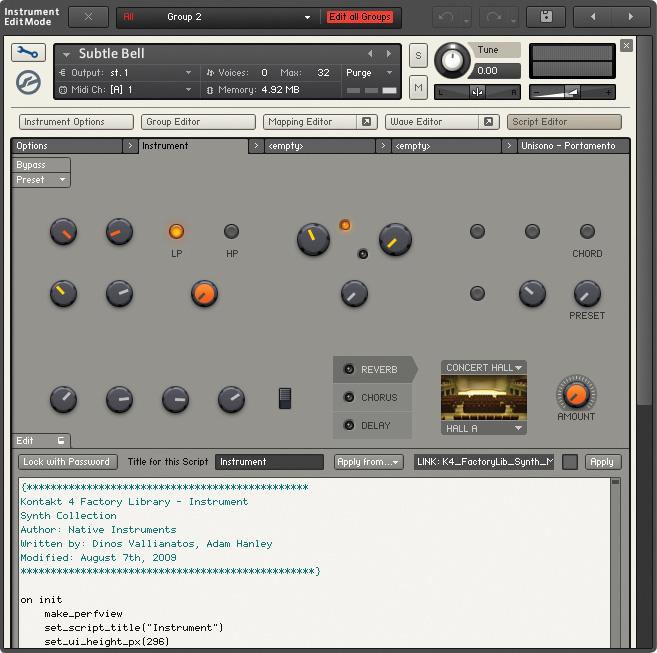 The Script Editor consists of two main parts: a preview of the Performance View in the upper area, and the main text editor for writing your Scripts in the lower part. At the very top of the Script Editor, there are five tabs, each representing one of the five Script slots in the instrument. Notice how the first two slots have the names of the Performance View tabs: Options and Instrument. If you click the Options or Instrument slot you can see the Script behind either of these tabs.
The Script Editor basically consists of two parts. The upper part shows a preview of the Performance View, while the lower part is a text editor where you can write and change the instructions in the Script (see screen on previous page). If you can't see the text editor, click the Edit button at the bottom of the grey Script Editor area. Now, take a moment to observe how the Script Editor looks with a ready‑made script, because our next step is to build one from scratch.
Click the third Script slot in the Script Editor — one of the two remaining that are titled <empty> — and you'll see a completely empty Script. From this blank canvas, we're going to build a simple harmoniser; and although this isn't the most adventurous or, indeed, original use of scripting, it's a good example to demonstrate some basic ideas.
Hello Script
When starting a Script, it's a good idea to think about what you want it to do. In the case of our harmoniser, we want to play an additional note every time a note is sent to the Subtle Bell instrument. To begin with, let's say our additional note will always be middle 'C'. This means that for every note played, we will tell Kontakt to play MIDI note number 60 as well.
A KSP Script works by defining a series of what computer scientists refer to as 'callbacks'. In the case of Kontakt, a callback is a series of instructions that are executed when certain events are triggered. For example, when a note is sent to an instrument, this note is an event that will trigger a certain callback in your Script. As a simple analogy, it's a bit like phoning someone and asking them to call you back when they receive the results from an exam. The original phone call registers your interest in the news; the callback happens in the event of the exam results being received by the person you called; and then you respond in a given manner once the callback happens. In KSP, the callbacks for different kinds of events are registered for you, and all you have to do is define their behaviour.
When a note is received, Kontakt looks to see if a script has a callback called on note. Given that our harmoniser needs to do something when a note is played, let's define the instructions to be executed for the on note callback. Click in the Script Editor's text editor (the big white area), and, on the top line, type:
on note
(Make sure that you use lower‑case characters as indicated, since KSP's keywords and commands are defined using lower‑case characters. Using capital letters here would produce an error.)
This instrument tells KSP that we're defining the on note callback. Since each instruction in a script needs to be on its own line, you'll need to press Enter. Now, let's tell KSP that every time a note is played, we want to also play a middle 'C', by entering the following instruction:
play_note(60, 100, 0, ‑1)
There's no prize for guessing what exactly the play_note command does, but you'll notice that after the name of the command are four numbers enclosed in brackets, each separated by a comma. These numbers are known as parameters, and all KSP commands take the basic form command_name(parameters). The only exception is when a command doesn't have any parameters, in which case, all you need to do is enter the name of the command, with no need for brackets.
The play_note command has four parameters: the pitch of the note to play, the velocity of that note, the sample offset to apply, and how long the note should play for. The pitch of the note is specified in semitones with a value between 0 and 127, where middle 'C' is 60 (the 'C' an octave above middle 'C' would be 72, and so on). The velocity is a number between 1 and 127, where 127 is the highest. The sample offset specifies at what time in microseconds the playback should start in the sample. For example, a sample offset of 1000 would start sample playback a second into the actual audio waveform. Finally, the length of the note is also a value in microseconds, but in KSP parlance, this parameter has two special values.
When you're handling notes being played on an instrument in real time, there's no way to know how long a note will be played for — until it stops, of course. So by setting the length of the note to ‑1, we tell KSP that the new note should last for as long as the original note is held. A value of 0 would tell KSP to play the sample for its maximum length — a one‑shot sample, if you will — which can be useful for triggering drums.
So, getting back to our Script, the instruction play_note(60, 100, 0, ‑1) tells KSP to play a middle 'C' (note number 60) with a velocity of 100, starting at the beginning of the sample (0), and playing for as long as the original note (‑1).
After entering the instruction to play a note, we need to tell KSP that we've finished defining our callback. So press Enter and type the final line:
end on
We're now ready to run our Script. To do this, click the Apply button, to the right, just above the text editor. Next to the Apply button is the Change Indicator, and this will be displayed yellow when a change is made to the current Script. After clicking Apply, the Change Indicator should turn black, meaning the Script you just edited is now active. If the Change Indicator stays yellow after clicking Apply, it means there was an error in the Script. Check your listing against the Script on the previous page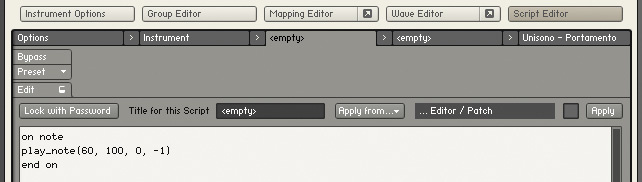 This is how the Script Editor should look after you've finished entering the first Script., and try again.
Now, when you play notes on the 'Subtle Bell' instrument, you'll always hear a middle 'C' harmonising with whatever note you play. This is kind of fun, and could actually be useful: on a drum instrument, for example, you might want to hear a hi‑hat sound no matter which drum in the kit is played. But for our next trick, let's see how we can adjust our Script so that the harmonising note is always a minor third below the note that's played. In order to do this, we need to first understand another KSP fundamental: the variable.
Minor Variables
A variable is a 'container' for a value that can change depending on circumstances. In our first example, when we wanted to play middle 'C', we simply entered the number 60 as the pitch parameter of the play_note command. But another approach would have been to create a variable called, for example, 'pitch', and make this variable store the number 60. The name of the variable isn't important — we could equally well have called it 'potato' — except that giving a variable an appropriate name makes it easier to understand its role in a Script.
Using a variable, our play_note instruction could have been written as play_note($pitch, 100, 0, ‑1). Notice that the name of the variable is written with a preceding dollar sign. When using variables in Kontakt, you must always put a dollar sign before the name of the variable, making sure there's no space between the sign and the name. This tells KSP that whatever follows the dollar sign is the name of a variable.
So what's the advantage in using a variable to store the value 60, rather than writing the number 60 explicitly? The reason is that, by using a variable, we can change the value of the variable and play a note with a different pitch without having to change the play_note command itself. This is important for our harmoniser, because the pitch of the note we trigger will need to be based on the pitch of the original note played.
For this example, we're not going to define our own variable. Kontakt already includes a number of built‑in variables that contain useful numbers. One such variable is $EVENT_NOTE, which always contains the pitch of the note event that the on note callback was triggered with. (The names of built‑in variables are always written in capital letters, making them easy to differentiate from variables you create yourself.)
If we adjust our play_note command to be play_note($EVENT_NOTE, 100, 0, ‑1), every time we play a note, a duplicate note of the same pitch will be played. However, we can also use some simple mathematics in conjunction with the variable. For example, try changing the play_note command to play_note($EVENT_NOTE+12, 100, 0, ‑1). This means that the harmony note will now be an octave higher than the played note. Click Apply and try it.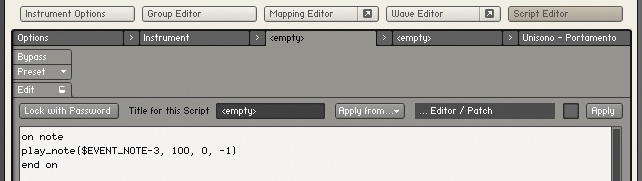 Your Script should look like this after replacing the pitch value with the built‑in variable.
However, our goal was to have the note a minor third lower, so instead of writing $EVENT_NOTE+12, type $EVENT_NOTE‑3 and click Apply.
Sweet Harmony
We've pretty much achieved our goal of writing the simplest harmoniser, but there's one thing left to change. Because our play_note command has 100 as the velocity parameter, our harmony note is always played with a velocity of 100, regardless of the velocity of the original note. In the same way that KSP uses a built‑in variable to store the pitch of the note that triggered the on note callback, there's another that stores the velocity of the event: $EVENT_VELOCITY. So if you replace 100 with $EVENT_VELOCITY, the harmony note will now play with the same velocity as the original note. And you could always write $EVENT_VELOCITY‑10 if you want the harmony note to be played slightly more quietly. The finished Script of the simplest harmoniser.
That's all we have time for this month. Next time, we'll learn about writing our own variables, and also how to start creating Performance Views to make our harmoniser adjustable.
Name That Script
When you've created a Script, it's a good idea to give it a name. You can enter a name in the 'Title for this Script' edit field, and this will then appear in the slot containing that Script in the Script Editor. When we later create Performance Views, the Script name will also be used for the appropriate tab in the Performance View.
Although Scripts you create in an instrument are always saved with that particular instrument, it's also possible to save them independently. This can be useful if you want to use the same Script in different instruments, for example. There are a number of ways to go about this, the simplest being to just copy and paste your script into a text editor. But the Script Editor also uses a preset system like other parts of Kontakt, so you can save a Script by clicking the Preset button in the upper area of the Script Editor and selecting Save Preset from the pop‑up menu.
A file selector will appear, and you'll be pointed to the 'Scripts' folder in your Kontakt 4 User folder. This folder contains a number of empty folders that have been created with the same names used in Kontakt's own Factory Script library. You can use the root of the Scripts folder, one of the existing sub‑folders, or create your own, and save the preset Script.
Scripts can be reloaded from the Script Editor's Preset menu, where you can choose between Factory and User Scripts. If you want to initialise a Script slot in the Editor, you can use the 'empty' Factory Preset to be sure that you're starting with a blank slate.