

 The Synchronisation Setup window is where you can configure how Cubase sends sync data to other devices as the Master, or receives it from other devices as a Slave.
If you get that sync'ing feeling when using Cubase in conjunction with external hardware devices, you may need to know more about its synchronisation options. We explain what's what.
The basic principle when synchronising multiple devices in the studio is that you have one Master device that sends sync data to all the other devices, which are said to be Slave devices, in as much as they are 'slaved' to the Master. When you press play on the Master device, for example, all the slaved devices will begin playback at the same time, and a continuous clock signal from the Master will make sure the Slave devices stay in sync.
Cubase 's synchronisation facilities are actually pretty comprehensive, and Cubase can act as either the Master or the Slave — or, in fact, as both at the same time. In this latter configuration, the software can control devices while itself being controlled from another device — for example, Cubase might be slaved to a video machine while simultaneously sending clock data to a synth's arpeggiator.
For Cubase 's synchronisation features to be active, the Sync button on the Transport panel must be enabled, which you can do by simply clicking it, pressing 'T', or selecting Transport / Sync Online. To configure the synchronisation settings in Cubase, you need to use the Synchronisation Setup window, which can be opened by selecting Transport / Sync Setup or Control/Apple-clicking the Sync button on the Transport Panel.
MIDI Clock Caveats
Since the release of Cubase SX/L, many users have reported problems when slaving other devices to Cubase via MIDI Clock. This doesn't seem to affect every user, but if you notice your external devices not synchronising correctly to your Project, Steinberg first recommend making sure that the SysEx option is enabled in the Thru group of the MIDI Filter panel in the Preferences window — which it should be by default.
There's a reason for this: many devices send out MIDI Clock data whether you ask them to or not (consult your manual to see if your device needs to be set to only receive MIDI Clock, rather than transmit it as well), and if this information is sent to Cubase and then resent, via the MIDI Thru facility, back to the device, it's understandable that some confusion can occur. Enabling the SysEx Thru Filter option forces Cubase to filter out all incoming System Exclusive MIDI data (including MIDI Clock) and ignore it.
The second thing to bear in mind when using MIDI Clock is that the MIDI Clock commands supported by Cubase include Start, Stop, and Continue, which all do pretty much what you'd expect them to by their names — Start tells a device to start playback, Stop tells a device to stop playback, and Continue tells a device to continue playback from the point where it was last stopped.
However, it turns out that not all equipment that can be synchronised via MIDI Clock supports the Continue command. Many drum machines fit into this category. So if you notice the device you have slaved to Cubase via MIDI Clock not resuming playback when you're part-way through a Project, it's worth enabling the 'Always Use MIDI Clock Start' option in the Transport panel of the Preferences window, forcing Cubase to use the Start command instead of sending Continue commands.
Master Of The Universe
In most cases, you'll want to set up Cubase as the Master device, so that all your other hardware is slaved and kept in time with the Project that's playing in Cubase. A common example is where you want to enable the arpeggiator or other tempo-based feature on a synth to play in time with the Project in Cubase — but there are many other uses for the software's synchronisation facilities.
Cubase can send out two types of MIDI-based clock, namely MIDI Timecode (MTC) and MIDI Clock, to other devices. The fundamental difference between these types is that MTC is time-based, so the timecode is based on the SMPTE hours:minutes:seconds;frames format, while MIDI Clock is based on bars and beats, consisting of 24 pulses for every quarter note — a 4/4 bar would therefore consist of 96 (4 x 24) synchronisation pulses. For this reason, MTC is typically used to sync video machines, other multitrack recorders, and so on, whereas MIDI Clock would be used to sync the arpeggiator on a synth, for example.
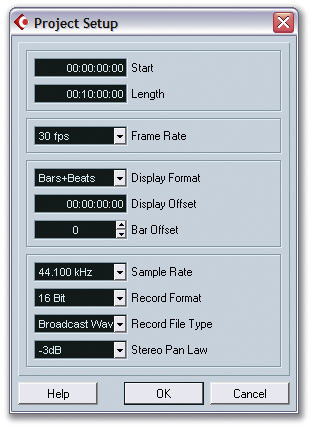 Some important sync-related settings can be found in the Project Setup window. These include the Project's SMPTE start time and frame rate.If you're going to use MTC, it's important that the frame rate (expressed as frames per second — fps) is set to the same value on your Master (Cubase) and Slave devices. Frames are sub-divisions of each second, and each second must be sub-divided in the same way on each device. (If you're plannning to use MIDI Clock, you can jump straight to the setup instructions in the next paragraph.) To set the frame rate for a Cubase Project, open the Project Setup window by selecting Project / Setup (or pressing Shift+S), click the Frame Rate parameter and choose the required rate from the pop-up menu. The Project Setup window is also used to define the start SMPTE position, which you can do by adjusting the Start parameter — it's set to 00:00:00:00 by default.
To set Cubase so that it acts as a Master device and sends synchronisation data to other devices, all you need to do is decide which MIDI ports you want to send either MIDI Clock or MTC to, and enable the relevant check boxes for those MIDI ports in either the Send MIDI Timecode or Send MIDI Clock groups in the Synchronisation Setup window. That's literally all there is to it!
Slave To The Rhythm
To set Cubase so that it acts as a Slave device, listening and responding to synchronisation data sent from another device, you need to change the Timecode Source setting in the top-left group of the Synchronisation Setup window. By default, Timecode Source is set to None, meaning that Cubase uses its internal clock as the timecode source. However, you can set Cubase to receive timecode via MIDI, ASIO Positioning Protocol, or VST System Link.
- MIDI Timecode: MIDI Timecode is basically timecode sent via MIDI cables, based on SMPTE frame-based times, as described earlier. If MTC is chosen as the timecode source in Cubase, the MIDI input port that MTC should be received from is set with the MIDI Timecode Settings MIDI Input pop-up menu.
- ASIO Position Protocol (APP): This is part of the ASIO technology developed by Steinberg to allow audio hardware, such as soundcards, to work with Cubase, where sample-accurate timing information can be received from another device connected to a digital interface on your soundcard. This can be useful if you're recording multitrack audio into Cubase from an external digital multitrack recorder. However, APP must be supported by your soundcard and driver software in order for this to work in Cubase.
- VST System Link: VST System Link is Steinberg's platform-independent technology for using Cubase with other computers via digital audio interface connections running System Link-compatible software, such as Cubase SX/SL, Cubase VST 5.2 (which runs in slave mode only), and Nuendo. If you're using Cubase on a network of computers running VST System Link-compatible software and you want to sync Cubase to the master machine via VST System Link, this is the option to enable.
The interesting thing about VST System Link is that it also includes timing and tempo information, which is important because unlike Cubase VST, SX/L can't be slaved to MIDI Clock, due to the newer timing engine being based around linear time rather than musical time. This means that if you want to set up a Cubase system primarily as a mixer (slaved to another Cubase system, for example) with tempo-dependent effects, VST System Link is your only choice.
Receiving Timecode From Tape Machines
 If you're slaving Cubase to timecode sourced from an analogue tape machine, which I'm told some people still do, the signal might not be quite as reliable as if it was coming from a synth or another device generating the timecode internally. For this reason, you might want to adjust the Drop Out Time setting in the Options group of the Synchronisation Setup window, which tells Cubase how many frames to keep going for when the timecode signal 'drops out'.
If you notice Cubase occasionally pausing when playback is slaved to timecode from a tape recorder, you might want to increase the Drop Out Time value. However, doing this means that Cubase will take longer to cease playback when you stop the tape recorder, since it will assume it's a drop out until the Drop Out Time value expires. So if your tape recorder is actually sending a reliable timecode signal it's a good idea to reduce this value, to make Cubase more responsive when you stop the recorder.
A closely related option to the Drop Out Time value is the Lock Time parameter, which sets how many accurately-timed frames of timecode Cubase should receive before starting playback based on the location of the incoming timecode. If you notice Cubase starting playback at the wrong timecode position, before jumping to the correct timecode position, you might want to try increasing the Lock Time value. Conversely, if you have a really efficient tape machine you might want to reduce this value so that Cubase locks to the incoming timecode sooner and everything feels a little snappier.
Frames Of Reference
When Cubase is being slaved to another device, you can see via the Sync indicator on the Transport Panel whether incoming sync data is being received. When the Sync button is disabled, this indicator will report an Offline status, but when you activate the Sync button and Cubase is slaved to another timecode source, the Sync indicator will report either an Idle status (meaning that Cubase is waiting to receive timecode), or a Locked status, which confirms that Cubase is locked to an incoming timecode, and also displays the frame rate of the timecode. The Frame Rate setting in the Project Setup window is automatically adjusted, and the Project's frame rate is instead determined by whichever device is sending the Master timecode to Cubase.