

The expanded audio clip slicing introduced in Live 8 is a powerful creative tool. We show you how it works.
 The 'Built-in' slicing preset creates a Drum Rack with chains holding a Simpler for each slice. Each Simpler's start and end markers delineate a separate slice within the full audio clip.
The new groove tools and enhanced Warping introduced in Live 8 make quick work of adapting audio clips to your project's tempo and feel, as well as identifying and marking audio transients in a clip. But slicing an audio clip into individual events, installing those events in a sample player, and then generating a MIDI clip to trigger the slices with their original order and timing intact enables a host of creative alternatives, slice re-ordering, slice replacement and individual effects processing being notable examples. (You can read about Warping and grooves in, respectively, the July and October 2009 issues of SOS.)
Support for REX-file slices, as well as automatic slicing by Warp Markers or beat divisions, was introduced in Live 7, and Live 8's redesigned Warp engine adds transient slicing to the list. The process is dead simple: select a clip in either the Session or Arrangement view and choose 'Slice to New MIDI Track' from Live's Create menu or from the clip's context menu (revealed by right‑clicking the clip). You'll be presented with the dialogue shown in the screen below, from which you choose a slicing resolution and an instrument preset.
Live always uses REX slices for REX files, but you can Consolidate a REX file (Ctrl-J/Apple-J) in the Arrangement view and slice the resulting WAV file by other divisions. Whatever file type and resolution you choose, Live extracts the slices between the clip's start and end markers (or within the loop braces if clip looping is activated) and installs them in an instrument determined by the preset. Live then creates a new MIDI track containing the instrument, and a MIDI file to play the slices with their original order and timing.
Basic Slicing
 Select the slicing resolution from the menu at the right and the instrument preset from the menu at the left.
The simplest preset, called 'Built-in', gives you a Drum Rack with a separate chain for each slice. Each chain holds a Simpler sampler loaded with the entire audio clip, and the Simpler's start and end markers are set to delineate the current slice. You can adjust those manually as needed. If you move the start marker, you'll need to adjust the trigger note in the MIDI file to preserve the original timing. Adjusting the end marker doesn't affect the timing, and you can use that to get rid of any glitches at the end of a slice. (A glitch at the end of a slice indicates that the slice marker cuts into the next slice's attack; so you may be better off adjusting the slice marker and re‑slicing the clip.)
In the 'Built-in' preset, all volumes are set to –12dB to guard against clipping and all velocities are set to 100 percent to maximise the velocity's effect on volume. The 'Built-in 0-Vel' preset sets all volumes to 0dB and all velocities to zero percent to eliminate velocity's effect; this is typical of REX-style slicing and preserves the dynamics of the original audio clip.
 Transient markers correctly identify new sonic events at most 16th notes (top), but setting Warp Markers for 8th-note slices, with one 16th-note slice at the end (bottom), turned out to be more musically useful for this clip.You can examine the slicing presets by dragging them from the Defaults/Slicing folder of the Live library to an empty MIDI track. They come in two flavours: a Drum Rack with a single chain containing a Simpler or Sampler instrument, and a Sampler instrument by itself. (Of course, the Sampler versions are only available to owners of the Sampler add-on.) What distinguishes the presets are the Simpler or Sampler parameter settings, the Drum Rack macro-knob assignments, and any effects plug-ins in the Drum Racks. As mentioned, slicing with a Drum Rack preset duplicates the chain in the preset Drum Rack for each slice, so the preset's macro-knob assignments apply to each chain. When the preset is a Sampler without a Drum Rack, Live creates a Sampler zone for each slice.
You can easily create your own slicing presets by modifying a factory preset or by duplicating one of the structures just described. For example, I don't find the macro assignments in the Built-in preset very useful. Instead, I've created a preset with the top macro knobs mapped to the Simpler's Vel, Volume, Filter Freq and Filter Res, and left the bottom knobs available for later assignment. Once you've created a Drum Rack or Sampler setup, just drag it to the Defaults/Slicing folder in Live's browser. The next time you invoke 'Slice to New MIDI Track', your preset will appear on the Slicing Presets menu.
Transient & Quantised Slicing
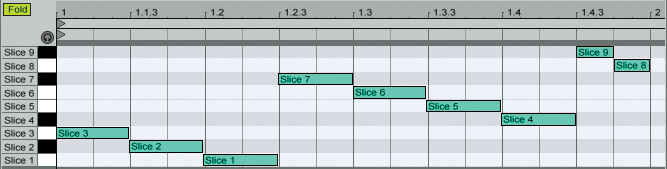 Swapping slices of similar length is a quick way to rearrange percussion loops, and it often works well with pitched material.
When you want to capture all the individual events (drum hits, for example) in an audio clip, slicing by transients is the way to go. Live's transient-detection scheme is quite good at separating percussive events and placing the transient markers at the true beginning of an event (rather than somewhere inside its onset transient). When a clip contains clear events, it's usually sufficient to quickly check that there is a transient marker for each event and then let Live slice the clip. Auditioning the slices from your keyboard will tell you whether you need to merely adjust a few Sampler or Simpler end markers or to move some transients and re-slice.
Occasionally one event will mask another, and you'll need to add a transient marker, by placing the cursor at the beginning of the masked event (turn Snap to Grid off) and choosing 'Insert Transient(s)' from the Create menu or by pressing Command-Shift-I (Mac) or Ctrl-Shift-I (PC). Conversely, you may find transient markers for events you don't want to separate into slices. You can delete those by selecting them and choosing 'Delete Transient(s)' from the Create menu (Command-Shift-Del/Ctrl-Shift-Del). Alternatively, you can double‑click the transient markers you want to use, thereby creating Warp Markers, and then slice by those.
Slicing by beat divisions (8th or 16th notes, for example) works well for quantised material. Try that with the Built-in preset and insert an arpeggiator before the resulting Drum Rack. Set the arpeggiator's rate to match the slicing resolution and hold chords on your keyboard to generate rhythmic patterns. That Drum Rack also makes a good target for a step sequencer.
Swapping Slices
After groove and tempo manipulations, the most common trick with sliced audio is to swap the slices by vertically offsetting their MIDI trigger notes. Assuming the swapped slices capture similar attack transients, they won't significantly alter the rhythmic feel.
In the case of drum clips, you can produce subtle variations by swapping similar sounds (kicks, snares, cymbals and so on). The results are more radical, and often more interesting, when you swap dissimilar sounds.
With pitched material, the effects range from re-purposing a melody or bass line to completely rearranging the harmony. An important caveat, if you don't want the result to be choppy, is to swap slices of similar length.
You can replace any slice by selecting it and dragging a different audio file to the Simpler or Sampler's sample display. This will not affect the slices in the other Simpler or Sampler zones. Adding a new slice triggered by a different note is a more flexible alternative, and lets you layer as well as replace sounds.
Sliced Extracts
 Warp Markers have been roughly positioned to separate individual loops in this collection of 82bpm guitar loops.
Slicing is also an easy way to extract parts from sample libraries that embed multiple loops and one-shots in the same audio file. If the material is tempo‑dependent and you want to use Live's Warping, first move the clip to the Arrangement view, then turn Warping on and delete all but the first Warp Marker. Now select that Warp Marker and set its 'Seq. BPM' field to the tempo of the material you're importing, choose a Warping method, and Consolidate the clip at the song's tempo. In either case, be aware that you may need to adjust the transient markers after Consolidating.
Individual parts are usually separated by easily identifiable gaps, and you can quickly insert Warp Markers between parts by double-clicking in those gaps. Slice using Warp Markers and a basic preset — I use the 'Slice to single Sampler 0-Vel 0dB' preset. You'll need to fine tune each slice's start, end and loop markers in the associated Simpler or Sampler. (Retriggering is often easier than fiddling with the loop boundaries.) The slices will now play at the song tempo whether played from your keyboard or a MIDI file.