

Live 9 has been a long time coming, but, along with Ableton's new Push controller, has the potential to revolutionise music-making.
Live 9 is the first major release of Ableton's flagship DAW for three years. Previous versions, from Live 1 upwards, have emerged at roughly annual intervals, so it's been a long time in the making. Alongside Live 9, Ableton have also launched a brand new hardware product: the Push control surface. Dedicated third-party Live controllers from Akai and Novation have been around for a while, but this is the first time Ableton have brought out something under their own name. For this review, Ableton supplied both Live 9 and a Push, and I'll cover them each in turn.

Live 9 also marks a gradual shift by Ableton towards embracing libraries developed by third-party sound designers. Many of these now feature directly on Ableton's web site, alongside Ableton's own sound packs, as either free or paid downloadable products; Ableton are taking on something of a curatorial role in presenting this material.
Like earlier Live versions, Live 9 ships in multiple editions, depending on your requirements and budget. Live 9 Intro is the cut-down, two-channel-only, entry-level version, while Live 9 Standard and Live 9 Suite are the full application, differing only in terms of the instruments, effects and content packs included. Max for Live, the package that extends Live with Cycling '74's Max audio and video toolkit, has been updated to use Max version 6, and is now an integral part of Live Suite. (In Live 8, Max for Live was always an additional, pay-to-use product, even for owners of Suite.) Finally, Live 9 now ships in 32- and 64-bit versions.
What's New?
The core Live application looks, feels and works very much like Live 8, and at first glance there are no glaring changes that leap out. (I said much the same about Live 8 versus Live 7; Ableton go very much for evolutionary development rather than revolutionary redesign.) The changes are, by and large, at the level of isolated alteration and refinement of specific features, although some of that alteration runs deep.
First off, the Browser has been completely overhauled, and works differently. The changes here are significant and we'll look at them in some detail in a moment. Some of Live's core audio effects have been enhanced, and there's a new analogue-style compressor. There's a lot of new content (instruments, sample sets), with more available directly from Ableton's web site. There's an audio-to-MIDI feature for analysing recordings and rendering them in note-sequence form. Finally, and perhaps most significantly, editing and control have been improved. MIDI editing is more powerful, and the automation machinery has been upgraded, allowing — at last — individual clips to carry their own automation data, which can be transferred between Session and Arrangement.
Live Sets and Projects are organised in pretty much the same way in Live 9 as in Live 8. The way in which the files comprising a Live Set are handled on disk is unchanged, as long as the Project is self-contained. Library and Live Pack management, however, is somewhat different.
Spot The Difference
The release of Live 9 involves a bit of a visual make-over. Ableton's web site is now all pastel colours and Futura font, and the Live application's logo and launch panel are a plain and cheerful pink, rather than the rather austere-looking black of Live 8. (My Ableton gig bag now looks so last season!) Once Live 9 is up and running, though, everything looks pretty familiar, with a Session View in the centre of Live's single-window display, device/clip details below and the Browser to the left. The default colour theme, or 'skin', is a new minimal, designer grey, but the bundled alternatives include the Live 8 scheme for maximum familiarity. New preference controls for brightness, colour intensity and tint provide plenty of scope for the displacement activity of getting the decor looking just so. (To be fair, a brightness control makes a lot of sense when taking a set onto a darkened stage.)
Aside from the reinvented Browser, the only other obvious change is in the Control Bar. The transport controls have a few new buttons next to them, partly reflecting changes in the way automation is managed, and partly, as we'll see, the way the Push controller works.
The Browser
Live's Browser is its window into all the resources available for use in a Live Project: Live Sets, tracks, clips, devices, presets, samples and so on. Some of these resources are actual files on disk, while others are component parts of libraries or of other Live Sets. As it was configured in Live 8, the Browser presented five mutually exclusive views: Live Devices, Plug-In Devices (VST and Audio Units plug-ins), and three identical file browsers for examining and loading files on disk, or tracks and clips within Live Sets. A drop-down menu shared between the file browsers allowed user-defined directories, including the Live Library, to be examined and searched. Everything was presented in a single tree view. A tale of two Browsers: in Live 8, top, panes were selected using buttons on the left, and a drop-down menu switched location. In Live 9, above, Categories and Places streamline navigation of devices and sounds.
Live 9's Browser represents a rethink of the way Live's resources — and yours — are presented. The View selection buttons are gone, and there are now two panes side-by-side. The right-hand 'content' pane contains a familiar-looking tree of items, but the left-hand pane is new and holds two sets of items, labelled Categories and Places. Categories partly replaces the three kinds of Browser pane in Live 8. You can browse Live's devices (audio effects, MIDI effects and instruments) or VST and AU plug-ins. Max for Live's devices now have their own Category, whereas Live 8's Browser presented them just like its other devices.
As in Live 8, presets and rack presets for Live's devices are further arranged in sound categories such as Pad, Bass, Piano & Keys, and so on. It's not clear where these labels come from — I assume they're hard-wired into Live's Library — and it doesn't seem possible to label one's own presets. While Live's own instruments, and many in third-party packs, seem to be categorised, the MIDI effects aren't, and the audio effects aren't except for the effect racks. Nothing in Max for Live is categorised, and your own presets will end up with the label 'Others', which isn't terribly informative. Personally, though, I don't make a lot of use of sound categories, and Live 9 does at least categorise the core library and Live Pack content, which is most important.
The Places area of the sidebar replaces the drop-down menu of folders in Live 8. Three of the Places entries are hard-wired: Packs is for for library packs, User Library is for your own generated content and presets, and Current Project is pretty self-explanatory. Below these items, you can add arbitrary folders: particular Live Projects, external disks, sample DVDs and so on. These folders don't have to be permanently available, as Live 9 is smart enough to ignore disks that aren't currently mounted when it launches. Cleverly, Live will notice if a disk is mounted during a session, and will even allow disks to be unmounted again, assuming that the Live Set isn't using any samples on the disk at the time. When browsing, you can start from a Category, or from a Place: they're mutually exclusive.
The content pane is multi-column: the tree view is in a column called Name, while a second column can display Place, Date Modified, Size, Type (device, preset, clip, sample format, and so on) or Rank. The Rank column shows a small histogram which presumably indicates how popular, or well-used, an item is, but it wasn't clear to me how this worked. The contents of the Place column depend very much on how you organise folders in the Places list. I initially added a single folder called 'Sequences' containing all of my Live Projects, only to have the Place column dutifully report 'Sequences' for all of my presets and sample files, with no indication of which Project or Set they were in. Adding individual Projects to Places would be more sensible, but I feel that the Browser needs to provide a few more hints — down in Live's Status Bar, perhaps — to indicate where particular items are inside Projects.
Rather disappointingly, the Browser can only show two columns at once, one of which is always Name. Live 8 allowed multiple columns, so this seems to be a step backwards. However, searching has been improved dramatically in Live 9. Again, it's worth a quick look at how things worked in Live 8: any of the three folder views could be put into 'search mode' by entering a search term, and would then do a search in the background, which could take several seconds, or even minutes. Live 9's search is more immediate, and operates more as a filter on the Categories and Places in the sidebar. Start typing into the search area at the top of the Browser, and the content pane immediately changes to just show items matching the search. The highlight colour in the sidebar also changes to show that a search filter is active. Searching — or, if you prefer, filtering — is fast: when a folder is added to Places, Live indexes it immediately rather than waiting until search time. Search will find things by file name (samples, Live Sets, exported clip files and so on) and also by sound category, and you can also search by device name. A search for 'Operator' (Live's FM synth) found me a bunch of Operator presets as well as entire device racks which just happened to contain an Operator instance, which is clever. You can even search for VST and AU plug-ins by name, if you happen to own too many to keep track of, but alas, there's still no searching within Live Sets for track names, clips within tracks, or devices. Clips and device presets are only seen if exported.
Finally, the preview area at the bottom of the Browser has learned a new trick. While Live 8 could preview samples and clips (including MIDI clips, by means of loading devices and plug-ins on demand), Live 9 can preview instruments directly. However, this feature is restricted to presets in the Live Library or Live Packs — presumably the MIDI 'demo' sequence for the preview is bundled specially — so the function is lost for user-created presets or old libraries.
The Library
Live's Library has been restructured. In Live 8, a fresh installation would result in a large folder containing all the devices, presets, samples comprising the Live Library, arranged as a set of Live Packs — nearly 50GB worth, in the case of the boxed Live 8 Suite. Live 8's workflow would encourage you to add to this library. Additional Live Packs from third parties would be installed here, and clicking the 'save preset' button on a device would create a preset file in the Live Library as well, copying samples as required. While some people were happy having their own content added to Ableton's large body of material, the system had drawbacks: it was hard to tell exactly where your own material was (the lack of a Live Pack name was pretty much the only clue), and the entire Library would have to be periodically backed up as a unit.
Live 9 completely splits the Core Live Library, the third-party Live Packs, and user-generated content. The Core Library itself is presented as a Live Pack called 'Core Library', while Max for Live content is in the pack 'Core Max for Live'. User-generated content goes into User Library, so the Core Library and Live Packs aren't altered when you create and file your own material.
Automation
Automation support in Live 8 was solid, but with a blind spot: it only worked in Live's timeline-based Arrangement View. In this context, it was clearly useful, as the Arrangement is almost certainly where you'd be laying out a complete track and wanting to apply automation to perform fades, make gradual effects changes, and so on. The grid-oriented Session View is traditionally for live performance, or for improvising with ideas and material before it gets to a longer, song-oriented form — so why would you need automation support here?
A few reasons present themselves. Firstly, you sometimes want to take material in a partially mixed-down form from the Arrangement and put it back into the Session, perhaps for live performance, or for freeing up the song structure to try out new ideas. While Live 8 allowed you to copy and paste clips freely between the two Views, automation data lived purely in the Arrangement, and any automation associated with clips in the Arrangement would be discarded if they were copied back into the Session. Secondly, in the intricate world of electronic sound design, the way in which instruments and effects are controlled can be as important as the MIDI notes or audio that goes into them, and that control information can be part and parcel of every section of a song, right down to individual clips, so it makes sense to allow automation at this level. Thirdly, it's now possible to create and apply small chunks of automation in the Session for performance. If you want to fade up a track under direct automation control in the Session, you can now do so. Lastly, automation data in the Session can be recorded and edited using Push. I suspect that the requirement for Push to work with automation was part of the motivation behind Session support.
In fact, Live 8 already supported automation within clips after a fashion — allowing, for example, a facsimile of the fade-up effect I mentioned above. Clip Envelopes could be created to apply modulation to device, clip and mix parameters, in a manner which offset the 'real' value. Live 9 maintains these modulation Clip Envelopes, but also brings real automation right into the Session View. The need for modulation envelopes is perhaps a little less obvious now that automation is supported in the Session — although modulation might be applied, LFO-like, to some clip-based parameter within a broader automated Arrangement — but, for now at least, both mechanisms exist side by side. In Live 9, working with automation is the default, and if you want to work with modulation instead, you select it from the pop-up menu.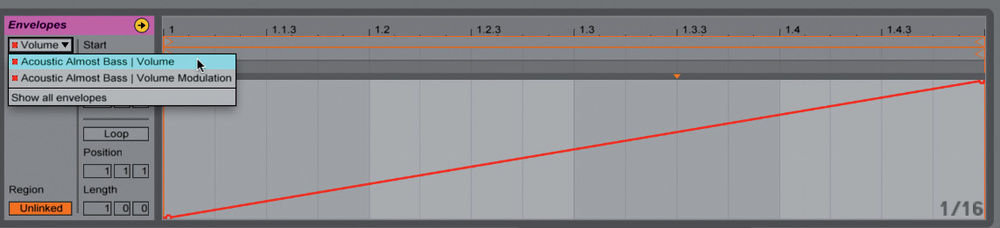 A one-shot volume fade-in created using the new clip automation co-exists with volume modulation, as found in Live 8.
The presence of automation in the Session View requires some subtle changes to the Control Bar. In Live 8, the Back to Arrangement button cancelled activity in the Session and also reimposed the Arrangement's automation. In Live 9, these functions are distinct. After all, you might want to manually override automation in a Session clip and subsequently revert to previously recorded Session automation, without reverting the entire Set back to the Arrangement. So, Back to Arrangement has been demoted and now lives down by the Stop All Clips button, while its old place in the Control Bar is occupied by a new Re-Enable Automation button. This lights up if any automation is overridden in either Session or Arrangement, and clicking it re-enables automation while leaving active parts of the Session alone. Some new control buttons jostle amongst familiar ones. The chain symbol is Automation Arm, while the red circle kicks off Session recording across a scene.
As an aside, an often-mentioned drawback of the Session — the inability to revert individual tracks back to the Arrangement — has also finally been addressed. In the Arrangement View, a triangular button appears on each track that is playing the Session, allowing just that track to be reverted. New buttons in the Arrangement View allow individual tracks to be reverted.
Elsewhere in the Control Bar, the old (MIDI) Overdub button is gone. Overdubbing operates by default in the Session, while a new Arrangement Overdub button toggles the setting for Arrangement recording. The Quantization Menu for setting quantisation for editing and playback has been relocated to the left, next to the metronome, and couple of new buttons have appeared. Automation Arm enables the recording of automation data into Session or Arrangement. There's one case where automation recording takes place even if the Arm setting is off, and that's if Arrangement recording is in progress, when any parts being recorded from the Session have their automation recorded as well. This is reset by the Back to Arrangement button.
The new Session Record button has two purposes: it kicks off recording in empty slots across all armed tracks in the currently selected scene (there's a user preference to make this all tracks rather than just armed tracks), and it enables MIDI overdubbing, plus automation overdubbing if Automation Arm is on, in existing clips in armed tracks. This is the only way to record automation into an existing clip, since launching the clip normally just causes it to play, regardless of its track's record status. Enable Session Record and Automation Arm, and new automation data can be punched in inside a Session Clip. If the control change involves a mouse-based click-and-drag (for example, track volume) then the punch ends when the mouse pointer is released, and otherwise, it lasts until the clip ends or loops. This is different to recording while looping part of the Arrangement, which stays punched until playback is stopped or Automation Arm is turned off.
Finally, the New button is a convenience that stops clip playback in all record-armed tracks and moves to a scene where those tracks have empty clip slots, creating a new scene if required.
Live 8 offered the facility to consolidate clips in the Arrangement, in essence creating an in-place 'bounce-down' of MIDI or audio from a time region in the selected tracks. The resulting clip could be copied back into the Session, although automation would be lost. In Live 9, copying a clip copies automation as well, but there's also a new Consolidate Time to New Scene command, which takes the selected time region from the Arrangement and creates a new scene of clips generated from all tracks across the selected region, automation and all.
The editing of automation data has also been improved, in that breakpoint segments can now be curved.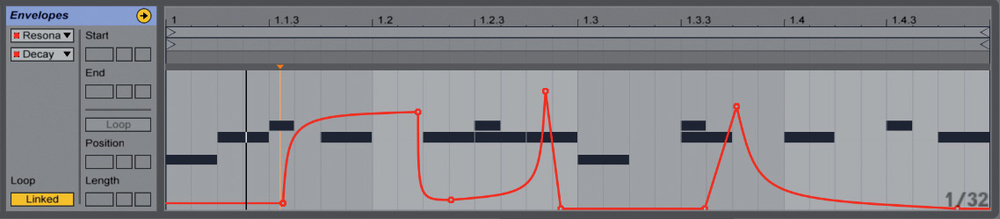 Automation segments can now be curved, for extra control. Option-drag (Mac) or Alt-drag (Windows) a segment and drag vertically to change its curve without moving the end points; Option- or Alt-double-click to reset it to a straight line. Curved segments are also allowed in MIDI controller data. In addition, it's also possible to drag a section of automation vertically just by hovering the mouse pointer close to it. If there's a time selection, all the automation in that time area will be moved, otherwise the lone highlighted segment will.
All in all, the Session automation features sound complicated — and I've used quite a lot of paper to describe them here — but everything does make sense and the features actually fit together neatly to improve overall workflow in the Session and Arrangement Views compared to Live 8. There's bound to be a little confusion to start with, but stick with it!
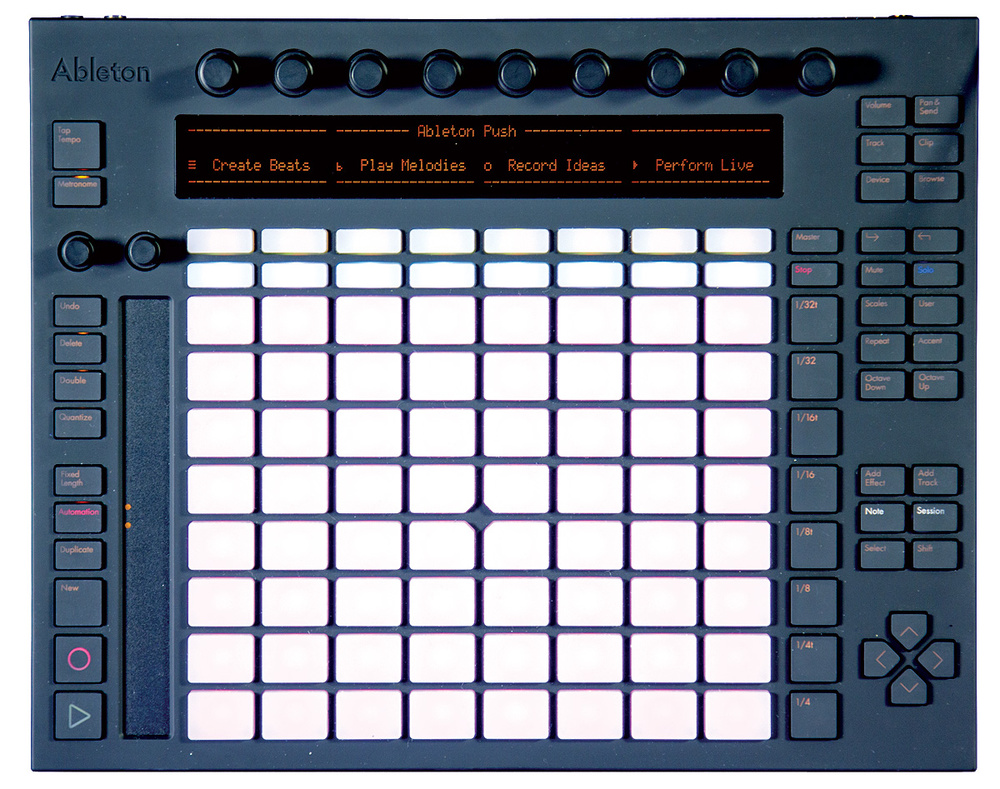 With 64 pressure-sensitive pads, a ribbon controller and nine infinite rotary encoders, Ableton's Push is far bigger and more powerful than existing Live controllers.
MIDI Editing
The editing of MIDI notes has been souped up in Live 9, and the Notes View for a MIDI clip has a few new controls.A text box shows the pitch range of selected notes, or of all notes if none are selected, and dragging vertically in this box transposes the notes. Alternatively, a new note pitch and octave can be typed into the box, whereupon the selection is transposed so that its lowest note has this pitch (or the highest note, if preceeded by '-'). The Reverse Notes button reverses the notes' start times in the selected time region, while Invert Notes inverts the pitches. A legato button adjusts each note so that it reaches as far as the next note in sequence. The Duplicate Loop button takes the contents of the clip loop and duplicates them, doubling the length of the loop and lengthening the clip.
When note folding is active, to only show MIDI pitches for notes which are present, things get slightly more interesting. Transpose moves notes within the folded selection only, rather than chromatically. Invert swaps note pitches within the folded pitch selection as well. This is useful: everything is kept in key (or, for drum sequences, within the kit), allowing quick, 'what-if' edits to be tried out.
When a time region, or note range in time, is selected, two MIDI stretch markers appear at the limits of the selected region. These resemble warp markers in audio clips, and behave in a similar manner. Drag one marker to scale both note positions and durations of the selected area relative to the other marker. You can even drag one marker past the other to reverse the selection. Click and drag a point between the markers to stretch or squash notes on each side of the point. Rather cleverly, if you stretch a section of time using the markers, clip automation is also stretched to stay in time with the moved notes.
The Big Push
Push is Ableton's first foray into hardware design. Although it was engineered by Akai Professional, it has Ableton's name on the front, and was designed in-house to integrate deeply with Live 9. Many of Live 9's new features were clearly designed with Push in mind. Obviously, Push isn't the first dedicated controller for Live. Akai's own APC devices and Novation's Launchpad have been around for a while, and there's a selection of Live controller apps on the iPad, but Push offers a level of integration that's not been seen before.
Ableton's motivation for Push was to liberate the musical creative process from the computer and to place it onto a well-designed, focused control surface that could be regarded as an instrument in its own right. An obvious example is the touring musician with down time in a hotel room who doesn't want to stare at a computer screen, but still wants to try out musical ideas.
Push is aimed at a particular phase of the music-making process: exploring and capturing new ideas in Live's Session View. There's no access to the linear Arrangement View at all, and there are no dedicated faders for mixdown, although Push's encoders can edit the mix. Just as the Session View has conventionally been regarded as one stage in the creation of a finished work, so Push can be thought of as one component in the creation of ideas in the Session View. In fact, Push's feature 'coverage' of the Session View is extensive, and it's possible to create and edit quite complex sets on Push without looking at Live on screen at all. At a recent demonstration session, the team from Ableton were quite insistent on hiding the laptop screen completely! Even though, obviously, Live's on-screen interface is a much richer and more powerful environment, creativity comes from constraints, and working with a focused, tactile device can really help the creative flow.
I should say at this stage that Push is designed very much for MIDI-based material. Playing and editing support for MIDI clips, specifically those playing drum racks, is extensive and versatile, and device editing and automation are well supported, but there's very little support for audio clips. You can edit loop, pitch and gain settings, and change the warp algorithm, but that's about it. However, if you are using audio clips to capture or play material, you can still set up, configure and automate effects processing.
Whether Push can be regarded as an instrument in the sense of something that can be used to perform music live is somewhat open to debate. Personally, I'd regard the creation and execution of a performance to be a different, follow-on process, and would treat Push as a tool for creating the musical ideas in the first place — and, let's face it, that's the hard part.
 Push's starting screen, showing the parameters for a single drum sound.
Overview
My first impression of Push was that it's big: at 370mm wide, it's the width of my 15-inch MacBook Pro, and it's also a couple of inches deeper. It will squeeze into a standard rucksack, but only just. At 3kg, Push is also heavy, so if you fly to gigs on budget airlines, watch your carry-on weight allowance! Part of the reason for the weight is the build quality. Push is a solid and hefty piece of kit, putting other controllers to shame. The unit is striking in appearance, wrapping Bang-and-Olufsen-style Scandinavian designer chic in a stealth-bomber matte black finish, and boasts some nice design touches. All the rotary encoders, for example, are truly touch-sensitive, meaning that you can simply touch an encoder to display its parameter's current value without changing anything. This is perfect for seeing what's what without, for example, accidentally punching in while recording automation.
The top part of the front panel sports a large, 80-column by four-row LCD custom-designed for Push. This is topped by nine infinite rotary encoders, the rightmost dedicated to master output level and cue volume. Below the display are two rows of narrow illuminated buttons referred to in the manual as "selection control” and "state control” above the big eight-by-eight grid of pressure-sensitive pads. The left-hand edge of the device sports various edit and transport buttons, dedicated encoders for tempo and swing settings, and a long vertical ribbon controller. On the right, there are more editing buttons and navigation arrows. The rear panel offers a power switch, DC power input, USB port and a pair of footswitch sockets. (The footswitch inputs for my early review unit were undocumented and there was no obvious configuration procedure on the device itself. Ableton tell me that the inputs generate hard-wired MIDI controller messages.)
The main grid and the two rows of buttons below the display, are full RGB backlit, and are exceptionally clear and bright. For full brightness, Push needs to be powered from an adaptor, although it will function perfectly well at reduced brightness on USB bus power. Colour consistency across the grid was somewhat variable on my unit, but LED colour consistency is notoriously hard to ensure, and Push is no worse than other products in this regard.
The edit buttons are mostly mono-colour backlit, the exception being the note interval buttons to the right of the grid, which double as scene-launch buttons. When a button's feature is disabled, the backlight is off and it's not even possible to read the text legend, which makes for consistent interface behaviour but is slightly frustrating at first when learning one's way round the controls. State and toggle buttons use half-intensity for off and full-intensity for on. The difference is a little hard to discern in bright light conditions, but clearer in subdued lighting. The ribbon controller also sports a column of LEDs, which indicate the centre position for pitch-bend and are also active when the controller is operating as a selection interface, as we'll see.
The edit buttons, being silicone, are slightly squishy but have a discernable click. Personally I was not greatly fond of the feel of them, but for this type of button they're probably the best I've encountered. The main pads themselves don't move, being purely pressure-based. Some drum machine-style pads I've used are too unresponsive to be comfortable to play, perhaps because I'm a wimpy keyboard player, but Push was pretty good in this regard, and with the sensitivity level turned up to 'Super-Sensitive' I found it easy to play.
 The drum sequencing interface: sequence grid, drum pads and loop indication.
Getting Started
Launch Live 9 with Push attached, and Live asks whether you want to start with a "new song using Push”, a template geared towards getting started with the controller as quickly as possible. There's nothing magical about this template, which contains a 909 kit, a bass and a grand piano on three MIDI Instrument tracks in a Session containing a single scene. The Push's display lists eight sound parameters across the top, each of which can be altered by its corresponding encoder,while the bottom left corner of the display features a couple of labels which, curiously, will resemble 'Kit Core 909', the name of the first track.
At this point, if you're not the kind of person who likes reading manuals, you can go ahead and start hitting the unlit pads forming the top half of the grid. Live will start playing, and you'll find yourself step-sequencing one of the drums from the 909 kit. Turn an encoder and the corresponding sound parameter for that drum will change. Jjust touching an encoder will bring up a row of graphical histogram displays showing value ranges. The 16 drums of this kit are selected for sequencing, or played, using the yellow-lit pads to the bottom left of the grid.
We'll examine exactly what's happening here shortly, but now might be a good time to quickly look at the rest of the edit controls. A key point is that the display area of Push — the LCD, the encoders and two rows of illuminated control buttons — can change mode independently of the main pad area. The top-right group of six buttons switches the display mode between tracks (volume, pan, effects send), current clip details, and the device chain for the selected track. The first row of selection control buttons below the display work as soft menu buttons to select whatever's shown above them, which is usually tracks or devices. This approach to display/interface design will probably be familiar to anyone who's used a keyboard synth.
For the pads, the two main modes are selected from the white-illuminated buttons towards the bottom right. 'Note' maps the current clip's MIDI notes onto the grid, while 'Session' brings up a Session clip mode familiar to users of the APC controllers and the Novation Launchpad. A glance at Live's Session View on screen will reveal a marquee surrounding the Clip Slots currently addressed by Push's grid.
Session Mode
Session mode is fairly straightforward, and will be familiar to Launchpad or APC owners. Each pad represents a clip, and is even illuminated in the same colour as the clip in Live's Session View (or the closest approximation available to the LEDs). This is a great improvement over the red-green display of other devices. Pressing a pad launches a clip: the pad flashes in green when its clip is cued for playback, and throbs gently when actually playing. For recording, the active colour is, predictably, red. Recording is enabled by the red-circled Session Record button to the lower left — you may notice a similarity to the button in Live's Control Bar — and can be toggled on and off for overdubbing notes or automation.
When Session Record is enabled, recording starts for all Clip Slots in armed tracks in the current scene. Herein lies a slight problem, because Push gives no indication of which tracks are armed or which scene is selected. If you're working on one clip at a time in Note mode — the mode where Push is most useful — the selection follows the current clip, but in Session mode I found I was getting a little lost, and would frequently start recording into what seemed like a fairly arbitrary slot. Keeping one eye on Live's Session display seems to be the only solution.
It's pretty easy to correct mistakes such as accidentally recording. Holding down Delete and tapping a pad deletes its clip. Even better, there's my absolute favourite feature of Push: a dedicated Undo button, linked directly to Live's indefinite undo stack. This works everywhere — clip recording, sequencing, device editing, automation changes — and practically removes all chances of losing any of one's work. Pressing Shift-Undo performs a Redo. This is so useful that every control surface should provide it, by law!
In Session mode, if the display is in one of the track modes, the second row of soft 'state control' buttons provides track functions, namely mute (which Live itself refers to as Track Activator), solo, or Clip Stop, according to the selected function on the buttons to the far right. Curiously, there's no access at all to the record-arm setting of a track. One is expected to use the Session Record button to create or overdub recorded material, and Push record-arms tracks behind the scenes as required.
Clips & Sequencing
Press the Note button, and Push switches its pad mode to show a single clip. The clip lives in the currently selected track and scene. To change track at any time, you can put the display into one of its track view modes and then press the soft button below the track name, or use the left or right cursor button to navigate. Cursor up and down changes the selected scene, and launches it if there are Clips present, but there's no indication on Push as to which scene is current.
When a clip is displayed, the configuration of the pads depends on the type of track and what devices, if any, are loaded into it. If it's a MIDI track with a drum rack, the the pads are set up for drum sequencing, while any other MIDI track brings up a two-dimensional tonal keyboard, and an audio track, understandably, delivers a completely blank grid. In all cases, pressing the Clip button brings up the most important clip parameters on the display for editing with the encoders.
 The Push ribbon controller, acting as a selection interface for drum sets.
The Push's drum sequencing mode is the most sophisticated musical creation environment offered by the device. In this mode, the pad area is divided into three sections. The top four rows form the sequencing grid, the lower-left four-by-four square presents 16 drum pads, and the lower-right square is a zoomed-out time-based grid showing up to 16 bars of clip time.
Both real-time and step-time sequencing are provided for. Step time provides instant gratification: simply select a drum from the drum pad area and press pads in the upper area, which light up blue. Playback will begin automatically. By default, all notes are created with the same duration and velocity, but holding down the Accent key plants notes with MIDI velocity 127 rather than 100. Cleverly, note velocity is also indicated by colour saturation on the pads. A note can be edited after the fact by pressing and holding its pad until parameter options appear top-right in the display. Velocity and duration can be altered, and notes can be nudged forwards or backwards, within limits which keep them in their grid slot.
To record in real time instead of step time — or even simultaneously! — just press the Session Record button to punch in, and play the drum pads. Notes can be quantised at record time by holding down the Quantize button and selecting options from the right of the display, and any recorded MIDI can be quantised after the fact. The Repeat button invokes a quantised note auto-repeat — a feature I remember from my trusty R8 drum machine years ago. The Swing encoder adds a variable amount of swing while notes are recorded using Repeat, and pad pressure can be applied to create velocity swells, leading to some nice roll effects. Whereas step recording will loop a clip, real-time recording will extend a clip indefinitely unless it has already been looped, and the Fixed Length button (described later) will loop such a clip on demand. As always, any mistakes can be removed with the Undo button.
The drum pad area represents a window onto 16 note pitches out of a possible 128. The column of LEDs embedded into the ribbon controller show the current selection area as three bright LEDs, while dim LEDs show which other parts of the entire note range contain occupied slots — fewer LEDs mean fewer allocated pads in the grid. Octave Down and Octave Up buttons shift the selection, or you can touch or drag in the ribbon area to instantly move the current selection, which is a nice touch. Drag while holding down Shift to navigate one row at a time.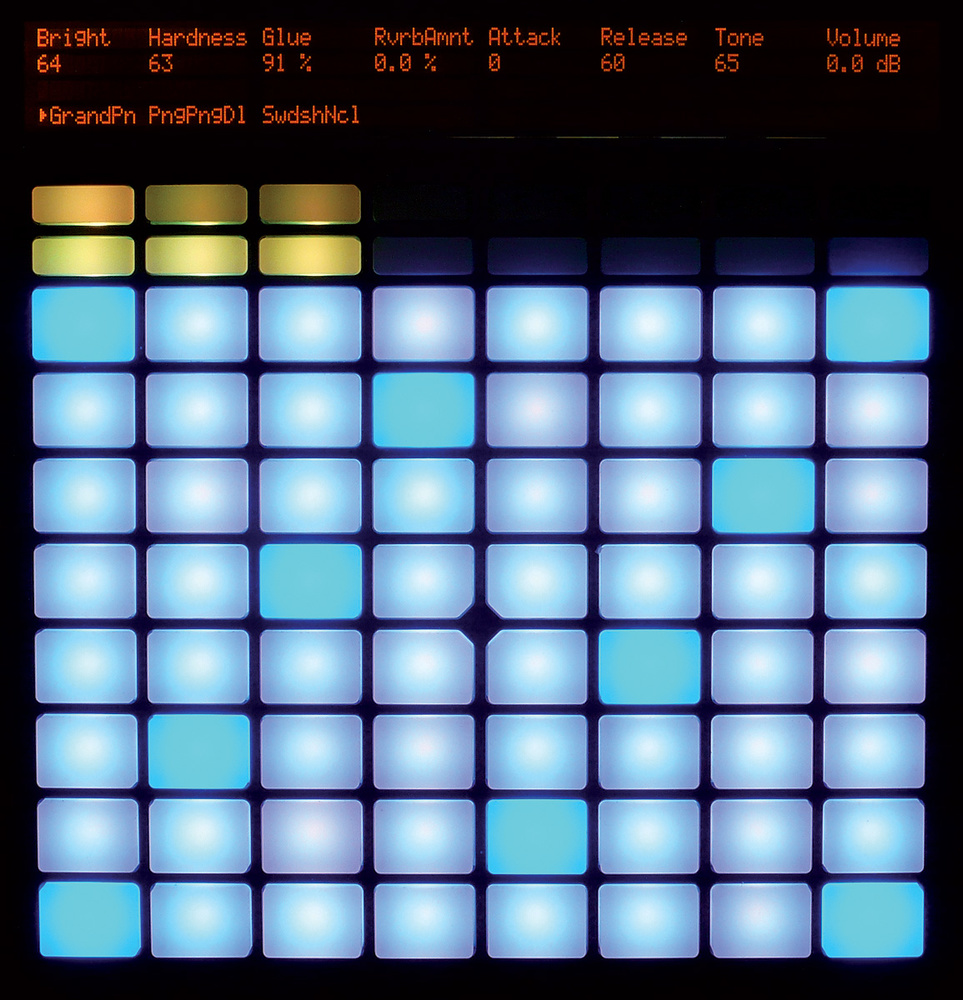 The innovative pad-based keyboard in default diatonic mode (left) and chromatic mode (right), where illuminated pads are notes that are in the song key. As always, editing and navigation changes made on Push are reflected immediately in Live's on-screen display, and vice versa.
The time interval of the sequencing grid can be changed using the dedicated interval buttons just to the right of the pads. The clip length and loop are indicated by the lower-right grid. Here, each pad represents one bar: white pads represent the entire loop, blue pads the area currently in the sequence grid, and the green pad the current playback position. The loop is set by pressing two pads to indicate start and finish. It takes a little while to get used to how this part of the interface interacts with the sequence step division, but you can always hit the Clip button to check the clip's loop parameters in the display. A dedicated Double button copies the the loop with all its contents and pastes a copy directly after it, doubling the loop length and allowing short loop ideas to be developed into longer ones.
The pad-based loop editing is slightly restrictive: the clip's start position always coincides with the start of the loop, for instance. To be fair, unless you want lead-ins for your drum loops this is probably what you need, but I was hoping that there was some facility to 'rotate' a loop to change which part of it coincided with the downbeat. The clip start can be edited in Live, but there's no access to it in Push.
Navigation between clips in the Note mode is easy, using the cursor up and down buttons to change scene, or left and right to change track. Changing scene selection actually launches the new scene; clips are always triggered in Legato mode, so you can switch the playback immediately between different clips without regard to their launch quantisation settings. I confidently predict that this will become a live performance technique. It's even possible to record the result into a single clip on another track while scenes are being changed. (I leave this as an exercise for the reader.) A dedicated Duplicate button copies the state of all playing clips into a new Scene, mirroring the Duplicate edit command in Live.
The drum sequencer is probably Push's most compelling feature. It's versatile and easy to use, and the use of dedicated pads to set loop position and length is a very nice piece of interface design, while the ability to shift quickly between scenes while working on drum clips allows complex musical ideas to be built up easily. As mentioned earlier, though, the lack of any indication of the current scene is a curious omission.
The Keyboard
If you go into Note mode in a MIDI track containing anything other than a drum rack, in place of the drum sequencer Push presents a grid containing a rather attractive blue and white pattern. This is a novel, two-dimensional keyboard layout, intended to make the best use of an eight-by-eight grid of pads while providing an environment that can be used by musicians not necessarily trained on a conventional piano-style keyboard.
The default keyboard layout is for a C-major scale. The bottom row provides an octave of major-scale notes starting from C and ending at C an octave higher. The row above provides notes a diatonic fourth higher (for music theory fans, that's five semitones, except from F, when it's six). The third row up is a diatonic fourth higher again, and so on to the top. The whole grid provides a range of four octaves, although the Octave Down and Octave Up buttons allow access to the entire MIDI note range. Since the range of an individual row is greater than the pitch difference between successive rows, each note appears more than once in the grid; the blue pads are multiple occurrences of C over the four octaves. As a note is played, each occurrence lights up in green. Cleverly, this even happens when notes are played in from a separate, conventional, keyboard.
While playing one row of notes is not terribly interesting once you're past the 'Three Blind Mice' stage, the real strength of this system lies in the way that chords can be voiced across rows. The diatonic fifth is one pad up and right, for instance, and the various triads and seventh chords are easy-to-reach pad clusters. Many chords that are hard or impossible to finger with one hand on a conventional keyboard are easy to play here. Various kinds of scales and runs which, on a piano, are considered fingering exercises, are ridiculously easy to play on Push. On the down side, the black keys on a piano provide a tactile indication of finger position, and since Push doesn't, you're likely to have to look at your hands more often than if you were playing a conventional keyboard.
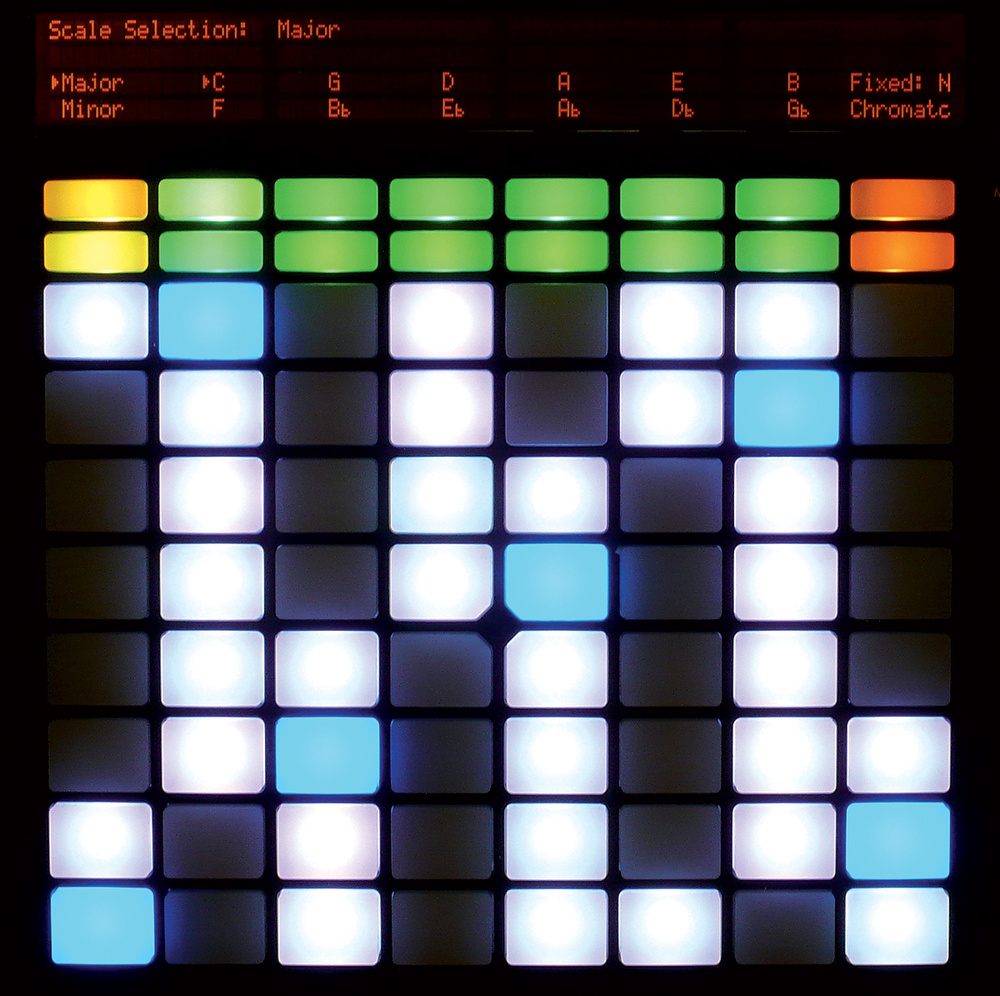 On the off-chance that you don't want to write all your songs in C-major, you can press the Scales button to change the root key or scale selection. There is a large selection of available scales, including the standard seven-note diatonic scales and a range of non-Western ones. (Obviously, everything is still working with MIDI notes, so if you want to explore non-Western tunings you have to do this in the instruments themselves.) The entire keyboard can be transposed to any key, and a Fixed option forces the lowest pad either to play the root of the transposition, or else to be anchored on C or the closest note to it in the transposed key.
 Instrument types, Live Packs and presets can be recalled from Push's device browser. Switch the keyboard from In Key mode to Chromatic, and the grid presents a truly chromatic keyboard where pads for notes not in the current key are not illuminated. This mode allows playing in any key just by shifting your fingers left or right. Transposition doesn't alter any of the notes played, just the pad colours showing which notes are in the selected key.
Pressing on the pads generates channel aftertouch — although these days, sadly, not many instruments respond to it — while the ribbon controller provides pitch-bend.
Although Push's keyboard setup options are extensive, step sequencing support is basically non-existent, compared with what's offered by the drum sequencer: you just turn the metronome on, punch in Session Record, and start playing. There are some features which help, though. Firstly, the Fixed Length button attaches quantised loop points to a clip while you're recording it, so you can 'warm up' by playing a few takes into a clip and then enable a loop once you have a pass that you want to keep. The clip's notes can be quantised after the fact, or record quantise can be enabled ahead of time. Once your clip is looping you can overdub as many times as you want. As ever, Undo can come to the rescue, allowing you to unwind overdubs that you don't want to keep. Finally, I was pleased to notice that Repeat mode works for keyboards as well as drums, making it possible to record some simple arpeggio-like sequences with variable velocity, which threw up some ideas. Of course, you're free to add MIDI effects to a track to generate further ideas. The only way to see your work once you've recorded it, though, is via Live's Clip View. At worst, you can fire up Live's own on-screen step recording feature to construct quantised note material, using Push purely as a keyboard for input.
Device Editing
Push has comprehensive support for device configuration and editing. Pressing the Device button switches the display/encoder section to a device view for the current track. The devices in the track are presented in a horizontal list, each above a pair of soft buttons. Actually, for drum racks the situation is slightly more complicated. The first item is the drum rack itself, and the second item is the chain for one note within the rack. Play some drum pads to see this second item change.
The top 'selection control' row of soft buttons allows a device to be selected for editing, while the second 'state control' row provides enable/disable switches. The top of the display shows the eight 'Best Of' parameters for the selected device, which can be edited with the encoders. If the device is a rack, these will be the macro controls, and, again, drum racks are slightly different: if the rack's macro controls are unassigned, the parameters are for the first device in the selected chain. A dedicated 'In' button, labelled with a right arrow, allows you to 'drill down' into a device to access the chains within a rack, and the devices in each chain. An 'Out' button walks back up the tree. For devices which present several banks of parameters, a further 'In' move provides access to each bank. The navigation is a little intricate, and you have to keep an eye on the 'In' button, since its illumination state indicates whether there are deeper editing layers. (Live's Status Bar also puts up messages about which banks of parameters are connected to Push, which is a useful navigation aid.)
The labels for the device and parameter names are rather terse — there's only room for eight characters in the display — and I found myself glancing at Live's Info View to see the full names. The actual parameter control is precise and detailed, with numbers shown in the correct units, and parameters such as on/off switches and radio-button selections displayed and handled properly.
If the editing process I've outlined sounds a bit fiddly, well, it is, but it also feels like a much more creative process than staring at a computer screen and clicking with a mouse. The soft-button-based navigation and parameter knob-twiddling takes me back to my endless hours of Korg Wavestation programming, which was somehow more enjoyable, rewarding and productive than a lot of present-day laptop composing. And for activities like envelope editing, infinite encoders are much more immediate than clicking and dragging with a mouse.
 A reboot of Max for Live's Buffer Shuffler, with new livery and more power.
Not only can devices be edited, but they can be inserted, deleted and hot-swapped! Hitting the Browse button brings up a device browser interface mirroring Live's own Browser, and devices and presets can be browsed by category, auditioned in place, and loaded to replace the current device.(Some Live Packs were visible by name in the Browser, but others were not, so you'd need to know the sound category to find some of your content.) The Undo button means there's no need to worry about accidentally loading a device and losing the previous one. The multi-column display layout of device type, sound category and device/preset name, navigated by encoders and soft buttons, is reminiscent of early hardware samplers, and although we hated that interface design at the time, preferring computer-based point-and-click browsing, there's something innately engaging about working with physical controls directly above the playing surface.
The Add Effect button allows insertion of new devices into a chain at any point, either in front of or behind the current device. Push is clever enough to browse for the current kind of device (ie. audio or MIDI) depending on position in the chain, although for empty MIDI tracks it does insist on starting with an instrument. The Browser sees items in your User Library, so you could make your favourite VST or AU plug-ins available by wrapping them in racks and exporting these to your library. It's even possible to pick up Max for Live devices if they're in racks, although not on their own.
One restriction in Push's interface design became apparent as soon as I wanted to edit the reverb in one of Live's return tracks, however: Push can only work on one track at once. If I wanted to play the instrument, I could only access devices in the instrument's track, while if I wanted to tweak the reverb I couldn't play anything! The only solution would seem to be to temporarily plant the reverb in the same track as the instrument, with appropriate wet/dry mix, and drag it to the return track when done.
Push & Automation
Since Push can display and edit device parameters, it's a small step to providing features for recording and editing automation. To start an automation recording pass for a clip, both the Session Record and Automation switches need to be on. Depending on your Live preferences, the track's Session Recording Arm may have to be on as well. Push takes care of this for MIDI tracks but not for audio tracks. Move an encoder, and parameter recording punches in until the encoder is released. This is a truly neat trick, which Push can perform because its encoders are touch-sensitive. Other controllers can't signal end-of-edit in this way, and for them, the recording punch lasts until the clip loops.
Moving an encoder while recording is not enabled puts the parameter into manual mode, overriding automation for it. You can hold Shift and press Automation to re-enable automation for that parameter. You can also delete all automation for a parameter in the clip by holding down Delete and touching the relevant encoder. During automation recording it's helpful to keep an eye on Live's Clip Overview, which updates to show the parameter that's being changed. However, Push's combination of touch-sensitive encoders, large display and Undo button make automation management very much a hands-on process, as it should be.
To The Max (For Live)
Max for Live, which embeds Cycling '74's Max graphical programming language inside Live, has received some love and is now part of Live 9 Suite, rather than being a separate product, as it was for Live 8. This is a good thing, making the bundled Max for Live devices available to a much wider audience, and also expands the potential market for Max programmers, which can only be a good thing. (If you don't want the entire Suite, Max for Live is still available separately.) Max for Live devices have their own category in the new Live Browser.
Max for Live 9 now uses Max version 6, so the interface and functionality improvements in this latest version of Max are finally available in Live (Max 6 has actually worked in Max for Live 8 for a while, but not in a supported capacity). As I write, beta versions of Max 6 are running 64-bit, so there's a viable Max for Live in 64-bit Live 9, but third-party Max externals will need to be ported explicitly before they'll work. My testing of 64-bit Max for Live using the built-in objects suggested that things were pretty solid.
The bundled Max for Live devices have been dressed in seasonal new pastel blues and greys for 2013, so they can be distinguished from Live's built-in devices, although in most cases the distinction isn't important: Max devices and Live devices can be hot-swapped interchangeably, presets can be saved and loaded, and Max devices can be edited on Push, although they aren't (yet) visible to Push's browser.
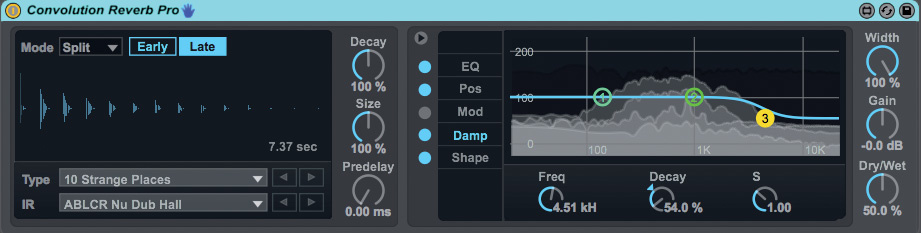 Some big science from Max for Live: convolution reverb with dampening adjustment.
The venerable Buffer Shuffler audio effect has been souped up considerably, adding (amongst other things) independent semitone pitch shifting and Hertz-based frequency shifting, per sequence step.There's a new suite of analogue-style DrumSynth devices just asking to be assembled into racks and played with Push, and there are also some control devices, including various kinds of mappers that impose macro or LFO control on other devices in the current Set using Live's internal control interface. (As always, you're free to open up all Max for Live devices for examination and editing.) I can't wait to see what happens as Max for Live programmers start exploring what can be done with Push's multicolour pads and display interface to create new performance systems.
The most impressive new Max for Live device is probably the convolution reverb programmed by Alex Harker at the University of Huddersfield and powered by something called the HISSTools Impulse Response Toolbox. The effect supports drag-and-drop of impulse response files, which are displayed as waveforms in the device view, and a huge number of device presets are bundled, from small rooms and spring reverbs to a handful of cathedrals and a bizarre collection of possibly totally manufactured response recordings. I can't speak for the authenticity of 'Terry's Typing Room' but I did rather like the effect of 'Swedish Nuclear Reactor 2'.I can't say that the convolution reverb device will be taking on Altiverb head-to-head just yet, but I was certainly using it in place of Live's standard reverb, with good — and often fascinating — results.
Libraries
The sound libraries shipped with the various editions of Live 9 are detailed in the 'Which Packs Come With Which Live?' box. Although the name Essential Instruments Collection is gone, a side-by-side perusal and audition of the instruments suggest that Live 9's Session Drum and Orchestral packs have much the same content as the Live 8 Suite. I asked Ableton for clarification, and was told that all Ableton packs and partner instruments that were available for Live 8 users will also be available in Live 9-compatible versions, with some enhancements, such as improved macro knob layouts, and macros rearranged slightly to enhanced integration with Push. The samples are unchanged.
A number of packs that were only available as add-on products are now part of the Suite, such as Puremagnetik's Retro Synths. Live 8's Essential Instrument Collection 2 is essentially a legacy offering, and will only be available in Live 9 form to users who already have an existing licence.
As I write this, Live 9 isn't yet in the shops, so I didn't have the chance to listen to all the bundled packs in Suite, but Ableton have already put a large amount of library material online: well over a dozen Live Packs, including packs which will ship with Live 9 Suite, plus a variety of third-party packs, some paid-for and some free, covering a range of genres from world music through to electronica and hip-hop, and including a handful of Max for Live instruments and utilities. I'm especially fond of the Retro Synths pack, whose 3.5GB covers 30 years of synthesizers in 4000 samples, built from a variety of Puremagnetik's Micropak libraries. The Designer Drums pack, bundled with all editions of Live, provides a nice variety of kits spanning plenty of genres, and offering far too much fun when played and sequenced with Push.
Existing Live Sets which use Live 8 sample libraries will load and play — Live 9 can locate the Live 8 Library — but it might be advisable to Collect All and Save to preserve the samples, or hot-swap in the corresponding instruments from the Live 9 Library.
Compatibility
Live 9's compatibility with material created in Live 8 is pretty much a non-issue. All the old Live 8 Sets I opened, even the most complex ones using home-brew Max for Live devices, worked without any problems. Preset and Live Clip files opened fine as well. Live Projects archived as Live Packs also opened without problems, although not from within Live itself. In OS X, I had to switch to the Finder, Ctrl-click my '.alp' file and explicitly open it with Live 9. (This is on Ableton's bug list and will probably be fixed by the time you read this.) I generally do Collect All and Save to archive my Live Sets, so that all samples and Max for Live devices are contained in the Set's enclosing Project, but I also tested compatibility with Sets where I deliberately left Sampler instruments referring to samples in the the legacy Live 8 Library, and these loaded fine.
Live 9 loads and presents the Live 8 library in a kind of 'compatibility mode'. The library appears in the Places section with title 'Live 8 Library', is read-only and cannot be altered. Information about the Live Packs constituting the library isn't available, but the presets are categorised by sound type, which just echoes the directory structure on disk. There's no preview function for Live 8 instruments, and the Live 8 Library isn't visible to Push's browser.
At the time of writing, Live 9 is unable to read Live Pack (.alp) files for third-party sounds, although Ableton inform me that they're working to deliver this functionality, so, again, it may well be in place by the time you read this. At worst, you can load a third-party pack into the Live Library using Live 8 and then see it within the Live 8 Library in Live 9. Finally, when it comes to third-party plug-ins, the 64-bit version of Live requires 64-bit versions of its plug-ins. There's no 32-bit bridge, nor is one planned by Ableton, so if you want to run 64-bit, you'll have to look for a third-party solution, such as jBridge.
Conclusions
Live 9 is yet another evolutionary step forward in the development of Ableton's flagship clip-based DAW. The feature changes most likely to affect experienced users — the redesigned Browser and the changed functionality of buttons in the Control Bar — may seem a little arbitrary at first, but they do make sense, and actually rationalise the way some of Live's most fundamental features work. The Browser and Library changes, in particular, improve the organisation of the resources used in the creative process.
Session automation, although rather obvious in hindsight, is a very welcome addition to the feature set that reduces the friction when moving between Session and Arrangement, and opens up flexible new ways of working with clip-based material. The only minor drawback is some potential confusion between automation and modulation in Session Clips. The new audio-to-MIDI converters have potential, although their quality is a little hit-and-miss, but as with many things software-based, they'll no doubt improve with time. Ableton's deeper involvement in packaging and delivering both their own and third-party content is to be welcomed, as it adds value to their core platform.
The real game-changer, however, is Push, providing clip launching, sophisticated drum sequencing and keyboard support, device editing and automation in a single, beautifully designed piece of hardware that's deeply integrated with Live itself, leaving other control devices pretty much in the dust. My minor issues with the device are almost all software-related and hence fixable, and at this price, Push is a truly amazing piece of kit.
Which Packs Come With Which Live?
Live Intro
- Designer Drums
- Digicussion 1
- Loopmasters Mixtape
- Unnatural Selection
Live Standard
- Bomblastic
- Breakbeats by KutMasta Kurt
- Cyclic Waves
- Digicussion 2
- Drum Machines
- Grand Piano
- Guitars and Bass
- Konkrete Breaks
- Sound Objects Lite
- Vinyl Classics
- Designer Drums
- Digicussion 1
- Loopmasters Mixtape
- Unnatural Selection
Live Suite
- The Forge by Hecq
- Latin Percussion
- Orchestral Brass
- Orchestral Percussion
- Orchestral Strings
- Orchestral Woodwinds
- Retro Synths
- Samplification
- Session Drums Club
- Session Drums Studio
- Session Drums Multimic
- Bomblastic
- Breakbeats by KutMasta Kurt
- Cyclic Waves
- Digicussion 2
- Drum Machines
- Grand Piano
- Guitars and Bass
- Konkrete Breaks
- Sound Objects Lite
- Vinyl Classics
- Designer Drums
- Digicussion 1
- Loopmasters Mixtape
- Unnatural Selection
The Story Of Push
 Note editing has been improved, with more options in the Note Box, and new MIDI stretch markers.
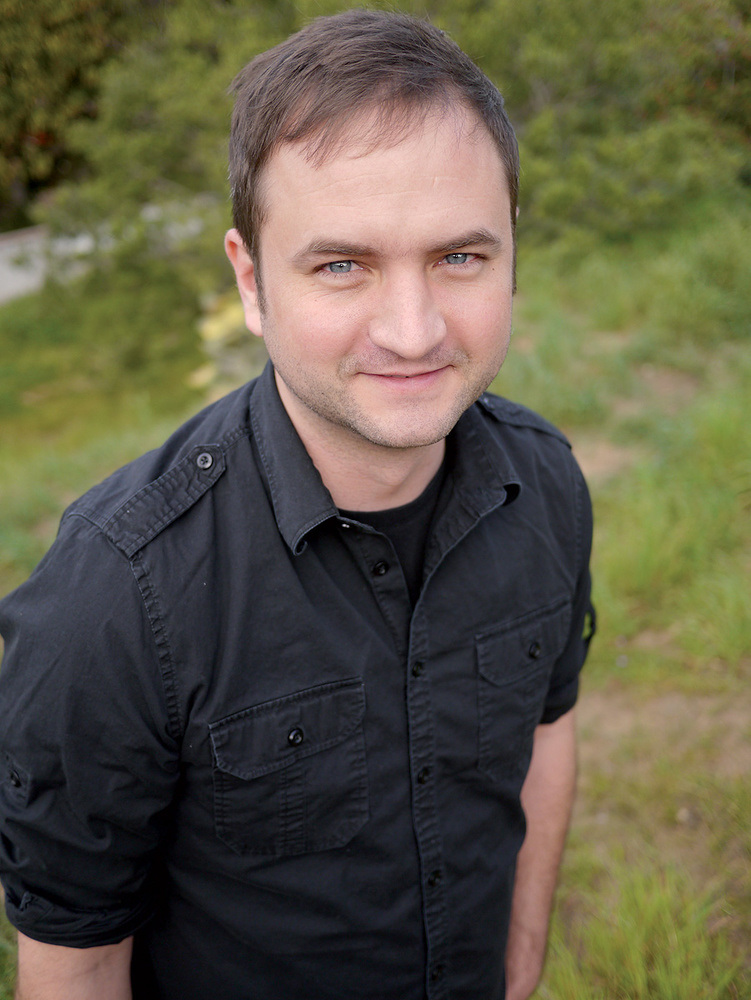 Jesse Terry, Push's Product Owner and Project Manager at Ableton.
To get some background on the development of Push, we talked to Jesse Terry, Push's Product Owner and Project Manager at Ableton.
What prompted Ableton, a software company, to get into the hardware business with Push?
We've worked with hardware partners in the past, so we knew that model can work. But for Push we had to bring the design in-house, as the deep integration we envisioned would be difficult to manage with an external partner. Software changes a lot from day to day, features are created and refined — this is harder to do with hardware, where features are 'set in stone.' By taking responsibility for selling Push, we could also bring risks on our shoulders — which allowed Push's feature set to grow in a more organic fashion, with many revisions cycled through user tests. That said, we don't have the expertise to make what we dreamed up into reality, so we turned to Akai Professional's engineers to make the ideas real, and we are very happy with the solutions they've delivered to our problems.
Why did you think Push was a product worth pursuing, given the range of dedicated Ableton controllers already on the market?
There are a few good solutions for launching clips and controlling Live in a performance setting, but nothing that is dedicated to [music] creation with Live, and nothing out there that is as tightly integrated with Live. We had to open up considerable parts of our code for Push. Many things that Push does with Live simply weren't possible before, and certainly not with the tightness and visual feedback we've implemented. The controllers on the market are good for 'controlling' a set of tracks, but we see Push as an instrument that focuses on what goes into one track, be it drums, melody or harmony.
It's not possible for another product out there to have the integration we have with Push, because we are literally creating the code to make it work as we go. Push is plug-and-play, so you don't need third-party hacks or workarounds to make it work. The input layouts we have for making drums, and playing melody and harmony in particular, are unique. We looked at many drum machines and step sequencers, and made sure that the timing and feedback of Push were up to par, without the delays and problems you get with other controllers that try to do this with Live. Our goal was that Push had to feel like a hardware instrument, and each hardware feature was selected to make that happen.
There's a lot of functionality in Push that is not generally seen in control devices: the ability to browse Live's libraries, for a start. Why was this level of functionality considered important?
We wanted to create a situation where you can turn away from your computer screen and fall completely into the creation process. So even if it meant doing things a bit differently than how you might do them in Live, we needed any features that would support this creation workflow. Browsing and instrument/effect control without looking at your computer were certainly a big part of this.
How were Live 9's development and features influenced by what was required for Push?
Push and Live were dreamed up independently for the most part, and we had a dedicated team of developers working only on Push. However, Push uses Live 9 as its 'engine', and we are always interested in the new features of Live 9 and vice versa, so it's not like the Push team was on a remote island. An example of Live 9 affecting Push: we added touch-resistive encoders to Push to take advantage of Session Automation recording. On Push we can know when you've let go of an encoder when recording automation, and you can delete automation by simply holding the delete button and touching an encoder. An example of Push influencing Live 9 would be the Session Record button and the New button. We thought about these a lot with the computer-free Push workflow, and liked them enough to add to Live 9.
Push's note-entry keyboard is innovative for a controller of this class. Where did this idea come from, and how did it develop?
We watched our users and noted how many people get stuck playing in C-major on a keyboard, because they can't make sense of the difficult fingerings necessary to play scales in different keys with the black keys on a piano. A lot of us have interest in old, new and unique musical instruments, so that influenced us as well. For instance, Gerhard [Behles, Ableton CEO] was intrigued by the bandoneon and Wicki-Hayden note layouts, which influenced our vision to make it easy to play in different keys, and I was influenced from a lifetime of guitar playing, where you can move a chord shape around to quickly play in different keys or use a capo to change keys, similar to the isomorphic grid we use on Push. We mocked up a bunch of different isomorphic layouts, and tested/refined until the 'aha' moment when we combined isomorphic layout with diatonic filtering — it just became so much fun to play at that point, whether you are experienced with music theory/scales (as in my case) or not.
Is Push as a performance instrument, a creation tool, or both?
It is first and foremost a tool for creation. That's what we focused on: creation without looking at your computer. That said, there are many side benefits to the layout that are great for performing, whether as an instrumentalist in a band, or for launching clips with multi-colour feedback and clip name on Push.
Audio To MIDI
Live 9 comes with not one but three different tools for analysing audio and generating MIDI clips containing notes derived from the original material. In fact, audio-to-MIDI has been in Live for a while in the form of clip slicing, whereby an audio clip is taken apart and converted into a MIDI clip playing a Sampler which contains fragments of the original audio. However, the audio analysis used in this process is rudimentary, and audio transients or warp markers are the only information used. Live 9's new analysis features dig deeper into the audio material.
 Although it's hard to tell, Live 9's audio-to-MIDI conversion has produced a pretty convincing transcription of Debussy's La Fille Au Cheveux De Lin.
The Melody to MIDI and Harmony to MIDI functions do monophonic and polyphonic analysis respectively, while the Drums to MIDI function pays attention to broad frequency range rather than precise pitch, and generates a MIDI sequence from a selection of just three notes, playing kick, snare and hi-hat. The result in each case is a MIDI clip plus a simple instrument for auditioning purposes. Unlike slicing, none of the original audio is used in the result, and you are presumably expected to swap in whatever instrument you want. Like slicing, the new audio-to-MIDI converters use transient markers in the original clip, so you can edit these before analysis to improve the accuracy of the result. Thankfully, the routines respect any warping applied to the original audio clip; for some reason, the existing Slice to MIDI function operated (and still operates) on the unwarped audio.
As you'd expect, the functions are extremely sensitive to the quality and accuracy of the source material, and you'll almost certainly have to do some cleaning-up work with the resulting clip. To test the harmonic capture I started with a MIDI clip playing piano, froze the clip to generate audio and then did the harmony-to-MIDI conversion. Apart from a few spurious high harmonics, the result was pretty faithful to the original, although these were ideal test conditions. I also threw three minutes of Debussy from my iTunes library into the system, and the result was a pretty impressive transcription, with only the occasional obvious wrong note.My attempts to capture a whistled tune as a MIDI melody worked after a fashion, although it insisted on rendering all my F-naturals as F-sharps: I suspect the source material was to blame. Drum-to-MIDI conversion seemed less useful: a lot of my tests ended up as snare-only, or all three sounds layered at once, and since the resulting output is so simple in terms of sound palette, you're probably better off just playing by ear or sequencing it directly. As the disclaimer goes, your mileage may vary!
Extended Effects
 The new-look Compressor and Gate, with much improved visual feedback.
The library effects in Live have had a bit of a revamp, with the addition of a brand new compressor and improvements to the existing compressor, gate and eight-band EQ. The existing Compressor effect now comes with three possible display options: a compact control layout with VUs and faders for threshold, gain reduction and output, the familiar two-dimensional transfer curve display, and a new scrolling graphical display showing a continuous trace of input level and gain reduction. A new Auto switch enables automatic adjustment of release time, and there's a new inverse Expander mode.
The Gate also now has a scrolling activity display showing both input and output levels. This is extremely useful for side-chain gating, since the external side-chain source is shown superimposed with the output. A new Return parameter allows the gate's close level to be set lower than gate open, reducing 'chatter' when the input signal level is close to the trigger level. The ability to see, and set, Threshold and Return directly on the scrolling display allows for quick and accurate setup.
The EQ Eight effect has been redesigned for better sound quality, and now incorporates a spectrum display behind the graphical display of the filter curves, so there's no need to drop in an additional Spectrum device to see this. Like Spectrum, the new EQ Eight display can be 'unfolded' into the main Session/Arrangement area for detailed editing. An Audition button allows each filter to be 'soloed' to see how it affects the sound in isolation, while a Scale parameter allows the gain of all the filters to be scaled, or even inverted. Scale can even be automated, to apply weird rhythmic tonal effects to drum loops.
The brand-new Glue Compressor effect, created in collaboration with Cytomic, is an emulation of the classic SSL bus compressor. It is capable of very fast attacks, so that it can be used for limiting, and the soft clipping switch applies some waveshaping to give the output a bit of tonal colour. As well as the usual controls, a Range control limits the amount of compression that can be applied. A side-chain section allows the compression to be controlled by an external audio source, while an oversampling option increases audio fidelity at the cost of some CPU load. To my ears, the Glue Compressor applied a smooth and nicely coloured character to its input source, and I found that the overall effect on something like a grand piano was pleasing without being too obvious. I could definitely see other creative applications for it, although I suspect it could be a little too easy to over-use.
Pros
- Live 9 sees rationalisation of some key workflow features, a good selection of available third-party libraries, and 64-bit support, among other new features.
- Proper automation is available in the Session View.
- Push is a beautifully made hardware controller with a well-considered feature set designed for musical creation, offering deep integration with Live.
Cons
- Changes to the Browser and Control Bar are a little disruptive for existing Live users.
- The new audio-to-MIDI features have scope for improvement.
- Push has one or two minor navigational blind spots, and some colour variation between the pads.
Summary
Although the improvements to Live itself are very worthwhile, it's the Push controller that is the star of the show, offering build quality, functionality and creative potential unmatched by any existing rivals.
information
Focusrite +44 (0)1494 462246.
Ableton US +1 646 723 4550.