

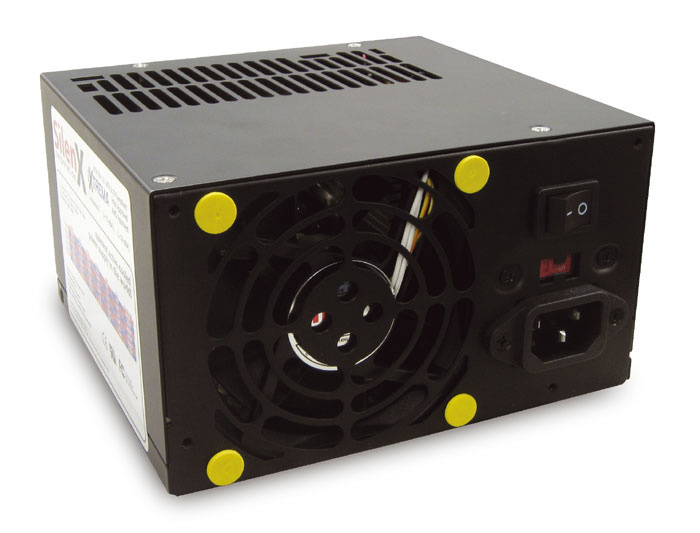
 Power supplies may not qualify as sexy, but the models in the SilenX range are claimed to be the quietest active (fan-cooled) models on the planet.
We take a look at a new range of super-quiet power supplies, as well as explaining how to protect your data and settings in case of crashes.
It may be a suprise to learn that the cheap and cheerful PSUs (Power Supply Units) installed in many off-the-shelf PCs can be the cause of various reliability and random crash problems, are apparently one of the most common sub-assemblies to completely burn out or fail, and may even damage other components in your PC during the process! For these reasons, anyone building a DAW (Digital Audio Workstation) should specify a high-quality PSU that can stand the pace and give their system a reliable start in life.
But there are also other times when musicians might be interested in buying a new power supply, one of them being when they want to reduce the level of acoustic noise coming from the PSU fan, since in many systems the noise coming from this source is louder than that of the CPU fan and hard drives.
These days there are various low-noise PSUs on the market, and now a company called So Advanced Ltd have taken on exclusive UK distributorship for the SilenX range of PSUs, case fans and heatsinks from California-based SilenX Corporation. So Advanced Ltd was set up by Jens Hougaard and Mark Hyatt, both studio owners and long-term SOS readers, so they should know what we want. The specs for the SilenX range are certainly impressive.
The PSUs are available in six different ratings (300, 350, 400, 450, 520, and 600 watts), are Intel and AMD approved, and are suitable for all ATX-based systems, including those with Intel Celeron and Pentium 4, AMD Duron, XP and MP processors. The higher-powered 520W and 600W models have an E-ATX connector for dual Xeon systems. The power supplies' internal components are 'temperature hardened' for long life, and they also feature short-circuit, over-voltage, and over-power protection. Cheap PSUs without such protection may burn out under high load, and their switching regulator capacitors can even explode.
All this sounds good, but the most interesting feature of these PSUs is that they are collectively claimed to be the quietest active (ie. fan-cooled) models on the planet. So Advanced sent me a SX-4014P 400W model to try out, with a better than 14dBA acoustic noise level (at the industry-standard measuring distance of one metre). Starting from a cold boot it's even quieter (4-6dBA), but rises to the maximum of 14dBA when under full load. The wiring loom on this model provides six four-pin hard-drive connectors, two for floppy drives, a 20-pin ATX connector, a four-pin 12-volt connector for Socket 478 Celeron and Pentium 4 motherboards, and a six-pin connector for Socket 423 Pentium 4 systems. The PSU I was sent had an aluminium case, but by the time you read this the casings will be black, with two additional SATA connectors and sleeved cables.
Quiet Life
I was impressed by my quick peek inside. The SilenX PSU contains massive heat-sinks to help dissipate the heat generated, and every component that might vibrate and therefore generate acoustic noise has been tied down or otherwise immobilised with rubber or potting compound.
It only took me five minutes to unplug and remove my existing QTechnology 300W quiet PSU, and a further 15 minutes to install, plug in and test the SilenX inside the BIOS, to see that all the voltage rails displayed the correct values and that my various drives were still recognised (this is a quick test that proves you've plugged in the power-supply cables correctly and that the power is reaching them).
Despite the fact that I'm used to an already quiet power supply, I found the SilenX 400W model quieter still, being totally inaudible even a few inches away from my ears at switch-on, and still virtually inaudible from then on at normal listening distances. Anyone with a bog-standard PSU should be impressed by the drop in noise levels.
The only possible downside to a few really quiet designs, including this one from SilenX, is that its heatsinks and cooling fan are designed to cool the PSU only, and not to extract the hot air generated by the CPU, graphics card, hard drives and so on. There's certainly only a small amount of warm airflow emanating from the rear of the PSU when it's operating.
So Advanced suggest that you might need to beef up your case fans to keep the CPU and other internal components cool, and they stock SilenX thermostatically-controlled 60, 80, 92, and 120mm case fans fitted with identical vibration-absorbing mounts. I monitored my P4 2.8GHz CPU and Asus P4P800 Deluxe motherboard temperatures, using the Asus Probe utility, for several hours, but they didn't rise above a safe 45 degrees Centigrade, so I didn't personally feel the need to fit a case fan.
This SilenX PSU must take the crown for being the quietest power supply I've ever had the pleasure of using, and it's probably the closest thing to a fanless PSU you can get. It's not cheap (prices start from £52.95, and the 400W model I tested retails at £89.95), but I've seen competing models advertised at only £10 or so less. For me, the SilenX range offers the ultimate quiet PSUs available to date.
+44(0)870 1999 100.
+44(0)870 1991 313.
What Wattage? Choosing A PSU
A couple of years ago desktop PCs commonly contained power supplies with capacities of 250W or so, and when replacing them or upgrading with an acoustically quiet PSU we mostly bought the same, or threw caution to the wind and splashed out on a 300W model. Nowadays, those who own a powerful PC running a CPU with a clock speed of 3GHz or higher are often advised to opt for a model with 400W or greater capacity.
Buying a higher-rated PSU for your PC may provide stability benefits, and it also relieves you of worries that your PC might overheat, or that you will need to upgrade the power supply after adding yet another hard drive and running out of capacity. (A classic indication that this is occurring is that the hard-drive activity LED on your PC's front panel lights up but your computer won't boot.)
However, the higher the rating, the more expensive the PSU is likely to be, so it pays not to go over the top. Also, unless the PSU fan is thermostatically-controlled, like the SilenX range reviewed in the main text, a beefier PSU is likely to have a more powerful fan to cope with its full rated load, and will therefore be noisier.
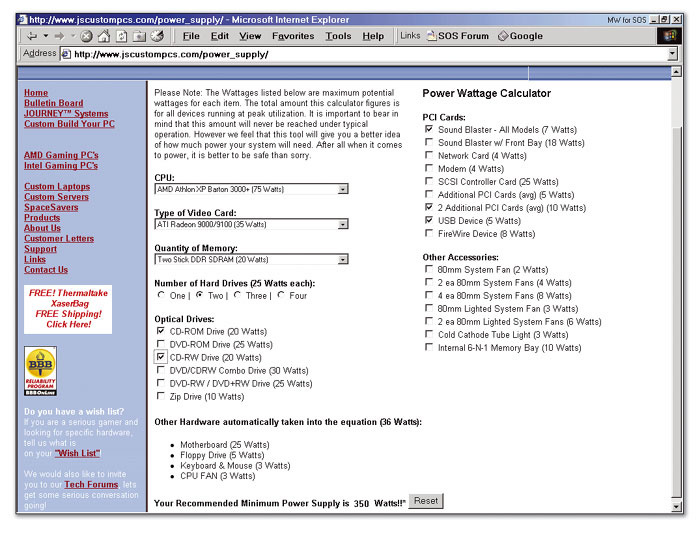 Does your PC have a big enough power supply? Find out with this on-line calculator courtesy of JS Custom PCs.Rather than plucking a figure from the air and adding a bit for luck, it's possible to be more scientific and properly add up the total likely power requirements for the main components of your PC. This process is complicated by the fact that (for instance) the 12V power rail of the PSU is normally used to run the motors of hard drives, CD-ROM drives and fans, plus most modern CPUs, while the 3.3V and 5V rails supply the motherboard (and therefore also any PCI and AGP expansion cards you might have).
Each rail will have its own power rating, with the rated capacity of the whole PSU being the sum of these (the maximum continuous total DC output power). High-quality power supplies display a label stating the maximum loads for each rail separately, if you want to do some really accurate calculations, but it's still useful to lump the figures together to get a general idea of the overall power requirements of your PC.
Here are some ball-park figures for typical PC components (you should be able to find more accurate ones for yours by visiting the manufacturer's web sites):
- Typical motherboard with various on-board devices: Around 25W total
- Modern AGP graphics card: Between 30 and 50W (hence the hefty heatsinks or integral fans of recent faster models).
- PCI cards: These vary in their requirements, but generally take 5W or less each, although soundcards with additional drive bays or with heavyweight processing power, such as the TC PowerCore and Universal Audio UAD1, may consume up to 20W each.
- Typical CD-R/W drive: 15-20W.
- DVD drive: May take up to 30W.
- Floppy drive: About 5W
- Cooling fans for case and CPU: Around 3W each.
- Extras including keyboard and mouse: A further 2-3W in total.
- USB devices: Many only take 5W or less.
- Firewire devices: About 8W. Audio peripherals, both USB and Firewire, may take more.
So far, for a typical PC system with a couple of PCI expansion cards and a single optical drive, we've probably only consumed about 100W of power in total. However, the heavyweights are yet to come. DDR RAM could well consume 10W per module, adding a further 20W for a typical 512MB system, while hard drives consume a maximum of 25-35W each, potentially adding another 70W to the typical musician's requirements. Finally, the CPU's requirements can vary considerably, but you can normally add between 60 and 90W, depending on the CPU's clock speed and family.
A typical musician's entry-level system with a P4 2.8GHz 800MHz FSB processor, 512MB of RAM and one hard drive will thus probably require about 250W in total, so a 300W PSU will provide some safety margin. Those with a 3GHz or faster processor, 1GB of RAM and two hard drives are more likely to require 350W or so, so a 400-watt model does seem more appropriate, while owners of dual-processor machines or those with multiple DSP cards may require a PSU rated at 500W or more, depending on the other hardware they are running. If you want a rough and ready on-line calculator to work out your PSU requirements, you can find a decent example at www.jscustompcs.com/power_supply.
Baby Come Back
Reader Chris Brockis emailed me recently with a tale of PC-related woe. His computer had worked perfectly when he first bought it, but had subsequently developed an intermittent crash when booting into Windows XP. Luckily it was still under a 'return to base' warranty, but it transpired that no records had been kept of how his machine had initially been set up, so the problem took some unravelling.
Having finally got his PC working properly once more, Chris wanted to know what he should record about this new setup to prevent the same situation ever happening again, and had already been carefully noting down a list of all his hardware components, their driver versions, and so on.
Fortunately, there's a much easier solution to problems like this — one that many specialist music retailers adopt. First, they include a detailed printed specification of all the component parts of your PC, which lets you quickly confirm that you've received exactly what you were expecting in your order. Another sheet lists all the setup details on your machine, often in tick-box format and with the name and signature of the engineer who set up your machine at the bottom. These details will include such things as IDE Master/Slave connections of your hard and CD drives, partition information, any BIOS tweaks, various physical checks, details of any Windows tweaks, soundcard audio and MIDI driver settings and checks, and audio software setup. Even if you don't understand everything on the list, this thorough approach will be useful if anything subsequently goes wrong. Finally, when everything's working well, they take an image of your Windows partition (using software such as Norton's Ghost or PowerQuest's Drive Image) and supply this with the system (either as a file on another partition on your hard drive, or split across several CD-R disks). Then, if you ever get any problems, you can revert to a known setup simply by restoring this image file to replace your entire Windows partition.
I've recommended this approach on many occasions over the years, and I always take another image file before I do anything major to my PCs, or before installing any review soundcard. Then, if the worst happens, I can laugh in the face of calamity and restore my most recent image file. It's like having a time machine (reverse only!) in your PC.
Low Latency Soundchip Driver
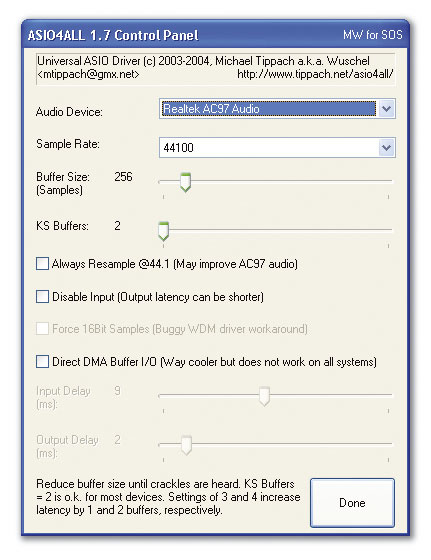 Fancy low-latency ASIO drivers for your motherboard's soundchip? Download the freeware ASIO4ALL. Do you fancy low-latency ASIO support for your motherboard soundchip? If so you'll definitely be interested in Michael Tippach's new ASIO4ALL. It's a universal ASIO driver that sits on top of any sound device's existing WDM drivers, and can therefore work with most audio devices running on Windows XP and 2000. Some musicians have also managed to get it to work under Win 98SE and ME, although this isn't recommended. ASIO4ALL is available as a freeware download, and it jumped to version 1.7 on the day I wrote this. The installer is a tiny 82Kb, although the driver itself is only 24Kb, and written in 100 percent assembly language for maximum efficiency.
Once the driver is installed, you open its Control Panel, point to the desired audio device and choose a buffer size, just like any other ASIO driver. The huge difference is that you can try it with any audio device that already has WDM drivers, including laptop soundchips, PCI and PCMCIA cards, USB peripherals, and so on, and there are various modes and options to make it compatible with the widest range of devices.
I found I could use ASIO4ALL on my Centrino laptop with my Echo Indigo to achieve 1.5ms latency at 44.1kHz instead of Echo's lowest ASIO driver option of 3ms. However, I was most pleased with my laptop's Realtek AC97 Codec (previously only available inside Cubase, running its ASIO DirectX drivers with 12ms latency) which managed 5ms using ASIO4ALL with a 224-sample buffer size. Other musicians have experienced even larger reductions in latency, so a big thank you to Michael Tippach! Visit www.tippach.net/asio4all to download the driver.
System Restore Versus Imaging
Chris was glad of this information, and wisely decided to invest in an imaging utility, but then he asked two further, very relevant, questions. First, he wanted to know how using an image file differed from Windows' built-in System Restore feature. After all, every user of Windows ME, XP Home and Professional gets this free.
Well, by default System Restore runs in the background, continuously tracking any changes made to your system files, but for musicians it's best disabled, since it can have an impact on real-time performance with audio applications. A better tactic is to create a restore point on demand by running the System Restore wizard from the System Tools section of Accessories. If you run into difficulties you can restore the most recent one by pressing the F8 key during bootup and choosing the 'Last Known Good Configuration' option, or choosing the 'Safe Mode' option and then launching the System Restore wizard to choose whichever restore point you like from your collection.
However, while System Restore is a versatile Undo feature, it only monitors a core set of system and applications files — not any of your personal data files, graphic files, browser history, list of favourites, and so on. (If you're currently using System Restore and are interested in what it covers, you can open filelist.xml in the Restore folder of the Windows / system32 folder.) In some situations this approach is perfect, as it can return your PC to a known working state without disturbing more recently created data files. However, the beauty of a proper image file is that it saves an exact copy of the entire contents of the chosen partition, including the operating system, applications, all your data and any hidden copy-protection information, as well as keeping the arrangement of these files intact. In other words, if you restore an image file your hard drive is returned to exactly the state it was in when the image was created.
This does mean that you'll lose any new files created on the partition since the image was taken, but there are two ways around this. First, always create a partition for your personal data that's separate from the main Windows partition, so that in the event of you having to restore a Windows partition the vast majority of your personal data files will be unaffected. Second, after a major catastrophe it's always safest to save a new image file of the faulty partition before restoring an older one to cure the problem. Then if you subsequently discover any missing documents or song files, you still have copies of them intact inside the new image file.
I use PowerQuest's Drive Image for creating my image files. This program provides the Image Explorer utility for the saved image files, giving you the opportunity to view their contents (very handy for determining if there's a vital file inside that you may have subsequently deleted by accident and are not otherwise able to retrieve) and to restore individual files to either their original location or to a new one of your choice. I also use Image Explorer in my multi-boot PC to view the contents of other hidden Windows partitions. This, for instance, lets me launch audio-application manuals from images of my non-Internet Music partition while answering SOS Forum queries on-line from my General Windows partition.
The second question Chris had for me was whether or not imaging utilities also return the BIOS to a previously good state. Sadly, this isn't the case: BIOS settings are all saved into the CMOS memory on your PC's motherboard, entirely separate from the contents of your hard drive. However, back in SOS December 2002 I mentioned a utility named BIOS135 (written by Matthias Bockelkamp), which can save the entire collection of BIOS settings as a small file. You can subsequently restore this in the unlikely event that anything goes wrong. With the help of BIOS135 and an image-file utility such as Drive Image, you should be able to completely return your PC to a known state.