

With Sonar 7 just out, it's time to tweak all our preferences to perfection, before they're transferred over into the latest version of the software.
By the time you read this, Sonar 7, which wasn't available when this article was written, should be on the streets — and I don't think Sonar fans will be disappointed by what's been added in the new upgrade, especially those hoping for some advances with respect to MIDI. So rather than writing this month about an aspect of the program that very well may be changed with version 7, I'm going to concentrate on how to do some Sonar 'housekeeping': tweaking your preferences for more convenient operation and a more efficient sequencing experience.
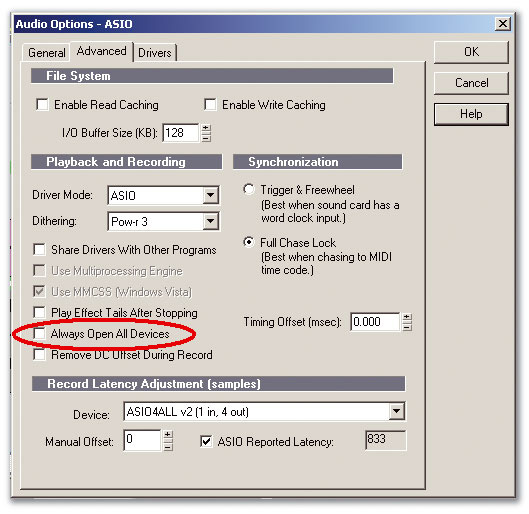 If you want to be able to change output assignments for a track at any time without interrupting playback, tick the box that says 'Always Open All Devices'. Otherwise, you can limit the number of open drivers to only the ones you've assigned by making sure this box is unticked.
Change Drive File Assignments
Sonar dedicates folders to content such as projects, track templates, track icons, video files, MIDI SysEx files, and much more. These folders default during installation to your C: drive, but as you're probably using a second drive for data storage (and if you're not, you should be!), it makes more sense to store them there. This is for two reasons: it's easier to back up data if it's all on the same drive, and you don't want your computer to be shuttling data to and from the same drive where your system and programs are stored.
Fortunately, you can change these assignments to any folders you want, on any drive. Go Options / Global Options, then click on the 'Folders' tab. Click on the Browse box to the right of each field, and navigate to the desired folder. I keep data files (for example, projects, video files, SysEx) on my main music data drive, but I also keep templates, track icons, windows layouts, and so on, there as well. That way all of these options get backed up as data — very handy if your C: drive crashes some day (and you know it will).
Disable Drivers You Don't Need
Each interface input or output makes its own little claim on your CPU, so there's no sense enabling 26 inputs on an audio interface when you're only recording a stereo keyboard. The same goes for output drivers. To disable particular inputs and/or outputs, go Options / Audio, then click the 'Drivers' tab. Untick any drivers you're not using.
 If you're switching from another DAW, Sonar helps the process by letting you load a set of keyboard shortcuts that will be more familiar to you.
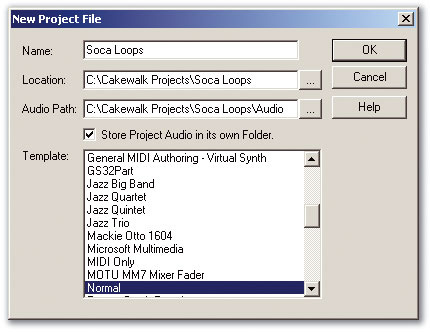 Tick 'Store Project Audio in its own folder' to simplify the backup process, by placing all audio files used in a project in the same folder as the project file itself.Sonar also has an option to open all enabled stereo pairs of audio outputs if you turn on the audio engine or initiate play. The reason for doing this is to let you change track assignments on the fly without any gaps (even outputs that don't carry audio will stream silence, so that they're ready to stream audio if you assign a track to the output). However, if you don't need the luxury of being able to assign audio to any output at any time, go Options / Audio and click on the 'Advanced' tab. Make sure that the Always Open All Devices box is unticked.
Import Useful Key Bindings
If you've come to Sonar from another DAW, you may be able to use the same keyboard shortcuts (or, as Sonar calls them, Key Bindings) you're already familiar with. Or, if you work in other studios that use Sonar, you can use the custom key bindings you've developed for use in your own setup. This is possible because Sonar can export and import keyboard shortcut sets.
To use a different set of key bindings, go Options / Key Bindings. In the Key Bindings window, click on 'Import', toward the lower right. This should bring you to the folder that contains the key-binding sets. If not, navigate on your C: drive to Documents and Settings / [user] / Application Data / Cakewalk / Sonar [version]. Click on the set you want (Cubase SX, Digital Performer, Pro Tools, Samplitude, Logic, Nuendo or Vegas), then click on 'Open'.
While Sound Forge and Acid key-binding sets are not included, it is possible to download older sets for both programs. They don't cover key bindings for functions introduced since 2004, but they serve as a good point of departure. To download these, go to www.cakewalk.com/Tips/Oct04_SONAR4Keybinding.asp.
Windows XP Tweaks For Sonar
 System Restore is another Windows accessory that can access your hard disk at inopportune times, and can also be turned off if you know where to look.
Meanwhile, there are some significant audio 'performance drains' in Windows XP. These are particularly obvious with under-powered laptops, but can also reduce the performance of desktop machines (particularly with respect to audio interfaces); if you're affected, you may not even know why your computer isn't working as well as it should. The key is to turn off or disable anything that's not related to music, such as:
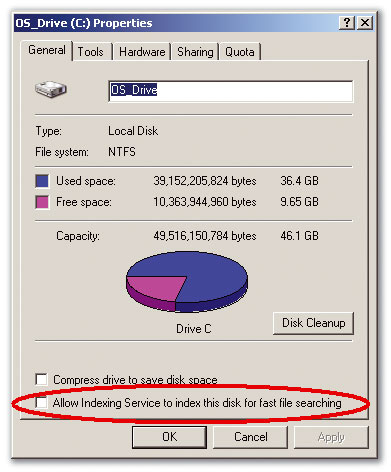
- Drive indexing: Drive indexing seems like a good idea: It builds a catalogue of files in the background, so that invoking the search function need look over only this index rather than an entire hard drive. While this is great for people who use word processors and spreadsheets, the constant searching of the hard drive can degrade performance (even though the searching is supposed to occur in the background). To turn indexing off, double-click on 'My Computer', right-click on your C: drive (and your various data drives), select 'Properties', and toward the bottom of the Properties window, you'll see a box for 'Allow indexing Service to index this disk for fast file searching'. Untick this box to turn off indexing (see screen on the left).
 Turning off indexing prevents Windows from accessing your hard drive at unexpected times, which can cause audio problems.System Restore: This is another good idea, as it saves a 'snapshot' of your system in case there's a problem, such as a software installation that causes your computer to crash. Invoke System Restore and you can return your system to its state before the installation. However, there's no need to leave it on all the time; you can enable it just before you make changes to your system, and turn it off again after you're sure all is well. To turn off System Restore, go Start / Programs / Accessories / System Tools / System Restore. On the 'Welcome to System Restore' screen, click on System Restore Settings. Tick 'Turn off System Restore' on all drives (see screen above).
- Anti-virus and spyware scanning programs: These also exercise your hard disk, but you really don't need them, as your music computer should not be connected to the net on an 'always-on' basis anyway. Granted, sometimes it's hard to avoid the net, like when you need to activate some form of copy protection that can be done only via the web (check carefully, though: many copy-protection protocols let you authorise from a second computer that connects to the net). But you can always connect your computer to the web for the minimum amount of time possible, scan it (after updating your anti-virus software), then turn off all protections again.
- Avoid loading unnecessary programs: Go Start / Run and type msconfig. Then select the 'Startup' tab. Disable anything you don't need. If you use Word, Microsoft Find Fast is a good place to start, as it's similar to the Windows drive indexing function. You also don't need things like AdobeUpdateManager, iTunesHelper, RealPlay, drivers for interfaces that aren't connected, and so on. Get rid of them! You'll save memory, too.
Organise Audio More Efficiently
Back when hard drives were expensive (and, some people think, more reliable as well — but that's another topic!), Cakewalk threw all your audio into one big folder, assigned the files cryptic names, then pointed to those from within your projects. This allowed the program to point to the same file multiple times instead of having to create a new version of the file each time you wanted to use it.
 In this dialogue box, Sonar has been set to save every five minutes or every 20 changes, whichever occurs first. Sonar will keep the last seven saves in a queue, discarding the oldest one when the total number of saves is exceeded.However, these days the cost of storage is not such an issue when you can pick up a 500GB drive for under £100. As a result, it's far more convenient to use Sonar's per-project audio file system. This stores all audio in a folder along with your Cakewalk project file (the one with the .cwp suffix), so backing up this one folder saves everything involved with a project except for samples used in any sample-based virtual instruments. (These instruments point to where the samples reside, then load them from disk when you load the project. If you move the samples, the sampler will need to look for them. For added convenience, consider storing the samples in the same folder as audio and projects, and load the samples into your sampler from this folder.)
The time to set up a per-project folder is when you create a new project. Go File / New, then tick 'Store Project Audio in its own folder'. Enter the project name in the Name field, and the Location field will add the project name to the path (for example, C: / Cakewalk Projects / [project name] if you're using the default project folder location). The Audio Path field will update by adding the project name as well. The new folder is where the audio will be stored (see screen, left).
You can also create an 'after the fact' project folder. Create the folder, and collect all files used in the project in this folder, along with the associated .cwp project file. Move the folder into C:/Cakewalk Projects.
 The Global Options folder provides additional control over how imported files will be saved, and over per-project audio folders.There are other options that also relate to per-project audio files. Go Options / Global and click on the 'Audio Data' tab. I highly recommend ticking 'Always Copy Imported Audio Files', because if you bring any audio into the project other than by recording (such as importing loops from a sample CD), they will then be copied into the audio folder rather than simply having the project 'point' to the sample CD — which won't do you much good if it's not in the drive!
Also under this tab you can tick 'Use Per-Project Audio Folders' if you want your projects to always default to using per-project audio. Then again, you might not want to commit to creating a new folder every time you boot up Sonar and start a new project; you may just be experimenting and would prefer not to litter your hard drive with folders for projects that don't pan out. In that case, tick the 'On Startup Load Normal Template' box as well as 'Use Per-Project Audio Folders' (see screen at top of opposite page). Now any audio will be stored to the Global audio folder (the vestigial organ mentioned earlier, from previous versions of Sonar) until you save the project. At that point you'll have the option to create a per-project audio folder or simply let the files stay in the Global audio folder.
Auto-versioning: How To Save A Session
I'm sure many of you have, at some point, experienced the sinking feeling of having a crash and realising you hadn't saved recently. There's an easy solution for Sonar users, under Options / Global: Click on 'Auto-Save and Versioning'. First of all, this does as you'd expect and saves at regular intervals, which can be after a certain number of minutes have elapsed, or after a certain number of edits have been made (see screen, bottom left). However, perhaps more significantly, you can also ask Sonar to keep each save as a separate version, and specify the total number of versions to be kept. This is a 'first in, first out' queue, so if you have decided to save (for example) seven versions, the eighth version will kick out the first saved version.