

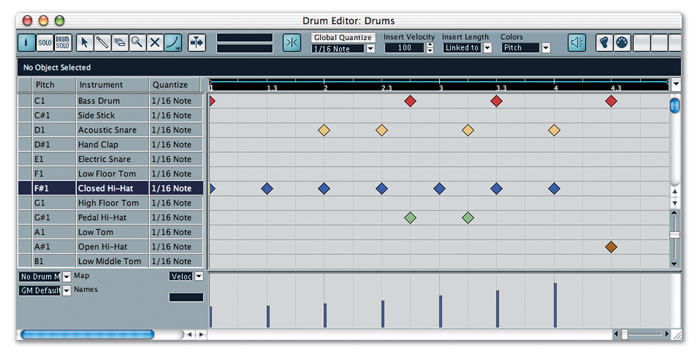
 The Drum Editor provides an easy and intuitive way to program drum patterns in Cubase. Notice how colour coding each drum lane makes it much easier to see which drum is playing specific notes.
The Drum Editor has been a part of Cubase for over 10 years now, and here we investigate its latest incarnation within Cubase SX, as well as bringing you news of a major update to Steinberg's popular sequencing software.
One of the most common tasks musicians carry out in a sequencer such as Cubase, regardless of the style of music they're working in, is to program drum patterns, using either the mouse to place drum hits on screen, or a MIDI keyboard or drum pad controller to trigger the beats in real time. So in this month's Cubase Notes we'll be looking at programming drum patterns in Cubase, using the Drum Editor, and next month we'll go a little further and discuss how to get the most out of the Drum Editor by creating your own Drum Maps.
Many of the examples in both this and next month's columns will mention the LM7 virtual drum machine, since it's one of the free bundled VST Instruments with Cubase SL and SX. So you might want to create a new Project, with LM7 loaded in the VST Instruments window, and an empty MIDI track on the Project window (route its output to the loaded LM7), if you want to experiment with any of the methods described.
Creating A Drum Pattern
With a MIDI track ready to go in the Project window, let's first look at creating a drum pattern from scratch using the Drum Editor. Unlike Audio tracks, which allow you to place Audio Events directly on the Project window, MIDI tracks require MIDI Events (in this case, the actual drum beats) to be placed in a Part. MIDI Parts are normally created automatically when you record on a MIDI track, so to enter MIDI Events manually we need to create a Part to put them in. For this example, create an empty one-bar MIDI Part in the Project window by either selecting the Draw tool (or by using the Object Selection tool with the Alt/Option key held down) and dragging out a new Part from the start of bar one to the beginning of bar two.
When programming drum patterns, it's a good idea to have the Project playing (possibly soloing the drum track if you have other tracks playing in the Project window), so you can hear what you're doing. With the newly created MIDI Part selected, here's a neat trick: press Shift+G or choose Transport / Loop Selection, which automatically sets the Locators to the selected Part, activates Cycle Mode, resets the position of the Project Cursor to the Left Locator and starts the Project playing.
If you double-click the new MIDI Part for editing, Cubase will open the default editor, which is normally the Key Editor, chosen with the Default Edit Action option in the Event Display MIDI panel of the Preferences window. So to open the new MIDI Part in the Drum Editor instead, make sure the Part is selected and choose MIDI / Open MIDI Editor.
Drum Editor Hints
While it might sound obvious, it's good to keep in mind that the notes that appear in the Drum Editor can be selected and processed like any other MIDI Event, using the commands from the MIDI menu, such as Quantise, the Functions sub-menu and the Logical Editor.
You can get the full details of the MIDI Event that lies behind any selected drum note when the Event Info Line is displayed — if it isn't, you can activate it by clicking the 'i' button at the top-left of the Drum Editor's toolbar. The Event Info Line functions in the Drum Editor just like it does in any other Cubase window, meaning that you can alter the values by clicking, typing a new value and pressing Return, or Alt/Option-clicking a value and dragging the slider that appears.
Using The Drum Editor
The Drum Editor works in the same basic way as Cubase's other MIDI editors, which you can probably tell from the familiar-looking toolbar and the Controller Display from the Key Editor. However, in many ways the Drum Editor mirrors aspects of the Project window. For example, the Drum Editor's Note Display is similar to the Project window's Event Display: drum notes are plotted along horizontal rows (much like Events and Parts) and played back according to the sound listed in the Drum Sound List, which is based on the same idea as the Track List. Drum notes are represented by diamonds: a diamond placed on the Bass Drum row, for example, will be played back using the sound of a bass drum.
To enter notes, select the Drumstick tool, which is the Drum Editor's equivalent of the Draw tool, and enter a simple drum pattern like the one pictured below, by clicking where you want a note to be entered. As you move the mouse over the Note Display area, you'll notice that mouse position is described in terms of time and the Drum Sound Name in the Mouse Position Display. If the Auto Play button is activated on the Drum Editor's toolbar, you'll hear each drum sound as you enter a note; but if you want to hear the sound of a drum before you enter a note, simply click the Audition column (the blank column to the far left of the Drum Sound List) in the row for that drum sound.
The notes entered with the Drumstick tool will automatically snap to the grid if Snap mode is activated on the Drum Editor's toolbar, which it is by default, and you can drag out many notes on one row in a single pass — especially useful for repetitive hi-hat patterns or dance-inspired snare-rolls. The Global Quantise button on the Drum Editor's toolbar should be disabled by default (displayed in dark grey), meaning that the resolution for the grid in the Note Display will be set via the Drum Editor's own Quantise pop-up menu on the toolbar. And it's worth noting again that changing the quantise setting in an editor also changes the quantise setting in the Project window. If you enable the Global Quantise button (so it lights up in white), the grid will be set according to the Quantise settings in the Drum Map, which we'll be explaining in more detail next month.
As you'd expect, the Drum Editor's Eraser tool can be chosen to remove drum notes, but you can also use the Drumstick tool to remove drum notes by simply clicking on the diamonds — again, dragging across many notes in a single pass will remove them all.
The length of the drum notes entered is set by the Insert Length parameter on the toolbar, and by default this is set as 'Linked to Drum Map', meaning that the length of a note will be based on the quantise setting in the Drum Map currently in use. Again, we'll be looking more closely at Drum Maps next month, but since no Drum Map is selected by default, the initial quantise setting for each drum sound is a 16th, which means that when you enter drum notes, they're effectively 16ths.
Terminal Velocity
You can override the length drum notes are inserted at by selecting a different value from the Insert Length pop-up menu, although you won't normally have to worry about this. Most devices that play drum sounds, including LM7, use a method of triggering often referred to as 'one shot' playback, and the simplest way of understanding this is to consider a cymbal. If a drum machine played back a cymbal sound as a 16th note, it would be cut off abruptly instead of ringing naturally, so most devices play back drum sounds for their full length, regardless of the actual note length in Cubase.
The velocity of the drum notes entered is set by the Insert Velocity parameter on the toolbar, and the velocities of the individual notes are represented in the Controller Display at the bottom of the Drum Editor, which always shows the velocities for the notes on the currently selected row in the Drum Sound List. You can alter individual note velocities by using the Drumstick tool, and you'll notice that the velocity data and the note itself changes colour as you change the velocity. This is because the Colours parameter for the Drum Editor is set to Velocity by default, although, as with the Key Editor, you can change this to Pitch, Channel or Part by using the pop-up menu on the toolbar. Setting Colours to Pitch is especially useful in the Drum Editor, as it means that notes for each drum sound will be displayed in a different colour.
Although the Controller Display works in exactly the same way in the Drum Editor as it does in the Key Editor, it's worth remembering that while you can use the Drumstick tool for tasks like drawing a crescendo in the Controller Display, you can get much better results by using one of the shapes available from the Paint tool, such as the Line or Parabola tools. For example, select the Paint tool in the Drum Editor by clicking its icon on the toolbar (or by pressing '8' on the main part of the keyboard), click and hold the Paint tool's icon, and select the required shape from the pop-up menu (or keep pressing '8' to cycle through the available shape). Now, with the relevant row selected in the Drum Sound List, drag out the shape as required in the Controller Display, to shape the velocities.
You should now have an overview of the Drum Editor, and how you can use it when programming your own drum patterns. Next month we'll continue our drumming journey through Cubase, but with the aid of a map — a Drum Map. And no, the puns won't be getting any better!
Stop Press! Cubase SX 2.0 On The Way
 SX 2.0 will bring more advanced audio capabilities to Cubase users, along with a host of new features and the return of some old friends. By the time you read this, the first major revision to Cubase SX since its original release last summer will have been announced — indeed, teaser windows are already beginning to appear on Steinberg's web site as I write this.
Cubase SX 2 will be released for Mac OS X and Windows 2000, XP Home and Professional users simultaneously, and includes the improved VST 2.3 audio engine, featuring delay compensation and multi-channel support across the whole signal path. And Steinberg haven't stopped there: SX 2 offers many new features and improvements that users have been requesting for some time, such as the Time Warp tool, which provides one of the most flexible methods of working with tempo changes yet seen, and the return of many 'classic' Cubase features, such as the right-click toolbox instead of the Quick Menu.
The new Cubase also features a spring-cleaned user interface, allowing the user to configure the shading and appearance of the colour scheme. SX 2 is going to be a paid-for update, but specific upgrade details weren't available at the time of going to press. Expect a full review in next month's SOS, however.