


Both Sonar Producer Edition and Studio Edition offer several choices for dynamics processing. How do you pick the right one for the job?
Sonar Producer Edition has several dynamics control plug-ins, partly because Cakewalk pay attention to backwards compatibility, so audio-processing plug-ins from previous versions of Sonar can be installed alongside new processors. Both Sonar Studio Edition and Producer Edition include Cakewalk's older dynamics processors from their 'Audio FX' pack: Cakewalk FX Limiter, Compressor/Gate, Expander/Gate, and Dynamics Processor. The Producer edition adds three dynamics processors from the Sonitus line: Sonitus Compressor, Sonitus Multiband and Sonitus Gate (which can also function like an expander). If you've laid out the money for Producer Edition and its Sonitus effects, are the older versions even worth installing? And if you have Studio Edition, can the existing plug-ins do the job, or are you missing out on something worthwhile by not having the Sonitus suite? These are questions we'll explore further in this article. By the way, I'm assuming that you understand dynamics control basics — ie. threshold, compression ratio, attack time and so on — and I'll therefore be focusing on investigating the unique features of and differences between the Sonar plug-ins.
FX Limiter, Compressor Gate & Expander Gate
The basic Cakewalk Limiter is about as simple as it gets: set the Threshold to squash the peaks, then adjust Output Gain to compensate for the reduced overall level. An 'LED' shows when limiting is in effect and a meter indicates the input and amount of gain reduction, though not precisely, as these are LEDs using arbitrary calibration, rather than specific numeric values. The four buttons are simply labelled Maximum, Side Chain, Reset and Bypass. Reset returns the Threshold to -19.2dB and Output Gain to 0; Bypass does what you'd expect, but the Maximum and Sidechain buttons are a bit more interesting. Selecting Maximum bases the limiting action on the sum of both the left and right channels, but with Sidechain selected the limiting control signal comes solely from the left channel but is applied to the right channel. As an example of how you might use this, if there's a vocal in the left channel and an acoustic guitar in the right, you can reduce the guitar level whenever the vocal is present.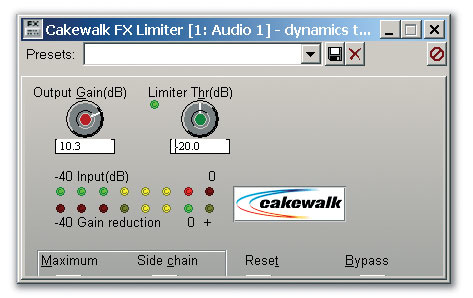 The FX Limiter is a pretty simple plug-in, but note the unusual Maximum and Side Chain buttons toward the lower left.
Moving on to the Cakewalk FX Compressor Gate, what differentiates this plug-in from the Sonitus Compressor is that it combines compression, expansion and gating functions in a single plug-in. Like the FX Limiter, the metering is imprecise, and you also have the Maximum/Side Chain choice described above. However, this plug-in also features an interactive graph that allows you to drag nodes on a line to set threshold and ratio for the compression and expansion functions. You can also zoom in to get a closer view of the curve in the section relating to maximum input and output signals, where most of the compression action happens.
Although the compressor and expander have different Ratio and Threshold controls, they share Attack, Release, Knee (soft or normal) and Detection Algorithm controls. For the latter, choose between Average (typically used for solos and program material) and RMS (generally for vocals). Because you can set the expansion ratio to 100:1, this is so abrupt that it acts like a gate. The FX Compressor/Gate has an interactive graph on which you can drag nodes to set various parameters. Also note the option to set a soft-knee response, which gives a gentler compression action when a signal exceeds the threshold. Setting the response to 'soft' affects the expansion curve as well.
Next up is the Cakewalk FX Expander Gate, which is identical to the Compressor Gate, with the following exceptions: there are no controls for compression threshold or ratio, and there's an additional Peak detection algorithm. This allows the gate to respond to rapidly-rising transients (ie. peaks that exceed the threshold) more rapidly than if an average or RMS detection algorithm was used.
The lower scale of the metering that shows gain reduction is typically all the way 'on' with no signal (maximum gain reduction). But when a signal hits the plug-in, the lower LEDs turn off (as does the monitor LED next to the Expander Threshold control) to indicate that gain is not being reduced and the full signal is making it through the gate. With no signal going through the gate, all the lower gain-reduction LEDs of the FX Expander Gate are on, as is the Expander Threshold monitor LED.
FX Dynamics Processor
At first glance, the Dynamics Processor doesn't seem all that different to the Compressor/Gate. However, there is actually quite a significant difference, in that you can add nodes to the interactive graph and shape the dynamics curve in just about any way you want. Keyboard players may recognise this way of working, as it can be compared to the curves they can program for master keyboards, to change their dynamic playing response. Similarly, you can totally change the dynamics of a piece of music — for example, making the peaks for drums really pop out by expanding them, but compressing the lower-level signals and also adding gating. None of the other Sonar plug-ins, including the Sonitus ones, have this kind of capability.
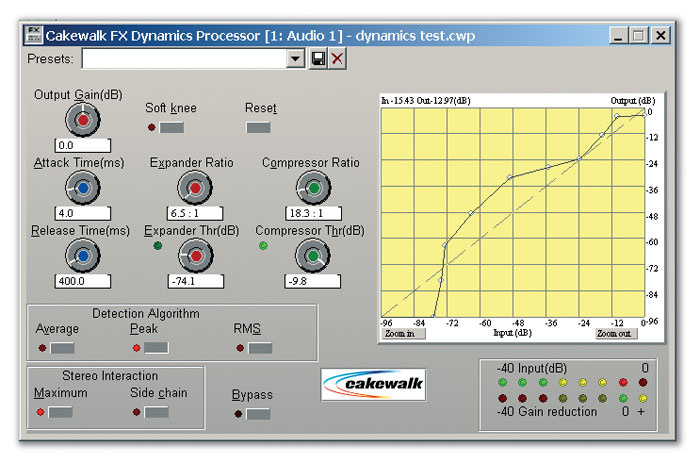 The FX Dynamics Processor. Note the unusual dynamics curve. Being able to add and move nodes (up to eight, not including the fixed highest and lowest nodes) allows you to rearrange the dynamics of an audio signal in useful — as well as radical — ways.
Sonitus Compressor
This is a sweet-sounding general-purpose stereo compressor (see second screen overleaf). Vary the parameter values by clicking in a numerical field and dragging (or using the computer keyboard Up/Down arrows, or a mouse scroll wheel). Attack and Release parameters can also be adjusted with a graphical slider — and you can click anywhere on the graph itself and drag horizontally to alter the knee characteristic, and/or vertically to change the compression ratio. The Sonitus Compressor also has some other interesting features, as follows...
- Clicking on the Limiter button turns on a peak limiter that limits levels if you set the gain so that the signal exceeds 0dB (if limiting is disabled, the signal is clipped). The limiter can take effect even when you're not using compression, so it's easy to get 'pure' limiting:
1. Hit the Reset button (this effectively 'neutralises' the compressor parameters).
2. Click the Limit button to enable the Limiter.
3. Boost Gain for the desired amount of limiting.
Enabling limiting causes a delay of about 1.5ms, as it uses a look-ahead feature to make sure that no transients are missed. For most applications, this makes no significant difference, particularly if you're using the Compressor in a master buss. If you're using it with individual tracks, you can slip the tracks forwards by 1.5ms if you hear any timing problems.
- The Overload LED shows overloads only if the Limiter is off. Otherwise, when lit, it indicates that limiting is taking place. After the limiting/overload condition is over, the LED still glows dark red to let you know the condition occurred and you can 'reset' it by clicking on it.
- Enabling 'TCR' (Transient Controlled Release) automatically adjusts the release time around the current release setting, to better match changes in compression. For example, if the input signal has a rapid decay, there's no need to have a long release. This is one of those 'try it and see if things sound better' controls.
- The Type parameter can have a major effect on the sound. With the 'Norm' setting, the compression curve acts normally and linearly. But with 'Vintage' selected, the curve starts out like a normal curve, but as it gets further above the threshold, it starts to return to a 1:1 ratio. This allows percussive transients to really punch, although you might want to enable the Limiter to keep these under control. (Note that the graph does not reflect the Vintage mode curve).
Sonitus Plug-ins & CPU Power
I was curious as to whether the Sonitus effects draw more CPU power than the older plug-ins, so I set up an informal test by loading an audio loop (playing it gave a baseline CPU drain of about five percent), then inserting five instances of a particular plug-in, with each instance actually performing dynamics control. I looked at the CPU meter for about a minute, noted the maximum drain and also made a 'guesstimate' of the average drain. Here are the results:
| Plug-In | Maximum CPU | Average CPU |
| Cakewalk FX Limiter | 19 | 16 |
| Cakewalk FX Compressor/Gate | 21 | 18 |
| Cakewalk FX Expander/Gate | 21 | 18 |
| Cakewalk FX Dynamics Processor | 21 | 18 |
| Sonitus Compressor | 23 | 18 |
| Sonitus Multiband | 44 | 37 |
| Sonitus Gate | 14 | 12 |
While this obviously isn't heavy-duty scientific testing, certain trends seem clear. The Sonitus Gate drains the smallest amount of power and the Sonitus Multiband (the most complex plug-in of the lot) draws the most, but I found little difference between the Sonitus Compressor and the various Cakewalk FX options. So if you have Producer Edition, stick with the Sonitus effects unless you need simultaneous compression/expansion, expansion/gating, or the ability to create a custom dynamics curve.
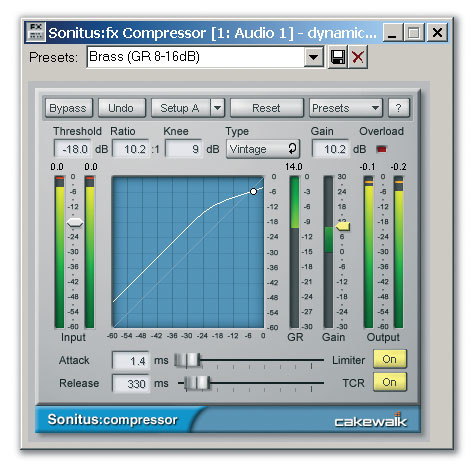 The Sonitus Compressor is a simple, clean compressor with some intriguing extra options.
Sonitus Multiband
Multiband compression is the most powerful form of compression, as it applies dynamics control to individual frequency bands. Thus, unlike with a standard compressor, you can set a huge amount of compression in the bass range without affecting, say, the treble. The drawback is that five times the parameters need to be set, so tweaking can take a while. This is where presets come in handy — the ones that come with the plug-in, and those you create. While you probably won't be able to use these exactly as supplied in every situation, they will at least serve as a point of departure.
The Sonitus Multiband compressor (see screen overleaf) is very much like five Sonitus Compressor modules, tied together with a common interface. Although graphic editing of threshold, frequency-band crossover-point dividers and gain is possible, I spend a lot of my tweaking time on the 'Common' page. Here you can also adjust individual parameters, but (more importantly) if you click on a parameter name and drag up and down, values of this parameter for all bands will change linearly. If there's an offset between values, this offset will be maintained until a value hits the maximum or minimum possible level. If you continue to increase or decrease respectively, values that have not hit a limit will continue to increase or decrease, while the value that has hit a limit will stay on that value.
To adjust a band's frequency, click and drag the frequency numerical below the frequency-band graphic, or drag the graphic crossover-frequency splitter. If you don't really need all five bands, drag the lower frequency-crossover splitters all the way to the left to reduce the number of bands. Just make sure that the values for unused bands are set so that they have no effect on the sound (Threshold and Gain at 0, Ratio at 1:1).
The Limiter, Type and TCR functions work as they do in the Compressor, except that they affect all bands simultaneously, but the metering is slightly different; the yellow meter associated with each threshold slider shows the level in each band, while the blue meter shows the amount of gain reduction. There are Solo and Bypass buttons for each band, and these are crucial when you're working with multiband compression, as they allow you to hear what's going on in individual bands. For example, you can solo the frequency band that covers the kick drum and bass and just work on that. Using Solo also simplifies adjusting frequency crossover points, as it's easier to hear the frequency range being affected.
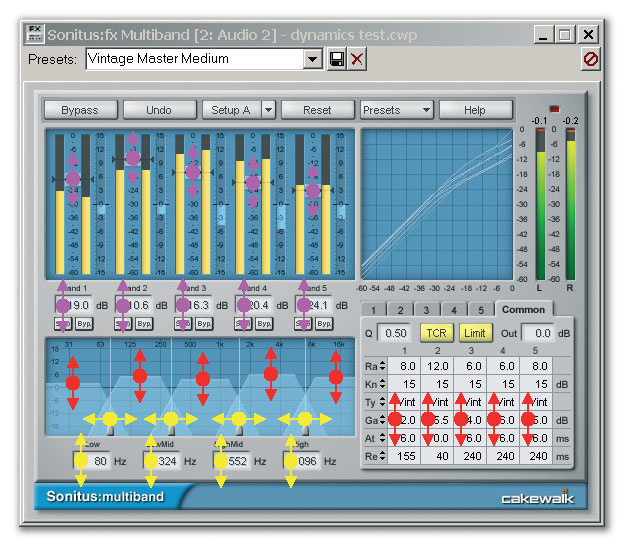 The red dots on the Sonitus Multiband indicate where you can adjust gain, both graphically (left) and on the common page (right). The yellow dots indicate graphic (upper) and numerical (lower) places to adjust the frequency-crossover split between bands. The violet dots show the graphic (upper) and numerical (lower) places to adjust the threshold. On individual pages, the Ratio, Knee, Type, Gain, Attack and Release parameters are available for editing.
General Compression Tips
- Unless you're looking for a 'compressed' sound, 6dB of gain reduction is quite a lot. To reduce the amount of gain reduction, either raise the threshold or reduce the compression ratio. I feel that you shouldn't really know a signal is compressed until you bypass it, at which point you should note a reduction in punch and overall level (if not, you're probably undercompressing). If you adjust the compressor so that you actually hear it working, it's probably overcompressing. Until you've trained your ears to recognise subtle amounts of compression (the ear is far less sensitive to amplitude than pitch variations), keep an eye on the gain-reduction meters to avoid overcompressing.
- Lower compression ratios (1.5:1 to 3:1) produce a more natural sound. Bass typically uses a ratio of around 3:1, voice 2:1 to 4:1 — although these are approximations, not rules. To increase guitar sustain, try a ratio in the 4:1 to 8:1 range.
- With a minimum attack time set, peaks are clamped almost instantly, producing the most drastic compression action. If it's crucial that the signal never hit 0dB, yet you want really high average levels, consider using a limiter instead.
- Decay is not as critical as attack. Start in the 100-250ms range, bearing in mind that shorter decay times produce a livelier sound and longer times sound smoother. Too short a release time can give a choppy effect, while too long a time homogenises the sound.
- Toggle the Bypass switch frequently, to compare the compressed and non-compressed sounds. Often, just a little bit of compression gives the desired effect.
- When you're using compression as a track effect, place it early in the chain so that it doesn't accentuate the noise from any effects that precede it.
- Add compression before distortion for a smoother sound with more sustain.
Sonitus Gate
The gate in this plug-in is actually pretty sophisticated. Its Threshold parameter works as expected — setting the level a signal must exceed to open the gate — while the Depth parameter determines how much the signal will be attenuated when the gate closes. At the maximum setting, '-Inf', the signal path is essentially turned off with the gate closed.
Although you normally want a fast attack, setting, a short Attack time (0.1-2ms) can eliminate clicks at the start of audio when the gate cuts in. As this control is automatable, you can add dynamics to electronic drums by doing the equivalent of changing the 'sample start point'. When you want the drums to sit in the background, increase attack time; to move them forward, reduce it.
Another nice technique is to set an attack in the 100ms range or greater, allowing a signal to 'swell' to its maximum level. For instance, if you pause briefly between notes, when a new note exceeds the threshold it will fade in over the attack time. This can alter the attack characteristics of percussive instruments such as piano and guitar, add brass-like attacks to sustained sounds, or even help attenuate breath inhales with vocals. However, there must be a space before every note that needs an attack, so that the gate can reset itself. Also remember that Release and Hold should be at minimum, otherwise the gate may remain open during the space between notes, which prevents it from triggering a new attack when a new note plays. Conversely, too short a decay can result in a chattering effect. Use the shortest decay time consistent with a smooth sound.
After a signal goes below the threshold, the Hold setting sets how long the gate remains open before the Release phase. It is very helpful with signals that have long, slow decays (say, long reverb tails) where the signal crosses the threshold several times as it fades. Again, this can produce 'chattering' if there's no hold option. Once the signal drops below the threshold for good, after the Hold time has elapsed, the Release phase begins.
Look-ahead works differently than with the Sonitus Compressor or Multiband. It delays audio entering the gate, but not the trigger signal, by up to 40ms. Thus it's possible to open the gate just before any transients in the audio signal, and include a bit of attack time, without cutting off the transient's beginning. To compensate for any delay introduced, you can slide the audio slightly to the left in the Clips pane, so that it plays earlier.
Sidechain Frequency Range is an outstanding feature, as it lets you gate on the basis of frequency range as well as level. For example, say sound from a bass amp leaks into a snare mic. If you restrict the gate's response to ignore bass frequencies, only the snare triggers the gate, making it easier to reject bass-amp leakage. This function doesn't affect the audio itself, only the control signal that triggers the audio. Using it is simple:
1. Click on 'Output' so that the button shows 'Sidech'. This lets you monitor the trigger audio rather than the noise-gate output.
2. Adjust the low-cut and high-cut sliders to set the filter's low- and high-frequency limits respectively.
3. Once you've isolated the sound you want to gate, click on 'Output' again so that the label reads 'Audio'. You can now hear the noise-gate output. Optimise the other gate parameters for the best results.
4. To disable the filter, slide the Low Cut slider left, to 'Off', and slide the High Cut filter right, also to 'Off'.
Gate mode's Duck option reverses the gate action so that stronger signals close the gate, which then returns to its open position according to the Hold and Release times. Finally, Punch mode has three possible settings: Off, Wide and Tuned. Punch adds a brief burst of gain (up to 20dB, as set by the Level parameter) at the beginning of the gating envelope. Wide is a broadband gain boost, and Tuned narrows the range to the frequency specified by the Tune parameter. This function has nothing to do with traditional noise gating, but it's cool. For example, you can really bring out a kick-drum in the mix by gating the kick and adding some high-frequency punch, thus adding a significant percussive click.
Grotesque Distortion With Gating
It's possible to create truly weird distortion effects, especially with low-frequency signals, by misusing the Sonitus Gate 's attack and decay controls. This causes the gate to trigger so fast that it (basically) modulates the audio wave. Here's how to do it:
1. Set Lookahead to zero. Use Normal mode and turn off Punch, Low Cut and High Cut.
2. Set Attack to 0.0 or 0.1ms.
3. Set Release to 5ms.
4. Set Hold to 0ms.
This technique works especially well with drums. The Threshold control becomes an 'ugly' control: low thresholds will create an occasional buzz, while higher ones can produce mean, spiky sounds.