

 In this song, five Storm synths have been loaded into Sonar, each driven by a different MIDI channel and having its own audio output in Sonar 's mixer. One of the instrument knobs is about to be tied to a MIDI controller via the 'MIDI Control' box.
We bring you yet more Sonar stratagems, including further adventures in envelope copying, some handy track tricks, and advice on using Arturia's Storm with Sonar.
Back in Sonar Notes April 2003, we covered using Arturia's Storm 2 as a cost-effective VST instrument rack for Sonar. Now Storm 3 is out, and although it costs a little more it now makes an even better Sonar accessory and also requires less CPU power than its predecessor.
Storm 3 is Rewire 2 compatible, so there's no longer any need to use it as a VST instrument, because it has full MIDI functionality under Rewire. Insert it as a Rewire client, and Storm 3 can become an instrument expansion rack, a 'groove' pattern sequencer that plays along with Sonar, or a pattern generator that you can convert into audio tracks within Sonar. For now, let's look at the expansion rack possibilities.
Upon going Insert / Rewire Device / Storm 3, if you tick 'All Synth Outputs' in the dialogue box that appears, 32 stereo channels will be added to Sonar 's mixer. Within Storm 3, the Settings / Audio Connections box lets you assign outputs from individual Storm instruments to the desired Sonar channels. (If you don't need individual outs, you can, of course, tick 'First Synth Output', which adds only the two channels from Storm 's master outs.)
When you play MIDI data into Sonar, Rewire directs that data to Storm. In Storm 's sequencer, you can enable MIDI for each instrument individually, as well as set channels. Typically, I set each instrument to a different channel and reassign the output channel of the Sonar MIDI track driving Storm to trigger a particular instrument. If a lot of instruments are involved, it's less confusing to create a separate MIDI track for each instrument, especially if you're adding automation.
Speaking of automation, an outstanding MIDI feature is Storm 's 'Learn' function, which lets you tie parameters to controllers. Just Ctrl-click on a knob in Storm, click on 'Learn', and tweak the controller you want to use. If desired, you can record this as MIDI automation, which will drive the parameter on playback.
One caution, if you're using Storm solely as an expansion rack of sound generators, is that you should clear the current pattern in whatever instrument(s) you're using. Storm is a very groove-orientated device, so as soon as you press play in either Sonar or Storm, Storm will start playing the preset patterns stored in whatever instruments have been loaded into the Storm 'rack'. However, this can also be a handy feature if you want to have some patterns going in the background as a reference.
Copying Envelopes
After I described in detail, two issues ago, how to copy envelopes in Sonar, a couple of readers asked for some examples of why one would use a 'copy envelope' function. Fair enough: one example that springs to mind is a time when I recorded a lead vocal and used a level envelope to get rid of noise between phrases. I later decided to double the vocal (not just clone it, in order to get a more interesting sound). I copied the old level envelope to the new vocal, and it did a great job of cleaning up the new track — I needed to make only a few small tweaks, which was better than starting again from scratch.
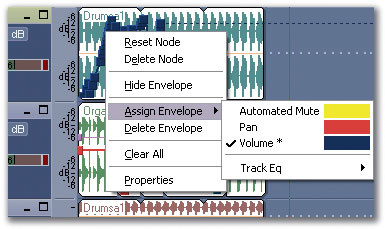 It's possible to assign an existing envelope to a different parameter.
To give another example, I had recorded two rhythm guitar parts playing power chords in opposite channels. I wanted to add some rhythmic 'chopping' effects, so I did that for four measures on one of the tracks, then copied the envelope to other parts in the track where it would sound good. Then I copied the same pattern, but offset by an eighth note, into the other channel, so that there was an interesting panning/chopping effect. So yes, being able to copy envelopes has its uses.
However, Sonar can also assign an envelope to a different parameter. Right-click on the envelope or node from an envelope, select 'Assign Envelope', then click on the new parameter you want the envelope to control.
Perhaps Cakewalk's engineers have too much time on their hands! Actually, the ability to assign an envelope to something else can be useful. I once used the Project 5 Tempo Delay plug-in for a track, and automated the feedback amount so that certain notes would have lots of echoes, but others wouldn't. During mixdown, I decided that that more delay lines were in order, so that I could have separate delay times in the left and right channels. So I deleted the Tempo Delay and inserted the Cakewalk FxDelay, which includes four delay lines. I wanted to use two of them, and apply the same feedback envelope to each.
First I reassigned the existing envelope to FxDelay Voice 1 Feedback, then copied just the envelope from the track (to do this, use the Copy function but untick everything except 'Track/Bus Automation'). If you attempt to paste this to create a second envelope, though, that won't happen because you're pasting the same type of data, so it just replaces the existing data. Before pasting, I therefore reassigned the envelope once again, this time to FxDelay Voice 2 Feedback. Now, when pasted, the envelope assigned to FxDelay Voice 1 Feedback appeared in the track along with the one for Voice 2 Feedback.
Perhaps a more obvious application is using something like a footpedal or mod-wheel controller for parameters that otherwise can only be envelope-controlled. Record the pedal or mod-wheel motion; you may want to assign it to some parameter that responds to this type of controller, just so you have some kind of auditory feedback on what the pedal or wheel is doing.
After you've recorded the automation envelope, right-click on the envelope, choose 'Assign Envelope' and assign it to the parameter you want to control. On playback, the parameter will respond to the pedal or wheel messages. As you were 'flying blind' you may need to make a few tweaks, but at least you could create the changes in real time rather than having to slave over drawing envelope nodes.
Quick Tips
- To open a Template file, go File / Open, select the drop-down menu in the 'Go to Folder' line, and choose 'Template Files' (.CWT, .TPL).
- If you want to insert a track in the Console view, right-click on an empty space in the console and select either 'Insert Audio Track' or 'Insert MIDI Track'.
The Track Menu
Because you can easily access most Sonar track functions at the track itself, by right-clicking on it, the Track item in the menu bar may not get a lot of exercise. Yet it has a couple of useful options you won't find elsewhere.
- If you select one or more tracks in the Tracks Pane and go Track / Wipe, the data in the track(s) will be deleted, but any effects, EQ settings, I/O and so on will remain exactly as they are.
- Another useful option is Sort. Go Track / Sort, and you can arrange tracks based on a variety of criteria. For example, if you sort by 'Muted' and 'Ascending', all muted tracks will jump to the end of the track list. Or choose 'Selected' and 'Descending' and all selected tracks will jump to the top of the list. Note that this option is also available in the Console View.
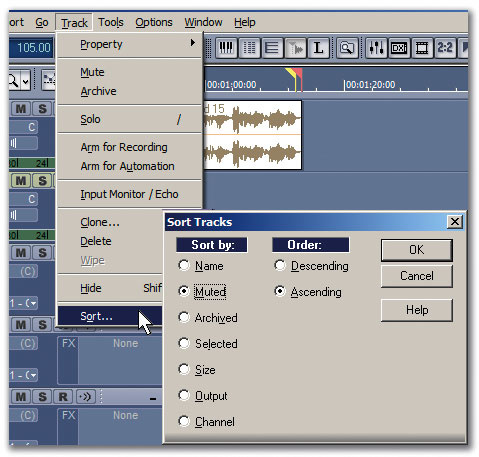 The Track menu has several useful options; this shows the various ways you can sort tracks.
Tweaking The Dream Machine
How many of you think the Dreamstation DXi2 is a great soft synth? Hmmm...I thought so. In today's world of exceptional soft synths, the Dreamstation seems a bit dated, and the presets don't exactly show its best qualities. Yet it's possible to get some pretty groovacious sounds if you know some of the magic parameters to tweak (and did you know there's a formant filter option?). As a bonus, it takes up almost no CPU power, so you can pile on the instances.
 One way to get some really tough, growling bass sounds out of the Dreamstation is to follow it with the FX2 Tape Sim processor.
- Insert the Dreamstation by going Insert / DXi Synth / Dreamstation DXi2. Call up preset 'Bass: 08-FM Synth Bass'. It sounds kind of thin, so let's add sub-bass. Click Oscillator 3's Off button so it turns On. Turn up the Osc 3 volume to 90 percent or so, Osc 3 Tune to 50 percent (one octave down), and the Amplifier envelope Gain control to 100 percent. Gain is actually a velocity control, so turning it up means that the amp is triggered at full velocity, regardless of the actual velocity it receives. Thus, the bass sound will be at a constant level. If you want some more dynamics in the bass, turn Gain down. Also turn up the Oscillator 2 Vol control to maximum.
- Next, adjust the Decay parameter in the Amplifier and User Envelopes (the latter controls the amount of FM), as well as the User Envelope gain, to taste. I prefer Amplifier Decay at 80 percent, User Envelope Decay at 60 percent and User Envelope Gain at 25 percent.
- Let's add some filtering, too. Turn on the Filter and set Cutoff and Reso to 25 percent. Click the LP2 button for the filter mode. Set the A, S, and R parameters to zero percent, D to 40 percent and Gain to 25 percent.
- Now let's rough up the sound. Insert the Cakewalk FX2 Tape Sim in the Dreamstation 's audio track. Set Input Gain and Rec Level to 4.95, Warmth to 10.0, Hiss to 0.00, Tape Speed to Flat (EQ Curve doesn't matter), and tick LF Boost. Adjust Output Gain to avoid distortion — you'll have to pull it back quite a bit, like 11.0 or so.
- For the final touch, add a little channel EQ; I like 1.5dB of boost at 1.3kHz, with a Q of 4.8. This adds a little extra mid-range to make the bass 'speak' better in a track. You might also want to add a bit of a low-shelf boost, and re-tweak the Dreamstation 's User Envelope Decay and Gain parameters.
Sounds a lot better, eh?