

If you ever intend to make music to complement visuals, you'll need to know the basics of working with video content in Logic Pro.
While most video and film post‑production houses use Pro Tools as their main audio editor, using a DAW such as Logic Pro makes a lot of sense when composing music to complement visuals, or creating atmospheres and soundtracks. The large amount of content that comes with Logic Studio makes it easy to generate high‑quality sound effects and even music if you're pressed for time. Working with video directly within Logic Pro removes most of the headaches that used to be caused by working with the old mechanical methods of DAW and video synchronisation.
Setting Up
It's always a good idea to try to obtain the best quality footage possible at the start, so you can choose the format and resolution you want to use within Logic Pro. It's also extremely useful if you can source footage with burned‑in SMPTE timecode, as it'll make it easier to ensure that Logic Pro and the video are running in sync. You'll also be able to tell your director that "explosion1.aiff should be placed at precisely 20:30:10:30.33 in the movie,” if necessary.
The more information you can provide to the post‑production crew, the easier it will be for them to line up your audio with their visuals. If you know the frame rate of your supplied video, set the internal synchronisation of Logic Pro to the same value in the Synchronisation Project Settings window. Once you've done this, the timecode displayed in the video should be in sync with Logic Pro's SMPTE display on the transport. If you don't know the frame rate of your video, open the movie in Quicktime and look in the Information window by using Command I (it's listed as FPS in Quicktime 10). You can also set what bar position represents a specific SMPTE value in the Project Settings window.
Playing your video directly within a window in Logic Pro will cause quite a strain on the computer's resources, so use the smallest pixel resolution you can get away with that enables smooth video and audio playback.
Logic Pro likes working with DV‑format video files, and if you have files in another format, you can import and re‑export them as DV files from Quicktime or batch convert them using the Compressor application, which comes free with Logic Studio.
An alternative to displaying video on your main computer monitor within Logic Pro is to send DV-format video through the Firewire port to a suitable Firewire‑equipped device. There are converters on the market that convert Firewire video to other formats, such as S‑video, and some professional video monitors are available with built‑in Firewire. I use an old Canon MVX3i camcorder that accepts DV input (not all camcorders do) and then use the composite video outputs on the camera to drive a standard video monitor.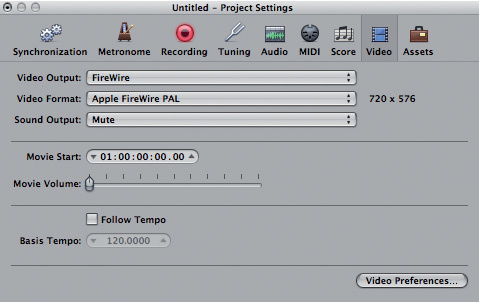 Rather than displaying video on the same monitor as Logic, it is possible to send DV‑only format video to an appropriate Firewire‑equipped device.
Getting Video Into Logic Pro
Let's take a look at importing your video, and the options available in the Preferences menu.
Working With Video
 Once you have added markers, Logic's extensive range of marker–related key commands allows you to easily navigate around Logic and the video.
Markers: It's useful to mark portions of a video using specialised Movie Scene Markers. These are similar to the ones you may be used to, but will always remain at fixed SMPTE positions, even if you create tempo changes. Logic can automatically create Movie Scene Markers by attempting to detect scene cuts in a video, or you can add a 'normal' marker at any point and convert it into a Movie Scene Marker from the Marker List Options menu. The automatic marker generation options (found in the Marker menus in the main Options menu) have a selection of automatic detection operations that can be very useful, especially when working on long feature films, but I find I usually have to add a lot of these manually.
Pickup Clock: While Logic Pro's many 'nudge' key commands can be useful when you need to move regions around accurately, the Pickup Clock key command will reposition any selected event or region directly at the Playhead, the position of which can be set in absolute values from the transport bar.
Timecode: Logic Pro defaults to displaying bars and beats on the ruler of its many windows. For video work, it's more useful to display absolute SMPTE time, or both the bar and time values. These settings are chosen from the icon at the top right of a window. If your supplied video does not have a burned‑in timecode:
- Simulate the display by opening a Transport from the Windows menu and right‑clicking or Control‑clicking on it to open the Customise Menu window.
- Deselect every option except for 'Positions (SMPTE/bar)'.
Screensets: Screensets are also very useful when you want to quickly swap between small and large video windows.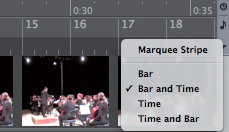 Once you know the correct SMPTE time, it's possible to set the ruler to display this.
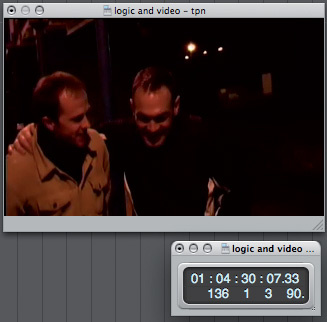 If your video does not have a 'burned‑in' timecode, you can simulate the display by customising a transport bar.
Flex Time: Logic's Flex Time is brilliant for dragging sections of recorded audio precisely to correct positions on the timeline, and effectively makes audio as easy to manipulate as MIDI data. The Time Stretch Regions To Locators command (in the Arrange page's audio menu) allows you to fit a recorded section precisely between two defined points. It's often the case when composing for video that you'll be adding tempo changes to make sure hit points come exactly in time with visual cues, so it's a good idea to lock any regions you don't want to be affected by these changes to absolute SMPTE time. To do this, right‑click or Control‑click on a region and select the SMPTE lock menu.Other audio recorded into Logic will follow any tempo changes you add to the project.
Exporting The Audio
 Balancing of audio is usually done at the post‑production stage, so it's important to create audio 'stems' using Logic's Bounce feature.
Most film and TV work is now produced in a 5.1 (or greater) format, and Logic enables you to monitor in surround, though you'll need an audio interface with at least six outputs, and five speakers, plus a low‑frequency sub. While you can use Logic Pro's Bounce feature to create separate files for each output by doing a surround bounce, post‑production people almost always prefer to do the balancing of the audio themselves.
Most compositions can be broken down into sections, such as 'Strings', 'Brass', 'Atmos' and so on, and each of these can be bounced to separate audio files. These 'stems' can then be loaded up in the post‑production suite and remixed at will. Stems are created by routing tracks to auxes. To create an aux in the mixer page:
- Click on the plus sign on the left.
- Assign a bus as an input to this aux.
- Send the tracks that you want to be part of this stem to this bus.
You can shift‑select multiple mixer tracks and assign these to the bus all at once. If you then solo the aux and select 'Bounce' from the File menu, only the audio sent through the aux will be rendered to disk. Remember to label the stem usefully, and repeat this procedure to create other stems.