

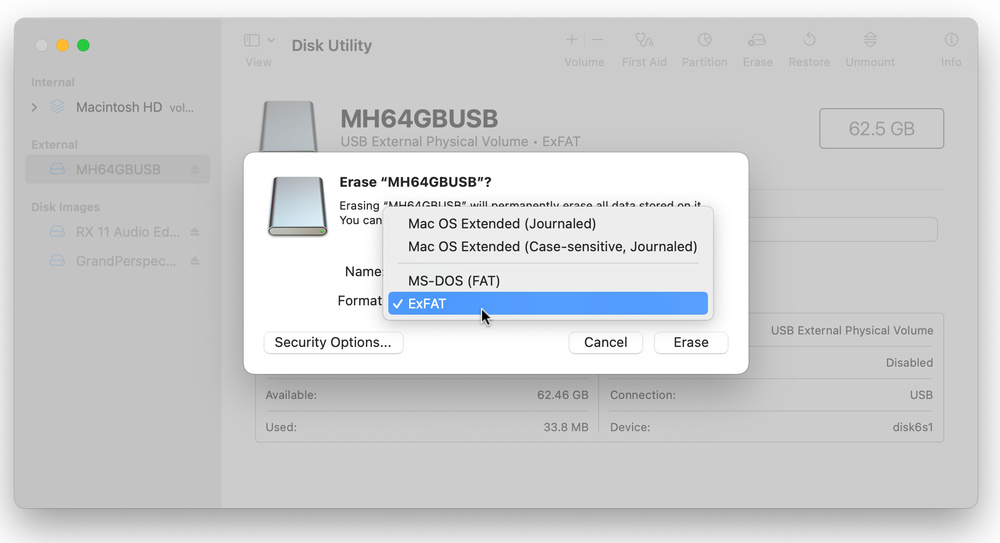
 Formatting drives as ExFAT will allow both Mac and Windows machines to read and write to them — great when you use the same DAW on multiple machines running different OSs.
I’ve been using Reaper on Windows for years, but I need a new computer and I’m thinking of getting a Mac. I have a pair of external drives for all my projects. Will Reaper on Mac be able to open them from these drives as they are, or do I need to tweak anything?
Pete Taylor
SOS Reviews Editor Matt Houghton: I use Reaper on both platforms. The DAW won’t have any problem reading and opening your projects, but might not be able to run them. First, Reaper will load all its own plug‑ins just fine and many third‑party ones too (assuming you’ve installed them on the new machine), but there may be a few of the latter that won’t play ball. To minimise the chances of disruption here, ensure you install the VST versions of your plug‑ins, not just the AU ones (a Mac format that Reaper can host alongside VST2.x, VST3 and its own formats). You might find that a few sample‑based instruments need reminding where their samples are, but that’s easy to put right.
If you format drives as ExFAT, then both Mac and Windows operating systems can read and write to them.
Perhaps the biggest issue is that while Macs can all read the data on NTFS drives (this is Windows’ default drive format), unless you install special software they won’t be able to write to those drives. So if your external project drives are NTFS types, you need to copy the files to a drive Macs can use.
The macOS default drive type is Apple File System (APFS), which is no good for Windows. But if you format your drives as ExFAT, both Mac and Windows operating systems will be able to read and write to them. I’d suggest obtaining another drive; they’re not cripplingly expensive. Format it as ExFAT, and copy your projects to it. You probably know how to format drives on your current system, but on Mac you can use the Disk Utility app located in Applications / Utilities. Choose 'Erase' and select the 'ExFAT' option (note that this wipes any existing data on the drive; you can’t just convert your existing drives while keeping the data on them!). If an old drive is big enough, you can put it to very good use as a Time Machine Mac backup drive.