

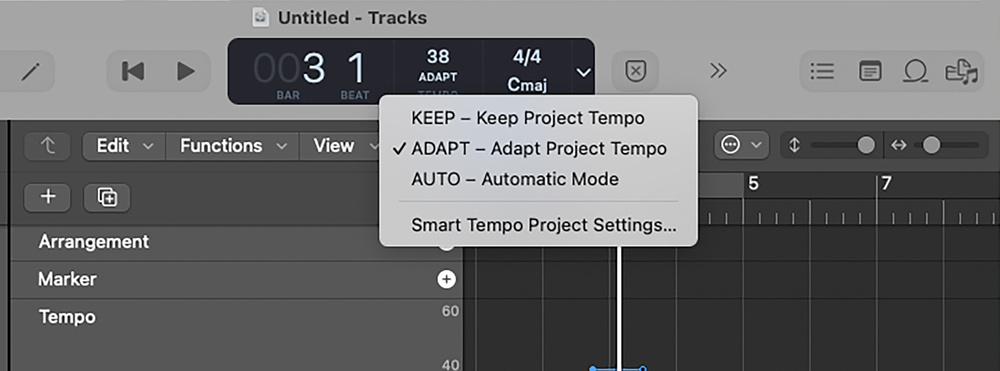
 The three main Smart Tempo modes: Keep will apply the project’s tempo to any new recordings or imported audio/MIDI, Adapt conforms the project tempo to new recordings/imports, and Auto will decide which mode to use automatically.
We go off‑grid with Logic’s powerful Smart Tempo feature.
When Apple introduced Smart Tempo in Logic Pro back in 2018, it finally put the musician in charge of the feel of a track, and the facility has improved in the intervening years. Even so, it still appears to be somewhat underused. Rather than the musician following a click track, the click track can, in effect, follow the musician, which allows for in‑flight tempo variations that give a ‘real performance’ feel. It can also do the opposite, allowing the user to import a freely recorded audio or MIDI performance and have that automatically conform to the project tempo using the time‑stretching algorithms that underpin Flex Time.
Working conventionally, you set a bpm for the project and Logic uses that to build its timing grid. This works well for EDM or anything else based on loops, but it can be less friendly when dealing with live performances, field recordings or, in my case, old band recordings made on tape before computer music was even contemplated!
When working with rubato piano or acoustic guitar performances, editing and adding new parts with a fixed project tempo can be quite a challenge: either you have to ignore the grid entirely, or quantise everything to the grid and suck all the feel out of the performance. Smart Tempo, by contrast, effectively listens to a performance and follows its tempo, writing the changes into the tempo timeline. So how do you set this up?
Work Smarter
There’s more to Smart Tempo than I’m able to cover here, but as regards the essentials, Smart Tempo has three operational modes: Keep, Adapt and Automatic. These can be accessed from File / Project Settings / Smart Tempo, or they can be selected in the bar/beat display beneath the current tempo readout. Logic’s default is Keep with no Smart Tempo settings, meaning that Logic follows the project tempo and any subsequent tempo changes that you might add manually. Apple Loops automatically conform to this tempo, but other imported audio plays back as it was recorded. This is how we all worked until Smart Tempo came along. Note that creating a tempo map isn’t the same thing as quantising your audio. Smart Tempo checks the tempo for each bar, as shown in the ruler display at the top of the main screen, and adjusts either the tempo of the song or of the material being worked on, depending on which Smart Tempo mode you use. Any out‑of‑place notes within those bars may still need to be dealt with.
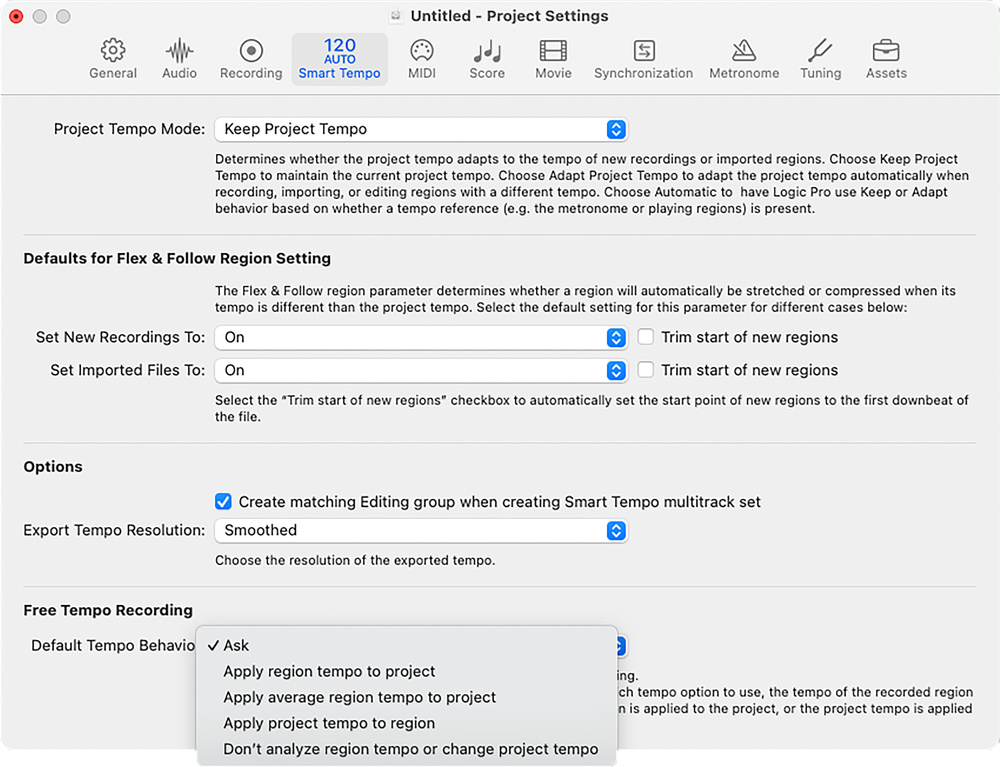 Further Smart Tempo options are available in the Project Settings window.
Tempo Fugit
So, to use Smart Tempo, first visit the Smart Tempo tab in the Project Settings menu. Here you can change the Smart Tempo mode, and you’ll see a brief description of what each mode does. Set the New Recordings box and the Set Imported Files box to On or On + Align Bars. There’s also an Align Bars and Beats option, which will trim the start of new regions so that they start on the first beat of a bar.
Whether the source material is a solo instrument or a complete mix, Logic will look for the beat and then create a tempo map.
Whether the source material is a solo instrument or a complete mix, Logic will look for the beat and then create a tempo map. It’s important to set the appropriate Smart Tempo settings before you start adding files to the project or start recording. The click should be turned off and any imported audio should not include tempo information if you don’t want to use it. Many commercial audio files have tempo tags, so for Smart Tempo to reanalyse them, you must first strip out that info using the Remove Tempo Information command (Edit / Tempo / Remove Tempo Information). Note that Apple Loops will always conform to project tempo regardless.
If Keep mode is on and you’ve entered the appropriate Smart Tempo settings (On or On + Align Bars), then newly recorded audio or imported audio will be adjusted to fit the fixed tempo of the project. Ideally you’d set the tempo somewhere close to the average tempo of the audio being processed, to avoid excessive stretching. In the Smart Tempo settings window there’s a choice of options for Free Tempo Recording: Ask, Apply Region Tempo to Project, Apply Average Region Tempo to Project, Apply Project Tempo to Region, or Don’t Analyse Region or Change Project Tempo. There’s also the option to conform to an average tempo for an imported performance that is well played but maybe wanders in speed a little.
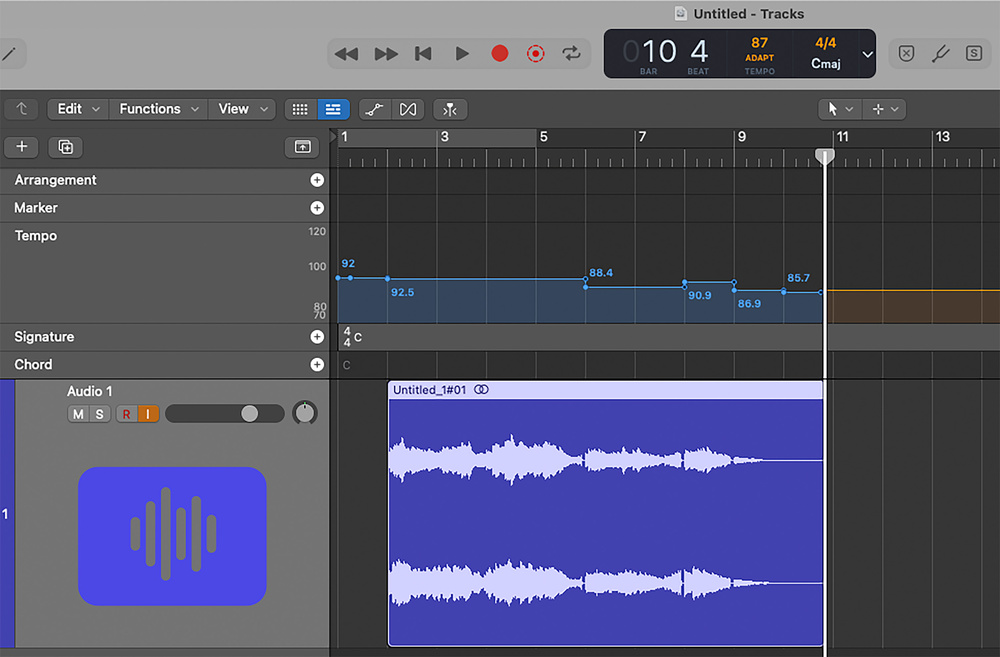 Here you can see how Logic creates a tempo map to conform to a freely recorded audio file, with Smart Tempo in Adapt mode.
In Adapt mode, Logic again analyses incoming audio or MIDI performances, but this time it leaves the performance intact and generates a tempo map to match the tempo of the performance. In the tempo track, found in the Global Tracks area, the tempo line shows in blue where Smart Tempo has done its thing and shows orange in parts of the song not yet mapped. As long as the incoming material has a discernible rhythm and ideally doesn’t include embedded tempo information (unless you want Logic to use that), Logic will find it, though more seriously avant garde material might confuse it! In regard to embedded tempo information, Logic does allow the user to analyse and adjust via the Smart Tempo Editor or by reanalysing audio regions. It is also possible to make changes in the tempo track, for example, to reduce some of the tempo variations in the original performance. You can even create a fixed tempo as you would in Keep mode, by drawing a flat line in the tempo track.
If working with MIDI in Adapt mode, a part that you play in live will again create a tempo map that becomes visible as soon as you stop recording, and if you then want to make changes to the tempo line, you can, whether to adjust some of the tempo changes or force the entire performance to a fixed tempo. One tip here is that if you’re working with imported audio that is proving difficult for the Smart Tempo to figure out, you can tap in a MIDI track in time with the music and have Smart Tempo follow that.
Automatic mode attempts to determine whether to keep or adapt the tempo, depending on the musical context and the project settings, so if you import an audio file, Logic can decide for you whether it should conform the file to the project tempo or the project tempo to the file. That’s a nice idea and often works well with more predictable material, but I like to have control over what is being done, so I generally stick with the Adapt or Keep modes.
Whichever mode you choose, you may still want to quantise your audio or MIDI to tighten up the performance, and now that all your material conforms to the tempo grid, you can deal with that in the usual way, using the Quantize command for MIDI, or Flex Time for audio, as needed.
On The Map
You can see the results of Smart Tempo’s handiwork in the Smart Tempo Editor, where beat markers are shown aligned to your notes, per Logic’s interpretation of your tempo fluctuations. If Logic wrongly analysed a phrase, you can adjust these markers by selecting and dragging, much as you do when working with Flex Time. The user can select Constant or Variable Tempo for region analysis within the Smart Tempo Editor.
 The Smart Tempo Editor shows beat and bar markers where Logic has detected them in your recordings. If Logic has misjudged any of them, you can edit them in much the same way as when using Flex Time.
If you have set up a project that has created a tempo map using Adapt mode to follow a freely played performance, you can then add Apple Loops, MIDI sequences, Drummer tracks, Session Bass or Session Keyboard tracks and they will follow the timing of the original performance. Newly recorded parts can be quantised to the grid in the usual way, as the timing grid follows the tempo map.
Note that although Logic’s analysis of a performance uses some clever transient detection and bar/beat mapping, it can make mistakes where the outcome isn’t obvious, which is why you may need to visit the Smart Tempo Editor to fine‑tune the end result. Here you can also tell Logic the recording’s original time signature and identify the downbeat if Logic can’t figure it out automatically. Misalignments can occur with more complex material, so you can intervene by manually adjusting downbeats, moving beat markers and so on. You can also set a constant tempo for material that Logic mistakenly misinterprets as variable. However, for most pop styles, the tempo detection works really well. The best way to explore Smart Tempo is by experimenting with some live audio and MIDI recordings just to see how well it follows what you are doing.
One of my experiments involved taking a very old recording of a band I was in around 1980 and forcing that to conform to a fixed tempo. The timing of the original performance was pretty good, but as you’d expect it still included some tempo fluctuations. The recording was in 6/8 time, which Logic identified as 3/4 time, but everything locked to the grid perfectly. Other applications include laying down some live acoustic guitar or piano parts without using a click, which often helps preserve the feel of the performance, then using Adapt mode to ensure that anything you add to the project locks into what you played when quantised to the new grid.
Since the invention of the quantise button, playing music with a real feel has become something of a lost art, but once you have gained a little experience with Smart Tempo, you no longer have to conform to the tyranny of the click track.