

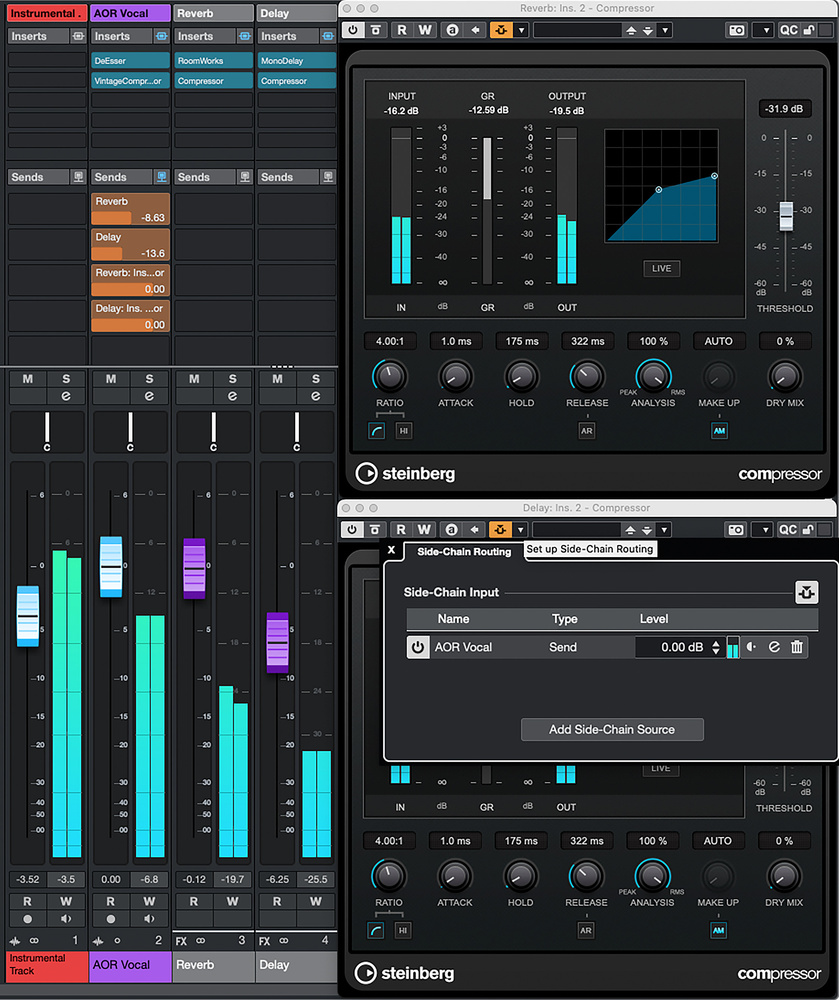
 Automated effects ducking can give your vocals a little extra clarity within the mix.
Ducking your reverbs and delays can bring greater clarity to your vocals.
Ambience effects, such as reverb and delay, are an essential part of vocal production in many genres. But slapping on these effects indiscriminately also risks compromising vocal clarity, and even the whole mix: long effect tails can mask or otherwise clash with different sounds, while if you keep the tails too short, then they might not create the sense of space and dimension you’re looking for. In this month’s workshop I’ll explore some ways to unpick this conundrum.
Options
In a DAW like Cubase, one way to tackle the issue is to set your effects up on FX Tracks rather than as inserts, and create an automation envelope for the send levels from the vocal track. Use a lower send level in the busier sections of a vocal to keep things sounding cleaner, but allowing more of the effect to be heard between well‑spaced words or phrases. Alternatively, you can use automation of the level of the FX Track — similar, but this time, we’re controlling the ‘return’ from the reverb or delay, not just what’s sent into it. Either tactic can work well and they both give you very precise control, but it can also be a fiddly and incredibly time‑consuming approach.
The classic alternative is to use ‘ducking’, whereby a gate or compressor reacts to the vocal to pull the effect’s output level down automatically. Some newer reverb and delay plug‑ins — including the reverb and delay modules in Cubase Pro/Artist’s VocalChain plug‑in — have this option built in. Another, perhaps less obvious alternative for Cubase Pro users is to use the new Envelope Follower Modulator: you can set this up to control the send level to the FX Track. If you want to try this, be sure to dial in a negative Modulation Depth, so that the send level is lowered when the vocal signal increases!
I want to be inclusive here, though, so I’m going to take you through an approach that any user can employ, from Cubase Elements upwards, and with any reverb or delay plug‑in. We’ll start by setting up a conventional ducked effect, before refining it to give us finer control over the result.
Line Up Your Ducks
The main screenshot shows the key elements of of our basic ducking configuration. You can hear this in action in the audio examples on the SOS website at: https://sosm.ag/cubase-1025. My first step was to create conventional sends from the vocal track to two FX Tracks. Respectively, these have instances of RoomWorks (for reverb) and MonoDelay (for delay) inserted. You can set the usual send level controls on the vocal track to configure an initial static wet/dry balance.
Next, insert a compressor after RoomWorks, and another after MonoDelay. I’ve used instances of Cubase’s vanilla Compressor plug‑in here but any compressor with a side‑chain input option will do the trick; we’re not really looking for ‘flavour’ here, but simply level control. Note that both Compressor instances have their side‑chain input activated, and that the vocal track has been selected as the side‑chain source. This means that although the compressors are acting on the effects, their gain reduction will only be triggered by the vocal level; in essence, the louder the vocal gets above the compressor threshold, the more the effect will be pulled down.
The final stage involves adjusting the various compressor settings (threshold, ratio, attack and release), the side‑chain send levels and the FX Tracks’ own faders. It’s pretty easy to influence when ducking will occur (threshold), the amount of ducking (ratio) and, broadly, the speed with which any ducking is triggered and then recovers (attack and release). A fast attack will pull the reverb out of the way quickly so that your vocal words can be heard clearly. You have more room for creativity on the release. But in both cases, you don’t want the transition to sound too obvious, so some experimentation may be required to find the best combination for the project in question. The side‑chain send level and the FX Track faders both influence the overall wet/dry balance, and so let you finesse how the effects are tucked out of the way of the vocal as it varies in level throughout the performance to (hopefully!) achieve a suitable end result.
Freq Out
The classic approach described above might well give you all the control you need. But it might not! If you pay attention to third‑party reverb and delay plug‑ins you’ll notice that some newer designs, such as iZotope’s Aurora reverb, do more than simply drop the reverb level — they adopt the kind of spectral balancing algorithms you find in plug‑ins like Soundtheory’s Gullfoss, Oeksound’s Soothe, Baby Audio’s Smooth Operator and iZotope’s Clarity. Aurora, for instance, ducks the reverb return more at those frequencies where the vocal is loudest, and adjusts this response in real‑time as the vocal’s frequency balance changes throughout the performance. The idea is that the reverb gets out of the way only where it needs to, but the overall sense of the effect can still be heard most of the time. It’s a neat trick!
Can we use a dynamic EQ plug‑in instead of a compressor to duck the effect? Yes, we can!
While the algorithms behind those plug‑ins vary, the concept is rather like using many bands of dynamic EQ — and those bands in turn are similar in concept to frequency‑specific compressors, each focusing its efforts on a very narrow band. All of which raises a question: can we achieve something broadly similar if we use a dynamic EQ plug‑in instead of a compressor to duck the effect? Yes, we can! Well, sort of... The second screenshot shows an instance of Cubase Pro’s Frequency 2 plug‑in configured for such a role, and it could be substituted for the instance of Compressor in either/both of the FX Tracks in our earlier approach.
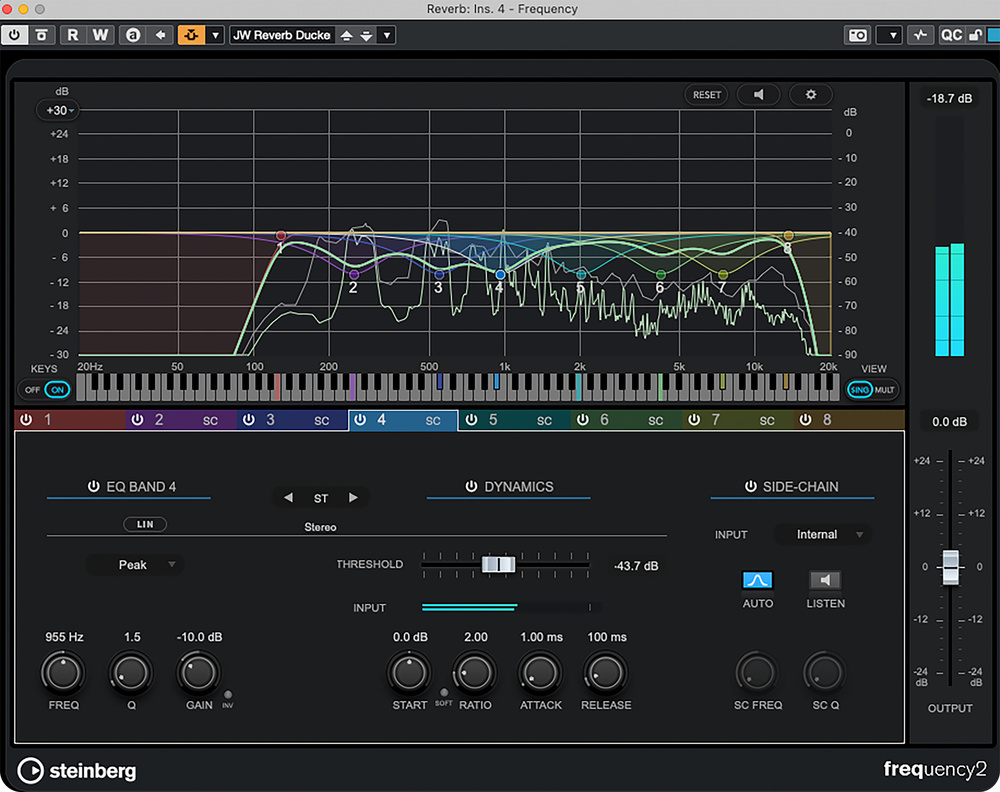 Pro users can experiment with some frequency‑based ducking using Frequency 2.
I’ve set bands 1 and 8 to basic low‑cut and high‑cut filters, respectively, and these are used to simply shave off the low and high ends of the reverb return. I configured the other six bands to operate in their dynamic mode, and centred each on a different frequency. To keep things simple to follow here, I used identical settings for each band’s Q, gain, ratio, attack and release (shown for band 4 in the screenshot). I then adjusted the threshold of each band to control the amount of ‘ducking’ generated when the vocal contained energy within that frequency range. At any instant the different bands will apply different amounts of gain reduction — in the screenshot, band 4 (at about 1kHz) is providing a 10dB cut, while band 5 (around 2kHz) is only pulling the sound down by about 2dB.
It’s not quite as sophisticated a solution as that found in Aurora, but it’s interesting to try and lets you focus your automated reverb (or delay) ducking (or ‘unmasking’ if you prefer that terminology) on the frequency range within which your vocal is sitting at any given instant. Of course, Frequency 2 is only available to Cubase Pro users, but you can use the same approach with any dynamic EQ plug‑in that supports external side‑chaining. If you don’t currently own such a plug‑in, you could always download a suitable free option, and top of my personal list would be Tokyo Dawn Labs’ NOVA. This free download supports all the major plug‑in formats and provides a four‑band dynamic EQ with side‑chain support and additional low‑/high‑pass filters. The final screenshot shows a configuration that might be used to match what I set up for Frequency 2, and it responds equally well to a side‑chain input in Cubase Elements, Artist and Pro.
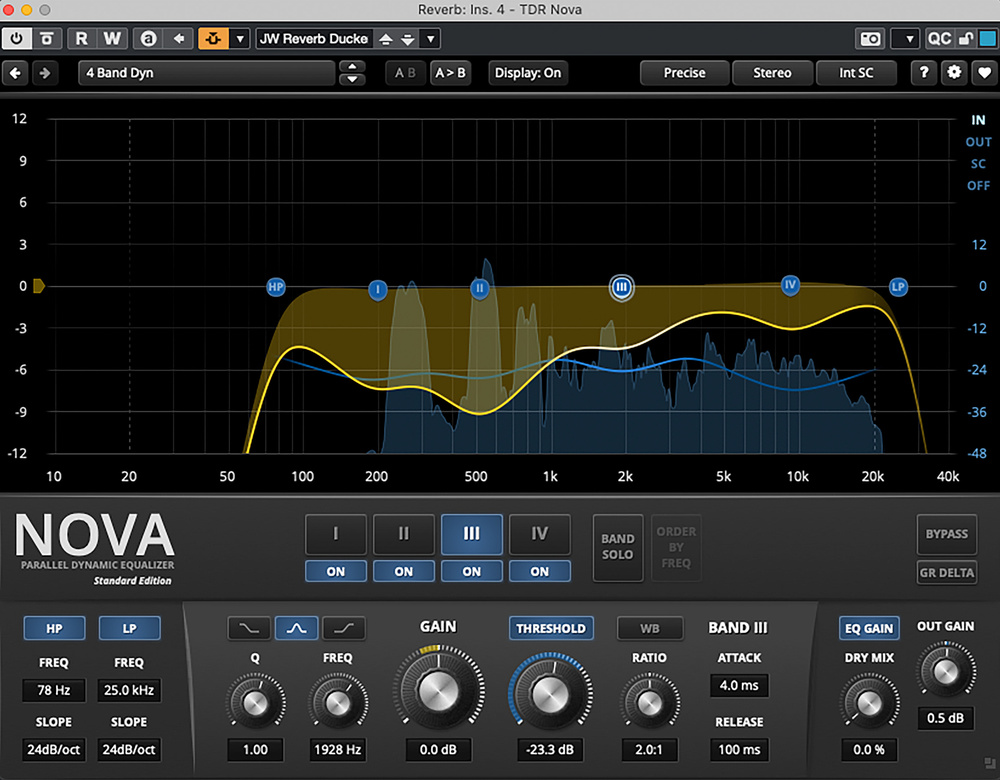 For Artist and Elements users, TDR NOVA is a very credible free alternative to Frequency 2.
Duck Duck Go!
You won’t always need to duck your effects tails, and on some more spacious arrangements it might even be counter‑productive. But if you’re looking to coax maximum clarity out of a busier mix, ducking can be really beneficial. It’s also possible that you’ll occasionally want so much control that it’s worth making the effort to automate the send and return levels very precisely. But the sort of frequency‑specific automated ducking I’ve just described might well do the trick very nicely. Whichever route you choose, Cubase Elements, Artist and Pro have multiple options.