

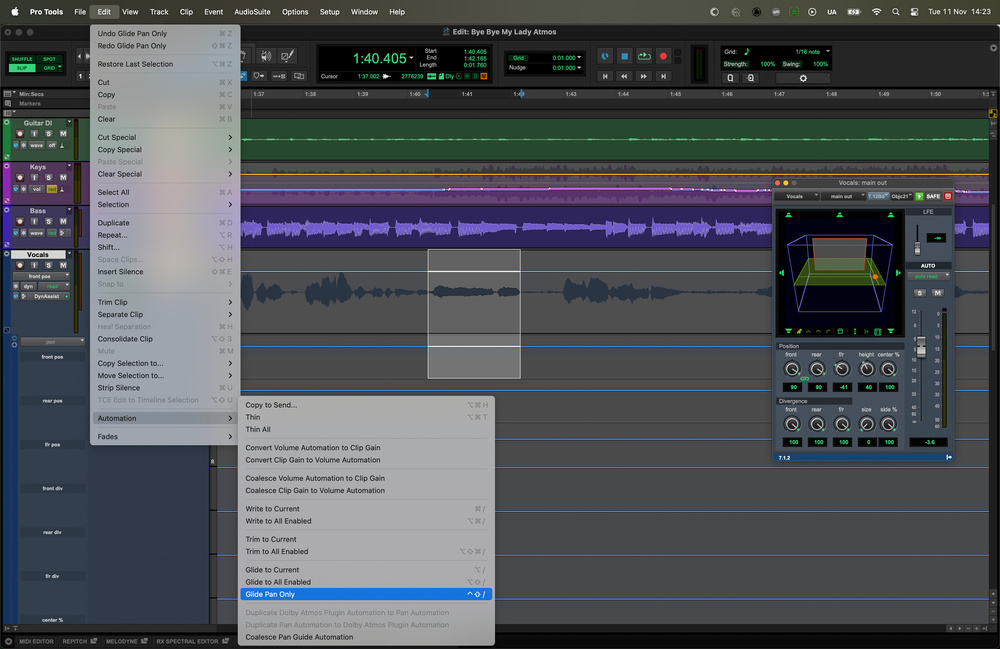
 The Glide To command lets you change any automation parameter’s value over the duration of your edit selection — and it will work over multiple parameters, giving you a powerful ‘morphing’ tool.
Mix automation isn’t just about fixing mistakes. It can also be a powerful creative tool!
With so many plug‑ins and virtual instruments competing for attention in our DAWs, it’s possible to underestimate the attention‑grabbing potential of simple mix automation. Changes in level, pan position or space can be every bit as potent as any processing. Pro Tools’ automation system offers a degree of precision and flexibility that allows these basic mix parameters to become creative devices in their own right.
A recent example came from an experiment I auditioned for a short promo with one of the bands I play in. During a recording session in our tiny rehearsal space, I’d set up a couple of cameras to capture the session, mainly to create some social media footage. After completing the stereo mix and sync’ing it with one camera angle, I began to wonder whether I could recreate the sense of being in the room by building an Atmos binaural mix instead.
The idea was to have the listener’s perspective change with the camera, as though turning their head in the space. There are immersive formats such as Ambisonics and other VR workflows that handle that kind of spatial movement elegantly, but as I’d already started an Atmos mix, it made sense to stay there. The challenge was to move each instrument’s pan position across the soundfield to match the new visual angle, and Pro Tools’ Glide To automation feature turned out to be the most direct and elegant way to do it. In this month’s article we’ll examine this and the related Write to and Trim To features of the Pro Tools automation system.
While this particular experiment took place in a Dolby Atmos session, Glide To automation with pan data is just as useful in a conventional stereo mix. It’s an efficient way to manage movement, whatever the delivery format.
Gliding High
There are essentially two contrasting approaches to creating automation in Pro Tools. The first is to write automation in real time, moving controls on a surface or in the user interface. The second approach is to click automation points in with the mouse. This is very precise when you know exactly what you want, but it removes the immediacy of hearing parameter changes as you make them.
The Trim To and Glide To functions sit neatly between these two extremes. They provide a way to change existing automation values to new, exact levels or positions without having to re‑record automation or manually redraw curves. In that sense, they act as a kind of halfway house between the two, retaining the precision of drawn automation, but with the speed of a real‑time workflow.
Because of the large number of parameters involved, the Dolby Atmos pan example shows very clearly where Glide To comes into its own, but the technique applies to any form of automation in Pro Tools. Glide To...
You are reading one of the locked Subscribers-only articles from our latest 5 issues.
You've read 30% of this article for FREE, so to continue reading...
- ✅ Log in - if you have a Digital Subscription you bought from SoundOnSound.com
- ⬇️ Buy & Download this Single Article in PDF format £0.83 GBP$1.49 USD
For less than the price of a coffee, buy now and immediately download to your computer, tablet or mobile. - ⬇️ ⬇️ ⬇️ Buy & Download the FULL ISSUE PDF
Our 'full SOS magazine' for smartphone/tablet/computer. More info... - 📲 Buy a DIGITAL subscription (or 📖 📲 Print + Digital sub)
Instantly unlock ALL Premium web articles! We often release online-only content.
Visit our ShopStore.