

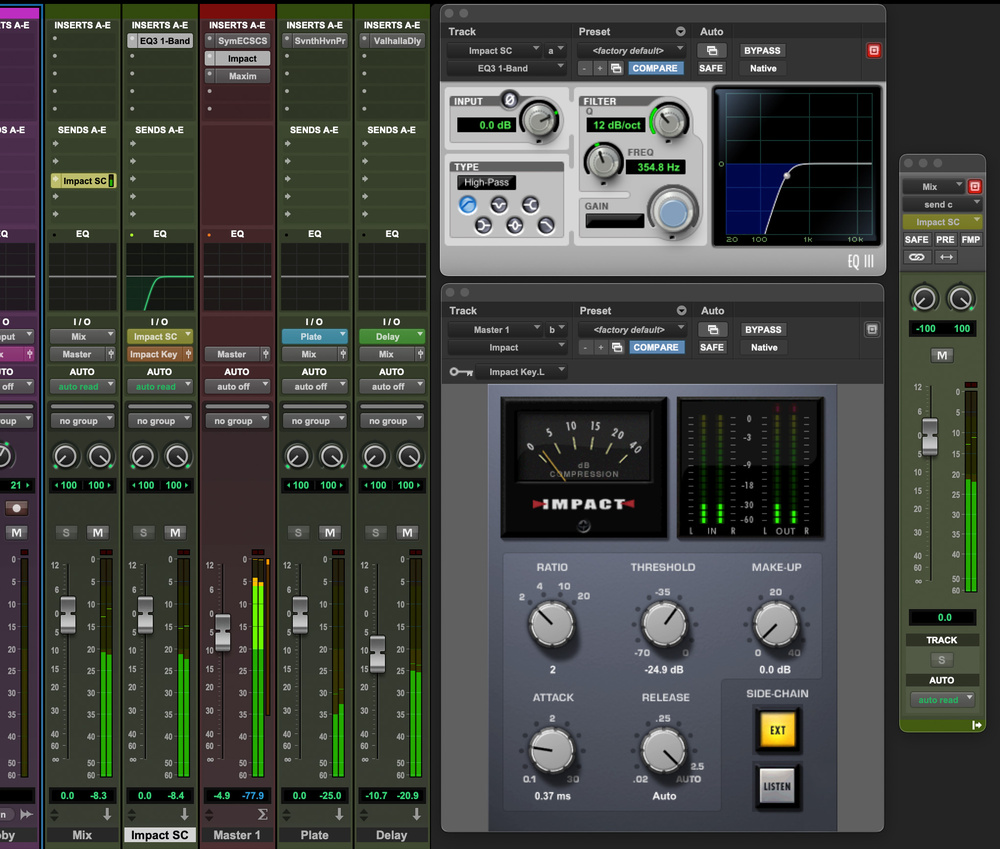
 Screen 1: A common production technique is to high‑pass filter a compressor’s internal side‑chain, so that kicks and basses don’t trigger excessive compression. Some compressor plug‑ins have these filters built in, but if not, you can set up your own filtering in the Pro Tools mixer.
Pro Tools offers a number of ways to implement the power of side‑chaining in your mixes.
In audio production circles, side‑chaining is one of those terms which is often used in a rather narrow and not entirely accurate way. You’ve probably encountered the term as shorthand for one particular use: compressing a source using an external signal as a trigger, to create a ‘ducking’ or ‘pumping’ effect. While valid and very effective, that technique represents only one of the ways side‑chains are used. For simplicity I’ll refer to compression, but these principles apply to any dynamic process: compression, gating, expansion or limiting.
In Pro Tools, as in other DAWs, dynamics processors rely on side‑chains. Whether you’re using Smack or Pro Compressor, you’re working with a detector circuit that operates with reference to a side‑chain. The better you understand that, the more control you’ll have.
What Is A Side‑chain?
All conventional dynamics plug‑ins control the level of audio passing through them by monitoring the level of a control signal and comparing it to a reference level: the level at which an action should begin. This reference level is called the threshold, and what happens in response to the control signal (the side‑chain signal) crossing the reference level (the threshold) depends on the type of process (compression, expansion and so on), and the settings of the other controls (principally ratio, attack and release times).
The side‑chain is the path carrying the control signal that feeds the detector in a dynamics processor. It’s what the plug‑in is “listening to” in order to decide when to apply gain reduction, and how much. By default, the side‑chain signal is derived from the input signal to which compression is being applied. This is known as an internal side‑chain.
All compressors, even simple ones like Dyn3 Compressor/Limiter, have a side‑chain path. What varies is how accessible and adjustable that side‑chain path is. Some plug‑ins, like the 1176‑style BF76, have unconventional control sets with no threshold control or access to the side‑chain path for filtering, but the side‑chain path is still there. More advanced Pro Tools plug‑ins like Channel Strip and Pro Compressor expose additional controls for shaping the side‑chain signal, allowing you to fine‑tune how the detector responds.
By using a different audio signal as the side‑chain, the compressor can ‘duck’ audio out of the way of another signal.
Internal Vs External
Some compressor plug‑ins allow you to override the default internal side‑chain routing by offering an external ‘key’ input. This allows you to employ a completely different audio signal as the side‑chain source. One application for this is to set up a compressor to ‘duck’ audio out of the way of another signal. For example, if you use the bass drum signal as the side‑chain source for compressor on a pad sound, you can get the pad to ‘pump’ in time with the beat.
To use an external side‑chain signal in Pro Tools, you assign a bus to the Key Input selector in the plug‑in’s header section. You can feed that bus using a send, or you can hold Control (Mac) or Start (Windows) while clicking an output assignment to route a track’s output to more than one place. Pro Tools indicates this multiple routing with a ‘+’ next to the output. This is neat, but gives less control as the fader controls both paths, so the same level is going to the mixer and also to the compressor’s side‑chain input.
While useful, external side‑chaining is the exception rather than the rule. Most compression tasks rely on internal side‑chains. The real power often lies not in choosing a different signal entirely, but in shaping the internal side‑chain in various ways.
Filtering
Much more common than using an external side‑chain is applying a filter to the internal side‑chain. High‑pass filters are most commonly used, and for good reason: low‑frequency elements such as kick drums and basses often dominate the action of compressors, triggering excessive and distracting gain reduction.
For example, if you’re compressing the mix bus and every kick drum causes an audible dip in volume, a high‑pass filter on the side‑chain can moderate that trigger. This lets you focus the compression to react more to the snare or midrange energy, giving a more musical rhythmic response as the movement created by the compressor is focused away from the bass energy.
In Channel Strip, Pro Tools users have access to various filter types including high‑pass, low‑pass, band‑pass and notch. These can be used to isolate or suppress specific frequency bands in the detector path. This is how some de‑essers work, by making the side‑chain sensitive to energy around 6kHz so that the compressor cuts only when there is loud sibilance. Pro Compressor takes this further, with more precise control of the filters. Both offer a key listen button, indicated by a small speaker icon in the side‑chain section, allowing you to audition the side‑chain signal directly — hugely helpful for tuning by ear.
Even the older Dyn3 plug‑in includes basic high‑ and low‑pass filters, making it more capable than it might first appear. On the other hand, plug‑ins like Smack, which emulates vintage hardware with simpler controls, offers three preset side‑chain filtering options. It’s better suited to coloration than surgical level control. Try using Smack more as a saturation plug‑in than for level control. It’s very good at that.
If you are using a compressor without filters in the side‑chain, you can get the same result with a bit of manual routing. Staying with Pro Tools’ stock plug‑ins, Impact is a very respectable SSL‑style compressor and doesn’t have a filter in the side‑chain (the original hardware SSL one didn’t either). But all you need to do to achieve a filtered side‑chain is set up a signal path that gives you somewhere to insert an EQ. In Screen 1, I’m routing my mix through an aux input (Mix) and then on to a master fader. I’m then sending the Mix to another aux (Impact SC) where I have a high‑pass filter inserted, and have routed that aux on to the Ext Key input in Impact, thereby feeding a filtered version of the mix to the detector to exclude the bass energy from the compressor action.
Channel Linking
Most Pro Tools users work in stereo, and most stock Avid compressors treat stereo signals in a particular way: the External Key input is mono, while the internal side‑chain signal is stereo. But the detector is linked between channels, and responds to the loudest signal present in either the left or right channel. This preserves the stereo image by ensuring both channels are compressed equally. Otherwise, the stereo image would shift when more compression is applied on one side than the other.
This approach mirrors how VCA meters behave in Pro Tools: unlike aux or master fader meters that show the summed level of a group, VCA meters show the peak level of the loudest contributing track. The detectors in Dyn3, Channel Strip and Pro Compressor all work the same way; they react to the highest input level across the stereo field.
Whether of not you want this linked behaviour is a creative choice, and many third‑party plug‑ins such as FabFilter’s Pro‑C 2 offer variable channel linking, allowing users to partially or fully unlink stereo channels. This isn’t currently available in Avid’s own plug‑ins, but there is a workaround.
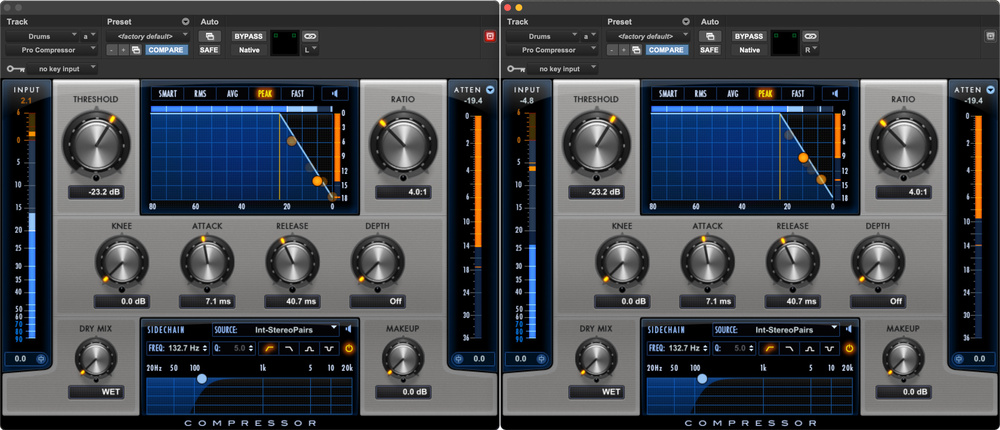 Screen 2: Most of Pro Tools’ bundled compressors will only work in linked mode on stereo tracks. If you want to unlink the left and right channel side‑chains, you need to use a multi‑mono instance.
If you want to try unlinked compression, instantiate a multi‑mono plug‑in instead of a multi‑channel version. If you use the Unlink button in the plug‑in header, the two channels will operate independently. If you maintain identical settings on both channels, you’ll essentially have unlinked stereo (dual mono) compression. To see the different gain reduction amounts on each channel, Option/Alt‑click on the channel selector in the plug‑in header to view both channels in separate windows.
ARA Compression?
Traditional compression using AAX plug‑ins like Dyn3, Channel Strip and Pro Compressor happens in real time, following the principles established in analogue hardware. But Pro Tools has recently opened up new possibilities through ARA integration.
Plug‑ins like NoiseWorks DynAssist or Wavelab Go offer analysis‑based level control. Rather than reacting to peaks as they happen, these tools can access the entire audio clip and apply processing accordingly. This allows for highly transparent loudness normalisation or intelligent dynamics shaping. Ideal for mastering or loudness compliance. With these tools taking care of level management, compressors are freed up for what they do best: adding energy, movement, and tone.
In Pro Tools, plug‑ins like Pro Compressor and Channel Strip give users the power to shape the internal side‑chain. Whether you’re aiming for mix bus glue, vocal consistency, or drum punch, understanding the role of the detector is key.
Compression is ultimately about timing, emphasis and context. And all of that begins with what the compressor hears, which is the side‑chain.