

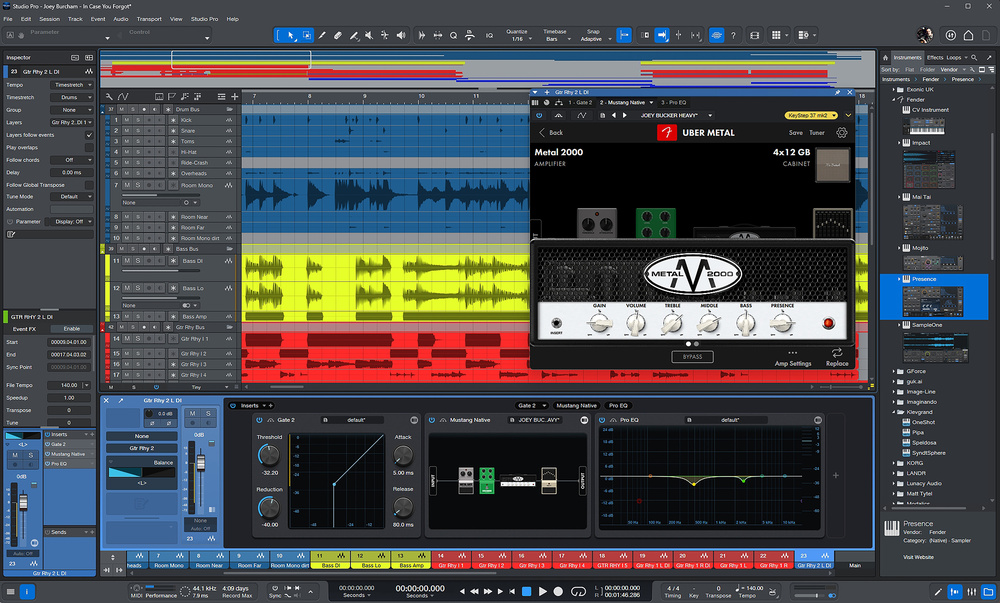
There’s lots to catch up on as PreSonus Studio One becomes Fender Studio Pro.
Fender purchased PreSonus in November 2021, and to take Studio One to version 8, they have decided to entirely rebrand and rename the popular DAW. It’s now called Fender Studio Pro and neatly identifies this professional recording platform with one of the biggest musical instrument brands in the world. However, in our Internet and algorithmically navigated times, it also neatly cuts itself off from a legacy of close to two decades of ‘Studio One’ tagged videos, tutorials, reviews, articles and fan sites, to be lumped into search engine results with many other competing products that have ‘Studio Pro’ in their name.
It’s a small change, one that perhaps rolls a bit more nicely off the tongue, but it feels like it’s at the expense of some uniqueness and the need to stand out in a very crowded market. The rebrand shouldn’t raise any concerns for existing users, though. Fender appear to be committed to and enthusiastic about their new flagship software and have taken over all the licensing, subscriptions and support from PreSonus. All of my products under the My.Presonus.com banner have been smoothly redirected to My.Fender.com. There have been murmurings that Fender Studio Pro will be perceived as a more guitar‑oriented DAW, and with a Fender amp as the header image on My.Fender.com I’m definitely feeling a lot more rock & roll, but is that really going to be the case? Well, let’s have a dive into what this DAW can offer in its move from PreSonus Studio One Pro 7 to Fender Studio Pro 8.
Is It All There?
The first thing to say right off the bat is that nothing has been lost in this transition, or at least nothing worth mentioning. Everything in Studio One Pro 7 is also there in Studio Pro 8. It hasn’t been stripped of its MIDI editing or pattern programming, and probability, the mastering section, scoring, macros, Fat Channel plug‑ins, virtual instruments and Show Page are all present and correct. Some terminology and button positions have changed; for instance, it’s no longer about ‘songs’, it’s now all about ‘sessions’, and after many years of confusion, the Project Page is now called the Mastering Page, and thank the DAW gods for that.
The Look
PreSonus have tweaked and smoothed the interface over the years, but the Fender shift (as it will now be called) has brought a bit more than a tweak. Where Studio One was flat and flawless, Studio Pro has gathered sections together and sunk them into the background with the tiniest brush stroke of elegant shading. In all the main graphical elements, everything is more three‑dimensional; the faders, knobs and buttons are more pronounced and realistic.
The bottom row, which was once a seamless, never‑ending transport bar, has been helpfully broken up into appropriate sections. Over on the bottom left we get newly positioned Inspector and Track List buttons, which have previously been at the top of the track list. On the bottom right, the buttoned words Browse, Mix and Edit have been replaced by reasonably obvious icons, and we get a new button to go along with them, which is probably the biggest and, for me, the most jarring change.
This new button brings up the reimagined Channel Overview. It throws a largely blank chunk of space right across the bottom third of your screen in what feels like rather a petulant and unyielding way. Don’t get me wrong, it’s terribly useful, but it’s also alarmingly out of character. The Studio One front end has, from the beginning, championed the concept of the single, dynamic window where everything is adaptable and resizeable, using every bit of available space, whereas the Channel Overview is static, you can’t resize it in any direction, and it is empty until populated with inserted effects (more on this below).
Talking of effects, all the existing PreSonus effects and virtual instruments are now listed under ‘Fender’ in the Browser and have all had a makeover. They get the same pronounced 3D look, which is different enough to feel new and fresh. Even the long‑neglected Mojito gets brought up to date with a nice, clean and consistent look. Currently, on my system, additional instruments like Deep Flight One and Sub Zero Bass are still listed as PreSonus, but that may be because I opted not to re‑download and install them during the installation of Studio Pro 8, so they have not yet got the memo.
...all the existing PreSonus effects and virtual instruments are now listed under ‘Fender’ in the Browser and have all had a makeover. They get the same pronounced 3D look, which is different enough to feel new and fresh.
Overview
One brand spanking new feature, or to put it another way, a catch‑up feature that almost every other DAW has, is the Overview. It has a button on the top toolbar that drops down a session overview squished into an inch‑high band that runs all the way across the top of your screen. Your current arrangement view is seen as a little grey box outline. You can click and move this about for super‑fast project navigation. It works, it’s good, and I’m glad to have it aboard.
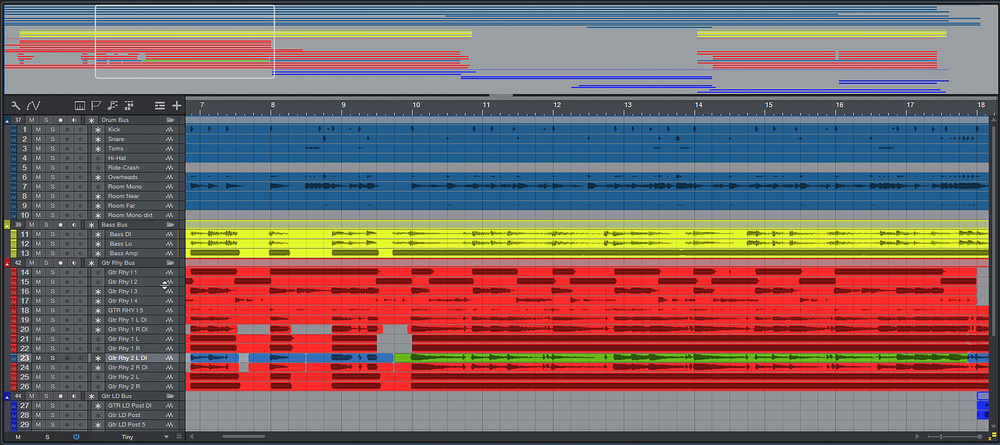 The new Overview (across the top) gives you an, er, overview of your session. Very useful.
Channel Overview
Once you’re over the shock of this incongruent piece of screen real estate, the Channel Overview is actually really quite good. It’s taken what was a floating window with a fiddly list of insert effects that offered a couple of text parameters (although this does still exist) and expanded it out into a graphically interesting and knob‑laden channel-strip effects panel. You could see it like the Devices row in Ableton Live or Bitwig Studio. Every plug‑in inserted on the selected channel is displayed here in an easily accessible and reorderable chain.
All of the native plug‑ins get nicely realised compact versions of themselves with a handful of pertinent controls and a graphical element. The Pro EQ, for instance, gives you the whole EQ window that you can freely edit as you would in the plug‑in GUI. Some of the native plug‑ins that don’t conform to the regular aesthetic, like the Analog Delay, Chorus and Rotator, are reduced to a panel of knobs, and this is also what we find for third‑party plug‑ins. However, the Fender plug‑ins get carefully selected and useful controls, whereas third‑party ones get the first eight, regardless of their usefulness.
I was slightly disappointed by the handling of third‑party plug‑ins in the Channel Overview and so I did a bit of digging to see if there was a way to edit the knob assignment. This took me back to the original Channel Overview window with the fiddly insert parameters, and I discovered on a right‑click that you could ‘Setup Micro Edit Parameters’ and actually specify which controls you would like to see; this is a big improvement over previous versions. Coming back to the new, larger Channel Overview, I was very pleased to find a similar option when I right‑clicked the controls of a third‑party plug‑in. The option is called ‘Setup Edit Parameters’ and lets you add any of the available controls to those eight knobs. Your choices stay with the plug‑in whenever you load it and make for a really useful compact version for quick edits.
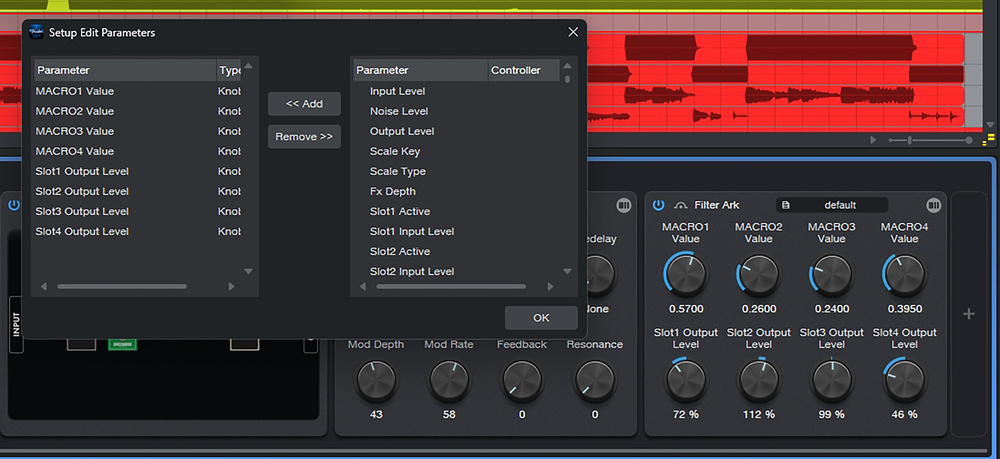 The Channel Overview’s ‘Setup Edit Parameters’ function allows you to assign your choice of third‑party plug‑in parameters to the eight available knobs.
Just for clarity, the fiddly parameter sliders in the insert list are called ‘Micro View’, whereas the knobs in the Channel Overview are called ‘Mini View’.
There’s one small issue that carried over from the Micro View to the Mini View, and that’s how it doesn’t handle effects routing. Both views assume a linear stack of chained plug‑ins, but Studio Pro has a very versatile routing window where you can set up sprawling maps of effects in parallel and series using splitters. Both views show the Splitter as a plug‑in, but don’t make any attempt to show how the plug‑ins are routed. With our attention being drawn to the usefulness of the Channel Overview, it is perhaps something that Fender could consider tackling.
Mustang Native & Rumble Native Amp Modellers
Fender have added a couple of rather nice plug‑ins to the roster that replace the one casualty of the rebranding, PreSonus’ guitar amp and effects plug‑in, Ampire. Mustang and Rumble are comprehensive guitar and bass plug‑ins, pulled from Fender’s DSP‑based hardware, and filled with modelled amps and stompbox effects. These are largely based on Fender products but also push into wider tonal options from brands like Orange, Vox and Marshall, among others.
There are 39 guitar amps, 18 bass amps and dozens of carefully dialled‑in presets to find that particular tone. There are 125 effects pedals to drop into the signal chain, covering pretty much everything you can imagine. Amongst others, there are 14 reverb pedals, 13 delays, 15 overdrives and 15 modulation pedals; plenty to play with.
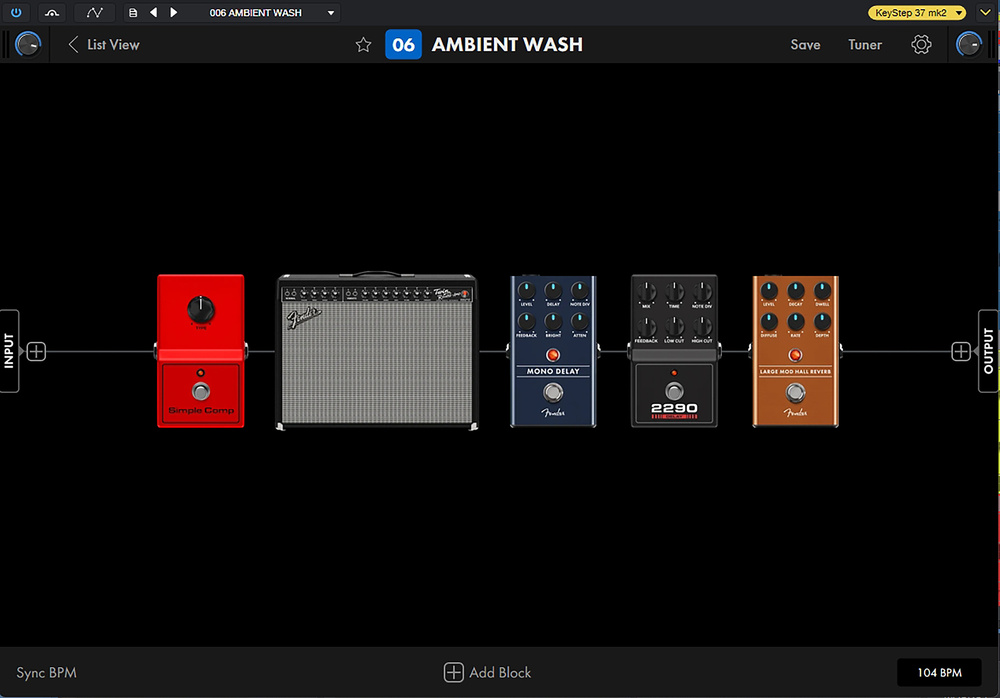 Newly introduced, Mustang offers a range of stompbox effects and amp sims.
Both plug‑ins work in the same way and are visually delightful. You choose an amp, a cabinet (if applicable) and then add in as many effects as you want, either before or after the amp. Click on the image of the device in the overview to fill the window with a close‑up of the controls. It looks and sounds amazing.
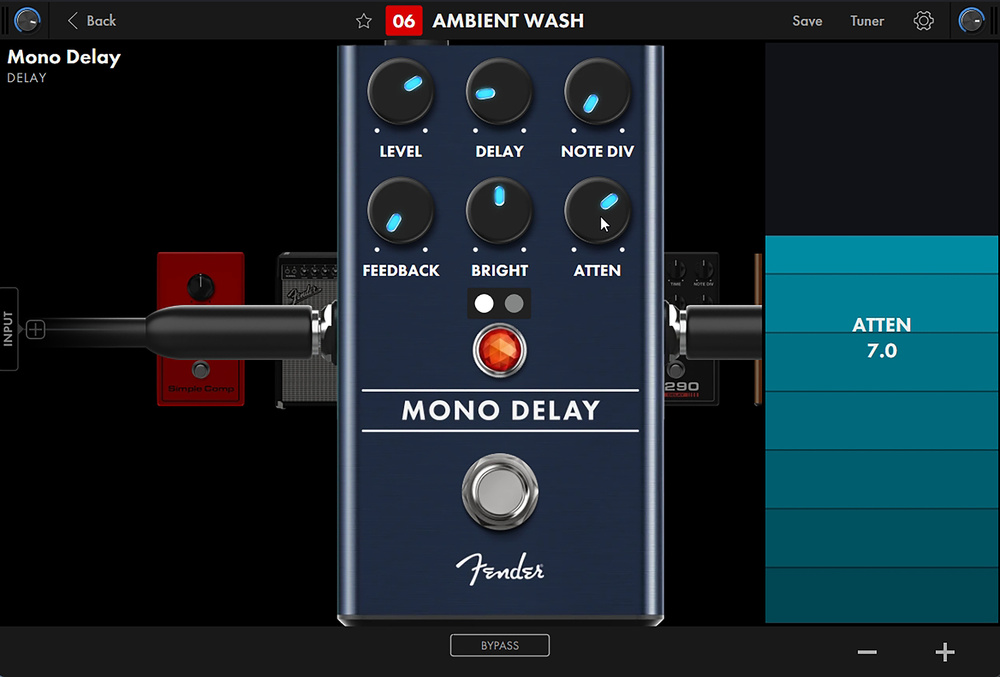 The chunky controls turned out to be quite useful when playing guitar further away from the screen.However, the interface and functionality feels big, chunky and laborious, like it was designed for an iPad. If you click on a knob, you get a huge sort of vertical control pop‑out from the side which would be useful if you are trying to move a small knob on a touchscreen, but feels out of place in a desktop context. It doesn’t really fit with the streamlined and detailed styling that PreSonus have built with Studio One.
There’s one more inconsistency, which is with the Channel Overview Mini View controls. There aren’t any. There’s a nice overview of your amp and pedals, but in order to tweak any controls you have to bring up the whole GUI, which seems to defeat the object of the Mini View.
So, how well does it play? It’s phenomenal. Preset after preset, the tone is just exactly what you feel it should be. A beautiful range of amps and possible outcomes, and the effects, while on the basic side, are absolutely what you’d expect them to be. I’ll even concede that, as I sit back away from my desk playing guitar, the size and chunkiness of the interface becomes more useful. There’s even a studio preamp option so you can use the effects on any source material without involving a guitar amp, or if you are recording guitar via an external amp.
Studio Verb
The other plug‑in Fender snuck onto the list is Studio Verb. It’s an algorithmic reverb inspired by the classic Lexicon 224 digital reverb, and it provides all the familiar parameter sliders and a spectral display. There’s no option to change the algorithm, so you craft your reverb from the front panel. It’s a nice addition to the three other reverbs already present, but its lack of visual conformity makes it look a little bit out of place.
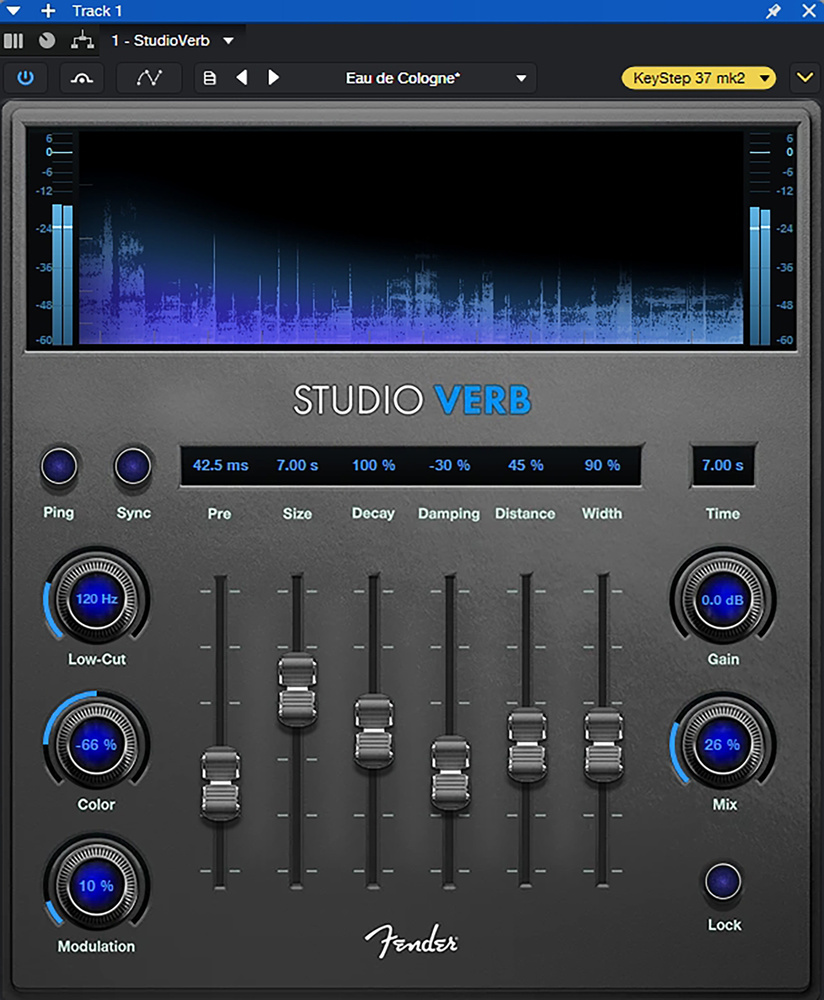 Studio Verb is inspired by the classic Lexicon 224 reverb.
AI‑powered Audio‑to‑Note Extraction
Pitch‑to‑MIDI functions have been around forever, and Studio One has been more than happy to extract MIDI chords from audio tracks for some time. However, there’s never been a dedicated extraction function for individual notes or drum patterns in this DAW, but now there is — and you’d better watch out because it’s using the power of AI to make your life easier, and no‑one wants that, right?
Under the Audio menu, you’ll find an entry for ‘Extract Notes’ and ‘Extract Drums’. Apply it to an audio track, and after a few seconds you’ll have a matching instrument track with corresponding MIDI notes. For instrument sounds, it loads up Mai Tai with the very basic ‘Chord Preview’ preset, and for drums, it picks a ‘Drum Extraction kit’ in Impact, with more or less the right hits going to the right places. I confess I was a little disappointed in our AI overlords regarding instrument selection. I had completely assumed that it would identify the instrument being played and select something similar in Presence, but no, the AI is only there to help with pitch detection.
Both the extraction processes were terrific up to a point. The pitch detection, particularly polyphonically, and the ability to pick out distinct hits from a drum track, were really impressive. But there were also plenty of missed notes or flurries of additional notes that meant you were in for a fair bit of post‑extraction editing. Of course, the simpler I made the audio, the easier it was for the AI to pick out the notes, and it really didn’t appreciate my sloppy playing. It’s definitely useful and a handy thing to have for drum replacement, or pushing a melody onto a different instrument, but the outcome is going to vary enormously depending on your source material, which is all too human.
The Chord Selector is a window that lets you explore chords, progressions and different qualities that can then be applied to your audio and MIDI tracks. It’s a brilliant songwriting tool... and the interface feels a whole lot slicker and more accessible.
AI Chord Assistant
Studio Pro’s powerful chord engine has received an upgrade and also gets some AI assistance. The Chord Selector is a window that lets you explore chords, progressions and different qualities that can then be applied to your audio and MIDI tracks. It’s a brilliant songwriting tool. In this new version, the chord wheel has been halved and simplified, and the interface feels a whole lot slicker and more accessible.
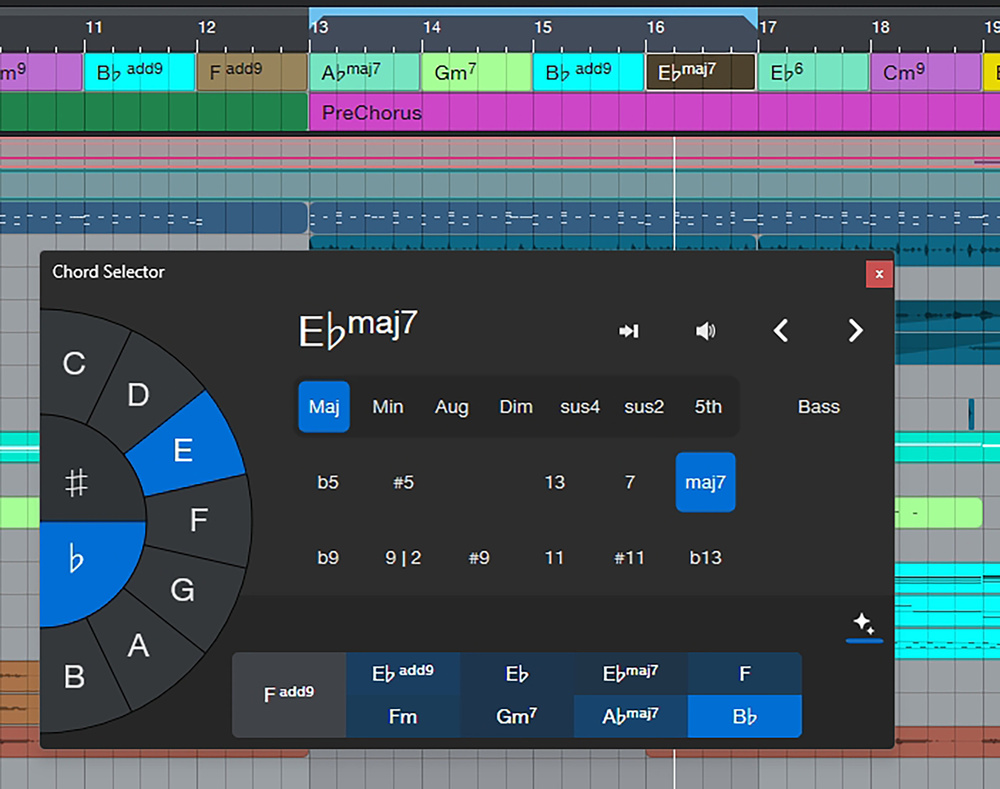 The AI‑powered Chord Selector is a useful and welcome addition.
At the bottom, we have the AI Chord Assistant. Its job is to recommend alternative chords to the one selected in your Chord track. You click on them to replace the current chord and see if you prefer the changes. With every chord progression, there are many variations, and you could look them up in a music theory book, or build an app to do that for you. As I understand it, the AI is acting as a probabilistic model trained on thousands of chord progressions, hoping to suggest something that really fits well with the music in your session. It works superbly and is a great way to add variations and complexity that I wouldn’t necessarily have been able to play or work out myself.
Sample One & Impact Updates
There have been a number of very welcome updates to the Sample One and Impact sample‑based instruments. You can now pull in fades per sample in the waveform display rather than using envelopes, and draw crossfades across the whole sample. You can set the tempo manually and can quickly halve or double the speed via a drop‑down menu. And Impact can now send samples directly to Sample One. There’s also a new integrated slicing editor in both Impact and Sample One.
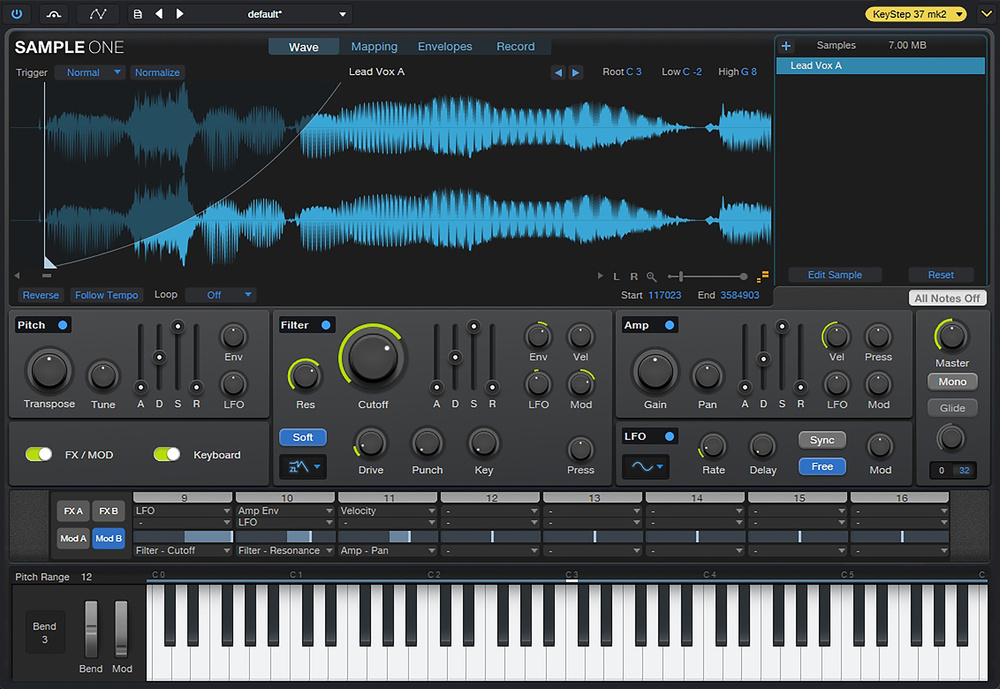 The Sample One sampler has had a major overhaul and has gained new modulation options and more hands‑on control over fades and crossfades.
Sample One also gets the modulation options and matrix that Presence and Mai Tai have enjoyed for many years. This offers 16 slots for routing numerous sources via other modulators to any available destination. This functionality, and its re‑skinning in line with the other synths, make Sample One worthy of another look as an interesting sample‑playing instrument.
Bits & Pieces
There are far too many other tweaks and adjustments to mention them all but here are a few more that stuck out for me. The metronome sound can now be a drum kit playing any of dozens of stylised drum patterns. You can create cue mix outputs for different headphone mixes. The Show Page now has a video track.
Conclusion
All in all, the version 8 update is mostly an exercise in rebranding, consistency and having a fresh and coherent break from the PreSonus era. The interface refresh feels very smart, clean and professional. It’s tackled lots of little things that have been neglected, like a few key renamings and redesigning the native virtual instruments and plug‑ins, and brings the overall feel together.
The new features that Fender bring are unsurprisingly guitar‑focused. Obviously, the Mustang/Rumble plug‑ins, but the Channel Overview brings a larger focus on to effects, which emphasises audio recording and traditional studio workflows.
The new features that Fender bring are unsurprisingly guitar‑focused. Obviously, the Mustang/Rumble plug‑ins, but the Channel Overview brings a larger focus to effects, which emphasises audio recording and traditional studio workflows. There were no updates or new features in any of the MIDI editing, pattern programming, Note FX or clip‑launching areas to impress creators with more experimental leanings, and that’s a shame.
Despite the rigidity of the Channel Overview interrupting the fluidity of my workflow, it does mean that I no longer have to dig around in the fiddliness of the Console to find the effects. The usefulness of this panel is really growing on me. I like how I can set up a handful of knobs for my plug‑ins so I don’t have to keep firing up the full GUI, and I like the ease with which I can rearrange them. I’d like to float the idea that it could, in a future update, house a row of modulators that you could pull onto knobs for internal modulations.
The move to Fender Studio Pro 8 is free if you’re a subscriber or you’ve held a perpetual licence for less than 12 months, otherwise the upgrade will cost you £89$99. There are not a lot of new features to justify that price; however, the Mustang plug‑in is genuinely great, the Channel Overview could be revitalising, the general improvements are solid and there’s a good sense of cohesion and positivity, which makes one optimistic for the future.
Pros
- Looks great, very unifying.
- Channel Overview simplifies effects tweaking.
- Mustang and Rumble are top class amp modellers.
- Decent note extraction.
- Useful Chord Assistant.
Cons
- Channel Overview is terribly static.
- The update is very guitar‑focused.
- No new virtual instruments.
Summary
Studio One gets a new name, a rebrand and a fresh look that has lots for guitarists to get excited about. The rest of us may feel under‑served by Studio Pro 8 but nothing has been lost in transition and there are many welcome improvements.
Information
Perpetual licence £169.99, monthly subscription £19.99, annual subscription £159.99. Prices include VAT.
Perpetual License $169.99, monthly subscription £19.99, annual subscription £159.99.