

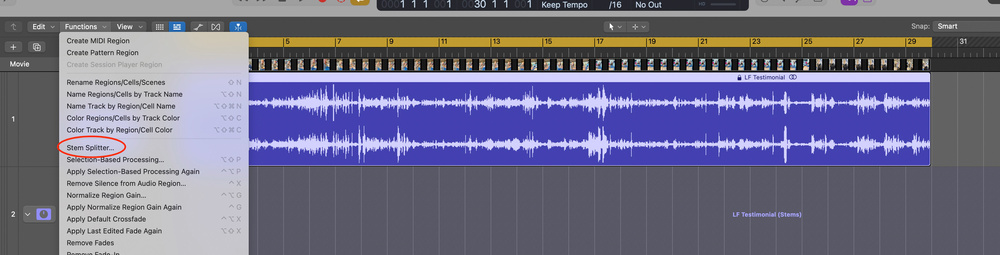
 Using Stem Splitter couldn’t be easier: just import an audio file into Logic and select Stem Splitter from the Functions menu.
Stem Splitter is an amazing feat of technology, but is it actually useful? The answer is a resounding "Yes!"
When the Stem Splitter function appeared in Logic Pro 11, I brushed it off as a somewhat alluring gimmick. The ability to separate individual elements from a mixed track had already become mainstream in standalone applications, so the novelty had come and gone for me.
Logic Pro 11.2 and Logic Pro for iPad 2.2 introduced further features to the function, and it was then that I had to admit that perhaps I had been overlooking the power of the Stem Splitter.
The operation of Stem Splitter couldn’t be more straightforward: drag or import an audio file into the Main window, and, with the region selected, choose Stem Splitter from the local Functions menu. The menu defaults to having all the elements (Drums, Bass, Vocals, Other) ticked and the Separate All Stems option selected. Of course, if you don’t need each stem extracted, go ahead and tick what you want, or use the preset menu to find a combination that suits your needs. Logic Pro does the busywork of creating the stems, placing them in a summing folder and muting out the original.
If you unmute the original region and mute the track, you can easily toggle the track’s solo button to switch between the original track and the sum of its stems. And while you definitely hear a slight difference, the two are essentially the same.
OK, cool trick. We’re all impressed. But now what?
Remixing
For many musicians and producers, remixing existing commercial releases would be the obvious use for Stem Splitter. After following the aforementioned procedure for extracting stems, I usually insert the BPM Counter plug-in (found in the Metering folder) on the drum track. Play back a few bars and this indispensable tool displays the song’s tempo. After typing the bpm (beats per minute) value into the Tempo window, I’m almost ready to get started.
It’s always a good idea to select all of the regions and move them forward or backward to line the beats up to the grid. Try to get the first discernable downbeat to hit at the start of a measure. Now when you loop a section with the Cycle range, it should play back as if it were written in the Logic Pro session all along.
If it’s not lining up or staying in the grid, it might be because it was recorded without a click (or didn’t strictly adhere to one), or there are tempo changes throughout the song. But for our purposes, let’s assume the tempo is consistent and the tracks are perfectly locked to our grid.
At this point, you can let your creativity guide you. Add instruments, mute instruments, add different effects to anything and everything. You can mute the bass, guitars and piano and totally reharmonise the song. You can even grab the drum track and create a groove template from it and apply it to your next masterpiece! The possibilities are endless.
The ability to remix existing music without having to obtain the original multitracks is a gamechanger. This use of Stem Splitter alone is very powerful, but let’s keep searching for other ways to exploit this tool.
Raiding The Archive
Commercial music is the go‑to candidate for the Stem Splitter, but what about our own music? Every month I get a request from a music house to pull tracks (and have stems ready) from my library in a different style for a creative pitch they are working on. Some of the tracks I submit are from so long ago that, even if I could find the original files, opening them and having them play back in Logic would be challenging.
Stem Splitter means that — as long as I have the stereo mix — I can extract enough material for any tweaks that may be needed.
This could be invaluable for post‑production professionals who feel limited by only having a stereo mix of a track that they’ve licensed. Rather than ducking the volume of the track, they could pull out different elements to make room for dialogue and effects.
This could be invaluable for post‑production professionals who feel limited by only having a stereo mix of a track that they’ve licensed. Rather than ducking the volume of the track, they could pull out different elements to make room for dialogue and effects.
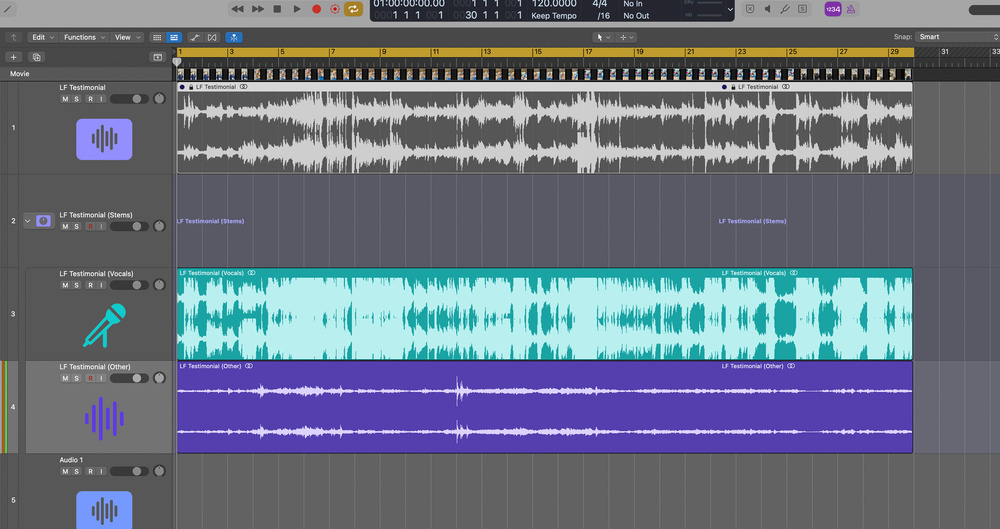 Not just for music: Stem Splitter did a surprisingly good job of removing background noise and hiss from a badly recorded audio interview. It interpreted the dialogue as Vocals and the noise as Other.
In a similar vein, I have a box of cassettes from the ’80s and ’90s that could benefit from the Stem Splitter — high school and college band rehearsals, demos, and live shows, as well as mixes from my four‑track days. Sure, the cringe factor alone has prevented me from revisiting these chestnuts, but maybe, just maybe, with this new functionality, I could finally face the music and… Who knows? Maybe there’s a song in there that just needs a little additional production to make it sound professional‑ish.
Crate Digging
This leads me to another potential goldmine. Maybe in the bridge of our worst song from the good old days, the drummer played the most inspiring and hypnotic groove. How great is it that we can now extract it and use all of our modern tools to create a retro drum loop with a flavour that would be difficult or impossible to convincingly create from scratch? The same could be said for a quirky guitar riff or a lead vocal... the possibilities are endless.
You’ve essentially found yourself in possession of your own royalty‑free retro sound library.
Mix & Match
When the concept of stem separation first came to my attention, my first thought wasn’t about remixing or scouring my archives for drum loops. No, my immediate impulse was to recognise the potential this could have on my own mixes.
I’m a huge fan of mix referencing. But Stem Splitter allows us to go a bit more granular. Instead of A/B’ing your whole mix against a reference track, why not compare your drum stem to that of the reference?
I’m a huge fan of mix referencing. But Stem Splitter allows us to go a bit more granular. Instead of A/B’ing your whole mix against a reference track, why not compare your drum stem to that of the reference?
When I listen to a reference mix, it can be deceiving how much low end is actually present in the bass. But now I can solo the bass stem in my reference track, open up a Channel EQ and hear (and see in the EQ’s analyser) exactly what’s going on in the low end. I could even use the Match EQ plug‑in to match my bass’s frequency content to that of the reference track. Or I can compare my vocals with commercial recordings to see how much air there truly is in the reference track’s vocal.
Learn & Play
We described using Logic Pro as a tool for transcription last month, but I’ll add my own experience of using Stem Splitter in this role here. As a bassist, I’ve used this function many times to isolate a track’s bass line so I can not only hear it better, but I can actually learn what’s being played more easily. Alternatively, you can mute the bass stem and play along with the band like karaoke! When I recently had to learn a set for an ’80s tribute band I was subbing for, I created the whole set list in one Logic session. After learning the bass lines, I would mute the bass stem, press Play, and run through the entire set.
Stem Splitter also allows us to get a peak behind the curtain to understand what’s happening on our favourite records. For example, I like to zoom in on the bass and drum stems and try to see whether they are playing together, or if the bass is just a little ahead of or behind the beat.
I was also surprised to hear how little reverb was used on the horn section from one of my favourite big band albums. The hugeness in the mix was not coming from reverb in this case, but there was no way to know that without Stem Splitter.
It’s head‑scratchingly amazing that Logic can pick out the reverb and delays for each instrument group and keep them contained in their instrument’s stem.
Restorative Properties
Earlier this year, a friend called me in a panic. “You’re the audio expert, I need your help!” This could be the day that my immodesty and reality collide, I thought. Turns out she had made a man‑on‑the‑street type video, and the dialogue and background noise was all over the place. I assured her I could solve the issue — while I was simultaneously downloading trials for iZotope’s RX.
But before installing anything, I imported the audio from the movie into Logic and checked to see if EQ would solve the issue. No dice. Then I took a chance and ran it through Stem Splitter. It interpreted the dialogue as Vocals and the noise as Other. The results were impressive. After removing most of the background noise, I was able to salvage the dialogue with my usual EQ and dynamics processing tools.
This is just the beginning. I’m confident that in future updates, Stem Splitter will become more powerful still, and the tool’s possibilities will only be limited by our imaginations!