

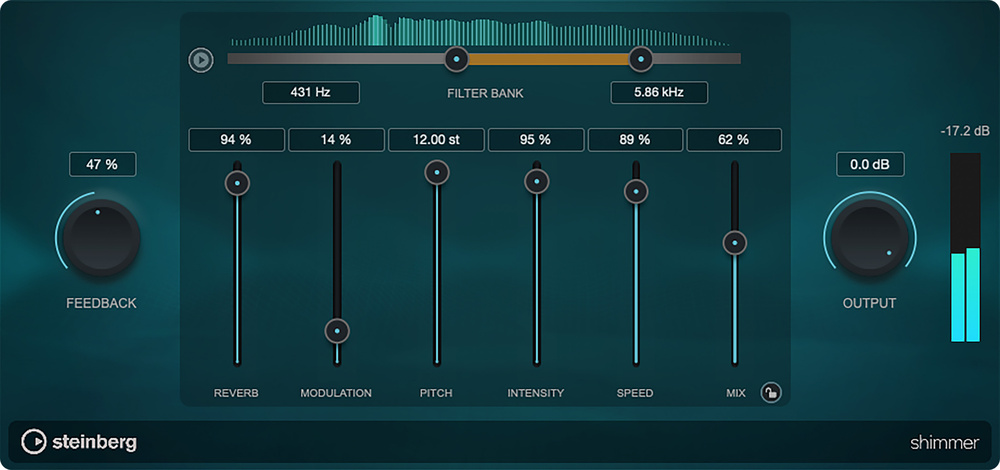
 Add a little Shimmer to your guitar for instant ambience.
Use Cubase’s Shimmer and Studio Delay to create atmospheric guitar tones!
In Cubase 14, Steinberg added two new creative effects plug‑ins to the Pro and Artist versions: Shimmer, which is an unconventional reverb effect with some delay built in; and Studio Delay, a quirky stereo delay with, you guessed it, a bit of reverb built in. Both have the potential to transform almost any source in some interesting ways, and in this workshop I’ll focus on one possible application: creating ambient guitar tones.
Target Practice
A quick web search for ‘ambient guitar music’ will throw up diverse musical possibilities, ranging from the pioneering work of Brian Eno to more contemporary albums from Tycho, From Somewhere Quiet and Adam Dodson. Ambient music compositions don’t have to be guitar led, of course, but when guitar is featured, creative effects are often important to the sound — and unconventional use of both reverb and delay are often a big part of those effects. For instance, you might manipulate the harmonic content of the reverb and/or delay, to create a pad‑like sound. Or the reverb or delay might be processed to give it a very analogue or lo‑fi nature, making the tonality very different from the main guitar sound itself.
This sound design process obviously encourages experimentation with effects, and Shimmer and Studio Delay are ideal candidates for this. So, starting with just a simple clean electric guitar tone, courtesy of Cubase’s stock VST Amp Rack plug‑in, just how ambient can we get? Can we transform a guitar into a pad? Can we create delays from our guitar source that bring a new sonic texture to the overall sound? Sure we can! I’ll explain how below, and if you want to hear the results for yourself, you’ll find audio examples on the SOS website: https://sosm.ag/cubase-1125.
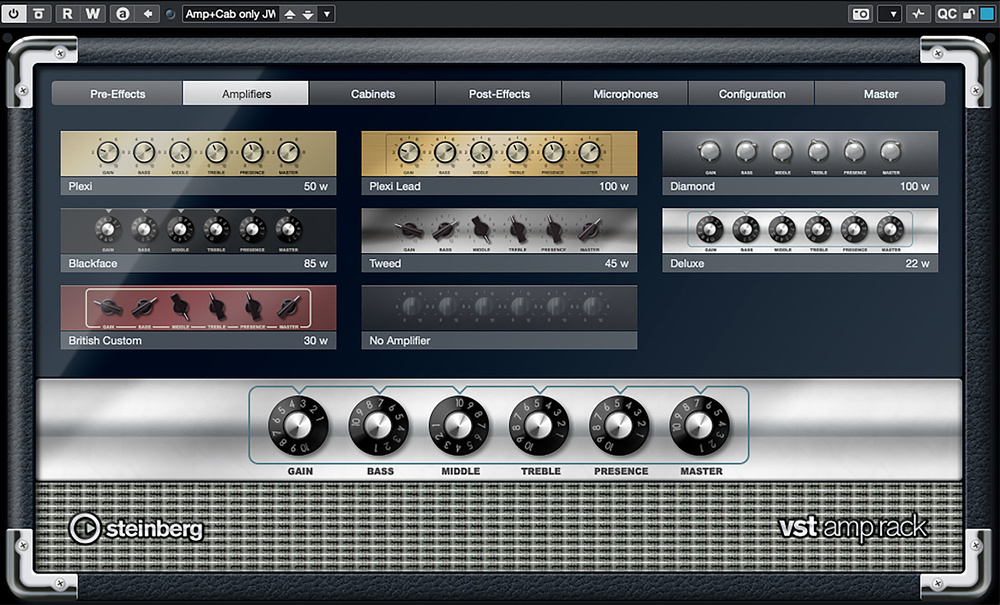 Using just its amp and cab modules, the stock VST Amp Rack plug‑in is all you need to run your DI’ed guitar through before applying Shimmer or Studio Delay.
Visit My Pad
Shimmer isn’t the most versatile creative effects plug‑in that I’ve ever used, but it’s great for adding a ‘shimmering’ pad‑like effect to a guitar sound. It uses a combination of reverb and delay, while pitch‑shift and filtering in the effect’s feedback loop influence the tonality of the ‘shimmer’.
Start with settings of 40 percent for Feedback and Mix. Set the Pitch slider to zero (no pitch‑shifting), and the Intensity and Speed controls to zero too. Then adjust the Reverb slider — this actually adds a delay to the signal, and doesn’t develop the merged multitude of short repeats that we generally think of as ‘reverb’ until you raise the Intensity and/or Speed sliders. But with the Reverb slider at or higher than 80, a large ambient reverb soon develops once you raise both the other sliders over 50. Then back off the Reverb slider, and you’ll be left with just a delay effect whose delay time (Speed) is adjusted by a percentage, rather than in time or note division units. It’s a quirky ‘reverb meets delay’ combination, but easy enough to dial by trial and error.
A good starting point for the shimmery pad‑like effect we want is to set the Reverb, Intensity and Speed controls in the 50‑plus region. Modulation can then be added to taste — its influence is modest, but still worthwhile. The Pitch slider then provides a bit of magic. With this remaining at zero, the shimmer sits primarily in the same frequency range as the source, delivering a subtle end result, but move that to +12 semitones and the shimmer takes on a completely different character, with much more high‑frequency content. Combined with a higher Mix setting (so that, eventually, the source signal is submerged by the effect) and it’s like your guitar just became a synth!
The Filter Bank sliders at the top of the UI can be used to constrain the frequency range of the shimmer effect. Indeed, if you either go towards the top of the slider range for any combination of the Reverb, Intensity and Speed controls, or dial in a high Feedback setting, the delay loop can quickly build to put a lot of energy through your speakers (you have been warned!). Cutting that back, for instance by filtering out the frequencies below 150‑200 Hz, can often clean things up considerably — just be sure to check that the effect still works in your musical context. Automating the Filter’s two frequency controls, whether manually or using a Modulator, is a further option for adding tonal variety to the shimmer effect.
The audio examples include a couple of different shimmer effects. They differ mainly due to the Pitch settings, and they demonstrate the kinds of results that are possible. It’s a rather neat ‘guitar meets synth’ effect if I do say so myself! But, of course, it’s an effect that can also be used with sources other than guitar.
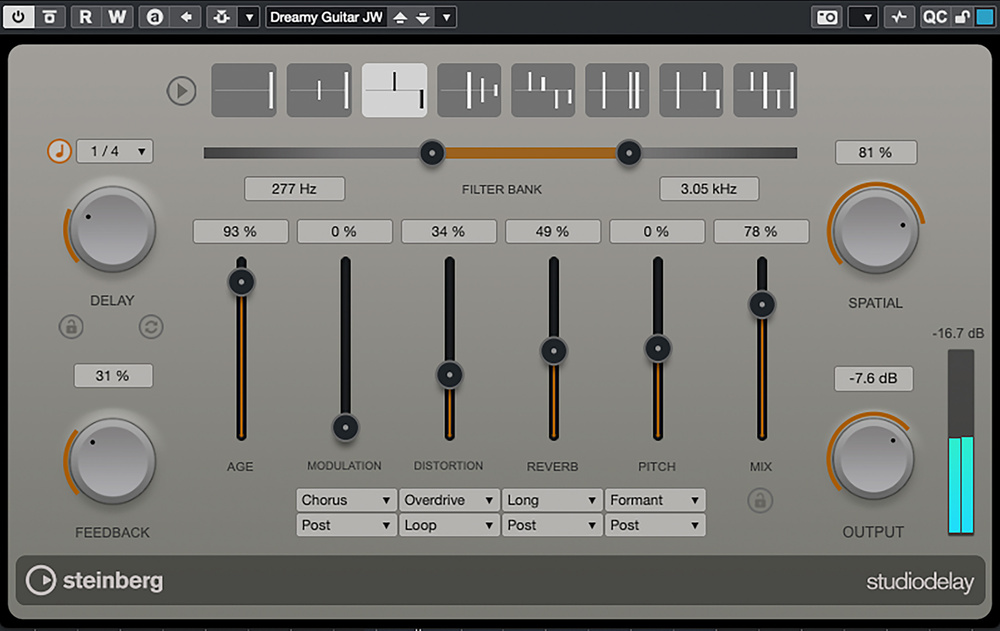 It’s definitely a delay, but Studio Delay does delay in a very characterful fashion.
Follow The Lead… Lead... Lead….
Unlike Shimmer, Studio Delay can be configured for more conventional treatments. Simply set the Age, Modulation, Distortion, Reverb and Pitch controls to zero. Then, having picked one of the preset delay patterns from the top of the GUI (I used the ping‑pong option for my examples), you can dial in the Delay time (hooray for tempo sync!), Feedback, Spatial (stereo spread) and Mix controls to taste. So it’s a decent enough delay in its own right...
But bring those Age, Modulation, Distortion, Reverb and Pitch sliders into play, and it can become much more creative. A good, simple start for your experiments would be to use the Age slider and Filter Bank controls to introduce some very effective sonic downgrading to the delay repeats, with a darker or brighter tonality.
The labels on the four remaining sliders are fairly self‑explanatory, but the mini drop‑down menu options below each slider access some interesting additional possibilities. The uppermost drop‑down menu offers three flavours for each effect: for Distortion, you can choose between Overdrive, BitCrush or SampleDiv; for Pitch, you can choose Pitch, Pitch+Formant preservation or Formant (this shifts the formants without changing the pitch). Each of these can do some very interesting things to the tonality of the delay line.
Applied inside the delay’s feedback loop... the effect multiplies with each pass through the delay line.
The lower drop‑down menu lets you switch the location of all four of these effects between Post and Loop settings. In the Post position, each effect is applied after the delay. In Loop, it’s applied inside the delay’s feedback loop, so the effect multiplies with each pass through the delay line. At higher slider settings, this can generate some seriously radical changes. For example, adding a modest level of Overdrive in the Loop produces a wonderful, gradual degradation of the sound with each repeat. Used in the Loop, the Reverb does some cool things to each delay too but, moved to Post, higher Reverb settings transform the delays into an ethereal wash of pulsing reverb. On the right source, this can be very cool and, rather like Shimmer, can feel very pad‑esque. Again, I’ve included in the audio examples a few demos of these sorts of Studio Delay shenanigans.
The Sound Of Space
Cubase’s stock plug‑in collection (for both the Artist and Pro editions) boasts a number of creative effects, such as FX Modulator and LoopMash FX, but these latest Shimmer and Studio Delay plug‑ins are very welcome additions to that toolkit. And while I’ve focused here on changing guitar sounds, they have plenty to offer other sources, including drums and vocals — experimenting is a huge amount of fun!
The one bit of guidance I’ll leave you with is that, in terms of notes played, less is generally more. Keep your parts on the sparse side while you’re playing, and you’ll give these effects the space in which to shine.