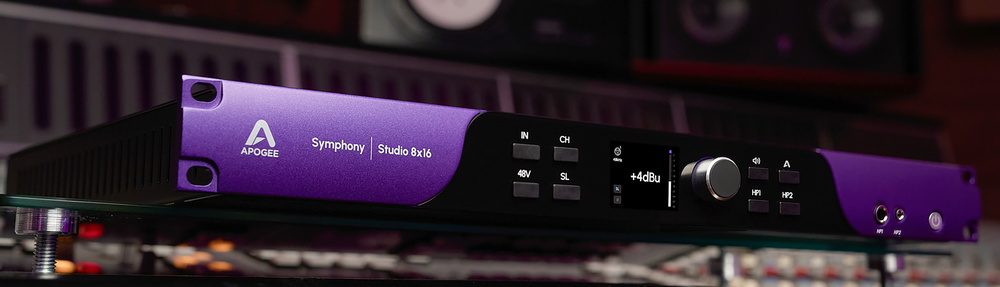
Designed with immersive audio in mind, the Symphony Studio is also a top‑class all‑round audio interface.
Apogee’s new Symphony Studio range of USB interfaces is aimed particularly towards immersive audio production duties. In that context, and like the Audient ORIA interface I wrote about in SOS July 2024, the headline specification that substantially defines each of the three Symphony Studio models is not so much their input count but their output count. To put some numbers on that, the three models in the range offer two inputs and 12 outputs (the 2x12), eight ins/eight outs (the 8x8), and eight ins/16 outs (the 8x16).
Now, you might wonder about how suitable the 8x8 model is for immersive duties, because with ‘only’ eight outputs the largest immersive monitor array the 8x8 can address would be, for example, 5.1.2 (left, centre, right, left surround, right surround, LFE, left height, right height). While perhaps being a viable initial route into the world of immersive monitoring, that falls short of the generally accepted Dolby Atmos bed minimum of 7.1.2. So the 8x8 Symphony Studio model feels like a kind of hybrid between an interface aimed squarely at the contemporary immersive world and a traditional one intended for more conventional recording and mix duties. In terms of retail price, the 2x12 is the entry‑level Symphony Studio model and its output count does place it firmly in the realm of immersive mix duties. The 12 outputs enable it to address what I’d consider the sweet spot of entry‑level immersive monitoring: 7.1.4. But with just two inputs, you’re only going to be tracking the odd overdub. At the other end of the Symphony Studio range, the 8x16 is not only able to address a full‑fat Dolby Atmos 9.1.6 monitoring system, but its eight inputs can potentially track a modest band. That 8x16 capability comes at a cost though, because it commands a significantly higher price than the 2x12 and 8x8.
Before I leave the I/O counts behind, something to consider, especially in regard to the 2x12 and 8x8 models, is that their I/O counts are absolute. Symphony Studio models offer no input or output expansion via, for example, ADAT or Dante. So if you were to settle on the 2x12 but then found you needed more inputs, or decided on the 8x8 and subsequently wanted to expand your immersive monitoring, you’d be out of luck.
Three Of A Kind
Beyond their I/O counts the three Symphony Studio models are functionally the same. I was loaned an 8x16 model for this review, but everything I’m about to write is equally appropriate to the 2x12 and 8x16. Symphony Studio models are all housed in the same 1U rackmount enclosure. The subtly profiled and classily finished aluminium front panel combines Apogee’s corporate purple with a gloss‑black centre section that houses an OLED display. Along with the display, the front panel is populated by eight buttons in two groups of four, and a rotary encoder/push button. Both sets of buttons switch the contents of the display and the action of the rotary encoder to offer the appropriate configuration functions. The left‑hand group of buttons provides input selection for level adjustment and configuration via the rotary encoder, enables input‑specific phantom power, and toggles the Apogee ‘Soft Limit’ function on and off. The right‑hand group of buttons provides access to basic monitor control functions (volume, mute, dim), headphone output selection and control, and a Home function that returns the menu to the top level. Finally on the right of the front panel are two headphone sockets (one 6.3mm and one 3.5mm) and a power switch.
 Round the back things are surprisingly simple, with just eight XLR inputs, twin D‑Sub ports for the 16 outputs, and an IEC mains socket.
On the rear panel is a line of XLR input sockets that reflect the particular model’s input count. The input sockets are conventional XLRs, without combi instrument jack sockets, so if you want to connect a guitar, for example, some species of unbalanced jack to XLR conversion will be required — although at the kind of professional level a Symphony Studio is likely to find itself, I’d imagine a guitar preamp or at least a DI box will be available. Adjacent to the input XLRs are, depending on the particular Symphony Studio model, one or two DB25 D‑Sub output sockets for monitor connection. Each DB25 provides eight balanced outputs. D‑Sub sockets are reasonably common on pro hardware that’s intended for permanent rack installation, but they are less often seen on products, such as the Symphony Studio, that might find themselves in less permanent home or project studios. In a rack‑installed scenario, a D‑Sub socket will likely be connected to a patchbay of some description that offers signal access via jack or XLR, but in studios a rung or two down the professional hierarchy, connecting monitor cables terminated in XLR or TRS jack plugs demands some cumbersome D‑Sub to XLR or jack break‑out cables. An option of course would be to have some custom full‑length D‑Sub‑to‑monitor cables made, but that won’t be inexpensive if the monitoring system comprises, say, 12 speakers. I can see why Apogee would go the D‑Sub route for Symphony Studio outputs (cost saving and rear‑panel real‑estate) but for some users I think D‑Sub might fall into the curveball category.
Apart from the mains power input, the last rear‑panel feature to mention is the obligatory USB‑C socket for DAW host connection. A cool touch is that the particular USB socket fitted, and the USB‑C cable supplied, incorporate a retaining thumbscrew feature that ensures there’s no chance of the plug being inadvertently pulled. I liked that — it makes USB feel a bit more ‘pro’.
Hardware & Software
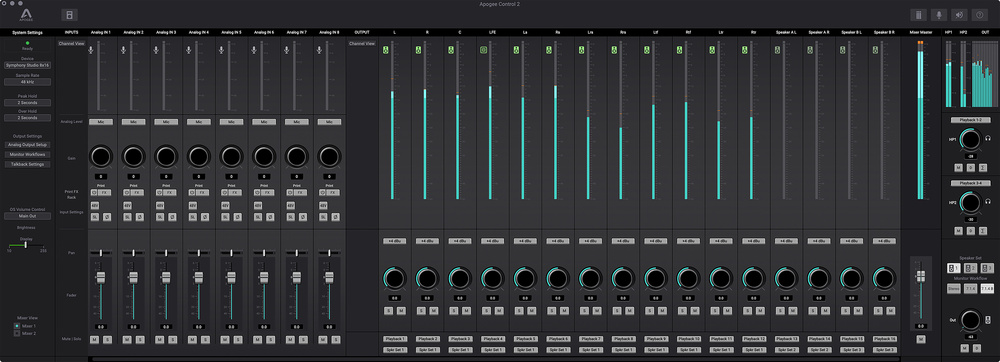 Screen 1: The Apogee Control 2 home display shows inputs on the left and outputs on the right.
While the core functionality of the Symphony Studio can be configured from its front‑panel buttons and rotary encoder (or a USB‑connected Apogee Control hardware desktop controller), its partnering DAW host application, called Apogee Control 2, both duplicates the front panel functions and offers considerably more — and that’s an understatement. For example, the first Apogee Control 2 screenshot illustrates its home display with general settings on the left and the eight input channels adjacent to the right. The input channel button functionality is all pretty much self‑evident, but hidden behind the FX button is a feature that sets the Symphony Studio apart from lesser interfaces: a fully featured, DSP‑powered Apogee ECS channel strip plug‑in. Pressing the FX button opens the plug‑in, illustrated in Screen 2. The ECS plug‑in, rather than consuming DAW host processing power, resides within the Symphony Studio hardware and there’s effectively no limit on the number of instances that can be used. If you want the ECS channel strip active on all inputs that’s no problem.
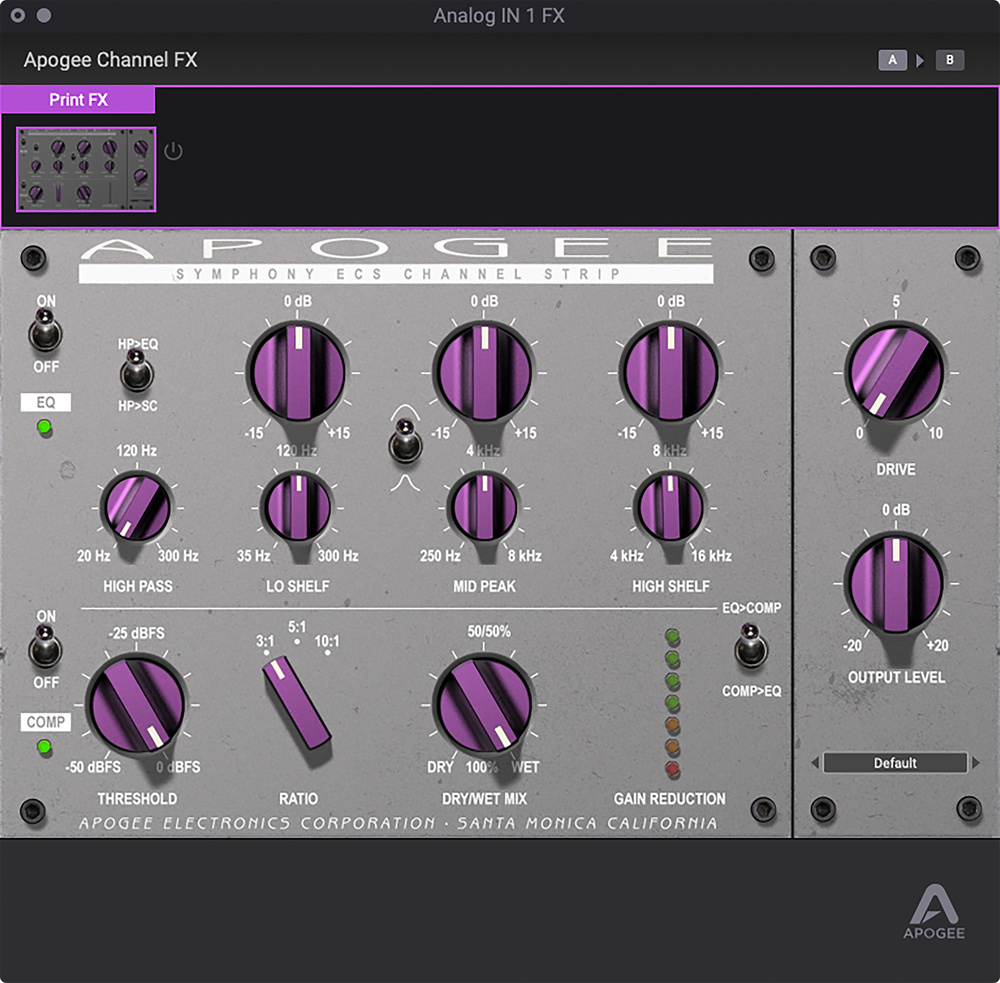 Screen 2: The Apogee ECS channel strip plug‑in can be inserted on each Symphony Studio input.The mic preamps offer up to 75dB of gain combined with an EIN (equivalent input noise) spec of ‑129dB, which puts them towards the top end of mic preamp spectrum. Downstream of the inputs, the Symphony Studio, say Apogee, “harnesses the same cutting‑edge A‑D/D‑A converters found in the renowned Symphony MkII, delivering unparalleled sonic accuracy and transparency”. I’d not indulge in such hyperbole in my analysis, but Apogee have long been renowned for very high‑performance converter technology, so I’d fully expect very high quality. Also available on Symphony Studio inputs is Apogee’s Soft Limiting technology. Apogee Soft Limiting operates in the analogue domain (rather than within the DSP engine) to gently limit signals that come within 2dB of A‑D clipping. The Soft Limiting occurs before the input signal reaches the DSP‑based ECS channel strip, so if it were to be engaged after the ECS compressor/limiter parameters have been configured, those parameters might require revisiting. Apogee claim that the ECS results in no extra latency and a quick check I made confirmed that to be the case (although ECS did appear to add about 1dB to wide‑band level even when set to 0dB gain). While I’m on the subject, I measured basic in/out latency of the Studio Symphony at under 3ms (48kHz sampling rate).
Mostly Software
Returning to the Apogee Control 2 app, to the right of the input section on the home display screenshot are output channel strips that offer metering, gain adjustment, mute and solo functions. At the bottom of each channel are Speaker Set buttons, and these enable outputs potentially to be assigned to alternative monitors. Speaker Sets, and what Apogee have christened Monitor Workflows, are fundamental elements of the Studio Symphony operational infrastructure and to a large extent a consequence of its immersive audio role. A Monitor Workflow is a stored Symphony Studio preset that covers channel routing, room correction (output/room EQ), speaker delay and bass management — the last three of which I’ll cover a few paragraphs hence. The Symphony Studio 8x16 ships with four Monitor Workflow presets pre‑configured in terms of channel routing for stereo, 5.1, 7.1.4 and 9.1.6 monitoring. Four further preset slots are available. The pre‑configured Monitor Workflow presets have no room correction or delays applied and have bass management disabled. One important point to make concerning Monitor Workflows is that selecting a Workflow comprising fewer channels than the output material (say you select a 2.0 workflow when outputting 7.1.4 material) doesn’t fold the multi‑channel stream down to stereo (in Atmos terms, it’s not a re‑render). It will simply mute all but the left and right outputs. This is by no means a criticism of the Symphony Studio or Apogee Control 2, because re‑renders are not its job (the Atmos renderer is responsible for creating re‑renders), but worth bearing in mind.
The second element of monitor management is Speaker Sets. Apogee Control 2 provides switchable Speaker Sets that enable Monitor Workflow presets to be assigned to different sets of speakers. This enables, for example, alternative monitors to be used for 2.0 and Atmos playback. My studio is a perfect example of this, where 7.1.4 Atmos monitoring is done over a system comprising 11 Dynaudio BM5 MkIIIs and one Dynaudio Sub 18, whereas stereo mostly happens on a pair of Neumann KH150s. Up to three different Speaker Sets are available and each can have different Monitor Workflows assigned; however, alternative Speaker Set options are only available if the Symphony Studio has free outputs beyond those consumed by Atmos monitoring. Again, my studio works well in this respect because the 12 outputs of 7.1.4 monitoring leave four free for alternative Speaker Sets.
Returning to Screen 1 for a moment, it reflects a custom Monitor Workflow I created (called 7.1.4B) where Symphony Studio outputs 1‑12 are assigned to Speaker Set 1 (the Dynaudio 7.1.4 system), and outputs 13+14 are assigned to Speaker Set 2 (the stereo Neumann KH150s). For completeness I also assigned channels 15+16 to Speaker Set 3, although they were left unused. Speaker Sets and Monitor Workflows can be selected on the fly from buttons in the panel on the bottom right of the main display.
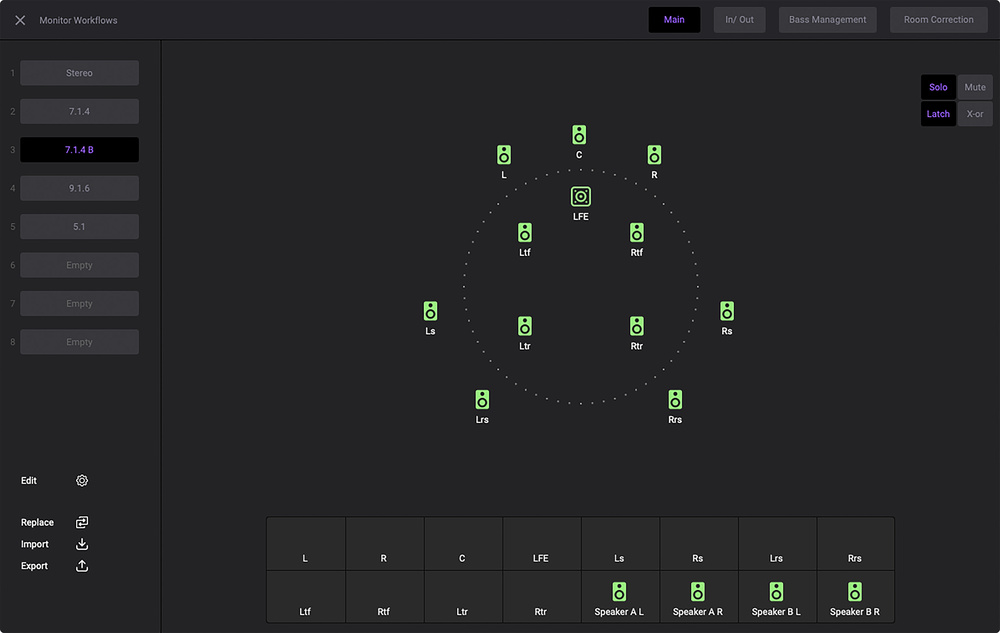 Screen 3: Selecting Monitor Workflows in Apogee Control 2 opens the monitor configuration window.
Configuring Monitor Workflows is done in the Apogee Control 2 Monitor Workflow home display, illustrated in Screen 3. My 7.1.4B Monitor Workflow is selected in the screenshot but the assignment of channels 13‑16 to Speaker Sets 2 and 3 can also be seen. The monitor icons in the display can be clicked either to solo or mute monitors depending on the setting at the top right of the display. Along the top of the Monitor Workflow main display are buttons that open the In/Out routing, Bass Management setup and Room Correction windows. The In/Out routing and Bass Management windows and options are generally self‑explanatory and intuitive, but Room Correction deserves some explanation so I’ve illustrated it in Screen 4.
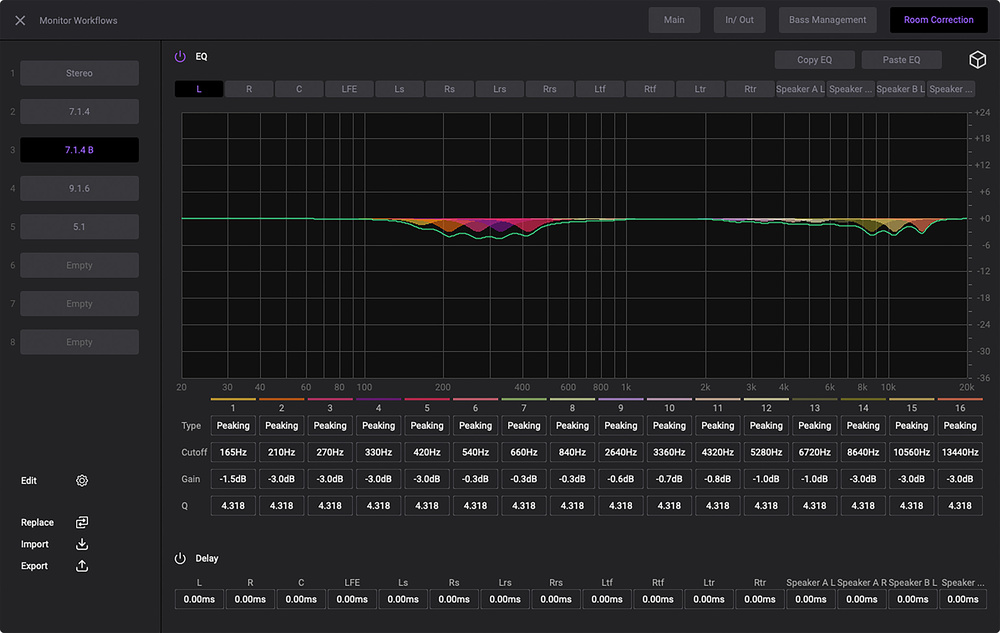 Screen 4: The Room Correction window provides 16 bands of EQ, and adjustable delay on each monitor output channel.
Read The Room
The room correction EQ and delays, powered by the Symphony Studio’s internal DSP, offer 16 bands of EQ for each output. Each band can be set to peak, low‑pass, high‑pass, low‑shelf or high‑shelf functions. Delays can also be applied to each output channel. You’ll see from the screenshot that some EQ has been applied and this was generated by an Apogee Control 2 room acoustics correction routine, accessed by clicking on the cube line drawing at the top right of the Room Correction display. Screen 5 illustrates said routine. The dimensions and room surface materials I’ve input in the screenshot reflect my studio, although the reverberation time (2.83ms) that the routine predicts is nowhere near the measured value of between 0.3ms and 0.6ms. The proposed EQ curves it applies looks somewhat generic too. Furthermore the correction routine also applies the same EQ to all the outputs but the LFE, and that’s not really adequate for serious room correction, to my way of thinking. This is all of course because the routine takes no account of actual monitor locations in the room, their inherent acoustic signature or any absorption or diffusion. In Apogee’s defence, they do state in the Symphony Studio user manual that the room correction routine is only a starting point, and they suggest the use of third‑party applications that can comprehensively analyse room/monitor acoustics and export EQ and delay coefficients (Sonarworks SoundID or Room EQ Wizard, for example). I’d endorse that wholeheartedly, although I’m not sure I’d want to be responsible for manually inputting frequency, level and Q values for 16 EQ bands on up to 16 output channels. What’s missing here of course is full integration with a room analysis and correction system such as the Audient ORIA or Universal Audio Apollo, for example, have with Sonarworks.
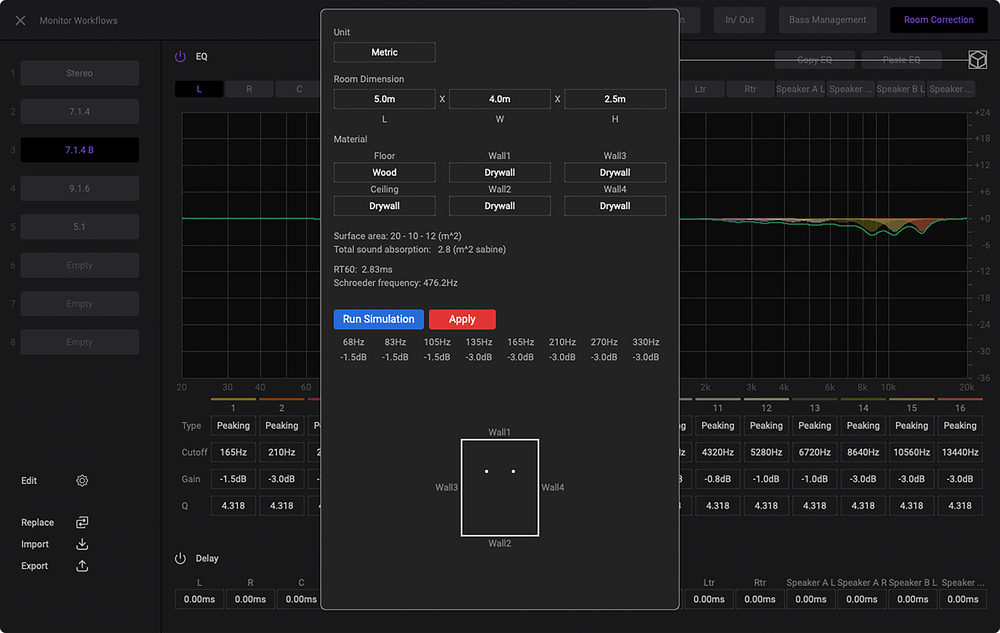 Screen 5: Apogee Control 2 incorporates a rudimentary room modelling function that generates EQ curves based on room size and predicted acoustics.
Finally, in Apogee Control 2, there’s the headphone configuration and control section on the right‑hand side of the display. I’ve been describing the Symphony Studio 8x16 as a 16‑output device but, of course, two stereo headphone sockets effectively add another four. Each headphone output can be independently configured within Apogee Control 2 to be fed from any two DAW playback channels, from the Apogee Control 2 internal mixer or directly from a Symphony Studio input. You couldn’t really wish for any more headphone configuration options.
One Last Thing
Before I wrap up, in all this talk of outputs and monitoring functionality I’ve perhaps lost sight of the input and tracking side of things. So I made a few simple test recordings of a variety of basses and acoustic guitars and came away from those experiments deeply impressed by the effectively silent and wonderfully transparent Symphony Studio mic preamps, and by the sound‑sculpting opportunities of the ECS channel strip plug‑in (I found its preset patches are notably worthwhile). There’s something genuinely engaging and creatively inspiring about tracking through the Symphony Studio and ECS.
The Symphony Studio is deeply impressive. It’s a hugely capable and versatile interface that does pretty much everything required in a contemporary immersive studio environment, and more.
Conclusion
The Symphony Studio is deeply impressive. It’s a hugely capable and versatile interface that does pretty much everything required in a contemporary immersive studio environment, and more. On the tracking side, the very high‑performance mic inputs in combination with the ECS channel strip plug‑in offer genuinely professional studio quality, while on the multi‑channel output side, the degree of versatility and configurability and control is exactly the kind of thing an immersive mix facility needs.
Alternatives
USB interfaces with enough outputs for Dolby Atmos are still relatively thin on the ground. I’ve already mentioned the Audient ORIA, and if two inputs are enough, it competes quite closely with the Symphony Studio 2x12. With its more restricted output count the Symphony Studio 8x8 has numerous competitors from brands such as Focusrite, SSL and PreSonus, but the Symphony Studio 8x16 is pretty much out on its own in the USB interface world.
Pros
- Hugely versatile immersive output configuration.
- Really great‑sounding inputs.
- Comprehensive control from the Apogee Control 2 app.
Cons
- No I/O expansion through ADAT or audio over IP.
- No integration with room/monitor optimisation.
Summary
Apogee’s Symphony Studio is a jack of all trades, but it has them all pretty much mastered. Highly recommended.
Information
Symphony Studio 2x12 £1929, 8x8 £2699, 8x16 £3399. Prices include VAT.
Sound Technology +44 (0)1462 48000.
Symphony Studio 2x12 $2199, 8x8 $2999, 8x16 $3999.
When you purchase via links on our site, SOS may earn an affiliate commission. More info...

When you purchase via links on our site, SOS may earn an affiliate commission. More info...